
LOVENSE LOVENSE 4K Webcam 2 for PC
LOVENSE Webcam 2 User Manual
Model: LOVENSE 4K Webcam 2 for PC
Brand: LOVENSE
Introduction
This manual provides comprehensive instructions for the setup, operation, and maintenance of your LOVENSE Webcam 2. Please read this manual carefully before using the product to ensure optimal performance and longevity.

Image: Front view of the LOVENSE Webcam 2, showcasing its sleek black design with the LOVENSE logo and 4K AI F/1.8 1/2" lens details visible.
What's in the Box
Verify that all items are present in the package:
- 1x Lovense Webcam
- USB-C to USB-C Cable
- USB-A Adapter
- User Manual
- Quick Start Guide

Image: The LOVENSE Webcam 2 package contents, including the webcam, cables, and documentation, laid out on a surface.
Key Features
- Ultra HD 4K Resolution: Provides clear and vibrant video quality for live streaming and video calls.
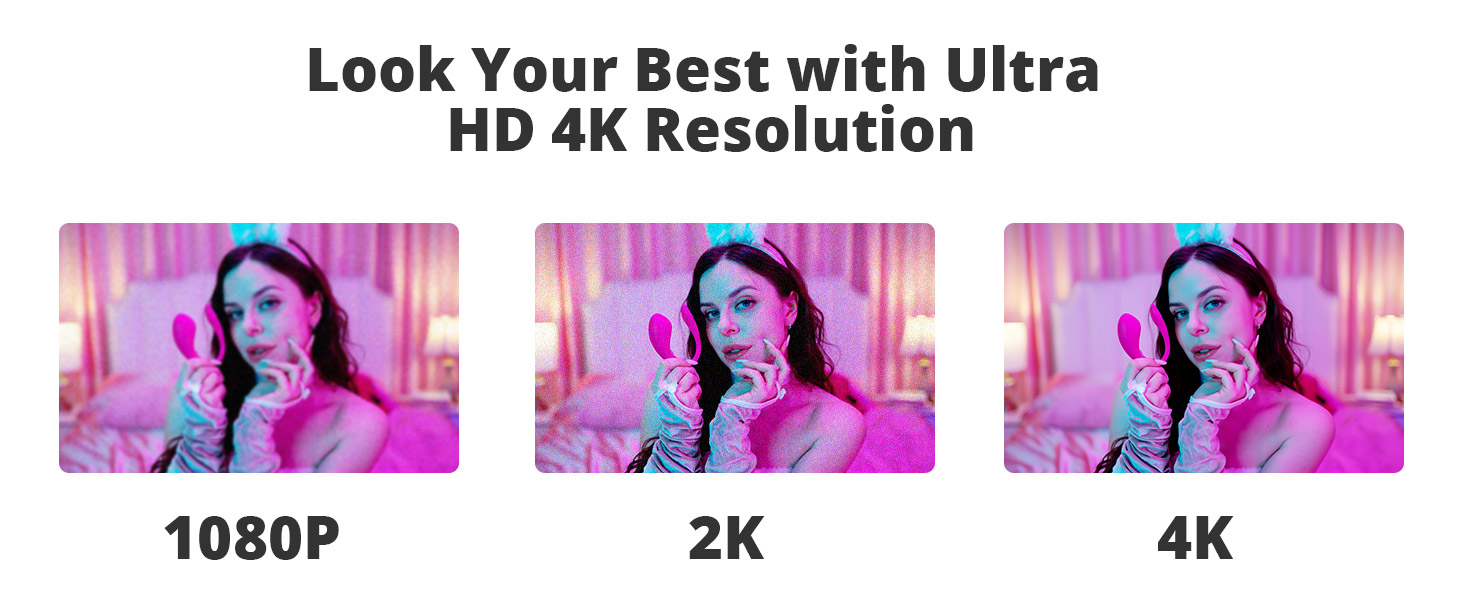
Image: Visual comparison demonstrating the improved clarity and detail of 4K resolution compared to 1080p and 2K.
- Professional 1/2" Sensor: Enhances low-light performance and captures more detail.
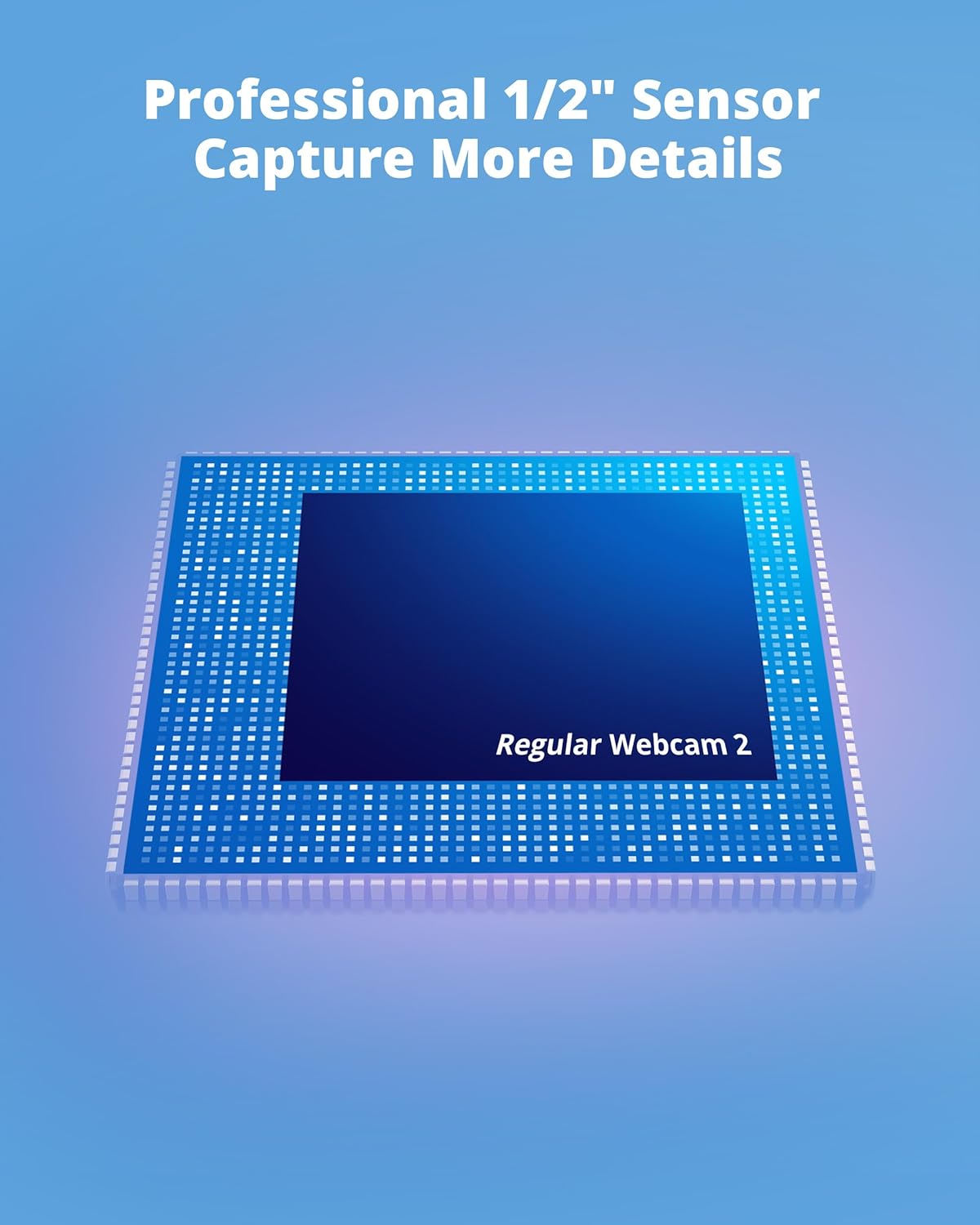
Image: A diagram illustrating the size of a professional 1/2" sensor compared to a regular webcam sensor, highlighting its larger area for capturing more details.
- AI Noise Canceling with 3 Audio Modes: Filters background noise for clear audio. Includes Voice Focus, Noise Cancellation, and Music & Voice Balance modes.

Image: A visual representation of the AI Noise Canceling feature, showing sound waves being filtered out by the webcam.
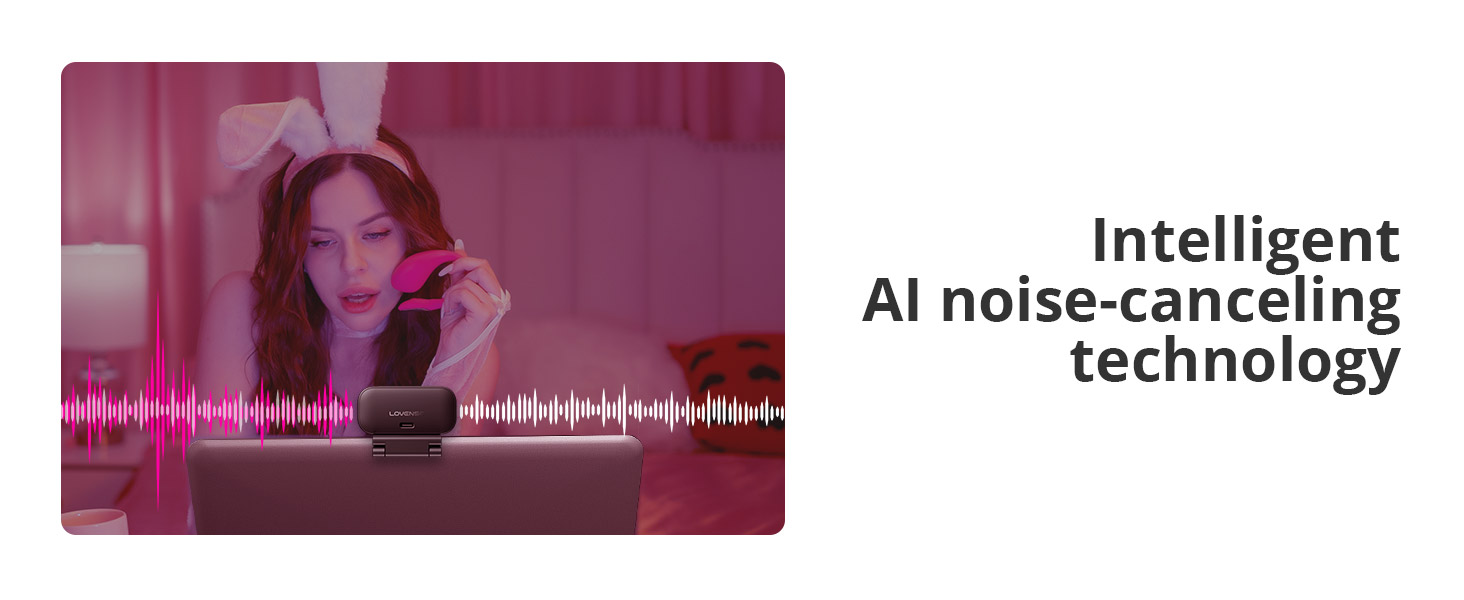
Image: A graphic illustrating the intelligent AI noise-canceling technology, showing how unwanted sounds are suppressed.
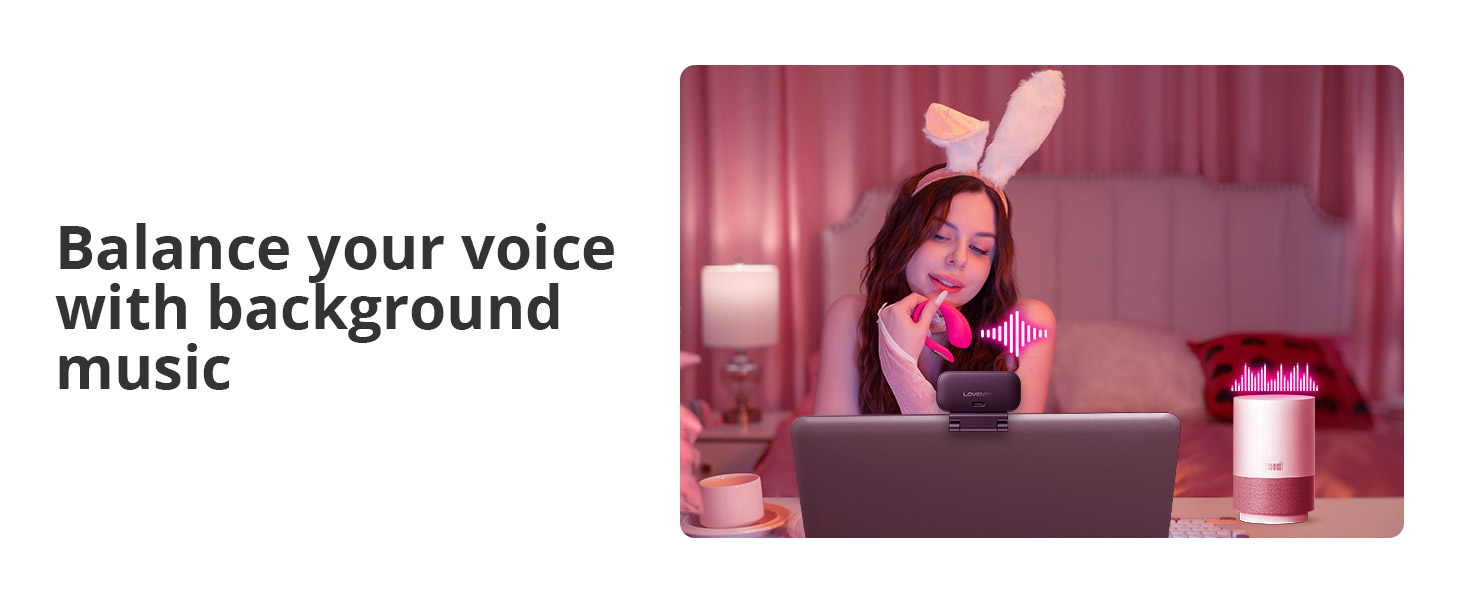
Image: A visual demonstrating the ability to balance voice audio with background music, ensuring both are clear and well-proportioned.
- Hand Gesture Control: Adjust camera view with simple hand motions.

Image: A user demonstrating hand gestures to control the webcam, with a smartphone showing the companion app for mobile control.
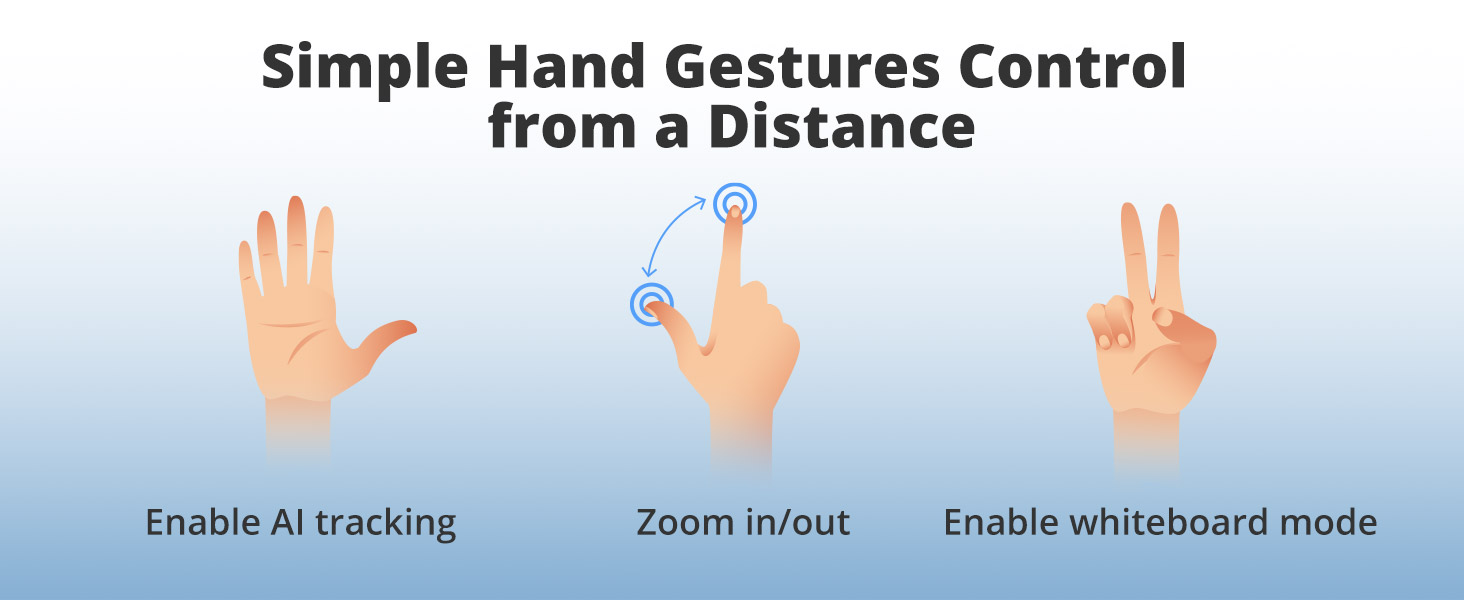
Image: Illustrations of three hand gestures: one for enabling AI tracking, one for zoom in/out, and one for enabling whiteboard mode.
- Mobile Control: Manage settings conveniently from your smartphone.
- AI Auto Framing: Keeps you perfectly centered in the frame.
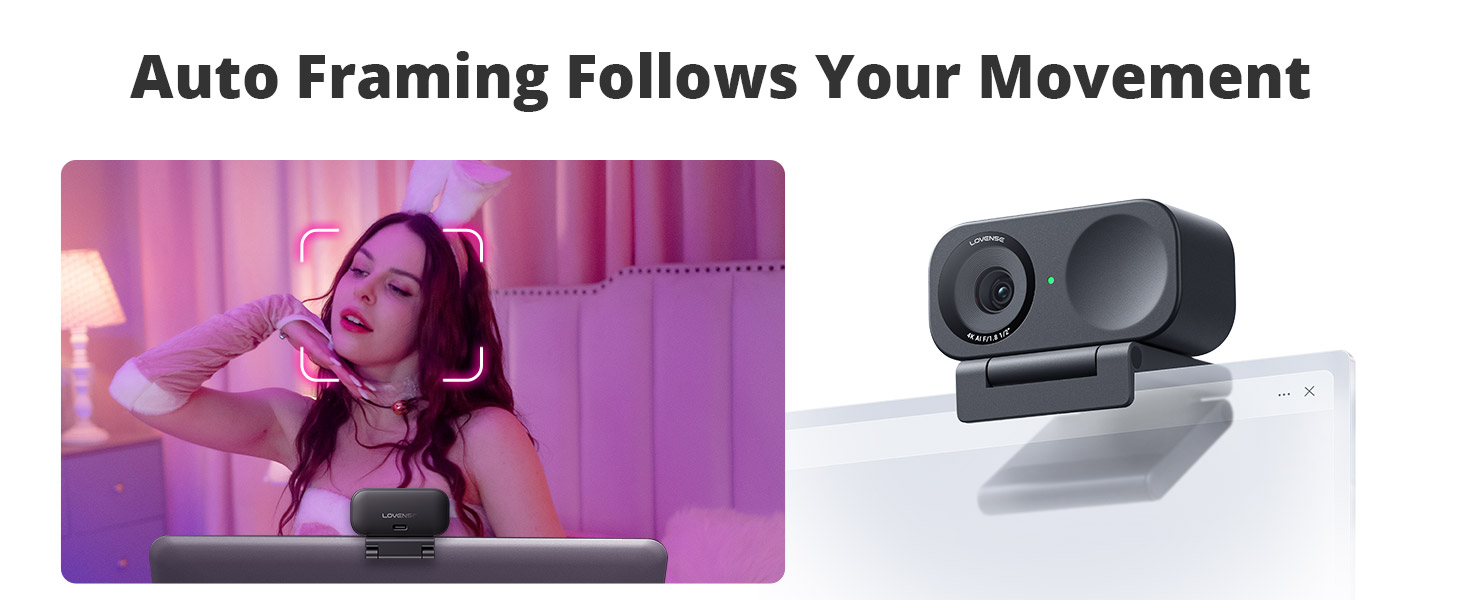
Image: A visual showing the auto-framing feature in action, with a red box tracking a person's face to keep them centered in the video feed.
- Privacy Mode: Includes an easy-access privacy switch for security.
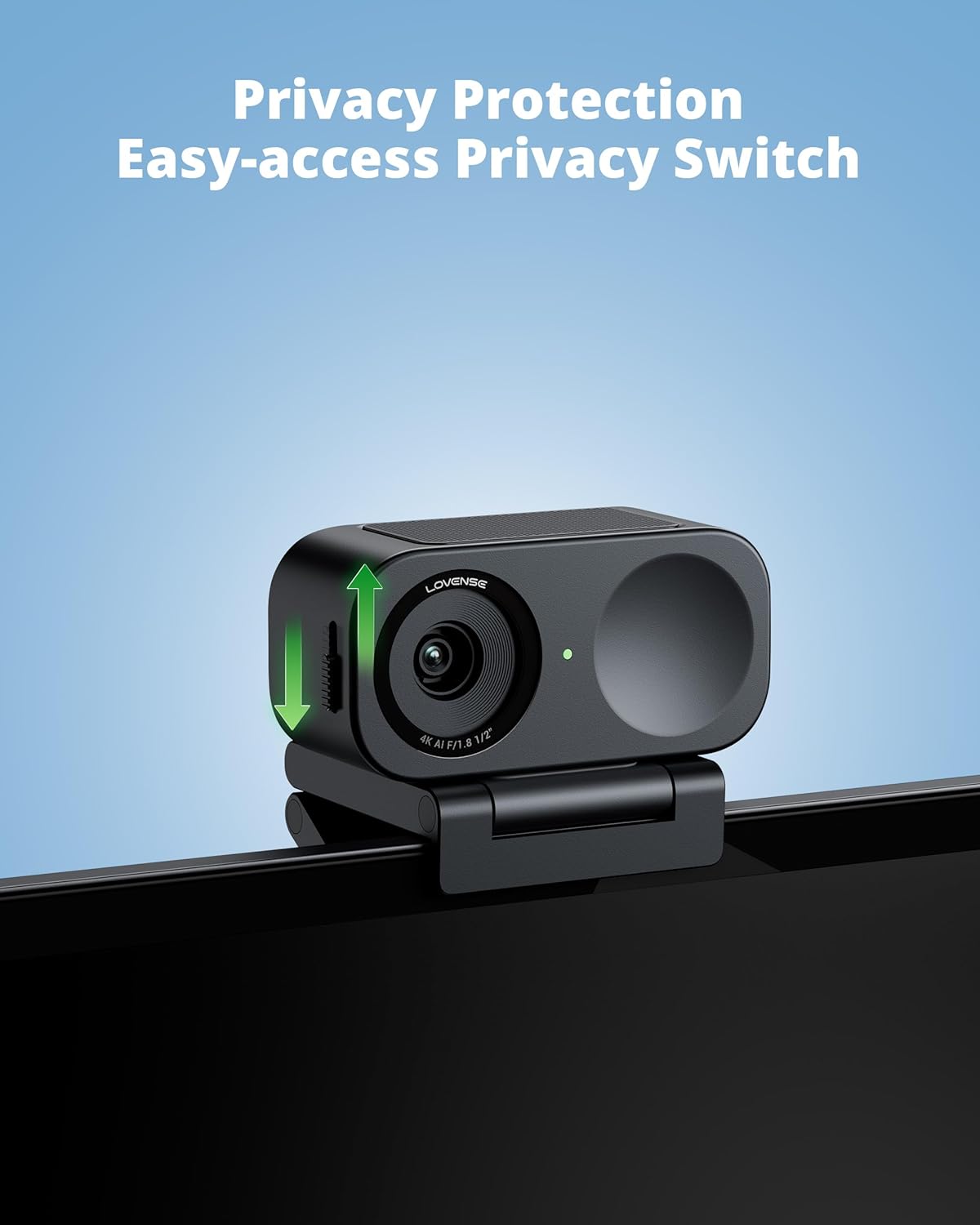
Image: A close-up of the LOVENSE Webcam 2 showing the physical privacy switch on the side, with green arrows indicating its movement.
- Tip-Activated Streaming: Automatically responds to tips by zooming in/out to preset positions (for compatible platforms).

Image: A laptop screen displaying a live stream with on-screen tip notifications and a user interacting with the camera, demonstrating the tip-activated feature.
- Native OBS Control: Seamless integration directly within OBS for multi-platform streaming.
- HDR Mode: Balances images in various lighting conditions.

Image: A split image demonstrating the effect of HDR mode, showing a scene with HDR OFF (overexposed highlights, underexposed shadows) and HDR ON (balanced exposure).
Setup Guide
- Unpack the Webcam: Carefully remove the LOVENSE Webcam 2 and all accessories from the packaging.
- Mount the Webcam:
- On a Monitor/Laptop: Open the integrated clip/stand and place it securely on top of your monitor or laptop screen. Adjust the angle to ensure stability.
- On a Tripod: The webcam features a standard tripod thread on its base. Attach it to a compatible tripod for more flexible positioning.
- Connect to Your Computer:
- Connect one end of the provided USB-C cable to the USB-C port on the LOVENSE Webcam 2.
- Connect the other end of the USB-C cable to an available USB-C port on your computer. If your computer only has USB-A ports, use the included USB-A adapter.
- Driver Installation (Plug & Play): The LOVENSE Webcam 2 is a plug-and-play device. Your operating system (Windows, macOS) should automatically detect and install the necessary drivers. Allow a few moments for the installation to complete.
- Software Installation (Optional but Recommended): For full functionality and advanced controls (like gesture control, mobile control, and specific audio modes), download and install the official LOVENSE software from the LOVENSE website.
- Verify Connection: Open a video conferencing application (e.g., Zoom, Skype, OBS) or your computer's camera application. Select "LOVENSE Webcam 2" as your video input device. You should see your video feed.
Operating Instructions
Basic Operation
- Power On/Off: The webcam powers on automatically when connected to a powered USB port. Disconnect the USB cable to power it off.
- Privacy Switch: Slide the physical privacy switch on the side of the webcam to cover or uncover the lens. This provides immediate privacy control.
- Indicator Light: A small LED light next to the lens indicates when the camera is active.
Advanced Features (via LOVENSE Software)
To utilize the full range of features, ensure the LOVENSE software is installed and running.
- AI Auto Framing:
Enable this feature in the software settings. The webcam will automatically adjust its field of view to keep you centered in the frame, even if you move around.
- AI Noise Canceling & Audio Modes:
Access the audio settings within the LOVENSE software. Select from the following modes:
- Voice Focus: Optimizes your voice clarity, reducing ambient sounds.
- Noise Cancellation: Aggressively filters out background noise.
- Music & Voice Balance: Ideal for scenarios where both your voice and background music need to be balanced.
- Hand Gesture Control:
Activate gesture control in the software. Perform specific hand gestures in front of the camera to trigger actions such as:
- Enabling/Disabling AI tracking
- Zooming in/out
- Activating whiteboard mode (if supported by software)
- Mobile Control:
Download the LOVENSE mobile app on your smartphone. Pair it with your webcam via the software to control settings remotely, including zoom, pan, tilt, and feature toggles.
- Tip-Activated Features:
For compatible streaming platforms, configure tip activation settings within the LOVENSE software. This allows the webcam to automatically zoom or adjust to preset positions when certain tip thresholds are met, enhancing audience engagement.
- Native OBS Control:
For streamers using OBS, the LOVENSE Webcam 2 offers direct integration. Manage camera settings and features directly within OBS without needing to switch to separate software.
- HDR Mode:
Toggle HDR (High Dynamic Range) mode in the software settings to improve image quality in challenging lighting conditions, balancing bright and dark areas.
Maintenance
- Cleaning the Lens: Use a soft, lint-free cloth specifically designed for optical lenses to gently wipe the webcam lens. Do not use abrasive materials or harsh cleaning solutions.
- Cleaning the Body: Wipe the webcam body with a soft, damp cloth. Avoid getting moisture into any openings.
- Storage: When not in use for extended periods, store the webcam in a cool, dry place, away from direct sunlight and extreme temperatures.
- Software Updates: Regularly check the official LOVENSE website for software and firmware updates to ensure optimal performance and access to new features.
Troubleshooting
| Problem | Possible Cause / Solution |
|---|---|
| No video feed / Webcam not detected |
|
| Poor video quality / Blurry image |
|
| No audio / Poor audio quality |
|
| Gesture control not working |
|
Specifications
| Feature | Detail |
|---|---|
| Model Name | Webcam 2 |
| Item Model Number | LOVENSE 4K Webcam 2 for PC |
| Camcorder Type | Webcam |
| Connectivity Technology | USB |
| Screen Size | 2 Inches (Visible screen diagonal) |
| Video Capture Resolution | 4K |
| Maximum Video Resolution | 4K@30fps |
| Video Coding Format | H.264.MIPEG |
| Photo Sensor Technology | CMOS |
| Maximum Focal Length | 26 Millimeters |
| Aperture | F1.8 |
| Digital Zoom | Up to 4x |
| ISO | 100-3200 |
| Shutter Speed | 1/8000-1/30s |
| Exposure Compensation | ±3 EV |
| Item Weight | 46.5g (approx. 1.64 ounces) |
| Package Dimensions | 11.42 x 5.12 x 2.76 inches |
| Product Dimensions (WxHxD) | 2.47 x 1.19 x 1.02 inches (62.7 x 30.2 x 25 mm) |
| Power Consumption | 5V/1A |
| Operating Temperature | 32°F to 104°F (0°C to 40°C) |
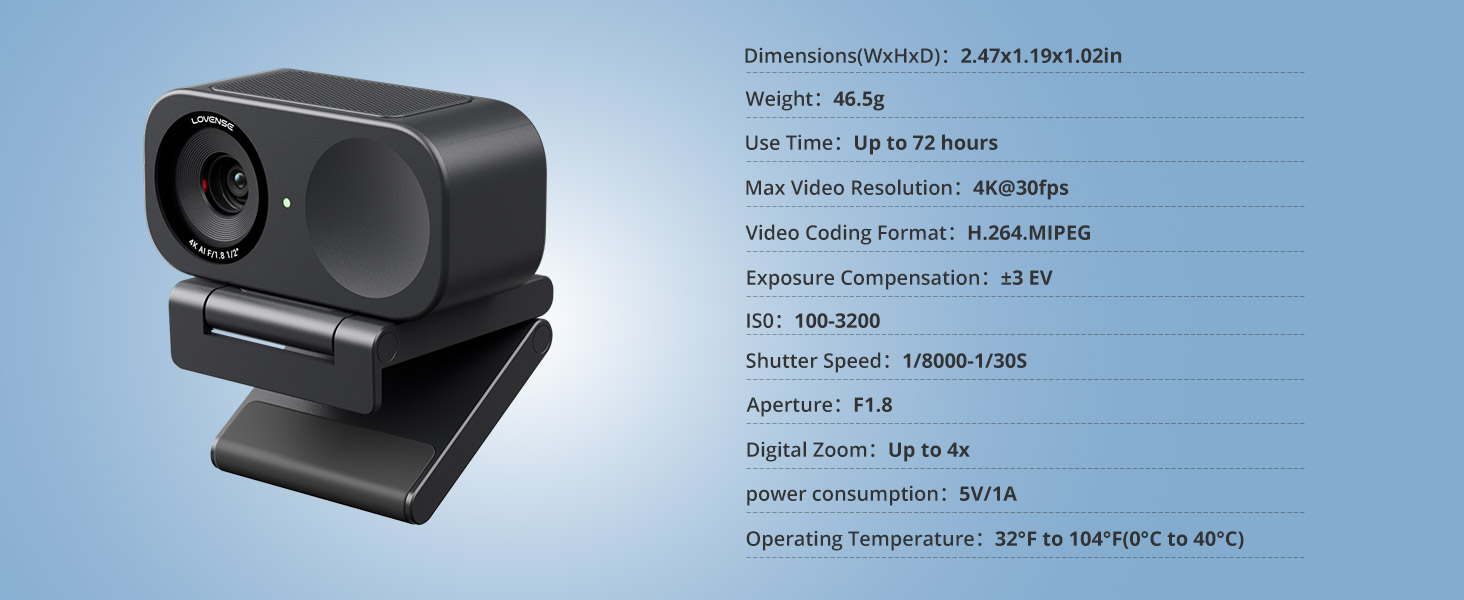
Image: A diagram showing the LOVENSE Webcam 2 with its dimensions and a table listing detailed technical specifications.
Warranty and Support
For warranty information and technical support, please refer to the official LOVENSE website or contact LOVENSE customer service directly. Keep your proof of purchase for warranty claims.
LOVENSE Official Website: www.lovense.com
Important Safety Information
- Do not expose the webcam to water or excessive moisture.
- Avoid dropping or subjecting the webcam to severe impacts.
- Do not attempt to disassemble or repair the webcam yourself. Refer to qualified service personnel.
- Use only the provided cables and accessories.
- Keep out of reach of children.
Ask a question about this manual
Ask about setup, troubleshooting, compatibility, parts, safety, or missing instructions. Manuals+ will review the question and use this page’s manual context to help answer it.