
1. Introduction
This manual provides detailed instructions for the installation, operation, and maintenance of your SIXTOP Android Car Stereo. This unit is designed for Hyundai Elantra models from 2011 to 2013, featuring an 8-core processor, 4GB RAM, and 64GB internal storage. It integrates advanced functionalities such as Apple CarPlay, Android Auto, Bluetooth 5.0, FM/RDS radio, DSP 32EQ audio processing, AI voice control, and GPS navigation.
Please read this manual thoroughly before installation and use to ensure proper function and to maximize your experience with the product. Keep this manual for future reference.
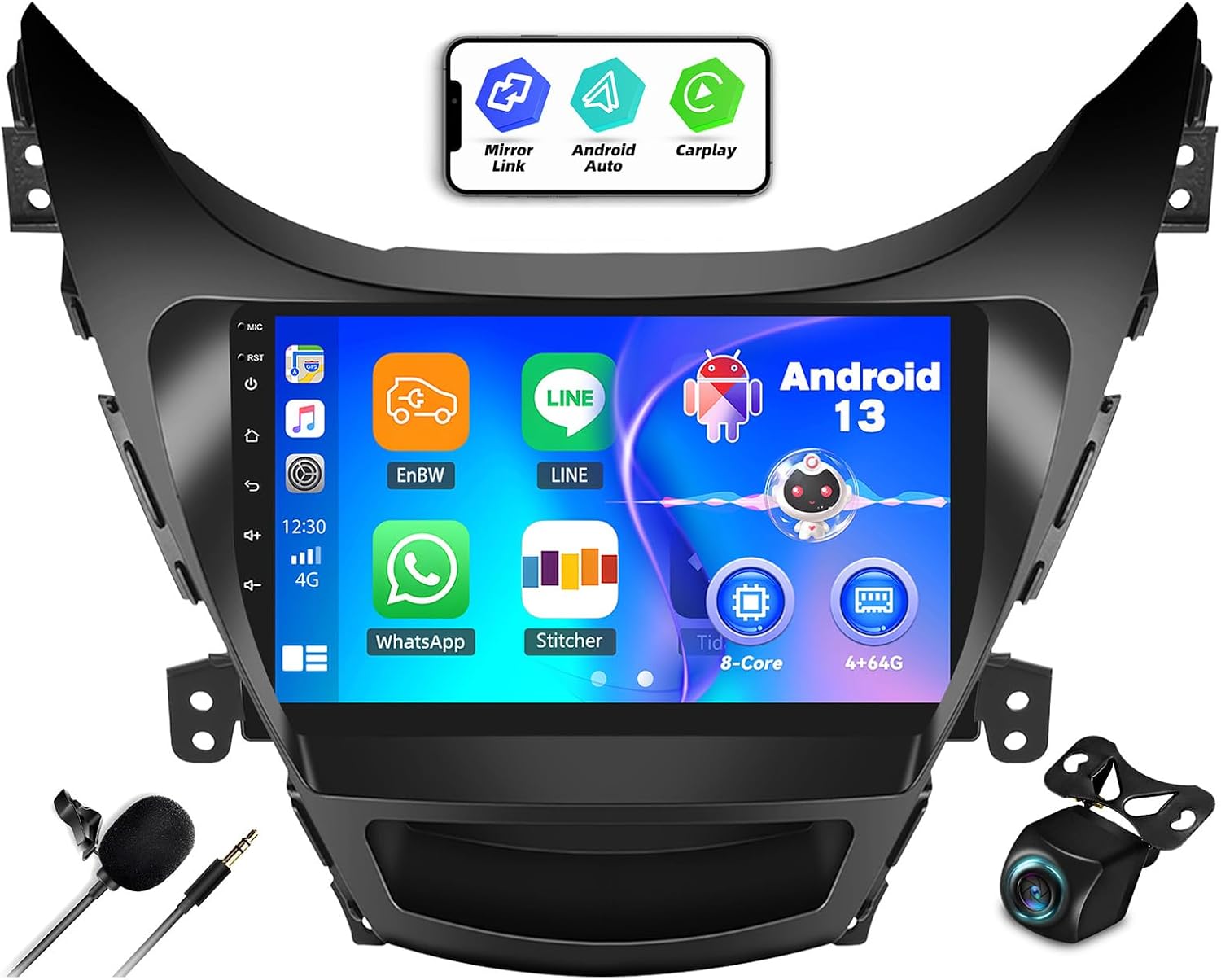
Image 1.1: SIXTOP Android Car Stereo main unit with included accessories.
2. Package Contents
Verify that all items listed below are included in your package. If any items are missing or damaged, please contact customer support.
- Car Stereo with Frame
- AHD Rear Camera
- External Microphone
- Power Cable
- USB Cable (2x)
- RCA Cable
- GPS Antenna
- Radio Antenna
- Installation Tools
- User Manual
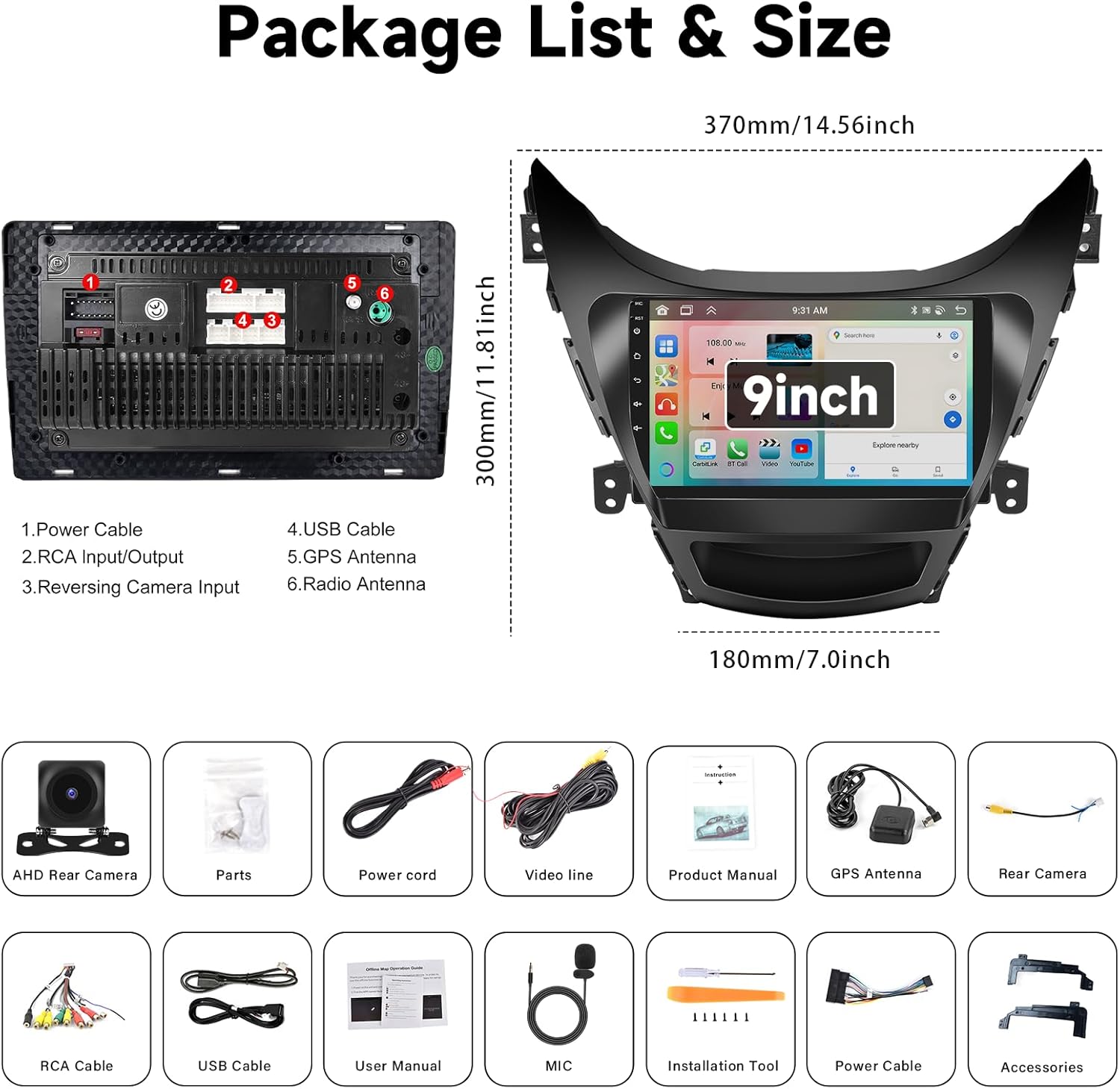
Image 2.1: Visual representation of package contents and unit dimensions.
3. Product Overview
3.1. Dimensions
The main unit has a display size of 9 inches. The overall parcel dimensions are approximately 39 x 30 x 11 cm, with a weight of 2.28 kg.
3.2. Rear Panel Connections
The rear panel of the stereo unit features various ports for connecting power, audio/video inputs/outputs, USB devices, GPS antenna, and the radio antenna. Refer to the diagram below for specific connection points.
- Power Cable: Connects to the vehicle's power supply.
- RCA Input/Output: For external audio/video devices.
- Reversing Camera Input: Dedicated input for the AHD rear camera.
- USB Cable: For connecting USB devices, Android Auto, or Apple CarPlay.
- GPS Antenna: Connects the GPS antenna for navigation.
- Radio Antenna: Connects the vehicle's radio antenna.
Image 3.1: Rear panel connections and their functions.
4. Installation
Installation of car stereo systems can be complex and may require specialized tools and knowledge. It is recommended to seek professional installation to avoid damage to the unit or your vehicle's electrical system.
4.1. General Installation Steps (Professional Installation Recommended)
- Preparation: Disconnect the vehicle's battery before starting any electrical work.
- Remove Old Unit: Carefully remove the existing car stereo and trim.
- Connect Wiring: Connect the provided power cable, RCA cables, USB cables, GPS antenna, and radio antenna to the corresponding ports on the new unit and the vehicle's wiring harness. Ensure all connections are secure.
- Install Rear Camera (Optional): If installing the AHD rear camera, route the camera cable from the rear of the vehicle to the stereo unit and connect it to the dedicated input. Connect the camera's power to the vehicle's reverse light circuit. Refer to Section 5.7 for wiring diagram.
- Mount New Unit: Secure the new stereo unit into the dashboard using the provided frame and mounting brackets.
- Test Functionality: Reconnect the vehicle's battery and test all functions of the stereo before fully reassembling the dashboard.

Image 4.1: Example of the Android Car Stereo installed in a Hyundai Elantra.
5. Setup and Operating Instructions
5.1. Initial Power-On and Basic Settings
Upon first power-on, the system will boot to the Android interface. You may need to configure basic settings such as language, time zone, and Wi-Fi connection. Navigate through the settings menu to customize these options.
5.2. Apple CarPlay and Android Auto
The unit supports both wireless Apple CarPlay and Android Auto. This feature allows you to synchronize your phone's applications, contacts, navigation, and music directly to the car stereo display.
- Wireless Connection: Ensure your mobile phone's Wi-Fi and Bluetooth are enabled. Connect your phone via Bluetooth to the car stereo. Open the [CPLINK] or [Android Auto] application on the stereo to establish an automatic connection.
- USB Connection: Alternatively, connect your phone to the stereo using a USB cable. Then, open the [CPLINK] or [Android Auto] application.

Image 5.1: Apple CarPlay, Android Auto, and Mirror Link functionality.
5.3. Mirror Link Function
Mirror Link allows you to display your mobile phone's screen directly onto the car stereo. This is useful for viewing content such as downloaded videos from your phone.
- Select the [CarbitLink] application on the stereo.
- Connect your mobile phone to the stereo via Wi-Fi.
5.4. DSP 32EQ Audio Settings
The Digital Sound Processor (DSP) with 32-band equalization allows for extensive audio customization. You can select from various preset sound effects or manually adjust the equalizer to achieve optimal sound quality.
- Access the DSP settings through the audio menu.
- Choose from modes like 3D optimized, Panorama, or HiFi scene.
- Adjust individual frequency bands and other audio parameters as desired.

Image 5.2: DSP 32EQ interface for sound customization.
5.5. FM/RDS and Network Radio
The stereo supports traditional FM/RDS radio for local broadcasts and network radio for a wider selection of stations.
- FM/RDS: Tune into local radio stations. RDS provides additional information like station name and traffic updates.
- Network Radio: Connect to Wi-Fi to access online radio stations from various countries and regions.

Image 5.3: FM/RDS and Network Radio interfaces.
5.6. Wi-Fi and GPS Navigation
The unit features built-in Wi-Fi and supports GPS, Galileo, and Glonass satellite positioning systems.
- Wi-Fi: Connect to a Wi-Fi hotspot to download applications from the Play Store, stream online music, or watch videos.
- GPS Navigation: Utilize the integrated GPS for navigation. Offline maps can be downloaded from the Play Store. Online maps are also supported when connected to Wi-Fi.

Image 5.4: Wi-Fi, Bluetooth, Steering Wheel Control, and GPS features.
5.7. AI Intelligent Voice Control
The AI Intelligent Voice feature allows for hands-free operation of various functions.
- Click on the Voice APP icon to activate the voice assistant.
- Speak commands such as


