
1. Introduction
The Accsoon Como SE Wireless Headset Intercom System is designed for clear and reliable team communication over extended distances. This manual provides detailed instructions for the setup, operation, and maintenance of your Accsoon CoMo SE Host headset, ensuring optimal performance and longevity.
The system features an impressive transmission range of up to 400 meters (1312 feet), an external antenna for stable wireless connectivity, and an exceptional battery life of over 30 hours. It supports communication for up to 5 users and incorporates advanced Environmental Noise Cancellation (ENC) for crystal-clear audio in various environments. The flip-to-mute microphone offers convenient hands-free operation.

Image 1.1: The Accsoon Como SE Host Headset, showcasing its ergonomic design and integrated microphone.
2. What's in the Box
Upon unpacking your Accsoon Como SE Host headset, please verify that all components are present:
- Accsoon Como SE Host Headset
- User Manual (this document)
Additional accessories may be included depending on the specific package purchased.
3. Product Features
- Up to 400m (1312ft) Transmission Range: Ensures reliable connectivity over extended distances, suitable for various professional applications.

Image 3.1: Visual representation of the 400-meter transmission range capability.
- External Antenna Design: Enhances wireless stability and maintains a dependable connection between host and remote headsets.

Image 3.2: Close-up of the headset highlighting the external antenna for improved signal stability.
- Exceptional Battery Life (30+ Hours): Provides extended operational time, reducing the need for frequent recharging during long sessions.

Image 3.3: Illustration of the headset's long-lasting battery, indicating over 30 hours of use.
- Supports up to 5 Users: Facilitates reliable and efficient coordination for small to medium-sized teams.

Image 3.4: Diagram showing one host headset connected to four remote headsets, totaling five users.
- Environment Noise Cancellation (ENC): Advanced technology reduces background noise for crystal-clear audio communication.

Image 3.5: Graphic illustrating the effect of ENC, showing sound waves before and after noise reduction.
- Flip-to-Mute Microphone: Allows for intuitive and effortless muting of the microphone by simply flipping it up.
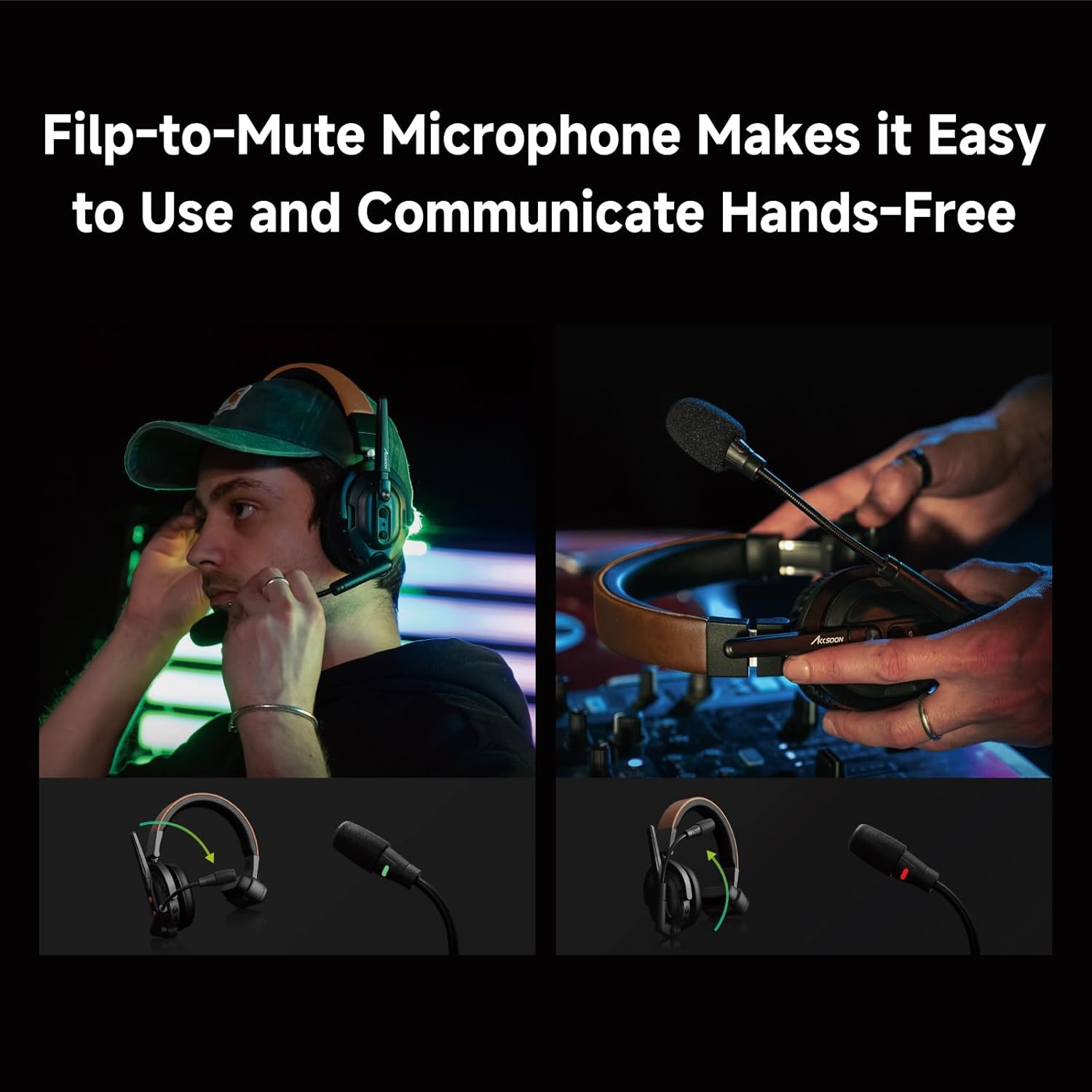
Image 3.6: Images demonstrating the flip-to-mute function of the microphone, showing its position for active and muted states.
4. Setup Guide
4.1 Charging the Headset
Before initial use, fully charge the headset battery. Connect the provided charging cable to the headset's charging port and a compatible USB power adapter (not included). The charging indicator light will show the charging status.
- A full charge typically takes approximately 2 hours.
- Ensure the headset is powered off during charging for optimal results.
4.2 Powering On/Off
- To Power On: Press and hold the Power button for approximately 3 seconds until the indicator light illuminates.
- To Power Off: Press and hold the Power button for approximately 3 seconds until the indicator light turns off.
4.3 Pairing Host and Remote Headsets
The Accsoon CoMo SE Host headset acts as the central unit for communication. Remote headsets (sold separately) must be paired with the Host headset to establish an intercom system.
- Ensure both the Host and Remote headsets are powered off.
- On the Host headset, press and hold the Pairing button until the indicator light flashes rapidly (e.g., blue/red alternating).
- On each Remote headset, press and hold its Pairing button until its indicator light also flashes rapidly.
- Place the Host and Remote headsets in close proximity (within 1 meter). They should automatically pair.
- Once paired, the indicator lights on both headsets will change to a steady color (e.g., solid blue) or flash slowly, indicating a successful connection.
- Repeat for all additional Remote headsets (up to 4).
Note: Refer to the specific manual for Remote headsets for their exact pairing procedure if different.
5. Operating Instructions
5.1 Basic Communication
Once paired, all connected headsets can engage in full-duplex communication. Speak naturally into the microphone. The Environmental Noise Cancellation (ENC) will automatically work to reduce background noise.
5.2 Microphone Mute Function
- To Mute: Flip the microphone boom arm upwards. The headset will provide an audible confirmation or an indicator light will change (e.g., red).
- To Unmute: Flip the microphone boom arm downwards to its speaking position. The headset will provide an audible confirmation or an indicator light will change (e.g., green).
5.3 Volume Control
The headset features dedicated volume control buttons, typically located on one of the earcups.
- Press the + button to increase listening volume.
- Press the - button to decrease listening volume.
5.4 Battery Level Indicator
The headset includes an indicator light or a series of lights to display the current battery level. Consult the specific product diagram for your model to understand the different indications (e.g., solid green for high, flashing red for low).
6. Maintenance
6.1 Cleaning
- Use a soft, dry cloth to clean the exterior of the headset.
- Do not use harsh chemicals, cleaning solvents, or strong detergents.
- Avoid getting moisture into any openings.
6.2 Storage
- Store the headset in a cool, dry place away from direct sunlight and extreme temperatures.
- If storing for an extended period, ensure the battery is partially charged (around 50%) to preserve battery health.
6.3 Battery Care
- Avoid fully discharging the battery frequently.
- Do not expose the battery to high temperatures.
- Use only approved charging methods.
7. Troubleshooting
| Problem | Possible Cause | Solution |
|---|---|---|
| No power | Battery is depleted | Charge the headset fully. |
| Cannot connect/pair | Out of range; pairing mode not activated; interference | Ensure headsets are within 1 meter during pairing. Re-enter pairing mode on both Host and Remote headsets. Move away from other wireless devices. |
| Poor audio quality/static | Out of range; interference; microphone muted or improperly positioned | Move closer to the Host headset. Check microphone position and ensure it's not muted. Reduce environmental interference. |
| Microphone not working | Microphone is muted (flipped up); faulty microphone | Flip the microphone boom arm down to unmute. If problem persists, contact support. |
8. Specifications
| Feature | Detail |
|---|---|
| Model Name | Accsoon CoMo SE Host |
| Connectivity Technology | Wireless |
| Transmission Range | Up to 400m (1312ft) |
| Battery Life | 30+ Hours |
| Supported Users | Up to 5 (1 Host + 4 Remote) |
| Noise Cancellation | Environment Noise Cancellation (ENC) |
| Microphone Type | Flip-to-Mute Boom Mic |
| Ear Placement | Over Ear |
| Form Factor | Over Ear |
| Impedance | 1 Ohm |
| Item Weight | 1 pound |
| UPC | 717328761895 |
9. Warranty and Support
Accsoon products are designed for reliability and performance. For warranty information, please refer to the warranty card included with your product or visit the official Accsoon website. Keep your purchase receipt as proof of purchase for warranty claims.
For technical support, troubleshooting assistance, or service inquiries, please contact Accsoon customer support through their official channels. You can often find contact information on the Accsoon website or within the product packaging.
Online Resources:
- Visit the Accsoon Store on Amazon for product information and updates.
- Check the official Accsoon website for the latest firmware, FAQs, and support contact details.


