
1. Introduction
Thank you for choosing the QUVFHE Qi2 Wireless Charging Station. This 5-in-1 device is designed to efficiently charge your iPhone, Apple Watch, and AirPods simultaneously, while also providing a digital alarm clock and a night light. This manual provides detailed instructions for setup, operation, maintenance, and troubleshooting to ensure optimal performance and longevity of your device.

Image 1.1: The QUVFHE Qi2 Wireless Charging Station, showcasing its compact design and multiple charging points for an iPhone, Apple Watch, and AirPods. The integrated digital clock and night light are also visible.
2. Product Overview
2.1 Key Features
- 5-in-1 Functionality: Wireless charging for iPhone, Apple Watch, AirPods, plus a digital alarm clock and night light.
- Qi2 Certified Fast Charging: Delivers up to 15W for compatible iPhones, ensuring rapid charging.
- Magnetic Alignment: Strong magnets ensure secure and precise placement for iPhones.
- Adjustable Night Light: Features warm light and flowing RGB light modes with adjustable brightness.
- Digital Alarm Clock: Integrated clock with memory function, retaining time settings after power-off.
- Comprehensive Protection: Built-in safeguards against over-temperature, over-charge, and power fluctuations.
2.2 Package Contents
Upon unpacking, please verify that all items listed below are present:
- 1x QUVFHE Qi2 Wireless Charging Station
- 1x USB-C Charging Cable
- 1x QC3.0 Charging Adapter
- 1x User Manual (this document)

Image 2.1: The QUVFHE Qi2 Wireless Charging Station shown with its included accessories: a USB-C charging cable and a QC3.0 power adapter, alongside the product packaging.
3. Setup Instructions
- Connect Power: Insert the USB-C charging cable into the port on the back of the charging station. Connect the other end of the cable to the provided QC3.0 charging adapter, then plug the adapter into a wall outlet.
- Power On: The digital clock display will illuminate, indicating the device is powered on.
- Initial Clock Setup: Refer to the 'Operating Instructions' section for setting the time and alarm.

Image 3.1: An illustration of the charging station with its power adapter and cable, demonstrating how to connect it to a power source. It also highlights the various compatible devices.
4. Operating Instructions
4.1 Charging Devices
The charging station features dedicated wireless charging areas for your iPhone, Apple Watch, and AirPods.
- iPhone Charging (15W Max): Place your Mag-Safe compatible iPhone (iPhone 12 series and newer) onto the vertical magnetic charging pad. The phone will snap into place, and charging will begin automatically. Ensure your phone case is less than 5mm thick and does not contain metal, magnets, or credit cards.
- Apple Watch Charging (1-3W): Place your Apple Watch onto the dedicated charging module. Ensure the watch is correctly aligned for charging to initiate. Compatible with Apple Watch Series 2-11, Ultra, and SE models.
- AirPods Charging (5W): Place your AirPods (Mag-Safe version or with wireless charging case) onto the flat charging pad at the base. Compatible with AirPods Pro 3/4/3/2 Mag-Safe Version and AirPods Pro. Not compatible with AirPods 3/2 Lightning version.

Image 4.1: A visual guide to iPhone compatibility, listing models from iPhone 12 to 17 series that support 15W fast charging on the station.

Image 4.2: A detailed compatibility chart for Apple Watch (Series 2-11, Ultra, SE) and AirPods (Pro 3/4/3/2 Mag-Safe Version, AirPods Pro), indicating their respective charging wattages.

Image 4.3: A visual guide explaining how to check AirPods model numbers (A2190/A2700/A2968 for Pro, A3059 for 4, A1938/A1602 for 1/2, A2566/A2897 for 3) to determine wireless charging compatibility.
4.2 Alarm Clock Functions
The integrated digital clock displays the time and can be set as an alarm.
- Setting Time: Use the control buttons on the base to adjust the hour and minute. (Specific button functions are typically detailed in a physical manual; refer to your product's included guide for precise button mapping).
- Setting Alarm: Follow the instructions in your physical manual to set and activate the alarm.
- Power-off Memory: The clock retains its time settings even after power disconnection, eliminating the need for readjustment.
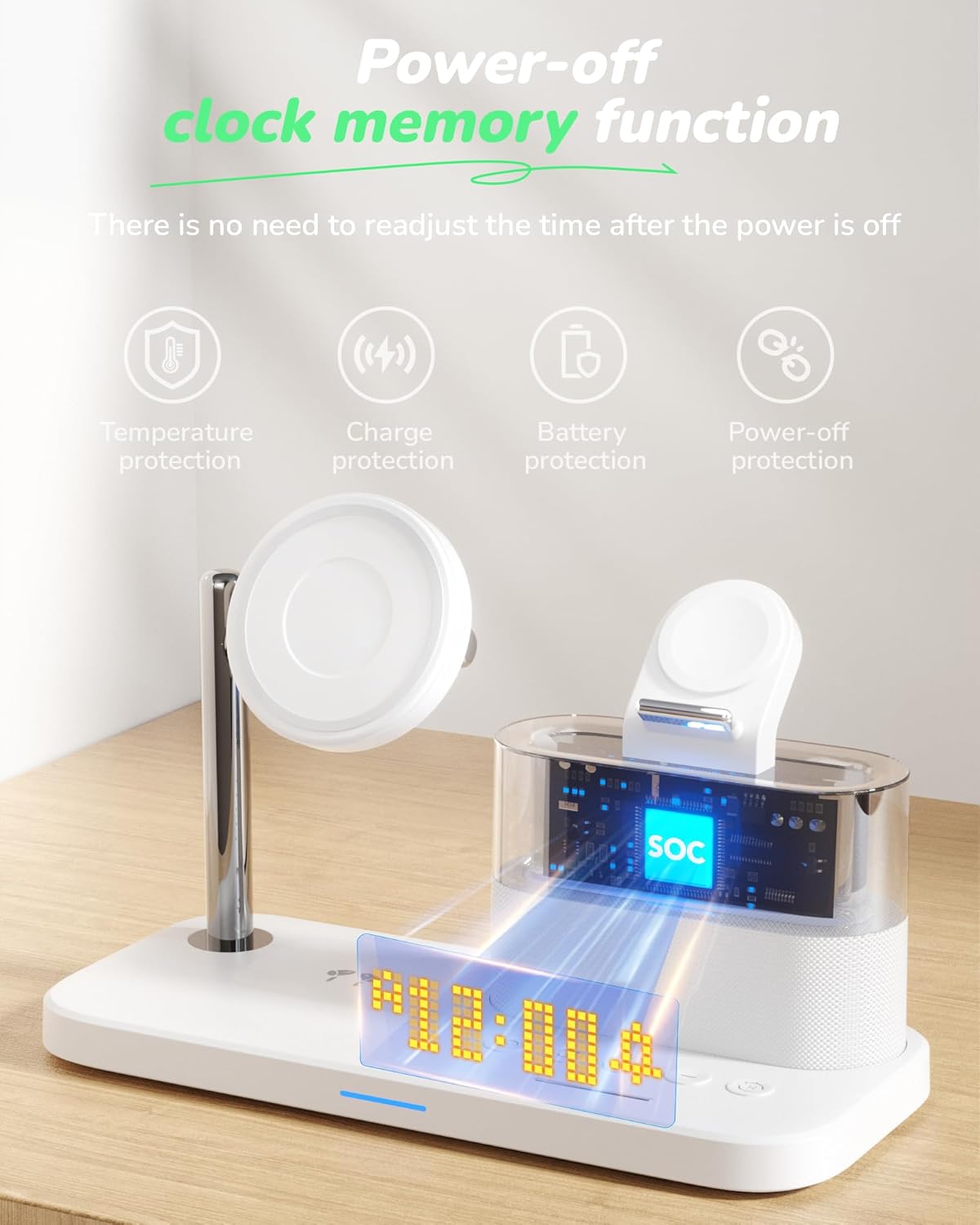
Image 4.4: The charging station displaying the time, highlighting its power-off clock memory function and various built-in protections like temperature, charge, battery, and power-off protection.
4.3 Night Light Operation
The night light offers various modes and adjustable brightness.
- Activating/Changing Modes: Use the touch switch on the base to cycle through light modes (e.g., warm light, flowing RGB).
- Adjusting Brightness: The clock light brightness is adjustable in three gears (0%, 50%, 100%). Press the 'H' key (or corresponding button) to adjust the light intensity.

Image 4.5: The charging station demonstrating its LED flowing light and warm light modes, providing ambient illumination suitable for a bedroom.

Image 4.6: A visual representation of the three adjustable brightness levels for the clock display: 0% (off), 50% (dim), and 100% (bright), controlled by the 'H' key.
4.4 Product Demonstration Videos
Video 4.1: A comprehensive demonstration of the QUVFHE Qi2 Wireless Charging Station, showcasing the charging of an iPhone, Apple Watch, and AirPods, along with the alarm clock and night light features.
Video 4.2: A short preview video demonstrating the night light's color-changing capabilities and the dimming function of the digital clock display, useful for nighttime use.
5. Maintenance
- Cleaning: Disconnect the power before cleaning. Use a soft, dry cloth to wipe the surface of the charging station. Do not use abrasive cleaners, solvents, or immerse the device in water.
- Storage: When not in use for extended periods, store the device in a cool, dry place away from direct sunlight and extreme temperatures.
- Cable Care: Avoid bending or crimping the charging cable excessively to prevent damage.
6. Troubleshooting
| Problem | Possible Cause | Solution |
|---|---|---|
| Device not charging | Incorrect placement; phone case too thick/metallic; incompatible device; insufficient power adapter. | Ensure device is centered on the charging pad. Remove thick or metallic phone cases. Verify device compatibility. Use the provided QC3.0 adapter or a compatible power adapter (e.g., 9V input, 15W output). |
| Clock display is off or flickering | Power connection issue; device malfunction. | Check power cable connection. Ensure the power adapter is functioning correctly. If the issue persists, contact customer support. |
| Night light not working | Light mode not selected; device malfunction. | Press the touch switch to cycle through light modes. If unresponsive, try power cycling the device. |
| Apple Watch not staying attached/charging | Improper alignment; watch band interference. | Ensure the Apple Watch is securely placed and aligned with the charging module. Adjust the watch band if it prevents proper contact. |
7. Specifications
- Model Number: Qi2
- Input Voltage: 9 Volts
- Wattage: 15 Watts (Max)
- Connector Type: USB Type C
- Item Weight: 1.39 pounds
- Package Dimensions: 8.07 x 5.39 x 3.86 inches
- Manufacturer: Guangdong Sangu Technology Co., Ltd
- Special Feature: Wireless Charging, Alarm Clock, Night Light
- Compatible Devices: iPhone (Mag-Safe compatible), Apple Watch, AirPods (wireless charging case)
8. Safety Information
Please read and follow these safety guidelines to prevent damage to the device or injury:
- Do not disassemble, modify, or repair the device yourself.
- Keep the device away from water, moisture, and high humidity.
- Avoid exposing the device to extreme temperatures or direct sunlight.
- Do not place metallic objects, credit cards, or other foreign objects on the charging pads, as this may interfere with charging or cause damage.
- Use only the provided power adapter and cable, or certified compatible accessories.
- Keep out of reach of children.
9. Warranty and Support
QUVFHE provides a 1-Year Replacement Promise for this product. If you encounter any manufacturing defects or issues with the product within one year of purchase, please contact our customer support for assistance.
For any questions, concerns, or support needs, please refer to the contact information provided with your product packaging or visit the official QUVFHE store online.
