
1. Introduction
This user manual provides comprehensive instructions for the Callsky 10-inch Wi-Fi Tablet, Model Ctab 10. Please read this manual carefully before using your device to ensure proper operation and to maximize its features. Keep this manual for future reference.
2. Product Overview
2.1 Package Contents
Upon opening the package, verify that all items listed below are present:
- Callsky Ctab 10 Tablet
- USB Type-C Charging Cable
- Power Adapter
- User Manual (Japanese)

Image: Package contents including the tablet, charging cable, power adapter, and user manual.
2.2 Device Components
Familiarize yourself with the physical layout and ports of your tablet:
- Front Camera: 5MP for video calls and selfies.
- Rear Camera: 8MP with autofocus for high-resolution photos.
- Power Button: Located on the side for turning the device on/off and screen lock.
- Volume Buttons: Adjust audio levels.
- USB Type-C Port: For charging and data transfer.
- 3.5mm Headphone Jack: For audio output.
- Dual Speakers: For enhanced audio experience.
- MicroSD Card Slot: For storage expansion up to 2TB.

Image: Overview of tablet features including face recognition, wireless projection, and physical dimensions.
2.3 Key Features
- Lightweight Design: Ultra-thin at 8.7mm and weighing 425g for easy portability.
- Android 14 OS: Enhanced privacy, personalized settings, and improved user experience.
- High Performance: 1.8GHz Allwinner A523 Octa-core processor and Mali-G57 GPU for smooth multitasking, gaming, and HD video.
- Memory & Storage: 3GB RAM + 9GB virtual memory, 128GB internal storage, expandable up to 2TB via MicroSD.
- Vivid Display: 10.1-inch 1280x800 Incell IPS display with eye protection mode and Widevine L1 support for high-quality streaming.
- Connectivity: Wi-Fi 6 and Bluetooth 5.4 for stable and high-speed connections.
- Advanced Features: Wireless projection, face recognition, and split-screen functionality.
- Long-lasting Battery: 6000mAh battery for extended use.

Image: Visual summary of the tablet's core specifications and features.
3. Setup
3.1 Initial Power On and Basic Settings
- Press and hold the Power button until the Callsky logo appears.
- Follow the on-screen prompts to select your language (e.g., English).
- Connect to a Wi-Fi network. Select your network from the list and enter the password if required.
- Review and accept the Google Services terms.
- Set up a screen lock (PIN, pattern, or password) for security. You can skip this step and set it up later.
- Complete the remaining setup steps as guided by the Android 14 interface.
3.2 Inserting a MicroSD Card
To expand your tablet's storage:
- Locate the MicroSD card slot on the side of the tablet.
- Gently insert the MicroSD card into the slot until it clicks into place. Ensure the card is oriented correctly.
- The tablet will detect the new storage. You may be prompted to format the card for optimal use with the device.
4. Operating Instructions
4.1 Basic Navigation
- Touch Gestures: Tap to select, swipe to scroll, pinch to zoom.
- Home Screen: Access apps, widgets, and notifications.
- Notifications: Swipe down from the top of the screen to view notifications and quick settings.
4.2 Memory and Storage Management
The tablet comes with 3GB of physical RAM and 9GB of virtual memory, totaling 12GB, along with 128GB of internal storage. You can expand storage up to 2TB using a MicroSD card.
- To check storage: Go to Settings > Storage.
- To manage apps: Go to Settings > Apps.

Image: Details on memory and storage, including RAM, internal storage, and MicroSD expansion.
4.3 Display and Visual Experience
The 10.1-inch 1280x800 Incell IPS display provides clear and vibrant visuals. It supports Widevine L1 for high-definition streaming from platforms like Netflix and YouTube.
- Eye Protection Mode: Activate this mode in settings to reduce blue light and eye strain during prolonged use.
- Split Screen: Use two applications simultaneously for enhanced productivity.

Image: Tablet demonstrating Widevine L1 support for streaming services.
4.4 Connectivity
The tablet supports Wi-Fi 6 and Bluetooth 5.4 for reliable and fast wireless connections.
- Wi-Fi: Connect to 2.4G or 5G networks. Go to Settings > Network & internet > Wi-Fi to manage connections.
- Bluetooth: Pair with wireless devices like headphones or keyboards. Go to Settings > Connected devices > Bluetooth.
- Wireless Projection: Share your screen with compatible displays. Access this feature from the quick settings panel.
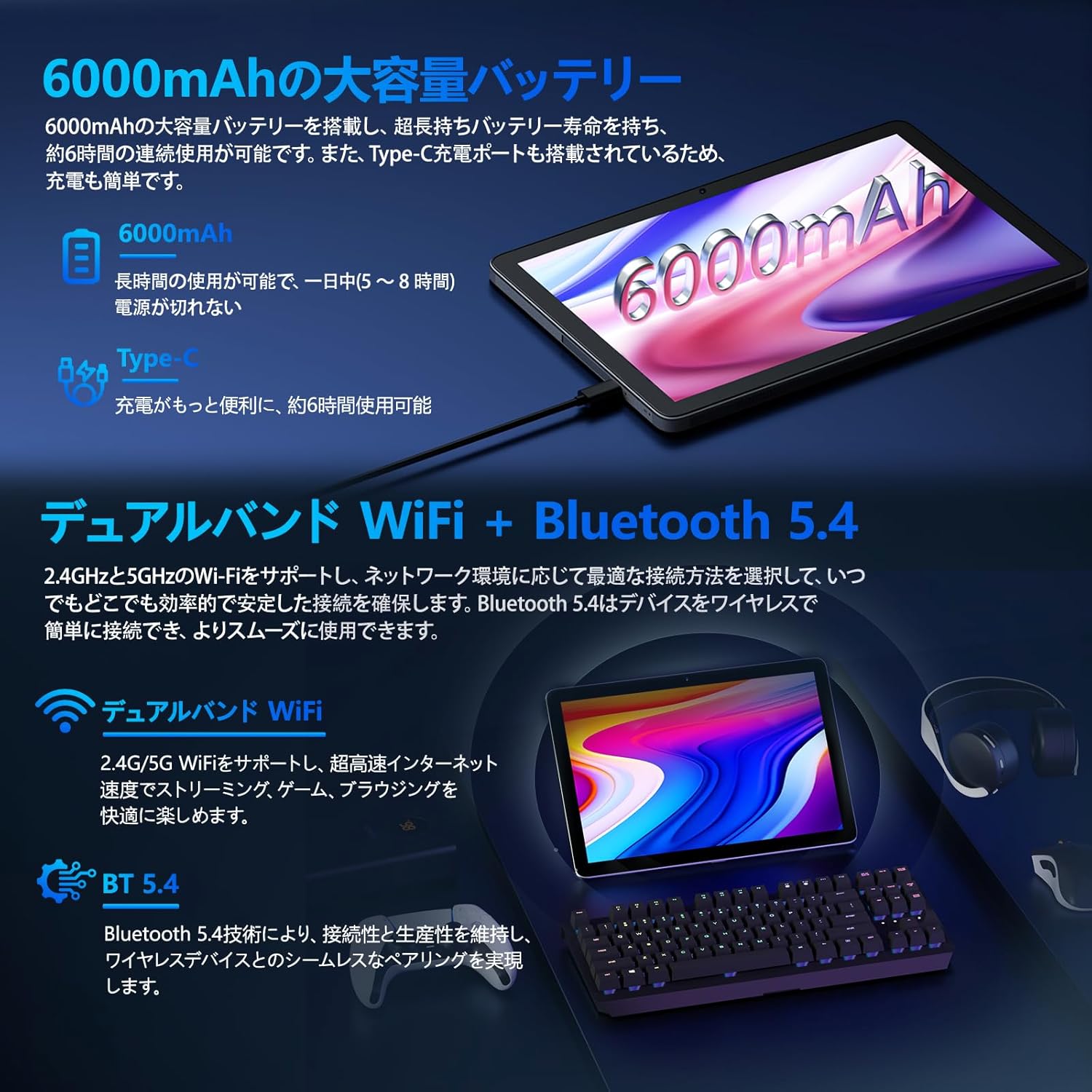
Image: Tablet highlighting battery capacity, Type-C charging, Wi-Fi, and Bluetooth features.
4.5 Cameras
The tablet features a 5MP front camera and an 8MP rear camera with autofocus, suitable for video calls and capturing photos.
- Open the Camera app to take photos or record videos.
- Face Recognition: Use the front camera for quick and secure unlocking. Set this up in Settings > Security & privacy > Face unlock.

Image: Illustration of the tablet's front and rear cameras and their resolutions.
4.6 Kids Mode (Parental Controls)
The tablet includes a dedicated Kids Mode and parental control features to ensure a safe and controlled environment for children.
- Access Kids Mode to provide curated content and limit screen time.
- Parents can manage app usage and content access through parental control settings.
4.7 Sensors
The tablet is equipped with various sensors for enhanced functionality:
- GPS: For location services and navigation.
- Geomagnetic Sensor: Functions as a compass.
- Proximity Sensor: Prevents unintended screen operations.
- Ambient Light Sensor: Automatically adjusts screen brightness.
- Gyroscope: For tilt operations and AR applications.
- Accelerometer: Detects tilt, shock, and movement.
5. Maintenance
5.1 Battery Care
The 6000mAh battery provides long usage times. To prolong battery life:
- Avoid extreme temperatures.
- Do not let the battery completely drain frequently.
- Use the provided charger and cable.
- Optimize battery usage in Settings > Battery.

Image: Tablet connected to a Type-C charger, highlighting the 6000mAh battery.
5.2 Cleaning
Use a soft, lint-free cloth to clean the screen and body of the tablet. Avoid using harsh chemicals or abrasive materials.
6. Troubleshooting
If you encounter issues with your tablet, refer to the following common problems and solutions:
| Problem | Possible Cause / Solution |
|---|---|
| Tablet does not power on | Ensure the battery is charged. Connect the charger and wait a few minutes before attempting to power on again. |
| Screen is unresponsive | Restart the tablet by holding the power button. If unresponsive, force restart by holding the power button for a longer duration (e.g., 10-15 seconds). |
| Wi-Fi connection issues | Check if Wi-Fi is enabled in settings. Restart your router. Forget the network and reconnect. |
| Device overheating / unexpected shutdowns | Close background applications. Avoid using the tablet in direct sunlight or hot environments. If the issue persists, contact customer support. |
| Apps crashing or freezing | Clear the app's cache (Settings > Apps > [App Name] > Storage & cache > Clear cache). Update the app. Reinstall the app. |
| Slow performance | Close unnecessary background apps. Clear cache and temporary files. Ensure sufficient storage space. |
If the problem persists after trying these solutions, please contact Callsky customer support.
7. Specifications
| Feature | Detail |
|---|---|
| Brand | Callsky |
| Model Name | Ctab 10 |
| Operating System | Android 14 |
| Screen Size | 10.1 inches |
| Display Resolution | 1280x800 pixels (Incell IPS) |
| CPU | Allwinner A523 Octa-core (1.8 GHz) |
| GPU | Mali-G57 (Integrated) |
| RAM | 3GB Physical + 9GB Virtual (Total 12GB) |
| Internal Storage | 128 GB |
| Expandable Storage | Up to 2TB via MicroSD card |
| Rear Camera | 8 MP |
| Front Camera | 5 MP |
| Wi-Fi | Wi-Fi 6 (802.11ac, 802.11b, 802.11g, 802.11n) |
| Bluetooth | Bluetooth 5.4 |
| Battery Capacity | 6000mAh (22.8 Watt-hours, 1 Lithium Polymer cell) |
| Charging Port | Type-C |
| Dimensions | 32.4 x 20.3 x 3.4 cm |
| Weight | 425 g |
| Certifications | GMS Certified, PSE Certified |
8. Warranty and Support
The Callsky Ctab 10 tablet comes with a 2-year warranty. This warranty covers manufacturing defects and ensures long-term reliability.
8.1 Customer Support
If you encounter any issues or have questions regarding your Callsky tablet, please contact our customer support team. We are committed to providing prompt assistance.
- Contact Method: Refer to your purchase platform (e.g., Amazon) for specific contact details. Typically, you can find seller contact information through your order history.
- Response Time: We aim to respond to inquiries within 24 hours on weekdays and within 48-72 hours on weekends or holidays.
Please have your product model (Ctab 10) and purchase details ready when contacting support.


