1. Introduction
Thank you for choosing the TPSPAD 16-inch Laptop. This manual provides essential information for setting up, operating, maintaining, and troubleshooting your new device. Please read it carefully to ensure optimal performance and longevity of your laptop.

Image: The TPSPAD 16-inch laptop, showcasing its display with Windows 11 interface and key specifications.
2. Package Contents
Please check the box for the following items:
- TPSPAD 16-inch Laptop
- DC Charger
3. Product Features
Your TPSPAD laptop is equipped with advanced features designed for efficiency and versatility:
- Efficient Performance: Powered by the Intel N95 Quad-Core processor (4 cores/4 threads, 6MB cache, up to 3.4GHz) for smooth multitasking and application handling.
- Powerful Configuration: Features 16GB of DDR4 RAM and a speedy 512GB M.2 SSD, offering enhanced performance and ample storage for your files and applications.
- Long Battery Life: Equipped with a 5000MAH 38Wh battery, providing up to 8 hours of usage for work or entertainment on the go.
- 16.0-inch FHD Display: Immerse yourself in a vibrant 16.0-inch display with thin bezels and 1920x1080 resolution, offering clear, vivid visuals and a wide viewing angle.
- Backlit Keyboard & Fingerprint Unlock: Enjoy comfortable typing in various lighting conditions with the backlit keyboard. Securely log in with the integrated fingerprint unlock feature.
- New Heat Dissipation System: Designed with an optimized cooling system to maintain stable performance during extended use.
- Versatile Connectivity: Supports WiFi 5GHz for fast wireless internet and includes multiple USB 3.0 ports for peripheral connections.
- Multi-purpose Use: Capable of handling various tasks including gaming, graphic creation, video editing, and standard office applications.

Image: Detailed view of the Intel N95 Quad-Core processor, highlighting its architecture.

Image: A close-up view of the laptop's backlit keyboard and the fingerprint sensor integrated into the touchpad.
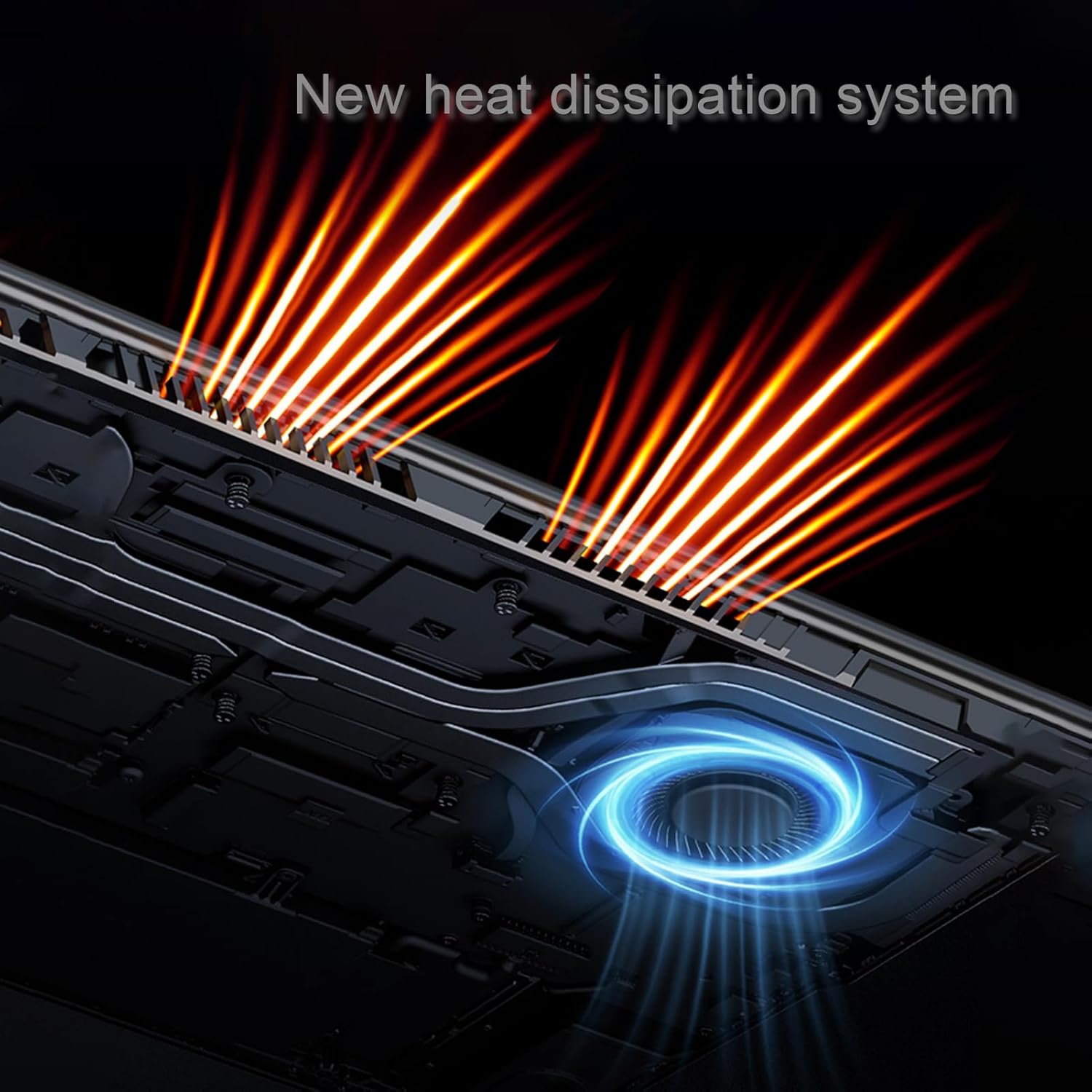
Image: An internal diagram showing the new heat dissipation system with air vents and cooling fan.

Image: This split image demonstrates the laptop's capability for both creative work (with icons for Photoshop, After Effects, Illustrator) and communication (showing a video call interface).
4. Physical Components and Ports
Familiarize yourself with the various ports and components of your laptop:

Image: A detailed view of the laptop's side ports, including USB 3.0, Audio port, Ethernet port, HDMI, Power jack, and TF card slot.
- USB 3.0 Ports: For connecting high-speed USB devices.
- Audio Port: For headphones or external speakers.
- Ethernet Port: For wired network connection.
- HDMI Port: For connecting to external displays or projectors.
- Power Jack: For connecting the DC charger.
- TF Card Slot: For inserting a TransFlash (microSD) memory card.
5. Setup
- Charge the Laptop: Before first use, connect the DC charger to the power jack and a power outlet. Allow the battery to charge fully.
- Power On: Open the laptop lid and press the power button, usually located on the keyboard deck.
- Initial Windows 11 Setup: Follow the on-screen prompts to complete the Windows 11 setup process. This includes selecting your region, language, connecting to a Wi-Fi network, and creating a user account.
- Connect Peripherals: Connect any external devices such as a mouse, external keyboard, or monitor to the appropriate ports.
6. Operating Instructions
- Power On/Off: Press the power button to turn on. To shut down, click the Start button, then Power > Shut down.
- Fingerprint Login: During Windows setup or in Settings > Accounts > Sign-in options, set up your fingerprint. Once configured, simply place your registered finger on the sensor to log in.
- Keyboard Backlight: The keyboard backlight can typically be toggled or adjusted using a dedicated function key (e.g., Fn + F key combination). Refer to the keyboard icons for specific keys.
- Touchpad Usage: The touchpad supports multi-touch gestures. Refer to Windows settings for customization options.
7. Maintenance
- Cleaning: Use a soft, lint-free cloth to clean the screen and chassis. For stubborn marks, dampen the cloth slightly with water or a screen cleaner. Avoid harsh chemicals.
- Software Updates: Regularly check for and install Windows updates and driver updates to ensure system stability and security.
- Battery Care: To prolong battery life, avoid fully discharging the battery frequently. Store the laptop in a cool, dry place if not used for extended periods.
- Storage Management: Periodically clean up unnecessary files and applications to maintain optimal SSD performance.
8. Troubleshooting
If you encounter issues, try the following solutions:
| Problem | Possible Solution |
|---|---|
| Laptop does not power on | Ensure the charger is securely connected and the power outlet is working. Try a different outlet. If battery is low, allow it to charge for a few minutes before attempting to power on. |
| Slow performance | Close unnecessary applications. Check for background processes. Ensure sufficient free space on the SSD. Run a virus scan. Update drivers. |
| Wi-Fi connectivity issues | Restart your router and modem. Check Wi-Fi settings on the laptop. Ensure Wi-Fi drivers are up to date. Try connecting to a different network if possible. |
| Display issues (no image, flickering) | Ensure the laptop is powered on. Try connecting to an external monitor via HDMI to check if the issue is with the laptop's screen or graphics output. Update graphics drivers. |
| Fingerprint reader not working | Ensure your finger is clean and dry. Re-register your fingerprint in Windows settings. Check for driver updates for the fingerprint sensor. |
9. Specifications
| Feature | Detail |
|---|---|
| Model Name | W117 |
| Screen Size | 16 Inches |
| Screen Resolution | 1920 x 1080 pixels (FHD) |
| Processor | Intel N95 Quad-Core (up to 3.4 GHz) |
| RAM | 16 GB DDR4 SDRAM |
| Storage | 512 GB M.2 SSD |
| Graphics Coprocessor | Intel UHD Graphics (Integrated) |
| Operating System | Windows 11 |
| Wireless Type | 802.11ac (WiFi 5GHz) |
| USB Ports | 1x USB 2.0, 1x USB 3.0 |
| Special Features | Backlit Keyboard, Fingerprint Reader, Memory Card Slot |
| Item Weight | 5.3 pounds |
| Product Dimensions (LxWxH) | 11.8 x 7.8 x 3.5 inches |
10. Warranty and Support
Your TPSPAD laptop comes with peace of mind, including:
- 12 Months Repair: Enjoy 12 months of repair service for your device.
- Unlimited Technical Support: Access unlimited technical support for any questions or concerns you may have.
For support, please refer to the contact information provided with your purchase or visit the official TPSPAD website.


