1. Introduction
This manual provides comprehensive instructions for the installation, operation, maintenance, and troubleshooting of your ASUS TUF Gaming Radeon RX 9070 XT OC Edition 16GB GDDR6 Graphics Card. Please read this manual thoroughly before using the product to ensure proper functionality and longevity.

Image 1.1: ASUS TUF Gaming Radeon RX 9070 XT OC Edition Graphics Card and its retail packaging.
2. Product Overview
The ASUS TUF Gaming Radeon RX 9070 XT OC Edition is a high-performance graphics card designed for demanding computing tasks and gaming. It features advanced cooling solutions and durable components to ensure stable operation.
Key Features:
- PCIe® 5.0 Interface: Provides high-bandwidth connectivity for optimal performance.
- 16GB GDDR6 Memory: Ample memory for high-resolution textures and complex scenes.
- HDMI/DP 2.1 Outputs: Supports multiple high-resolution displays.
- 3.125-slot Design: Robust physical design for enhanced cooling.
- Military-Grade Components: Ensures rock-solid power delivery and extended lifespan.
- Protective PCB Coating: Guards against environmental factors like moisture and dust.
- Phase-Change GPU Thermal Pad: Improves thermal conductivity and heat dissipation.
- Axial-tech Fans with Dual Ball Bearings: Enhanced airflow and durability.
- MaxContact Design: Increases heat spreader contact with the GPU for improved thermal transfer.
- Vented Exoskeleton: High-quality shroud and backplate with vents for better heat dissipation.
Component Details:

Image 2.1: Military-Grade Components. TUF Chokes and MOSFETs provide stable power, while TUF 5K metallic capacitors offer increased temperature tolerance and lifespan.

Image 2.2: Ultimate Durability Features. The Phase-Change GPU Thermal Pad ensures optimal thermal performance, the Protective PCB Coating prevents short circuits, and Dual Ball Fan Bearings extend fan lifespan.

Image 2.3: Cooling Mastery. MaxContact Design enhances heat transfer, Axial-tech fans improve airflow, and the Vented Exoskeleton aids heat dissipation.
3. Setup and Installation
Proper installation is crucial for the performance and stability of your graphics card. Always ensure your system is powered off and unplugged before beginning installation.
3.1 System Requirements
- PCI Express® 5.0 compliant motherboard with one x16 graphics slot.
- Minimum 750W power supply unit (PSU) recommended. For optimal performance and stability, a TUF Gaming Gold 850W PSU is suggested.
- Sufficient space within your PC case for a 3.125-slot graphics card.
- Compatible operating system (e.g., Windows 10/11 64-bit).

Image 3.1: The graphics card paired with a recommended TUF Gaming Gold PSU for reliable power delivery.
3.2 Physical Installation
- Prepare Your System: Power off your computer and unplug all cables. Open your PC case.
- Locate PCIe Slot: Identify an available PCI Express x16 slot on your motherboard.
- Remove Slot Covers: Remove the necessary expansion slot covers from your PC case.
- Insert Graphics Card: Carefully align the graphics card with the PCIe slot and press down firmly until it is securely seated. Ensure the retention clip on the motherboard engages.
- Secure the Card: Fasten the graphics card to the PC case using screws. Due to the card's size and weight, it is highly recommended to use the included TUF Gaming Graphics Card Holder or a third-party sag bracket to prevent GPU sag.
- Connect Power Cables: Connect the required PCIe power cables from your power supply to the graphics card's power connectors. Refer to Image 3.2 for connector locations.

Image 3.2: Power connector locations on the graphics card.
3.3 Connecting Displays
Connect your display cables (HDMI or DisplayPort) to the corresponding ports on the graphics card. This card supports Native DisplayPort 2.1a x 3 and Native HDMI 2.1b.
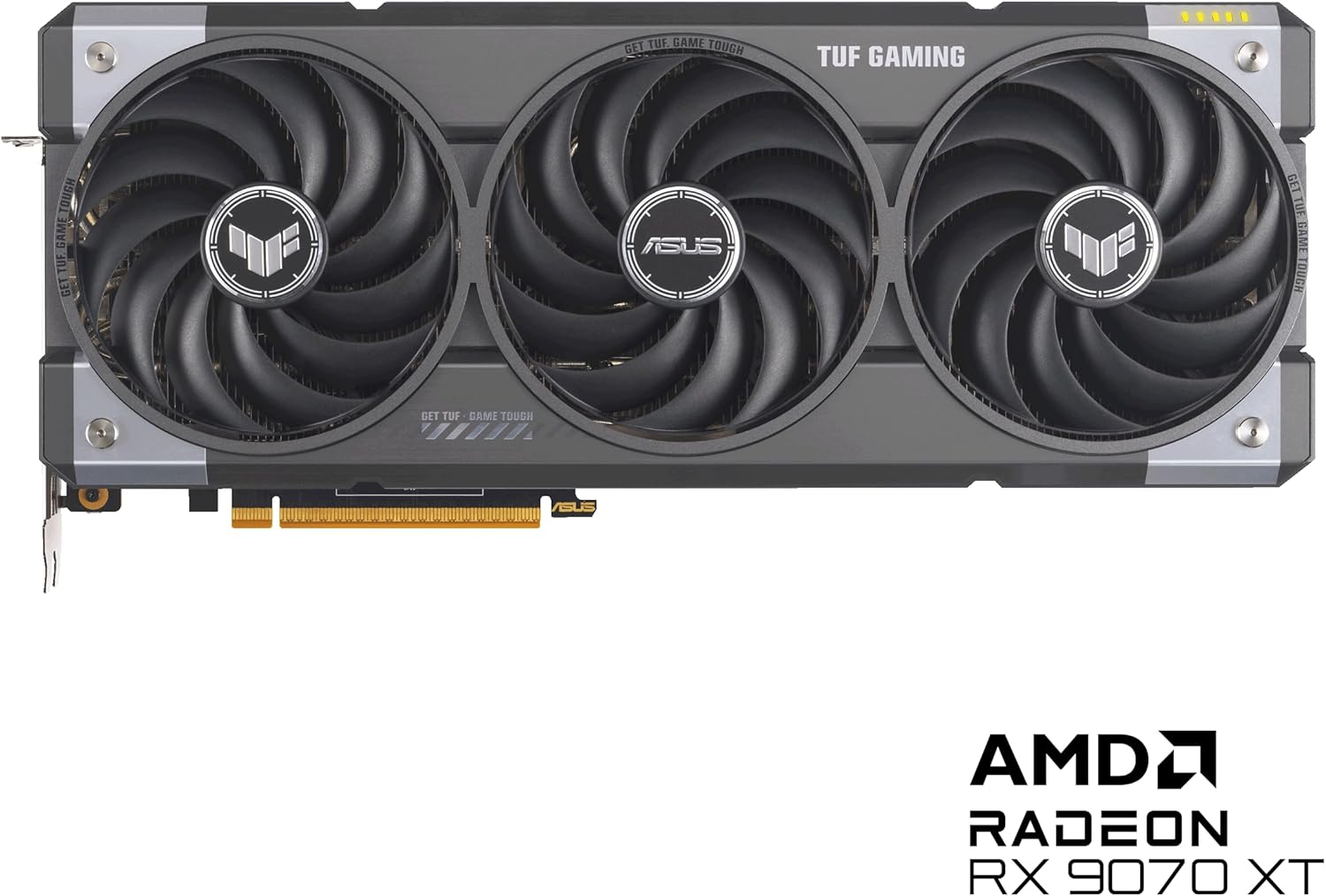
Image 3.3: Display output ports (HDMI and DisplayPort) on the graphics card.
4. Operating Instructions
After physical installation, software setup is required to utilize your graphics card fully.
4.1 Driver Installation
- Power On: Close your PC case, plug in all cables, and power on your computer.
- Initial Boot: Your system may boot using generic display drivers.
- Download Drivers: Visit the official ASUS support website (www.asus.com/support/). Navigate to 'Graphics Cards', select your model (TUF-RX9070XT-O16G-GAMING), and download the latest AMD Radeon drivers for your operating system.
- Install Drivers: Run the downloaded driver installer and follow the on-screen prompts. A system restart may be required.
4.2 Software Utilities
ASUS provides software to enhance your graphics card experience:
- GPU Tweak III: This utility allows for monitoring, overclocking, and fine-tuning of your graphics card's performance, cooling, and power settings.
- AMD Adrenaline Software: Provides comprehensive control over your AMD Radeon graphics card, including game optimization, display settings, and advanced features like AMD FidelityFX Super Resolution and AMD HYPR-RX.

Image 4.1: Software integration for customization and enhanced functionality.
5. Maintenance
Regular maintenance helps ensure optimal performance and extends the lifespan of your graphics card.
- Dust Removal: Periodically clean dust from the fans and heatsink using compressed air. Ensure the system is powered off and unplugged before cleaning.
- Fan Inspection: Check the axial-tech fans for any obstructions or unusual noises. The dual ball bearings are designed for long-lasting, reliable operation.
- Software Updates: Keep your graphics drivers and utility software (e.g., GPU Tweak III, AMD Adrenaline) updated to benefit from performance improvements and bug fixes.
- Environmental Protection: The protective PCB coating helps guard against moisture and dust, but avoid exposing the card to extreme conditions.
6. Troubleshooting
If you encounter issues with your graphics card, refer to the following common troubleshooting steps:
- No Display Output:
- Ensure the monitor is connected to the graphics card, not the motherboard's integrated graphics.
- Verify all power cables are securely connected to the graphics card and PSU.
- Reseat the graphics card in its PCIe slot.
- Test with a different display cable or monitor.
- Driver Issues:
- Perform a clean installation of the latest graphics drivers from the ASUS support website.
- If issues persist, try an older, stable driver version.
- Overheating:
- Ensure adequate airflow within your PC case.
- Clean dust from the graphics card's fans and heatsink.
- Monitor temperatures using GPU Tweak III or AMD Adrenaline software.
- System Instability/Crashes:
- Ensure your power supply unit meets the recommended wattage.
- Check for system memory (RAM) stability.
- If overclocked, revert to default settings.
For further assistance, please contact ASUS customer support or visit their official support website.
7. Specifications
| Feature | Specification |
|---|---|
| Model Number | TUF-RX9070XT-O16G-GAMING |
| Graphics Coprocessor | AMD RX9070 |
| Chipset Brand | AMD |
| Graphics Card RAM Size | 16 GB GDDR6 |
| Memory Speed | 4000 MHz |
| Max Screen Resolution | 7680x4320 Pixels |
| Video Output Interface | Native DisplayPort 2.1a x 3, Native HDMI 2.1b |
| Item Weight | 5.66 pounds |
| Package Dimensions | 16.85 x 9.06 x 5 inches |
| Color | BLACK |
8. Warranty and Support
Your ASUS TUF Gaming Radeon RX 9070 XT OC Edition Graphics Card comes with a TUF Certificate of Reliability, signifying its adherence to stringent quality standards.
For warranty information, technical support, driver downloads, and software updates, please visit the official ASUS support website:
Please have your product model number (TUF-RX9070XT-O16G-GAMING) and serial number ready when contacting support.

Image 8.1: Included accessories, including the TUF Certificate of Reliability and Speedsetup Manual.


