Introduction
The TONOR Gaming Mic TCX3+ is designed to enhance your gaming and streaming experience, particularly for Xbox users. This microphone offers superior sound quality, customizable RGB lighting, and convenient controls for an immersive audio environment. Please read this manual carefully to ensure proper setup and operation.
What's in the Box
- Microphone x1
- Boom arm stand x1
- USB-A to Type-C charging cable x1
- 3.5mm to 3.5mm audio cable x1
Setup
Follow these steps to set up your TONOR Gaming Mic TCX3+:
- Attach the Boom Arm: Securely attach the included boom arm stand to your desk. The microphone adapter comes with both 3/8-inch and 5/8-inch threaded adapters for compatibility.
- Mount the Microphone: Attach the TCX3+ microphone to the boom arm.
- Connect to Xbox Controller: Use the provided 3.5mm audio connection cable to seamlessly connect the microphone to your Xbox controller. No additional splitters or power supply are needed.
- Power On: Long press the knob on the microphone to power it on.
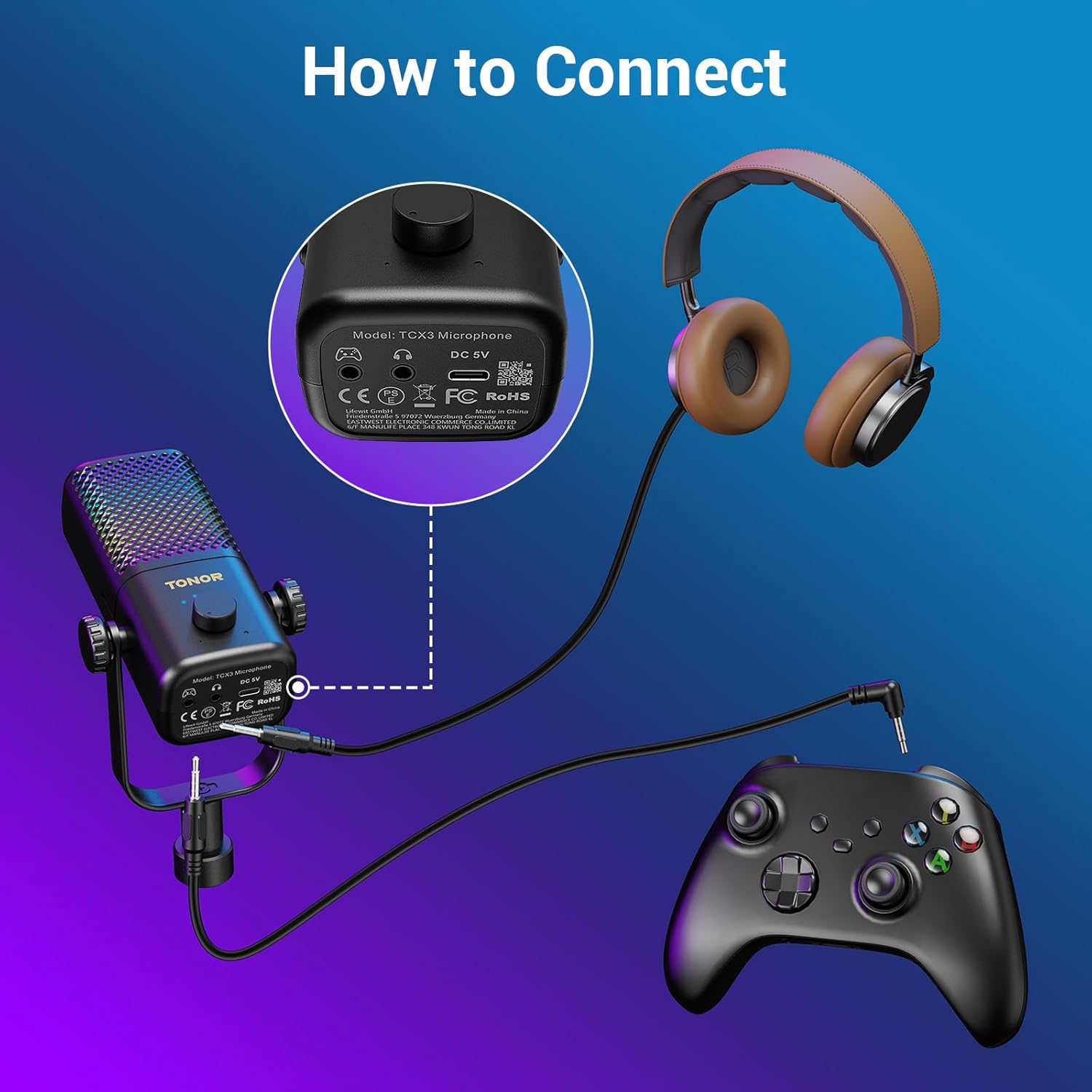
Figure 1: Connecting the TCX3+ microphone to an Xbox controller.
Note: This microphone is not compatible with PC, phone, PS4/5, or Nintendo Switch.

Figure 2: Compatibility overview for the TCX3+ microphone.
Operating Instructions
Power On/Off
- To power on the microphone, long press the main knob.
- To power off the microphone, long press the main knob again.
Volume/Gain Control
- Rotate the main knob to adjust the communication volume to your desired level.
Mute Function
- Tap the top button of the microphone to instantly mute or unmute.

Figure 3: Volume and Mute controls on the TCX3+ microphone.
RGB Lighting Effects
Customize your gaming space with three dynamic RGB modes:
- To activate RGB modes, long press the mute button.
- To switch between modes, lightly press the mute button again.
- You can also turn off the lights for a pure auditory environment.

Figure 4: RGB Light Control options.
Monitoring Function
- To disable the monitoring function, long press the knob.

Figure 5: Multi-functional control for gain and monitoring.
Battery Life & Charging
The TCX3+ microphone is equipped with a long-lasting lithium battery:
- Up to 30 hours of use in non-light mode.
- Up to 10 hours of use in color light mode.
- Quick-charge for just 5 minutes provides an additional hour of gameplay.
Important Note: The microphone cannot be used while charging.
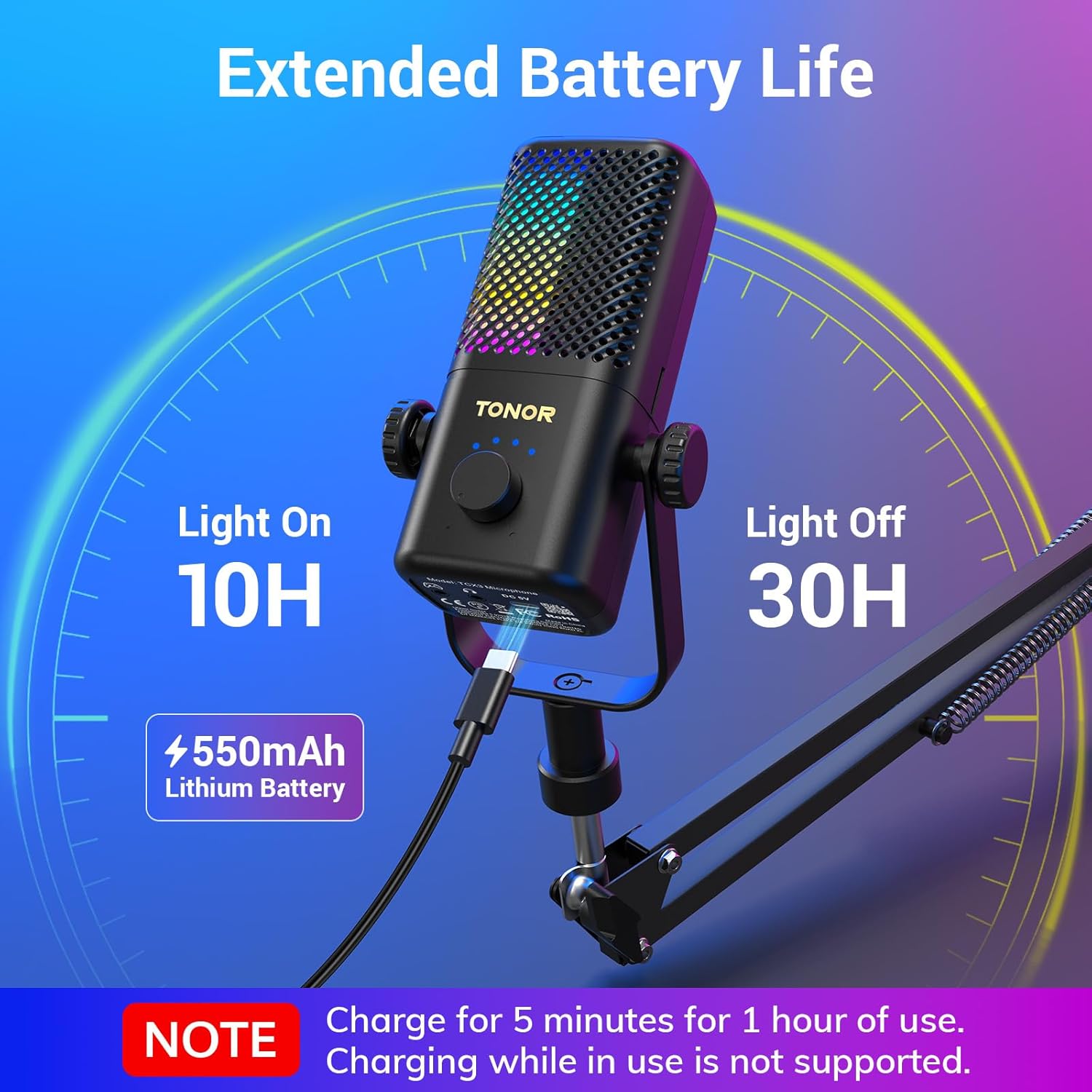
Figure 6: Battery life and quick charging features.
Specifications
| Feature | Detail |
|---|---|
| Microphone Form Factor | Gooseneck |
| Item Dimensions (L x W x H) | 16.14 x 5.67 x 5.04 inches |
| Power Source | DC |
| Number of Batteries | 1 Lithium Ion batteries required (included) |
| Material | Acrylonitrile Butadiene Styrene, Alloy Steel |
| Signal-to-Noise Ratio | 40 dB |
| Number of Channels | 1 |
| Item Weight | 2.76 pounds |
| Model Name | TCX3+ |
| Connectivity Technology | Auxiliary |
| Connector Type | 3.5 mm Jack |
| Special Feature | Stand, Volume control, Mute, RGB |
| Compatible Devices | Gamepad (Xbox Controller) |
Maintenance
To ensure the longevity and optimal performance of your TONOR Gaming Mic TCX3+, follow these maintenance guidelines:
- Cleaning: Use a soft, dry cloth to clean the microphone and boom arm. Avoid using harsh chemicals or abrasive materials.
- Storage: When not in use, store the microphone in a cool, dry place away from direct sunlight and extreme temperatures.
- Cable Care: Handle cables gently to prevent damage. Avoid sharp bends or kinks.
Troubleshooting
If you encounter any issues with your TONOR Gaming Mic TCX3+, refer to the following common problems and solutions:
- No Sound: Ensure the 3.5mm audio cable is securely connected to both the microphone and the Xbox controller. Check the volume settings on your Xbox and the microphone's gain knob.
- Distorted Audio: Reduce the microphone's gain level. Ensure you are not too close to the microphone. Check for any interference from other electronic devices.
- RGB Lights Not Working: Ensure the microphone is powered on. Long press the mute button to activate RGB modes, then lightly press to cycle through them.
- Microphone Not Charging: Ensure the USB-A to Type-C cable is properly connected to the microphone and a power source. Remember, the mic cannot be used while charging.
- Compatibility Issues: Confirm that you are using the microphone with a compatible Xbox controller. The microphone is not compatible with PC, phone, PS4/5, or Nintendo Switch.
Warranty and Support
TONOR products come with a standard warranty. For specific warranty details, repair requests, or after-sales service, please refer to the warranty card included in your product packaging or visit the official TONOR website. Keep your purchase receipt as proof of purchase.
Official Product Video
Video 1: TONOR Gaming Mic Compatible. This video demonstrates the features and compatibility of the TONOR Gaming Mic TCX3+.


