
BoxWave AllReader SD Card Reader
BoxWave AllReader SD Card Reader User Manual
Model: AllReader SD Card Reader
Brand: BoxWave
1. Introduction
The BoxWave AllReader SD Card Reader is a versatile and compact device designed to facilitate easy and quick file transfers between various digital devices and your SD or microSD cards. With its multiple interface options, it offers broad compatibility, making it an essential tool for managing your digital content on the go.
Key Features:
- Four Interfaces: Includes USB-C, USB-A, and Micro-USB for maximum compatibility with a wide range of devices.
- Easy File Transfer: Enables quick and straightforward copying of photos, videos, music, and other files between your memory cards and smartphones, tablets, laptops, or desktop PCs.
- Plug and Play: No drivers or complex software installation required. Simply plug in and access your files.
- Compact Design: Its small and lightweight form factor makes it highly portable, fitting easily into a bag, purse, or pocket.
- Unlimited Storage: Expand the storage capability of your device by easily accessing content on various SD and microSD cards.
2. Product Overview
The BoxWave AllReader SD Card Reader is a sleek, black device with transparent caps protecting its various connectors. It features slots for both standard SD cards and smaller microSD cards, along with multiple USB interfaces for universal connectivity.

The device is designed for durability and ease of use, with clearly marked card slots and robust connectors.
3. Setup
Setting up your AllReader SD Card Reader is a simple plug-and-play process. No software installation or drivers are required for most operating systems.
3.1 Inserting a Memory Card
- Identify the correct slot for your memory card. The larger slot is for SD cards, and the smaller slot is for microSD cards.
- Gently insert your SD or microSD card into the corresponding slot until it clicks into place. Ensure the card is inserted in the correct orientation, usually with the contacts facing down.
3.2 Connecting to Your Device
The AllReader features four distinct interfaces to connect to a variety of devices:
- USB-A: Standard USB port for laptops, desktop PCs, and some smart TVs.
- USB-C: Reversible connector for newer smartphones, tablets, and laptops.
- Apple (Lightning): For compatible Apple iPhones and iPads.
- Flip-out Micro USB: For older Android smartphones and tablets.
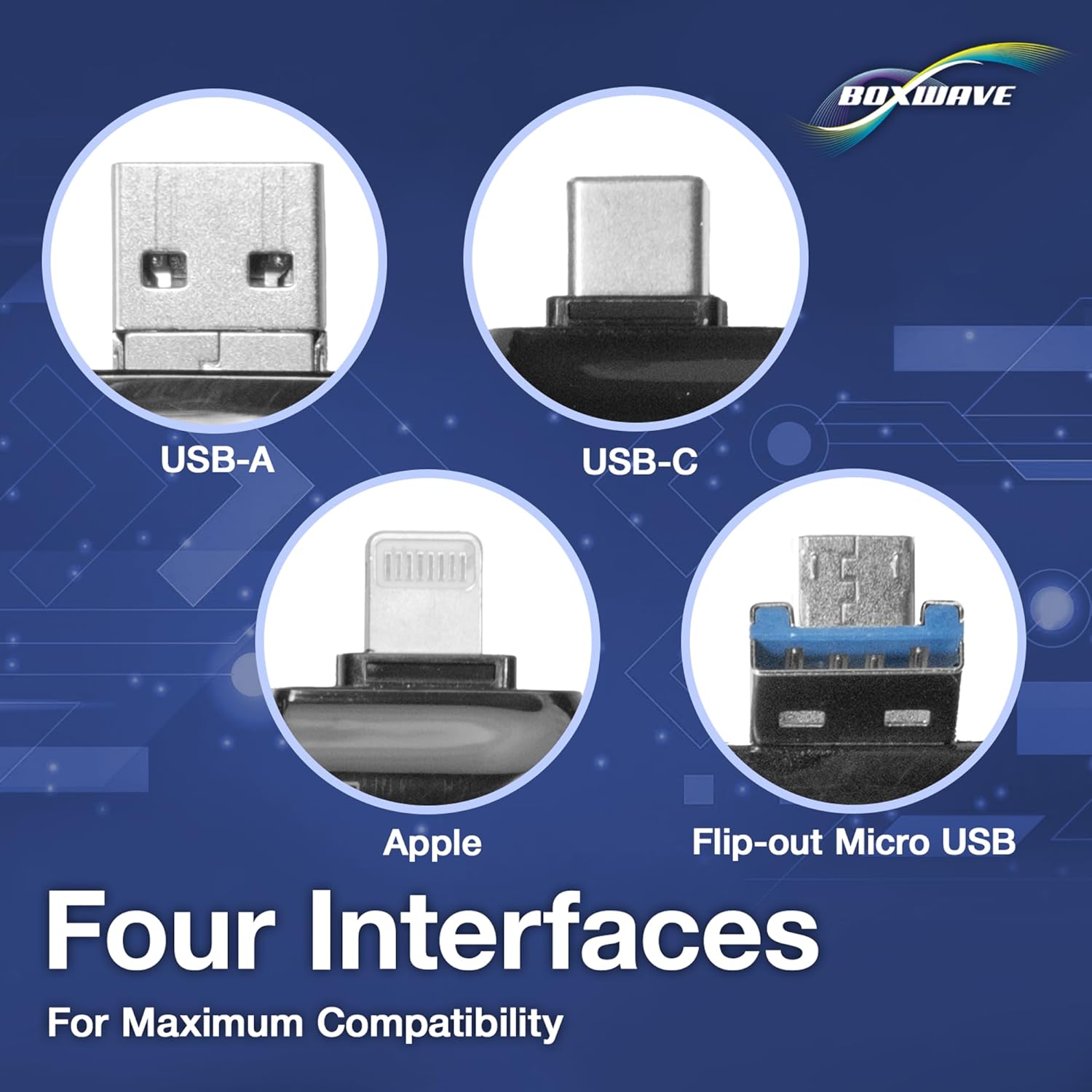
Choose the appropriate connector for your device and plug the AllReader into the corresponding port. Your device should automatically detect the card reader and the inserted memory card.
4. Operating Instructions
Once connected, the memory card will appear as a removable storage device on your computer or mobile device.
4.1 Accessing Files
- On Computers (Windows/macOS): Open 'This PC' or 'Finder' and locate the new removable drive. Double-click to open and browse the files.
- On Mobile Devices (Android/iOS): Access files through your device's file manager app or photo gallery. For iOS, you may need to use the 'Files' app or a compatible third-party app.
4.2 Transferring Files
To transfer files, simply drag and drop them between the memory card's folder and your device's storage, or use the copy/paste functions.

Always ensure that file transfers are complete before disconnecting the card reader to prevent data corruption.
5. Maintenance
To ensure the longevity and optimal performance of your BoxWave AllReader SD Card Reader, follow these simple maintenance guidelines:
- Cleaning: Use a soft, dry, lint-free cloth to wipe the exterior of the card reader. Avoid using liquid cleaners or abrasive materials.
- Storage: When not in use, store the card reader in a cool, dry place, away from direct sunlight and extreme temperatures. Keep the protective caps on the connectors to prevent dust and debris accumulation.
- Handling: Handle the device gently. Avoid dropping it or subjecting it to strong impacts, which can damage internal components or connectors.
- Moisture: Keep the card reader away from water and other liquids. If it comes into contact with moisture, disconnect it immediately and allow it to dry completely before reuse.
6. Troubleshooting
If you encounter issues with your AllReader SD Card Reader, try the following troubleshooting steps:
| Problem | Possible Solution |
|---|---|
| Card reader not detected. |
|
| Memory card not recognized. |
|
| Slow file transfer speeds. |
|
7. Specifications
| Feature | Detail |
|---|---|
| Product Name | BoxWave AllReader SD Card Reader |
| Model Number | Not explicitly provided, refers to 'AllReader SD Card Reader' |
| Interfaces | USB-C, USB-A, Apple (Lightning), Flip-out Micro USB |
| Card Compatibility | SD, microSD |
| Color | Jet Black |
| Item Weight | 6 ounces |
| Manufacturer | BoxWave |
| Country of Origin | China |
8. Warranty and Support
BoxWave products are designed for quality and reliability. For specific warranty information and customer support, please refer to the documentation included with your purchase or visit the official BoxWave website. Typically, BoxWave offers support for product inquiries and assistance with any operational issues you may encounter.
For further assistance, please contact BoxWave customer service through their official channels.
Ask a question about this manual
Ask about setup, troubleshooting, compatibility, parts, safety, or missing instructions. Manuals+ will review the question and use this page’s manual context to help answer it.