
1. Introduction
Thank you for purchasing the Sovboi S61Pro Google TV Home Projector. This projector is designed to provide a superior home entertainment experience with its advanced features and user-friendly interface. It supports native 1080P Full HD resolution with 4K input compatibility, offering vibrant colors and high contrast. Equipped with Google TV, it provides access to a wide range of streaming applications and features voice control for convenient operation. Its innovative short-throw lens and integrated stand allow for versatile projection, including ceiling projection. The S61Pro also boasts automatic focus and keystone correction, ensuring a clear image from any angle. With WiFi 6 and Bluetooth 5.4 connectivity, seamless streaming and device pairing are guaranteed. This manual will guide you through the setup, operation, and maintenance of your new projector.
2. Package Contents
Please check the box for the following items:
- Sovboi S61Pro Projector x 1
- Instruction Manual x 1
- Remote Control x 1
- Power Cable x 1
- HDMI Cable x 1
- Cleaning Tool x 1

Image: The Sovboi S61Pro projector and its included accessories, including the remote control, power cable, HDMI cable, and cleaning tools.
3. Product Overview
3.1. Projector Ports
The Sovboi S61Pro projector features multiple ports for versatile connectivity:

Image: Rear view of the projector highlighting the power port, USB port, HDMI port, and headphone jack.
- Power Port: Connect the included power cable to supply power to the projector.
- USB Port: For connecting USB storage devices to play media files.
- HDMI Port: Connect to external devices such as laptops, gaming consoles (PS5, Switch), or Blu-ray players.
- 3.5mm Audio Jack: For connecting external headphones or speakers.
3.2. Remote Control
The included remote control provides easy access to all projector functions:
Image: The remote control showing buttons for Power, Voice Search, One-Touch Focus, Directional Keys, OK, Back, Home, Volume Up/Down, Mute, Focus +/- and dedicated buttons for Netflix, YouTube, Disney+, and Prime Video.
- Power Button: Turns the projector on or off.
- Voice Search: Activates Google Assistant for voice commands.
- One-Touch Focus: Initiates automatic focus adjustment.
- Directional Keys & OK Button: Navigate menus and confirm selections.
- Home Button: Returns to the Google TV home screen.
- Volume +/-: Adjusts the audio volume.
- Mute: Mutes or unmutes the audio.
- Dedicated App Buttons: Quick access to Netflix, YouTube, Prime Video, and Disney+.
4. Setup Guide
4.1. Initial Placement and Power On
Place the projector on a stable, flat surface. Connect the power cable to the projector's power port and plug it into an electrical outlet. Press the power button on the projector or remote control to turn it on.
4.2. Automatic Focus and Keystone Correction
The S61Pro features advanced automatic focus and ±45° automatic keystone correction. Upon power-on, the projector will automatically adjust the image for optimal clarity and a perfect rectangular shape, even if placed at an angle. This eliminates the need for manual adjustments, providing a hassle-free setup.

Image: The projector displaying its auto-focus and auto-keystone correction process, ensuring a sharp and perfectly shaped image.
4.3. Versatile Projection Angles
The integrated stand allows for flexible projection. You can easily adjust the projector's angle to project onto a wall or even the ceiling, making it ideal for watching movies while lying down. The power port is conveniently located on the stand side to prevent cable interference during ceiling projection.

Image: Two projectors demonstrating projection onto a wall and a ceiling, showcasing the flexibility of the integrated stand.
5. Operating Instructions
5.1. Google TV and App Access
The S61Pro comes with Google TV built-in, providing direct access to a vast library of applications. Popular streaming services like Netflix, Amazon Prime Video, YouTube, and Disney+ are readily available. You can browse and install additional apps from the Google Play Store.
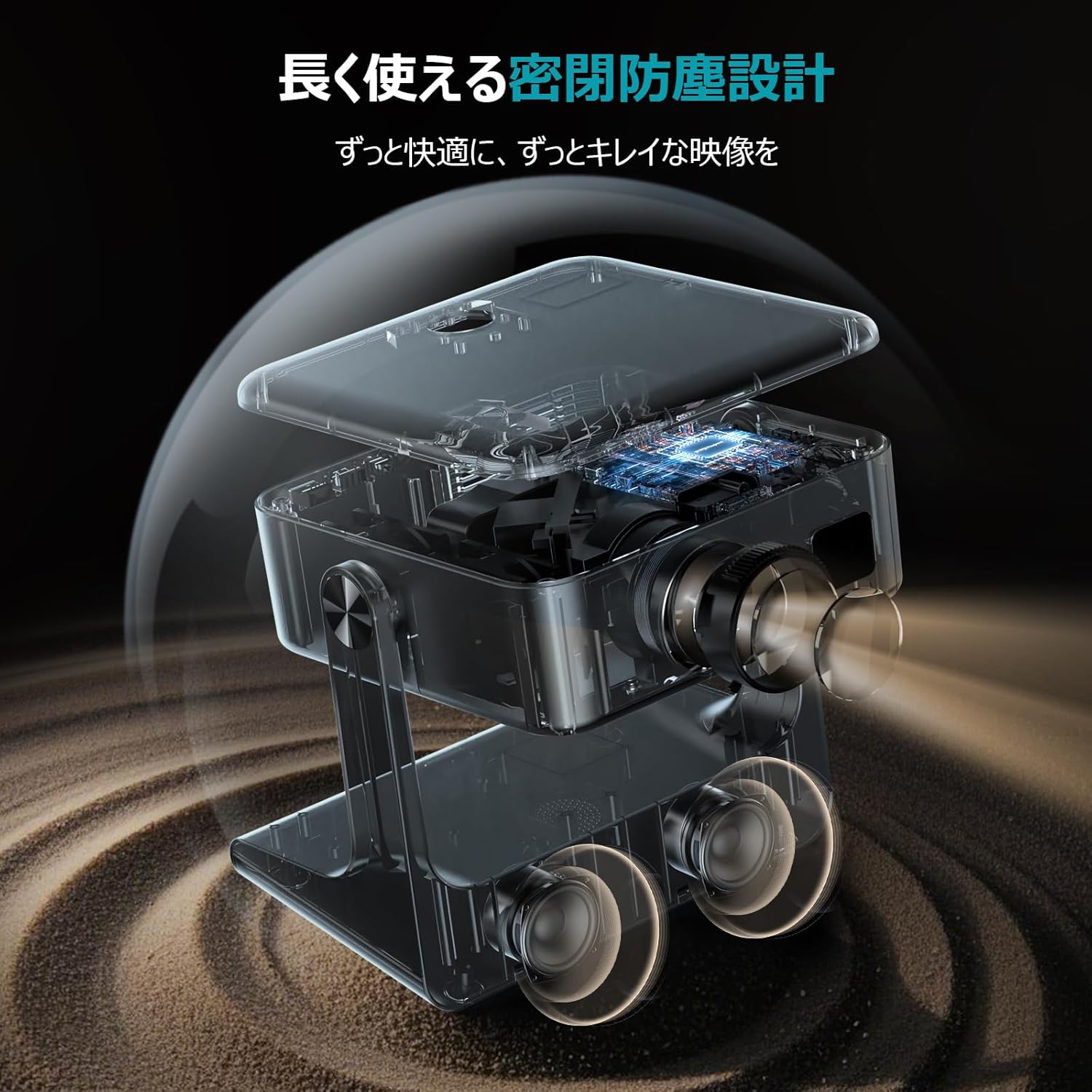
Image: The Google TV interface displayed on the projector screen, showing various streaming app icons.
5.2. Voice Control (Google Assistant)
Utilize the built-in Google Assistant for hands-free control. Simply press the voice search button on your remote and speak commands to open apps, search for content, or adjust settings. The high recognition accuracy ensures a smooth and natural interaction.

Image: A hand holding the remote control, demonstrating the voice control feature with a visual representation of sound waves and voice commands.
5.3. Screen Mirroring and Wireless Connectivity
The S61Pro supports high-speed 2.4G/5G WiFi 6 and Bluetooth 5.4, enabling seamless screen mirroring from your smartphone or tablet. You can easily share photos, videos, and even your phone screen directly onto the large projection. Official Google Cast certification allows direct mirroring from Google smartphones without additional devices.

Image: The projector wirelessly connected to a smartphone, illustrating the WiFi 6 and Bluetooth 5.4 capabilities for screen mirroring.
5.4. External Device Connectivity
Connect various external devices using the HDMI and USB ports. This includes PCs, gaming consoles like PS5 and Nintendo Switch, and other media players. The 3.5mm audio jack allows for private listening or connecting to external audio systems.

Image: The projector shown with various connected devices such as a laptop, gaming console, and smartphone, demonstrating its wide compatibility.
6. Maintenance
6.1. Dust-Proof Design
The S61Pro features a sealed dust-proof optical engine design. This significantly reduces the risk of dust accumulation inside the projector, preventing black spots on the image and ensuring long-term clear projection quality.

Image: An X-ray view of the projector's internal components, highlighting the sealed dust-proof optical engine and efficient heat dissipation system.
6.2. General Cleaning
To maintain optimal performance, regularly clean the exterior of the projector with a soft, dry cloth. For the lens, use the provided cleaning tool or a soft, lint-free cloth specifically designed for optical surfaces. Avoid using abrasive cleaners or solvents.
7. Troubleshooting
If you encounter any issues with your Sovboi S61Pro projector, please refer to the following common troubleshooting steps:
- No Power: Ensure the power cable is securely connected to both the projector and the power outlet. Try a different outlet.
- No Image: Check the input source. Ensure the HDMI cable is properly connected if using an external device. Verify that the lens cap is removed.
- Blurry Image: The projector has automatic focus. If the image remains blurry, try moving the projector slightly or restarting it to re-trigger the auto-focus.
- Image is not Rectangular: The projector features automatic keystone correction. If the image is distorted, try moving the projector slightly or restarting it.
- No Sound: Check the volume settings on both the projector and the connected device. Ensure external speakers or headphones are properly connected if used.
- Cannot Connect to Wi-Fi/Bluetooth: Ensure the projector is within range of your Wi-Fi network or Bluetooth device. Restart the projector and your network router if necessary.
- Apps Not Working: Ensure the projector is connected to the internet. Some apps may require updates or have regional restrictions.
If the issue persists after trying these steps, please contact customer support.
8. Specifications
| Feature | Specification |
|---|---|
| Brand | Sovboi |
| Model Number | S61Pro |
| Color | Snow White |
| Native Resolution | 1080P Full HD |
| Max Supported Resolution | 4K |
| Brightness | 1200 ANSI Lumens |
| Projection Ratio | 1.1:1 (Short-throw) |
| Minimum Image Size | 40 inches |
| Maximum Image Size | 500 inches |
| Operating System | Google TV |
| Wireless Connectivity | WiFi 6 (2.4G/5G), Bluetooth 5.4 |
| Audio | Built-in HiFi Speakers (2x 10W) |
| Ports | HDMI, USB, 3.5mm Audio Jack |
| Power Consumption | 60 W |
| Voltage | 100-240V |
| Weight | 3 pounds |
| GTIN / UPC | 614141768462 |
9. Warranty and Support
The Sovboi S61Pro projector comes with a 3-year warranty from the date of purchase. We also offer 24-hour Japanese language support to assist you with any inquiries or issues you may have. Please retain your proof of purchase for warranty claims.
For technical support or warranty service, please contact our customer service team via the contact information provided on our official website or your purchase platform.

