
1. Introduction
Thank you for choosing the EPOMAKER Aula F108 Wireless Gaming Keyboard. This full-size mechanical keyboard offers versatile connectivity, hot-swappable switches, customizable RGB backlighting, and programmable keys for an enhanced gaming and typing experience across various platforms including Mac, PC, and Android devices. This manual provides detailed instructions to help you set up, operate, maintain, and troubleshoot your new keyboard.
2. What's in the Box
- EPOMAKER Aula F108 Wireless Gaming Keyboard
- Keycap & Switch Puller
- Multilingual Manual
- Detachable Keyboard Cable (USB-C to USB-A)
- Extra Mechanical Switches (4 pieces)
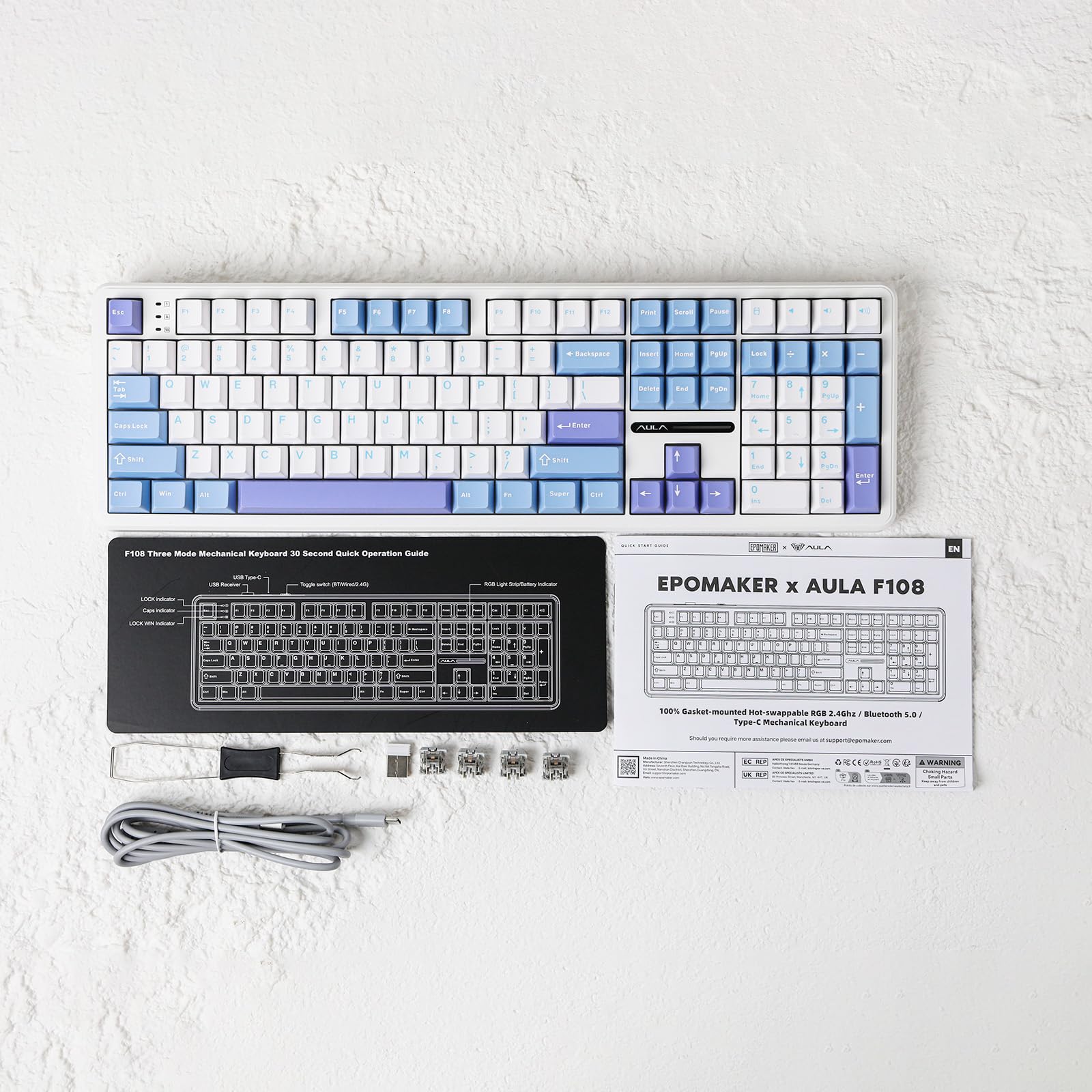
Figure 2.1: Package Contents of the EPOMAKER Aula F108 Keyboard.
Video 2.1: Official Unboxing Video of the EPOMAKER Aula F108 Keyboard.
3. Setup
3.1 Connectivity Modes
The EPOMAKER Aula F108 supports three primary connection modes: 2.4GHz Wireless, Bluetooth 5.0, and Wired (USB-C). A toggle switch located on the back of the keyboard allows you to select your preferred mode.
- 2.4GHz Wireless Mode: For optimal low-latency performance, especially for gaming. Insert the USB-A dongle (found in the keyboard's storage slot) into your device's USB port. Toggle the switch to '2.4G'.
- Bluetooth Mode: Ideal for connecting to multiple devices (up to 3) and switching between them. Toggle the switch to 'BT'. Press Fn + 1/2/3 to pair with a new device. The indicator light will flash during pairing and become solid once connected.
- Wired Mode: Connect the keyboard directly to your device using the provided USB-C to USB-A cable. Toggle the switch to 'Wired'. This mode also charges the keyboard's internal battery.
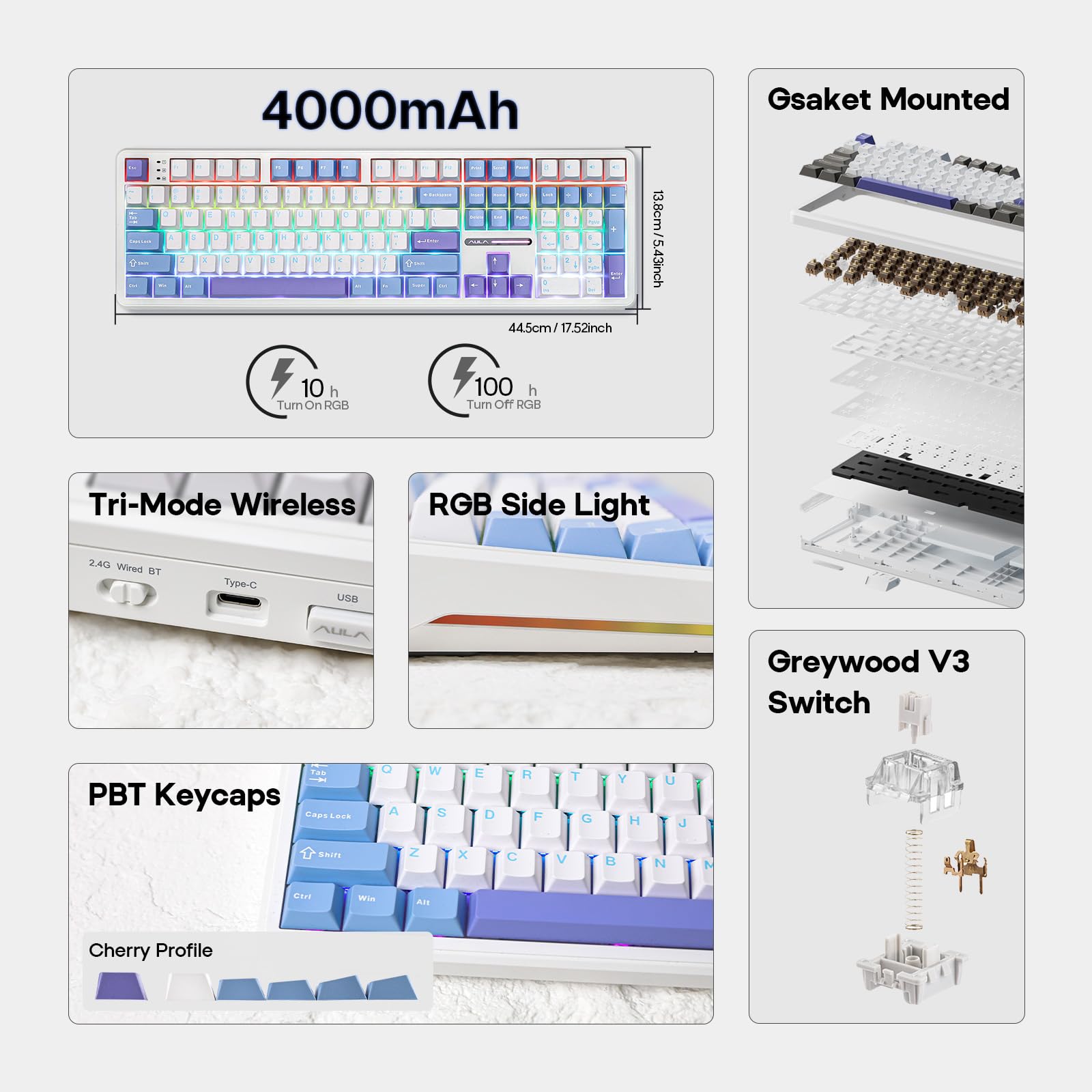
Figure 3.1: Tri-Mode Wireless Connectivity.
Video 3.1: Product Overview highlighting connectivity options.
4. Operating Instructions
4.1 Key Functions and Layout
The F108 is a full-size keyboard with 108 anti-ghosting keys, ensuring accurate and simultaneous key presses. It features a standard layout with a dedicated number pad, function row, and navigation cluster.
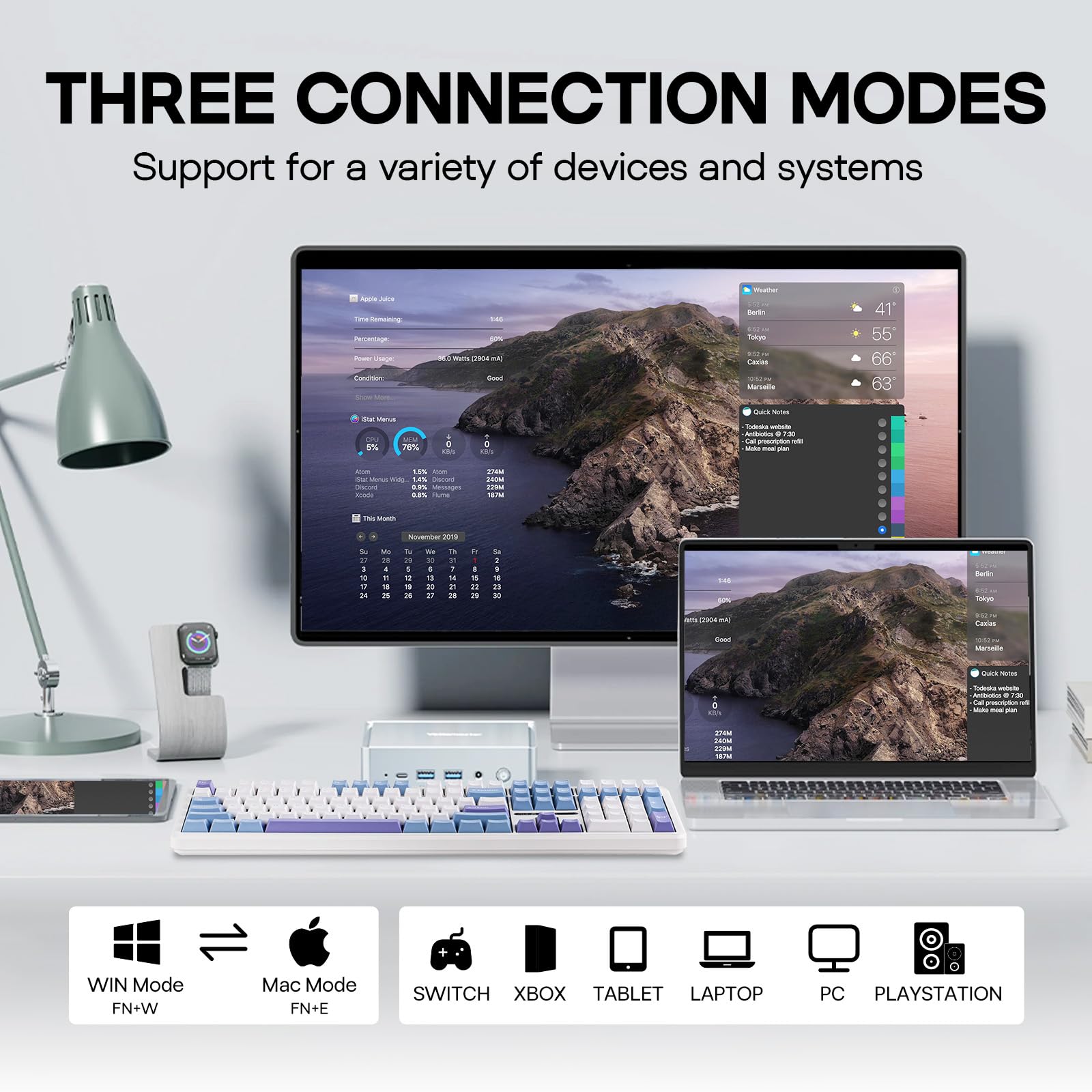
Figure 4.1: Anti-Ghosting Feature.
4.2 RGB Backlighting
The keyboard features vibrant RGB backlighting with 108 per-key LEDs. You can customize lighting modes, colors, saturation, brightness, and dynamic patterns directly from the keyboard or through the programming software.
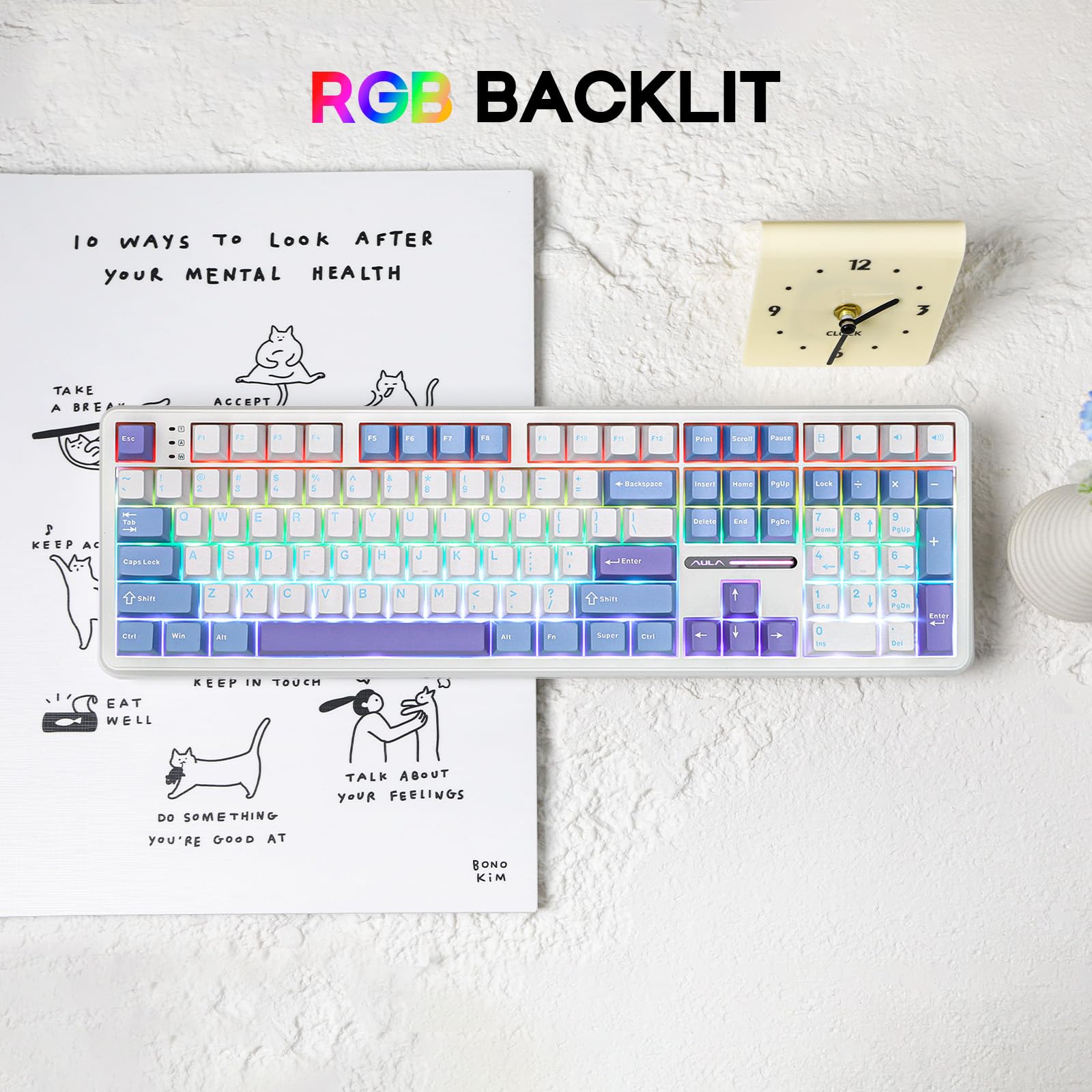
Figure 4.2: RGB Backlit Keyboard.
Video 4.1: Typing demonstration showcasing the RGB lighting effects.
Video 4.2: Typing comparison video, also highlighting RGB lighting.
Video 4.3: ASMR typing sounds with RGB lighting visible.
4.3 Programming Software
Utilize the powerful programming software for key remapping, macro assigning, and sensitivity adjustments to optimize your input speed and gaming competitiveness. This allows for deep personalization of your keyboard's functionality.
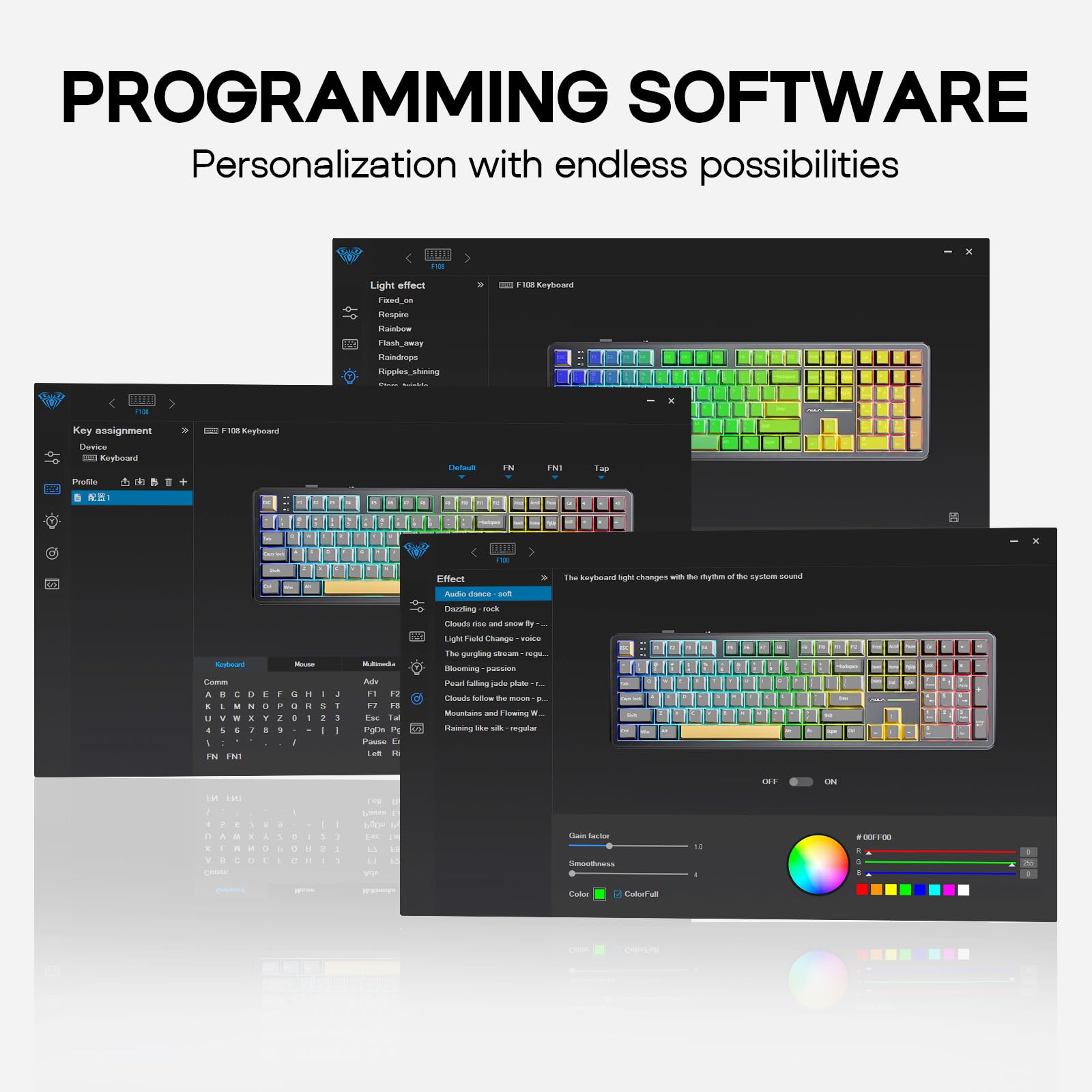
Figure 4.3: Programming Software Interface.
4.4 Hot-Swappable Switches
The F108 is hot-swappable, supporting mainstream 3/5-pin mechanical switches. This allows you to easily customize the touch and acoustic feedback of each keystroke by replacing switches without soldering. The keyboard comes with pre-lubed Greywood V3 Linear switches for a creamy and satisfying sound.

Figure 4.4: Hot-Swappable Switches.
5. Maintenance
5.1 Cleaning
To maintain your keyboard's performance and appearance, regularly clean it. Use a soft brush or compressed air to remove dust and debris from between the keycaps. For keycap cleaning, remove them using the provided puller and wipe with a damp cloth. Ensure keycaps are completely dry before reattaching.
5.2 Switch Care
While switches are pre-lubed, avoid excessive force when typing to prolong their lifespan. If replacing switches, ensure proper alignment with the PCB pins to prevent damage.
6. Troubleshooting
- Keyboard not connecting in wireless mode: Ensure the USB dongle is securely plugged in or Bluetooth is properly paired (Fn + 1/2/3). Check the toggle switch on the back of the keyboard is in the correct position (2.4G or BT). Ensure the keyboard battery is charged.
- Keys not responding: Try connecting the keyboard via USB-C cable to rule out wireless interference or battery issues. If individual keys are not responding, consider hot-swapping the affected switch with one of the extra switches provided.
- RGB lighting issues: Use the programming software to reset lighting effects or adjust brightness. Ensure the keyboard is not in a low-power state that might dim or turn off the lights.
- Lag or input delay: In wireless modes, ensure there are no strong interfering signals (e.g., other 2.4GHz devices). For critical tasks like gaming, consider using the wired USB-C connection for the lowest latency.
7. Specifications
| Feature | Detail |
|---|---|
| Product Dimensions | 17.44 x 5.35 x 1.77 inches |
| Item Weight | 3.52 pounds |
| Manufacturer | EPOMAKER |
| Item Model Number | F108 |
| Batteries | 1 Lithium Ion batteries required (included) |
| Connectivity Technology | Bluetooth, 2.4GHz Wireless, USB-C |
| Keyboard Description | Mechanical |
| Number of Keys | 108 |
| Keyboard Backlighting | RGB |
| Special Features | Full Size Keyboard, Ergonomic, Backlit, Programmable Keys, Hot-Swappable |
| Compatible Devices | Laptop, Gaming Console, PC, Tablet, Smartphone |
8. Warranty & Support
For warranty information and technical support, please refer to the official EPOMAKER website or contact their customer service directly. A detailed User Manual (PDF) is also available online for further assistance.
Online User Manual: Download PDF


