
1. Introduction
The MOREGAX A5 Pro is a versatile 2-in-1 Bluetooth adapter designed to function as both a transmitter and a receiver. It enables wireless audio connectivity for a wide range of devices, from non-Bluetooth audio sources like airplane entertainment systems and TVs to Bluetooth-enabled headphones and speakers. This manual provides detailed instructions for setting up and operating your A5 Pro device.
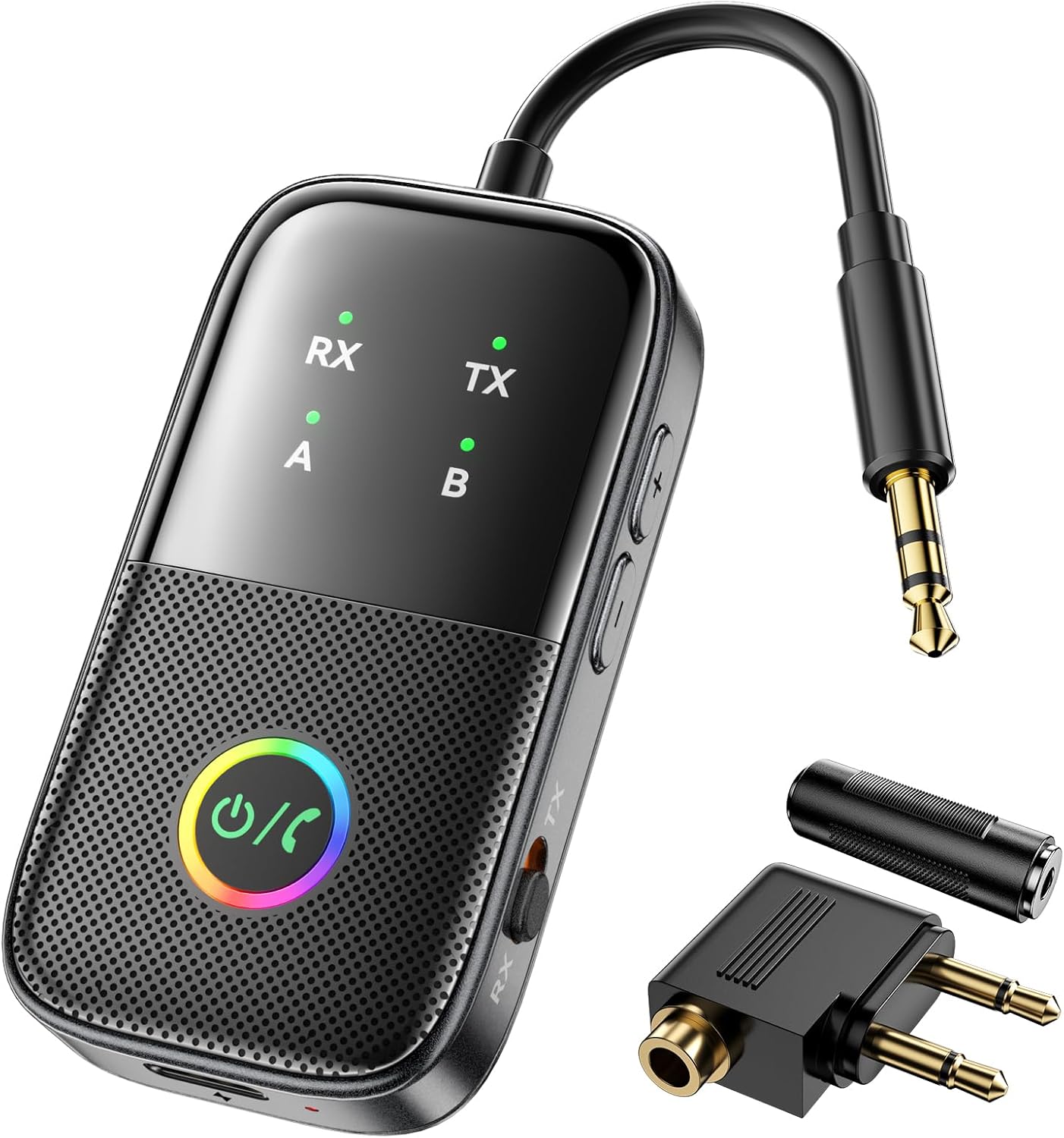
Image 1.1: The MOREGAX A5 Pro Bluetooth Transmitter Receiver and its accessories, including a 3.5mm audio cable and airplane adapter.
2. Product Overview
2.1 Package Contents
- 1x MOREGAX A5 Pro Bluetooth Adapter
- 1x Audio Connector for Aircraft (dual 3.5mm plug)
- 1x 3.5mm Female to Female Adapter
- 1x RCA Audio Cable
- 1x Type-C Charging Cable
- 1x User Manual

Image 2.1: Contents of the A5 Pro package, including the adapter, various audio cables, and the user manual.
2.2 Device Components
Familiarize yourself with the various parts of your A5 Pro adapter:
- Multi-key RGB Lamp: Power on/off, play/pause, answer/end calls, and indicates status with colorful lighting effects.
- Status Indicators (RX/TX, A/B): Show current mode (Receiver/Transmitter) and connected devices.
- Mode Switch: Toggle between RX (Receiver) and TX (Transmitter) modes.
- Volume -/+ Buttons: Adjust audio volume.
- Search Button: Used for pairing.
- Microphone: For hands-free calling in RX mode.
- Gold Plated AUX: 3.5mm audio input/output jack.
- Charge Port (Type-C): For charging the device.
- Charge Lamp: Indicates charging status.

Image 2.2: Detailed view of the A5 Pro device components and their functions.
2.3 Key Features
- 2-in-1 Functionality: Operates as both a Bluetooth transmitter (TX) and receiver (RX).
- Bluetooth 5.2 Technology: Ensures stable connection, low power consumption, and low latency.
- Wide Compatibility: Connects to various audio sources via 3.5mm AUX/RCA, including airplanes, TVs, PCs, car stereos, and home audio systems.
- Dual Pairing: Supports simultaneous connection of two Bluetooth headphones/speakers in TX mode or two smartphones/tablets in RX mode.
- Portable Design: Compact with a built-in 300mAh battery for extended use.
- Long Battery Life: Up to 12 hours in TX mode, 10 hours in RX mode, with a 1.5-hour full charge time.
- Low Latency: Features aptX low-latency codec for synchronized audio and video.
- RGB Lighting Effects: Multi-key RGB lamp with various lighting modes (Colorful, Flowing, Breathing, Jumping).

Image 2.3: The A5 Pro's RGB lamp displaying various colorful lighting effects.

Image 2.4: The A5 Pro is equipped with a Bluetooth 5.2 chip for enhanced performance.
3. Setup Instructions
The A5 Pro can operate in two modes: Transmitter (TX) and Receiver (RX). Only one mode can be used at a time.

Image 3.1: Overview of TX and RX mode connections.
3.1 Transmitter (TX) Mode Setup
In TX mode, the A5 Pro transmits audio from a non-Bluetooth source to Bluetooth headphones or speakers.
- Switch to TX Mode: Locate the mode switch on the side of the A5 Pro and slide it to the TX position.
- Connect to Audio Source:
- For devices with a 3.5mm audio jack (e.g., TV, PC, MP3 player, gym equipment), connect the A5 Pro directly using its integrated 3.5mm AUX plug.
- For airplane entertainment systems, use the included dual 3.5mm airplane headphone adapter.
- For devices with RCA audio output, use the included RCA audio cable.
- Power On: Press and hold the multi-key RGB lamp button for 3 seconds to power on the device. The TX indicator will light up.
- Enter Pairing Mode: Double-click the search button on the side of the A5 Pro. The TX indicator will flash, indicating it is searching for devices.
- Pair with Bluetooth Headphones/Speakers: Put your Bluetooth headphones or speakers into pairing mode. The A5 Pro will automatically search for and connect to nearby Bluetooth audio devices. Once connected, the TX indicator will remain solid.

Image 3.2: A5 Pro in TX mode, connected to an airplane audio jack and transmitting to wireless earbuds.

Image 3.3: Visual guide for TX mode setup and pairing.
3.2 Receiver (RX) Mode Setup
In RX mode, the A5 Pro receives audio from a Bluetooth-enabled device (like a smartphone) and transmits it to a non-Bluetooth wired speaker or car/home stereo system.
- Switch to RX Mode: Slide the mode switch on the side of the A5 Pro to the RX position.
- Connect to Audio Output Device: Connect the A5 Pro to your wired speakers, car stereo, or home audio system using its integrated 3.5mm AUX plug or the included RCA audio cable.
- Power On: Press and hold the multi-key RGB lamp button for 3 seconds to power on the device. The RX indicator will light up.
- Enter Pairing Mode: Double-click the search button on the side of the A5 Pro. The RX indicator will flash, indicating it is searching for devices.
- Pair with Bluetooth Source Device: On your smartphone, tablet, or other Bluetooth audio source, enable Bluetooth and search for "A5 Pro" in the list of available devices. Select "A5 Pro" to connect. Once connected, the RX indicator will remain solid.

Image 3.4: A5 Pro in RX mode, connected to a car stereo and receiving audio from a smartphone.

Image 3.5: Visual guide for RX mode setup and pairing.
4. Operating Instructions
4.1 Power On/Off
- Power On: Press and hold the multi-key RGB lamp button for 3 seconds.
- Power Off: Press and hold the multi-key RGB lamp button for 3 seconds.
4.2 Pairing and Reconnection
- After initial pairing, the A5 Pro will attempt to automatically reconnect to the last paired device when powered on.
- To force pairing mode, double-click the search button.
- To reset connections or resolve compatibility issues, use the "reset" button (refer to device diagram for location).
4.3 Dual Pairing (Connecting Two Devices Simultaneously)
The A5 Pro supports connecting two devices at the same time, either two headphones/speakers in TX mode or two phones/tablets in RX mode.
- Connect First Device: Follow the standard pairing steps for your chosen mode (TX or RX) to connect the first device. The corresponding A or B indicator will light up.
- Connect Second Device: Double-click the search button on the A5 Pro to enter pairing mode again. Pair the second device following its specific pairing instructions. Once connected, both A and B indicators will be lit.

Image 4.1: The A5 Pro supports dual pairing for enhanced connectivity.
4.4 Volume Control
Use the Volume -/+ buttons on the side of the A5 Pro to adjust the audio output level.
4.5 Hands-Free Calling (RX Mode Only)
When in RX mode and connected to a smartphone, you can use the A5 Pro's built-in microphone for hands-free calls. Press the multi-key RGB lamp button to answer or end a call.
5. Maintenance
5.1 Charging the Device
Connect the included Type-C charging cable to the A5 Pro's charge port and a USB power source (e.g., computer USB port, USB wall adapter). The charge lamp will indicate charging status. A full charge takes approximately 1.5 hours.
5.2 Cleaning
Wipe the device with a soft, dry cloth. Do not use liquid cleaners or solvents.
5.3 Storage
Store the device in a cool, dry place away from direct sunlight and extreme temperatures.
6. Troubleshooting
- Device not pairing:
- Ensure the A5 Pro is in the correct mode (TX or RX).
- Make sure both the A5 Pro and the target device are in pairing mode.
- Turn off nearby Bluetooth devices (e.g., phones, iPads) during pairing to avoid interference.
- If pairing AirPods, ensure they are in their charging case when initiating pairing.
- Try resetting the A5 Pro using the dedicated reset button.
- Low audio quality or latency:
- Check the audio source for quality issues.
- Ensure your connected device supports Bluetooth 5.2 and aptX Low Latency for optimal performance.
- Reduce the distance between the A5 Pro and the connected Bluetooth device.
- Ensure there are no physical obstructions or strong interference sources.
- No sound:
- Verify that the A5 Pro is correctly connected to both the audio source/output and the Bluetooth device.
- Check volume levels on both the A5 Pro and the connected devices.
- Ensure the correct audio input/output is selected on your external audio system.
- Device not charging:
- Ensure the Type-C charging cable is securely connected.
- Try a different USB power source or charging cable.
7. Specifications
| Model Number | A5 Pro |
| Bluetooth Version | 5.2 |
| Battery Capacity | 300mAh |
| Charging Time | Approx. 1.5 hours |
| TX Mode Battery Life | Up to 12 hours |
| RX Mode Battery Life | Up to 10 hours |
| Wireless Range | Approx. 15 meters (50 feet) |
| Connectivity Technology | Bluetooth, 3.5mm AUX, RCA |
| Item Weight | 4.2 ounces (0.12 Kilograms) |
| Package Dimensions | 7.36 x 4.45 x 1.14 inches |
8. Safety Information
- To avoid potential interference during pairing, it is recommended to turn off nearby Bluetooth devices such as phones or tablets.
- Do not expose the device to extreme temperatures, direct sunlight, or moisture.
- Do not attempt to disassemble or modify the device.
- Keep out of reach of children.
9. Warranty and Support
For warranty information and customer support, please refer to the product packaging or contact MOREGAX customer service directly. Details can typically be found on the manufacturer's official website or through your point of purchase.