
Introduction
The Tokluck PS5 Dual Controller Charging Station is designed to efficiently charge two PlayStation 5 DualSense or DualSense Edge controllers simultaneously. This station features intelligent charging protection, LED indicators, and ambient lighting to enhance your gaming setup. Its compact design helps keep your gaming area organized and ensures your controllers are always ready for use.

Image: The Tokluck PS5 Dual Controller Charging Station with two white PS5 controllers docked, showcasing its compact design and compatibility.
What's in the Box
- 1 x PS5 Controller Charger
- 1 x USB-A to USB-C Cord (34.8 inch)
- 1 x User Manual

Image: A visual representation of the items included in the product packaging: the charging station, a USB-A to USB-C cable, and the user manual.
Key Features
- Fast Charging & Intelligent Chip: Dual PS5 controllers can be fully charged in approximately 2 hours using the included 34.8-inch USB fast charging cable. The built-in protector chip prevents over-current, over-voltage, over-heating, and short-circuiting, ensuring safe charging.
- Compatible with DualSense & Edge Controller: Specifically designed to charge both PS5 DualSense and DualSense Edge controllers simultaneously. Its compact design helps reduce cable clutter and saves space.
- LED Indicators & ON/OFF Switch: Red light indicates charging, while blue light signifies a full charge. An integrated ON/OFF switch allows for convenient power control of the entire unit.
- Ambient Light: Features a blue ambient light that complements the PS5 console. Touch control allows for switching between 9 lighting modes with a short press, and turning the light on/off with a long press.
- Easy Drop-to-Charge: Designed for effortless charging; simply place the controllers onto the dock without needing precise alignment. Anti-slip pads ensure the charging stand remains securely in place.

Image: Visual representation of the fast and safe charging capabilities, highlighting the 2-hour charging time and multiple protection features.

Image: A detailed view of the touch control for RGB lighting, illustrating various color and breathing light effects.
Setup Instructions
- Connect Power: Insert the USB-C end of the provided cable into the USB-C port on the back of the charging station.
- Power Source: Connect the USB-A end of the cable to a compatible power source. This can be a USB port on your PS5 console (front or back), an original AC adapter (not included), a laptop, or other USB-compatible devices.
- Activate Power: Locate the ON/OFF switch on the back of the charging station and slide it to the "ON" position. The ambient lights and LED indicators will illuminate.

Image: Illustration of different power sources that can be used to power the charging station, such as the PS5 console, mobile power, AC adapter, and computer.

Image: A step-by-step visual guide demonstrating the ease of connecting the charger and placing controllers for charging.
Operating Instructions
Charging Controllers
- Place Controller: Gently align your PS5 DualSense or DualSense Edge controller with the charging pins in one of the two slots on the charging station.
- Confirm Connection: The controller will settle into place, and the corresponding LED indicator on the front of the station will turn red, indicating that charging is in progress.
- Full Charge Indication: Once the controller is fully charged, the LED indicator will change from red to blue.
Ambient Light Control
- Change Lighting Mode: Short press the RGB button (located on the front of the station) to cycle through 9 different lighting modes.
- Turn Light On/Off: Long press the RGB button for approximately 3 seconds to reduce the brightness and turn the ambient light on or off.
ON/OFF Switch
- Use the physical ON/OFF switch on the back of the charging station to completely power the unit on or off. This controls all functions, including charging and ambient lighting.
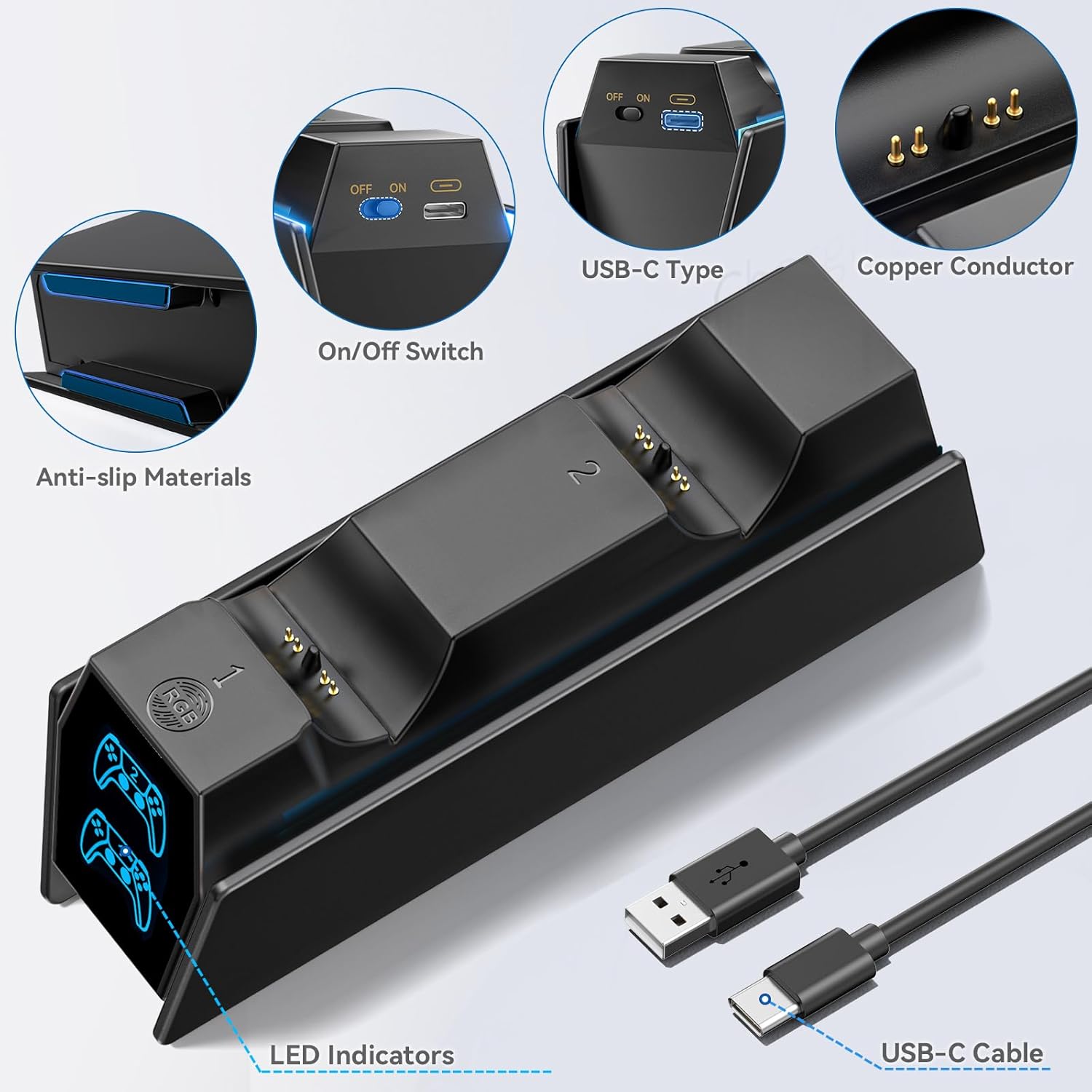
Image: Close-up of the charging station's features, including the ON/OFF switch, USB-C port, and LED indicators.
Video: This video demonstrates the various RGB lighting effects and the ease of placing PS5 controllers onto the charging station.
Maintenance
- Keep the charging station clean and dry. Use a soft, dry cloth to wipe away dust or smudges.
- Avoid dropping the unit or subjecting it to strong impacts, which could damage internal components.
- Do not attempt to disassemble, modify, or repair the charging station yourself. Contact customer support if issues arise.
- Ensure proper ventilation around the unit to prevent overheating.
Troubleshooting
- Controller not charging:
- Ensure the USB cable is securely connected to both the charging station and the power source.
- Verify the ON/OFF switch on the back of the station is in the "ON" position.
- Check that the controller is properly aligned with the charging pins on the dock.
- Try connecting the charging station to a different USB port or power adapter.
- LED indicator not working:
- Confirm the charging station is powered on and connected correctly.
- Ensure the controller is placed firmly on the charging pins.
- Ambient light not working:
- Check the power connection and the ON/OFF switch.
- Short press the RGB button to cycle through the lighting modes.
- Long press the RGB button to ensure the light hasn't been turned off.
Specifications
| Connector Type | USB Type C |
| Compatible Devices | Game Consoles (PS5 DualSense, PS5 DualSense Edge) |
| Additional Features | Fast Charging, LED Indicators, RGB Ambient Lighting, Over-current Protection, Over-voltage Protection, Over-heated Protection, Short-circuit Protection |
| Input Voltage | 5 Volts |
| Amperage | 2 Amps |
| Total USB Ports | 1 (for power input) |
| Wattage | 10 watts |
| Output Current | 15 Amps |
| Output Voltage | 5 Volts |
| Power Source | AC (AC adapter not included) |
| Portable | No |
| Power Plug | Type A - 2 pin (North American) |
| Connectivity Technology | USB |
| Material | Plastic |
| Item Weight | 0.21 Kilograms |
Warranty & Support
This product comes with a 1 Year Warranty from the manufacturer. For any technical support, troubleshooting assistance, or warranty claims, please refer to the official Tokluck website or contact their customer service directly.
Please retain your proof of purchase for warranty purposes.