
BEAVERLAB Darwin DDL-D2
BEAVERLAB Darwin DDL-D2 Visual Timer Instruction Manual
Model: DDL-D2
1. Product Overview
The BEAVERLAB Darwin DDL-D2 Visual Timer is a versatile time management tool designed to assist with scheduling, task organization, and concentration. It features a visual countdown, a Pomodoro timer, and a customizable task list, making it suitable for various users and activities.

Image 1.1: The DDL-D2 Visual Timer displaying its main components including the visual timer display, clock, task list, slide buttons, and integrated storage box.
Key Features:
- Visual Countdown Function: Provides a clear, graphical representation of time remaining, ideal for children and visual learners.
- Pomodoro Timer: Supports focused work intervals and short breaks to enhance productivity.
- Customizable Task List: Allows users to write down and track daily tasks using slide buttons for completion.
- Integrated Clock and Storage: Displays current time and includes a convenient storage box for small items.
- Automatic Backlight Adjustment: Adapts screen brightness for optimal viewing in daylight and night conditions.
- Silent Mode: Operates without audible alerts for quiet environments.
2. Setup
2.1 Unpacking and Initial Charge
Carefully remove the visual timer from its packaging. Before first use, it is recommended to fully charge the device. Connect the provided USB charging cable to the timer's charging port and to a suitable USB power adapter (not included). The charging indicator will show the charging status.
Note: If the battery is completely depleted, the time and other settings may reset. Ensure regular charging to maintain settings.
2.2 Setting the Time and Date
Upon initial power-on or after a full battery depletion, you may need to set the current time and date. Refer to the specific buttons on your device (usually labeled "Set" or with a gear icon) and the on-screen prompts to adjust the hour, minute, day, month, and year.
3. Operating Instructions
3.1 Using the Visual Countdown Timer
The visual timer can be set for durations up to 99 minutes. To set a countdown:
- Locate the timer setting buttons (often marked with "+" and "-" or specific timer icons).
- Press the appropriate button to enter timer setting mode.
- Adjust the desired minutes and seconds using the increment/decrement buttons.
- Press the Start/Pause button to begin the countdown. The visual display will show the time decreasing.
- When the timer reaches zero, an alert will sound (unless in silent mode).
3.2 Pomodoro Technique Function
The timer supports the Pomodoro Technique for focused work. This typically involves 25 minutes of work followed by a 5-minute break. Consult your device's specific menu or button combinations to activate the Pomodoro mode, which may cycle through work and break intervals automatically.
3.3 Managing the Task List
The DDL-D2 features a physical task list with corresponding slide buttons. Write down your tasks on the provided inserts or directly on the board if it's erasable. As each task is completed, slide the adjacent button to mark it as done. This visual feedback helps in tracking progress.
3.4 Silent Mode Operation
For environments requiring quiet, such as libraries or during sleep, activate the silent mode. This disables audible alerts while the visual timer continues to function. Refer to your device's manual for the specific button or menu option to toggle silent mode.
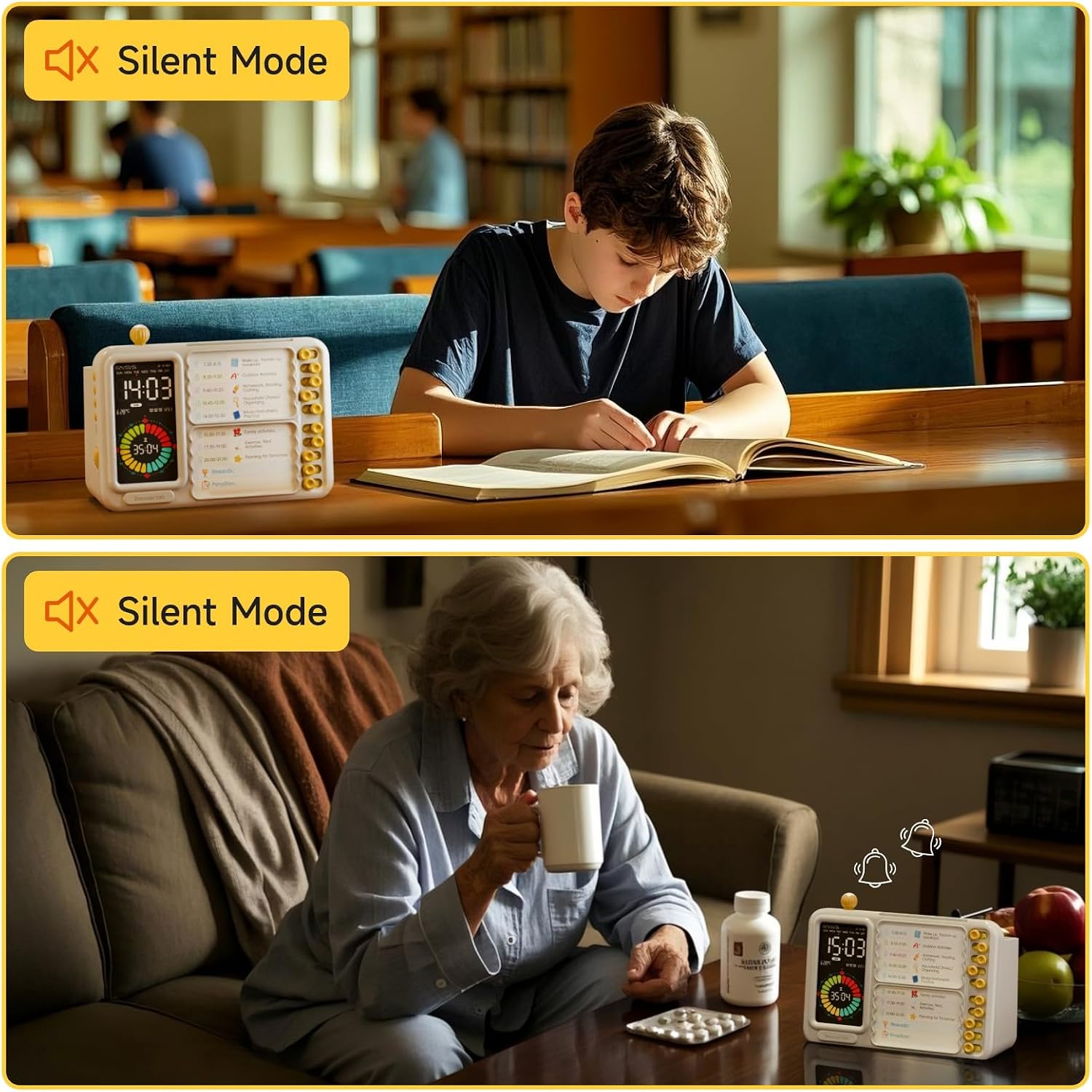
Image 3.4: The visual timer operating in Silent Mode, suitable for quiet study or relaxation without disruptive alarms.
3.5 Display Modes: Daylight and Night
The DDL-D2 timer automatically adjusts its LCD color screen backlight based on ambient light conditions to ensure optimal visibility and comfort.
- Daylight Mode (8:00 AM - 8:00 PM): High brightness for clear visibility in well-lit environments.
- Night Mode (8:00 PM - 8:00 AM): Low brightness to prevent glare and provide a more comfortable viewing experience in darker settings.

Image 3.5: Comparison of the timer's display in Daylight Mode (left) and Night Mode (right), demonstrating automatic brightness adjustment.
3.6 Volume Adjustment
The alarm volume can be adjusted to suit your preference. Locate the volume control buttons or menu option on the device. It is recommended to test the volume settings to avoid excessively loud alerts, especially when used by children or in quiet environments.
4. Versatile Applications
4.1 For Children and Learning
The DDL-D2 Visual Timer is an effective tool for children to develop time management skills, improve concentration, and establish good learning habits. Its visual nature helps children understand the passage of time more intuitively.

Image 4.1: Children utilizing the visual timer for structured morning routines, balancing entertainment with learning, and managing family activities.
4.2 Supporting Children with Special Needs
This timer can be particularly beneficial for children with special needs by providing clear visual cues for time transitions and task completion. It helps to:
- Improve time perception.
- Establish a daily routine.
- Reduce transition anxiety.
- Enhance self-regulation ability.
- Increase participation and independence.

Image 4.2: An adult guiding a child in using the visual timer to manage tasks and transitions, promoting independence.
4.3 For Adults and Home Safety
The DDL-D2 timer is also useful for adults, particularly for medication reminders, scheduling regular health check-ups, and ensuring home safety tasks like turning off appliances or lights are completed on time.

Image 4.3: The visual timer assisting adults with timely medication intake and reminding them about home safety, such as turning off gas or lights.
5. Maintenance
5.1 Cleaning
To clean the visual timer, gently wipe the surface with a soft, dry cloth. For stubborn marks, a slightly damp cloth can be used, followed by immediate drying. Do not use abrasive cleaners, solvents, or immerse the device in water.
5.2 Battery Care
To prolong battery life, avoid fully discharging the device frequently. Recharge the timer when the low battery indicator appears. Store the device in a cool, dry place when not in use for extended periods.
6. Troubleshooting
- Device not turning on: Ensure the device is fully charged. Connect it to a power source using the USB cable and allow it to charge for at least 30 minutes before attempting to power it on again.
- Time and settings reset: This typically occurs if the battery has been completely depleted. Recharge the device and then reset the time and any other desired settings.
- Display is dim or unreadable: Check if the device is in Night Mode during daylight hours, or if ambient light is too bright for the current setting. The device automatically adjusts brightness, but extreme conditions might affect visibility. Ensure the screen is clean.
- Alarm sound is too loud or too quiet: Adjust the volume settings as described in Section 3.6. If there is no sound, ensure Silent Mode is not activated.
- Timer not counting down: Ensure the timer has been properly set and the start button has been pressed. Check for any pause indicators on the screen.
7. Specifications
| Feature | Detail |
|---|---|
| Brand | BEAVERLAB Darwin |
| Model Number | DDL-D2 |
| Product Dimensions | 10.04"D x 4.02"W x 7.48"H |
| Screen Size | 10 Centimeters |
| UPC | 717352880418 |
| Manufacturer | BeaverLab—Beaver technology |
8. Warranty and Support
For warranty information or technical support, please refer to the documentation included with your purchase or contact BEAVERLAB Darwin customer service. Contact details can typically be found on the manufacturer's official website or on the product packaging.
Please retain your proof of purchase for any warranty claims.
Ask a question about this manual
Ask about setup, troubleshooting, compatibility, parts, safety, or missing instructions. Manuals+ will review the question and use this page’s manual context to help answer it.