
1. Introduction
This manual provides detailed instructions for the installation, operation, and maintenance of your SIXTOP Android Car Stereo. Please read this manual thoroughly before using the product to ensure proper functionality and safety. Keep this manual for future reference.
2. Package Contents
Verify that all items listed below are included in your package:
- Car Stereo with Frame
- AHD Backup Camera
- External Microphone
- RCA Cable
- Power Cable
- USB Cable
- GPS Antenna
- Camera Cable
- Rear View Input Cable
- Installation Tool
- User Manual (this document)
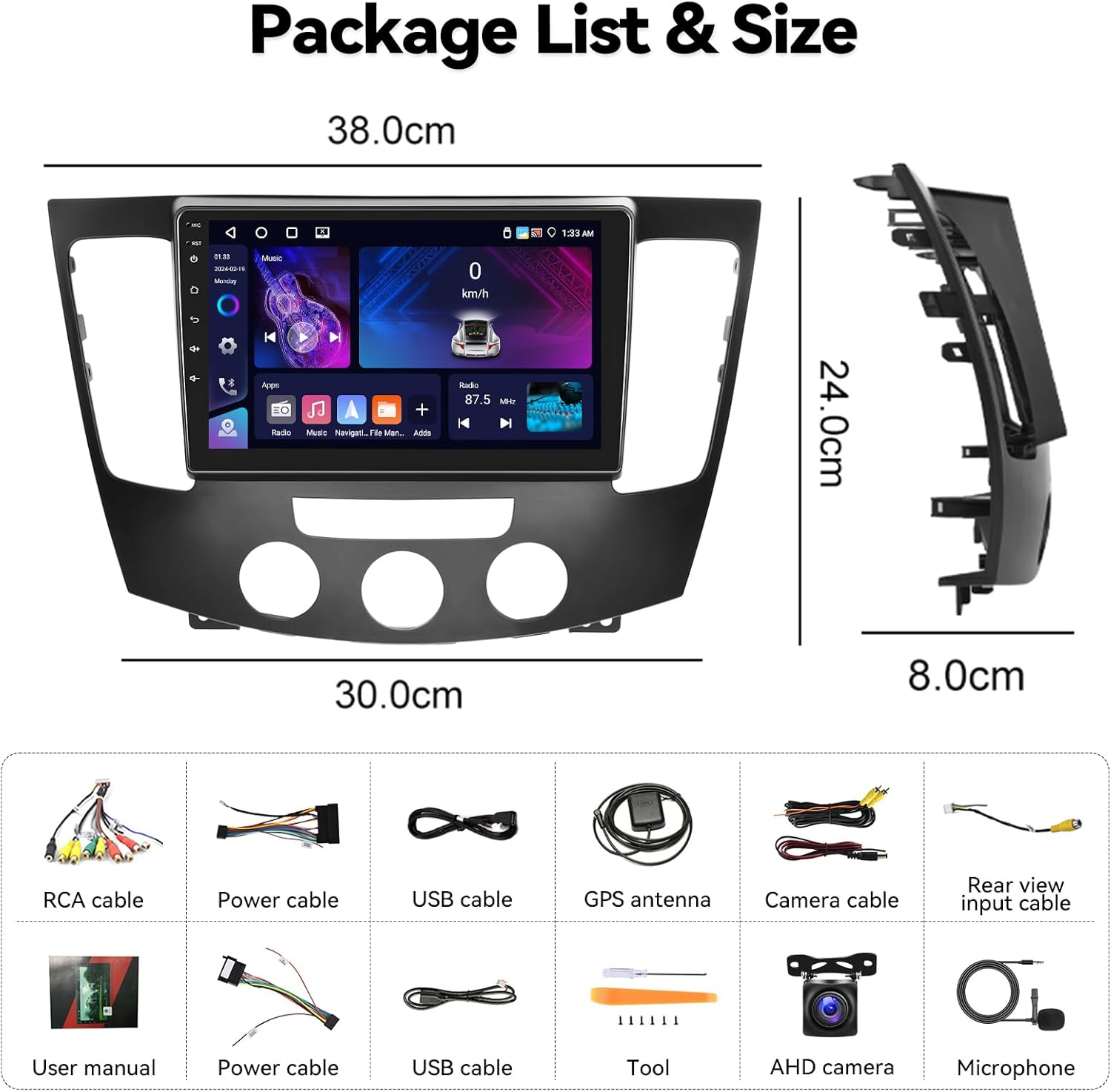
Figure 2.1: Included Components
3. Product Features
- High-Definition Display: 9-inch 1280*720 HD Touchscreen with IPS technology for wide viewing angles.
- Performance: Android 13 operating system with 4GB RAM and 64GB ROM for smooth operation.
- Audio Quality: AI DSP (Digital Sound Processor) with 32-band Equalizer (32EQ) for customizable sound effects (3D optimized, Panorama, HiFi scene, etc.).
- Connectivity: Built-in Bluetooth 5.0 for hands-free calling and music streaming, Wi-Fi for internet access and app downloads, and GPS for navigation.
- Smartphone Integration: Supports Wireless Apple CarPlay and Android Auto for seamless smartphone mirroring and control. Features Mirror Link for both iPhone (Airplay) and Android devices (Android Link).
- Voice Control: AI Intelligent Voice Assistant for hands-free operation of various functions.
- Multitasking: Split Screen Functionality to run two applications simultaneously.
- Radio: FM/RDS radio tuner for news, music, and traffic information.
- Safety Features: Supports Steering Wheel Control (SWC) for convenient operation and AHD Backup Camera for clear reversing images.
- Customization: Various desktop themes available to personalize the user interface.

Figure 3.1: System Specifications

Figure 3.2: Ultra HD Screen with IPS Technology
4. Installation Guide
Proper installation is crucial for the optimal performance of your car stereo. It is recommended to have the installation performed by a qualified professional.
4.1. Rear Camera Wiring Diagram
Follow the diagram below for connecting the AHD backup camera. Ensure all connections are secure to prevent malfunctions.

Figure 4.1: Rear Camera Wiring Diagram
Video Description: This video demonstrates the wiring process for the rear camera, showing how to connect the video cable, power supply, and ground to ensure the backup camera functions correctly with the car stereo.
5. Basic Operations
This section covers the fundamental functions and settings of your SIXTOP Android Car Stereo.
5.1. User Interface Navigation
The car stereo features an intuitive touchscreen interface. Swipe left or right to access different application pages. The main interface can display a three-panel layout for quick access to music, speed, and radio.

Figure 5.1: Main User Interface
Video Description: This video provides a comprehensive demonstration of various functions and the user interface of the car stereo, including navigation through apps, settings, and media playback.
5.2. Wi-Fi Connection
To access online features like app downloads, online music, and video streaming, connect your car stereo to a Wi-Fi network. Navigate to Settings > Network & Internet > Wi-Fi, turn on Wi-Fi, and select your desired network. Enter the password if required.

Figure 5.2: Wi-Fi and Other Connectivity Options
5.3. Bluetooth 5.0
Enable Bluetooth on your smartphone and the car stereo (Settings > Bluetooth). Pair your device to make hands-free calls, synchronize your address book, and stream music wirelessly.

Figure 5.3: Bluetooth 5.0 Hands-Free Calling
5.4. FM/RDS Radio
Access the Radio application to listen to FM stations. The RDS (Radio Data System) feature provides additional information like station name and traffic updates. You can manually tune or auto-scan for stations.

Figure 5.4: FM/RDS Radio Interface
5.5. GPS Navigation
The car stereo supports GPS positioning. You can download offline navigation maps from the Play Store or use online maps when connected to Wi-Fi.

Figure 5.5: GPS Navigation
5.6. AI Intelligent Voice Control
Activate the AI Voice APP and speak your commands to control various functions, such as calling contacts, playing music, or opening applications.
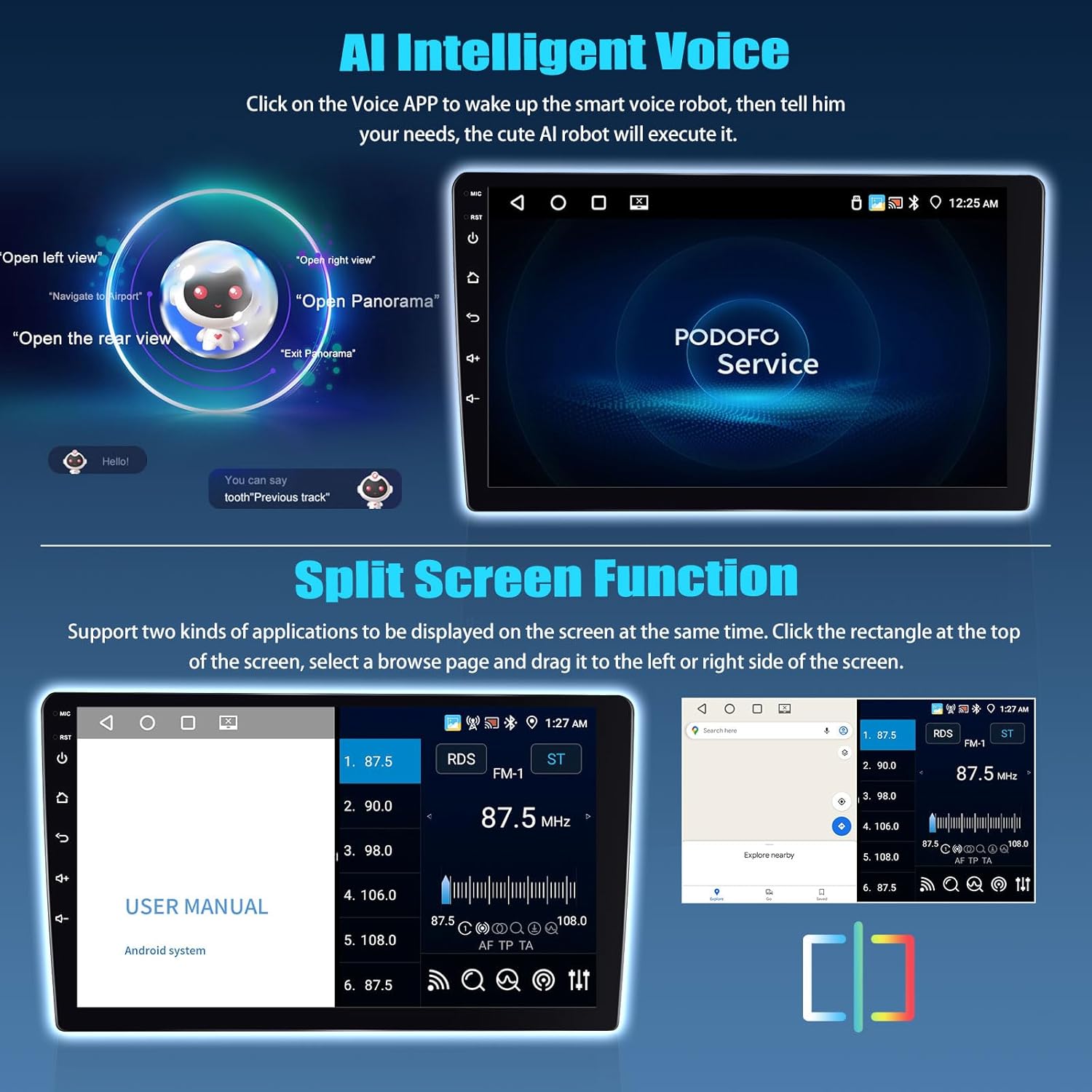
Figure 5.6: AI Intelligent Voice Control

Figure 5.7: AI Voice Assistant Capabilities
5.7. Split Screen Function
The car stereo supports split-screen mode, allowing you to display and operate two applications simultaneously. Tap the rectangle icon at the top of the screen, select an app, and drag it to either side of the screen.

Figure 5.8: Split Screen Mode
6. Connectivity: CarPlay, Android Auto & Mirror Link
Seamlessly integrate your smartphone with the car stereo for enhanced functionality.
6.1. Wireless Apple CarPlay & Android Auto
Connect your iPhone or Android phone wirelessly to access navigation, music, messages, and more directly on the car stereo display. Ensure Bluetooth is enabled on your phone and open the [ApplePlay] or [Android Auto] app on the stereo to connect automatically.

Figure 6.1: Car Stereo Installed in Hyundai Sonata NF

Figure 6.2: Apple CarPlay, Android Auto, and Mirror Link
Video Description: This video demonstrates the functionality of CarPlay and Android Auto, showing how to connect and use these features with the car stereo. It highlights the seamless integration of smartphone apps and controls.
6.2. Mirror Link
Use the Mirror Link function to project your smartphone screen onto the car stereo. This is ideal for viewing videos or other content from your phone. Select [Airplay] for iPhone or [Android Link] for Android phones and connect via Wi-Fi.
7. Sound Settings (DSP & EQ)
Customize your audio experience with the built-in Digital Sound Processor (DSP) and 32-band Equalizer (32EQ).

Figure 7.1: DSP 32EQ Interface

Figure 7.2: DSP Sound Effects Customization
8. Camera Functions
8.1. AHD Backup Camera
The included AHD backup camera provides a clear reversing image, automatically switching when the car is in reverse gear. This enhances safety during parking maneuvers.

Figure 8.1: AHD Rear View Camera Display

Figure 8.2: Reversing Display with AHD Camera
9. Steering Wheel Control
Configure your original steering wheel buttons to control the car stereo, allowing for convenient and safe operation while driving. Access the steering wheel settings in the car settings menu to program the buttons.

Figure 9.1: Steering Wheel Control Interface
10. Customization: Desktop Themes
Personalize your car stereo's appearance by changing desktop themes. Long-press on a blank space on the homepage to access theme options and select your preferred visual style.
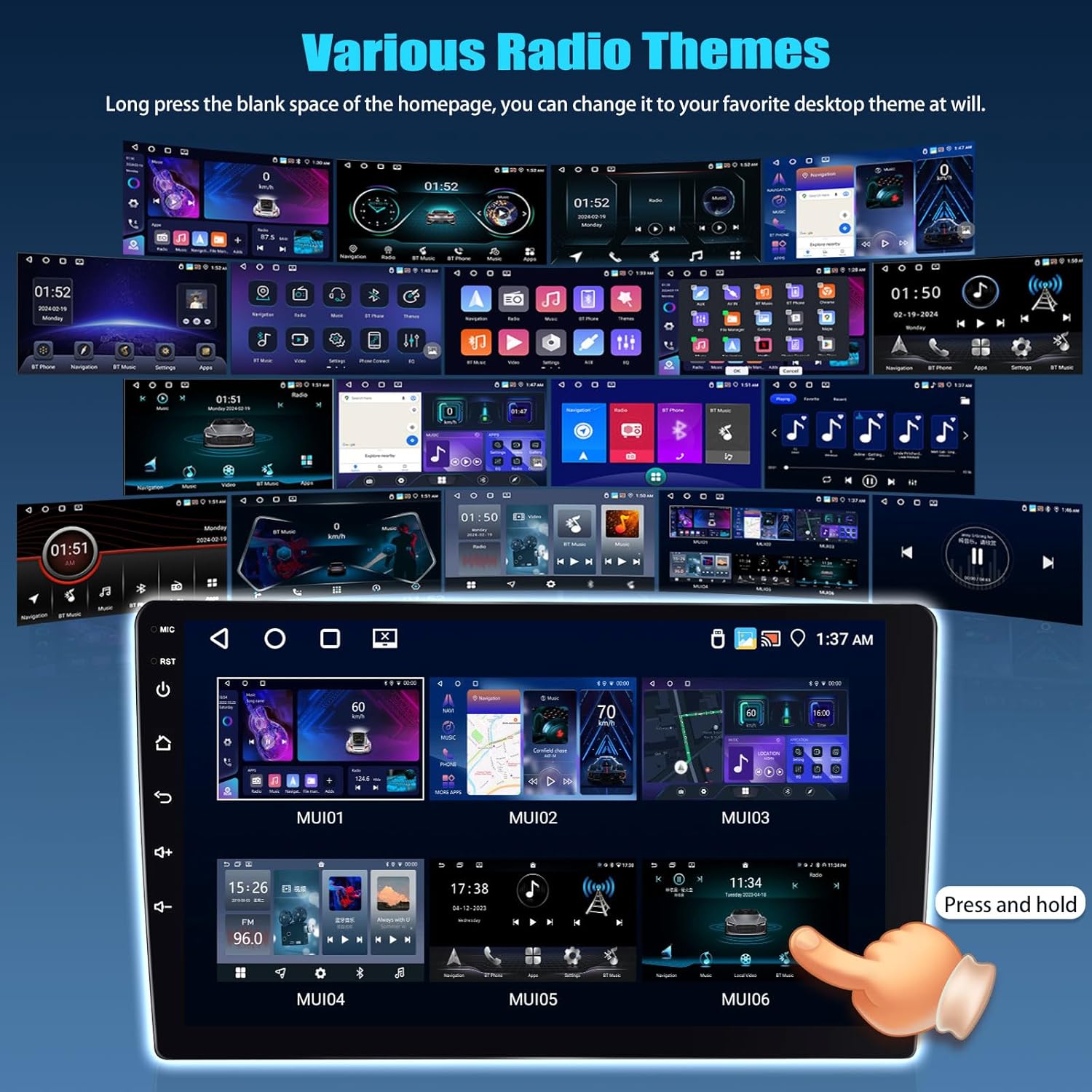
Figure 10.1: Various Desktop Themes
11. Troubleshooting
If you encounter any issues with your SIXTOP Android Car Stereo, please refer to the following general troubleshooting steps:
- No Power: Check all power connections and fuses. Ensure the car's ignition is on.
- No Sound: Verify speaker connections, volume levels, and audio settings (EQ/DSP). Ensure Bluetooth audio is connected correctly if streaming.
- Bluetooth Connection Issues: Ensure Bluetooth is enabled on both devices. Delete previous pairings and try reconnecting. Restart both the phone and the car stereo.
- Wi-Fi Connection Issues: Check if the Wi-Fi hotspot is active and within range. Verify the password.
- CarPlay/Android Auto Not Connecting: Ensure Bluetooth is connected first. For Zlink, follow the on-screen instructions for Bluetooth and Wi-Fi hotspot connection. If issues persist, try restarting the car stereo and your phone.
- Backup Camera Not Displaying: Check the camera's power and video signal connections. Ensure the correct camera format is selected in Factory Mode settings (refer to section 5.10 for accessing Factory Mode).
- Steering Wheel Controls Not Working: Re-learn the steering wheel buttons in the SWC settings menu.
- System Slow/Unresponsive: Clear memory by swiping down the status bar and tapping the clean memory icon. Consider a factory reset if problems persist (note: this will erase all user data).
For more specific issues, consult the detailed instruction manual provided with the product or contact customer support.
12. Specifications
| Feature | Specification |
|---|---|
| Model | Android Car Stereo for Hyundai Sonata NF 2009-2010 (4+64G) |
| Operating System | Android |
| RAM | 4GB |
| ROM | 64GB |
| Display Size | 9 Inches |
| Resolution | 1280*720 HD |
| Bluetooth Version | 5.0 |
| Equalizer | 32-band EQ with AI DSP |
| Connectivity | Bluetooth, USB, Wi-Fi |
| Map Type | North America, Worldwide |
| Item Weight | 3.31 pounds |
| Package Dimensions | 15.75 x 10.24 x 3.94 inches |
13. Warranty and Support
Your SIXTOP Android Car Stereo comes with a 1-Year Warranty. For any technical assistance, troubleshooting, or warranty claims, please contact the seller directly through your purchase platform.
The seller, xinshunhang, provides online support and aims to resolve customer issues promptly. You can typically find a 'Ask a question' button on the product page or seller profile.