
SIXWIN P1
SIXWIN P1 7-Inch Android 13 Car Stereo User Manual
Model: P1 (A7907A3018A4MI2)
1. Introduction
This manual provides detailed instructions for the installation, operation, and maintenance of your SIXWIN P1 7-inch Android 13 Car Stereo. Please read this manual thoroughly before using the device to ensure proper functionality and to maximize your user experience. Keep this manual for future reference.
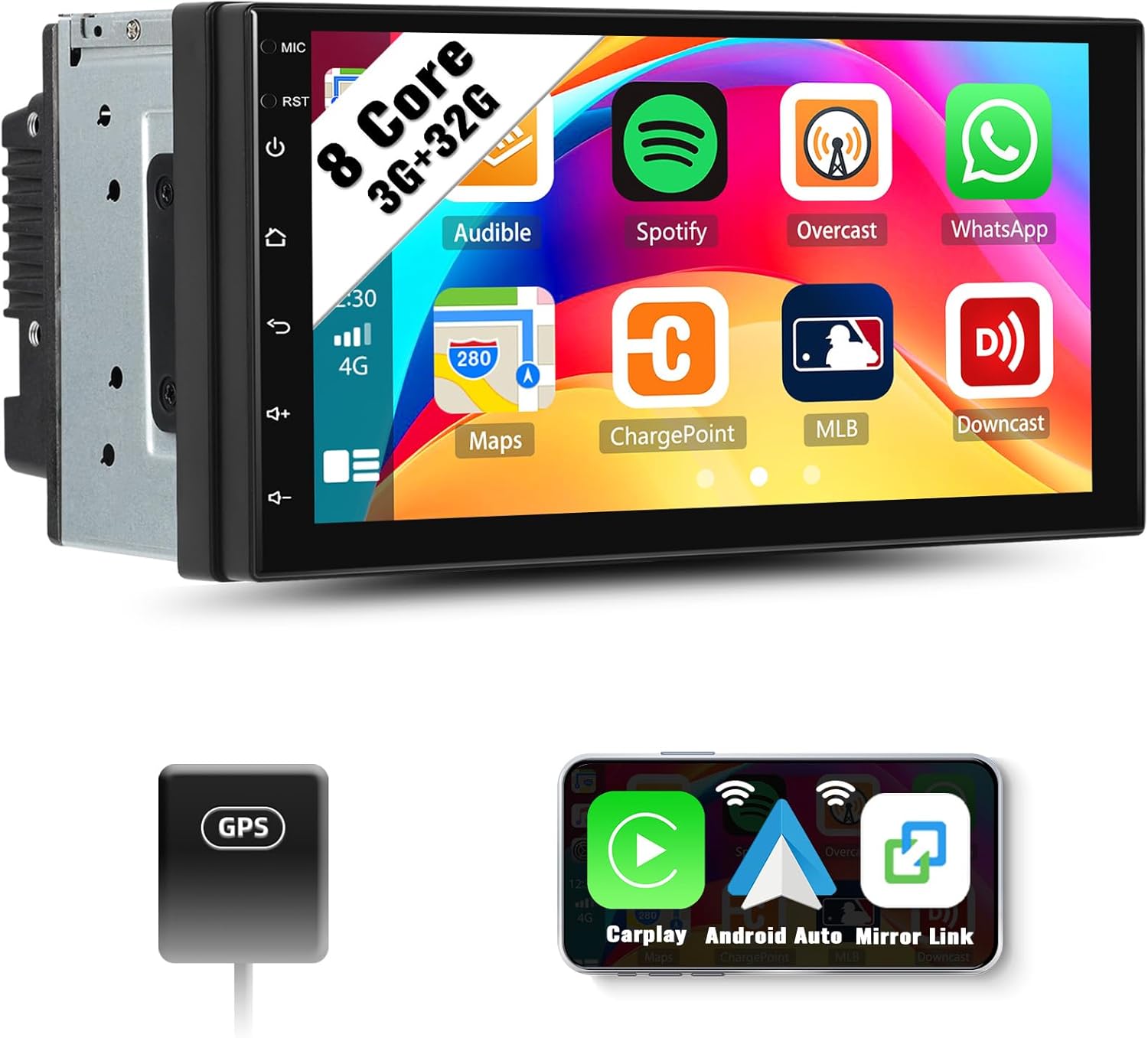
Figure 1.1: SIXWIN P1 Car Stereo with its user interface displaying various applications.
2. What's in the Box
Upon unpacking, verify that all items listed below are present:
- SIXWIN P1 Car Stereo Unit
- Power Harness
- GPS Antenna
- USB Cables
- External Microphone (if included with your specific package)
- User Manual (this document)
If any items are missing or damaged, please contact customer support immediately.
3. Key Features
The SIXWIN P1 Car Stereo is equipped with advanced features designed to enhance your driving experience:
- Operating System: Android 13
- Processor: 8-Core
- Memory & Storage: 3GB RAM + 32GB ROM
- Display: 7-inch Touchscreen
- Connectivity: Wireless CarPlay, Android Auto, Mirror Link, Bluetooth 5.1, WiFi
- Navigation: Built-in GPS Navigation (supports online and offline maps)
- Audio: DSP Hi-Res Audio, HiFi function
- Cooling: Integrated Radiator Fan for heat dissipation
- Additional Functions: Weather Forecast, 3D Car Dynamic Effects, Intelligent Voice Control, FM/RDS Radio, Steering Wheel Control support

Figure 3.1: Overview of key functional parameters and features of the Android 13 system.
4. Setup and Installation
Professional installation is recommended for optimal performance and safety. Ensure the vehicle's power is disconnected before beginning installation.
4.1 Wiring Connections
Connect the provided power harness to the car stereo and your vehicle's wiring system. Refer to your vehicle's specific wiring diagram for accurate connections. Ensure all connections are secure to prevent intermittent issues.
- Power: Connect the yellow wire (constant 12V), red wire (accessory 12V), and black wire (ground).
- Speakers: Connect the speaker wires according to their polarity (positive and negative).
- Antenna: Connect the FM antenna.
- GPS Antenna: Connect the GPS antenna and mount it in a location with a clear view of the sky for optimal signal reception.
- USB: Connect USB cables for external devices or data transfer.
- External Microphone: If using an external microphone, connect it to the designated port.
- Rear Camera (Optional): If installing a rear view camera, connect its video input and trigger wire as per the camera's instructions.

Figure 4.1: Rear connections of the car stereo, including ports for power, antenna, USB, and optional accessories.
4.2 Initial Power-Up
After all connections are made, reconnect the vehicle's power. The unit should power on automatically or by pressing the power button. Follow any on-screen prompts for initial setup, such as language selection and time zone.
5. Operating Instructions
5.1 User Interface Navigation
The 7-inch touchscreen allows for intuitive control. Swipe left or right to navigate between home screens, tap icons to open applications, and use the back and home buttons on the side panel or on-screen for navigation.

Figure 5.1: Customizable user interface with various themes and split-screen options.
5.2 Wireless CarPlay & Android Auto
To use Wireless CarPlay or Android Auto:
- Ensure Bluetooth and Wi-Fi are enabled on your smartphone.
- On the car stereo, open the CarPlay or Android Auto application.
- Follow the on-screen instructions to pair your phone via Bluetooth.
- Once paired, the system will automatically connect via Wi-Fi for the full CarPlay/Android Auto experience.
This feature allows access to navigation, phone calls, messages, and music directly from your phone's interface on the car stereo screen, with voice control support (Siri/Google Assistant).
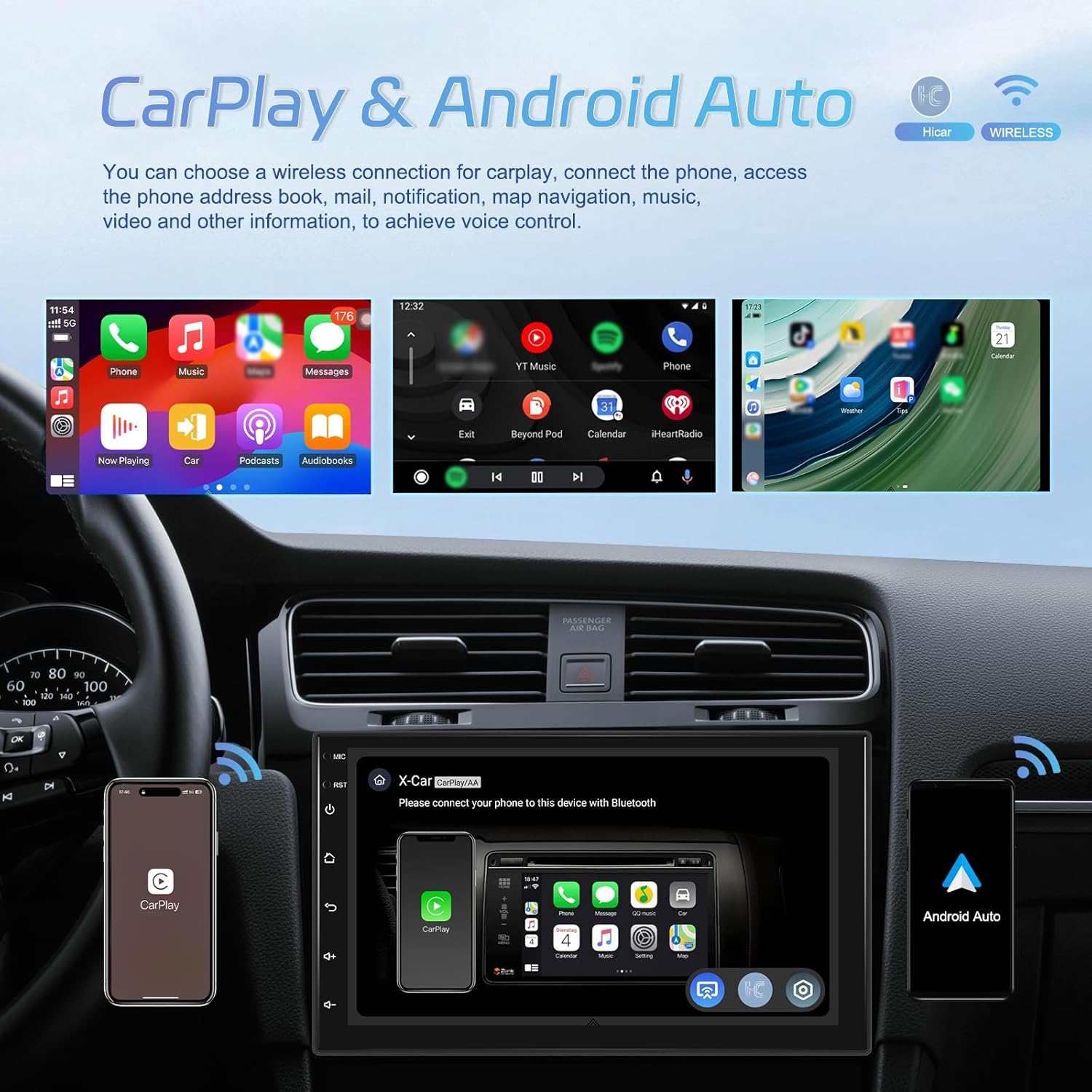
Figure 5.2: Wireless CarPlay and Android Auto functionality, enabling seamless smartphone integration.
5.3 GPS Navigation
The unit supports both online and offline navigation. For online navigation, connect the stereo to a Wi-Fi network. For offline navigation, download maps to the device's internal storage. Access navigation through the dedicated "Navigation" app icon.
5.4 Bluetooth Hands-free & Music
Pair your smartphone via Bluetooth to make hands-free calls and stream audio. Go to the Bluetooth settings on the stereo, enable Bluetooth, and search for your phone. Once paired, you can access your phonebook and control music playback.
5.5 FM/RDS Radio
Access the FM radio application to tune into local stations. The RDS (Radio Data System) feature displays station information where available. You can save your favorite stations as presets.
5.6 Weather Forecast
The car stereo can display a weekly weather forecast. This feature may require an active internet connection and activation within the settings menu.

Figure 5.3: Global weather display feature showing current and forecasted weather conditions.
5.7 3D Car Dynamic Effects
Personalize your car stereo's interface with various 3D car dynamic effects and UI designs. These settings can typically be found in the display or personalization settings.

Figure 5.4: Customization options for 3D car dynamic effects on the display.
5.8 Steering Wheel Control
If your vehicle supports steering wheel controls, the SIXWIN P1 can be configured to integrate with them. Access the steering wheel control settings in the system menu to map functions like volume, track skip, and mode selection.
5.9 AHD Reversing Camera (Optional)
If an optional AHD reversing camera is connected, the display will automatically switch to the camera view when the vehicle is put into reverse, enhancing safety during parking maneuvers.

Figure 5.5: AHD reversing camera display, providing a clear view behind the vehicle.
6. Maintenance
6.1 Cleaning the Screen
To clean the touchscreen, gently wipe it with a soft, lint-free cloth. For stubborn smudges, slightly dampen the cloth with water or a screen-safe cleaning solution. Avoid harsh chemicals or abrasive materials that could damage the screen.
6.2 Software Updates
Periodically check for software updates to ensure optimal performance and access to new features. Updates can typically be found in the system settings under "About device" or "System updates." An internet connection is required for downloading updates.
6.3 Radiator Fan
The built-in radiator fan helps dissipate heat from the unit, ensuring stable operation, especially during prolonged use or in warm environments. No user maintenance is typically required for the fan, but ensure the vents are not obstructed.
7. Troubleshooting
If you encounter issues with your SIXWIN P1 Car Stereo, refer to the following common problems and solutions:
- No Power:
- Check all power connections (yellow, red, black wires) for proper installation.
- Verify the vehicle's fuse for the stereo is not blown.
- No Sound:
- Ensure speaker wires are correctly connected and not short-circuited.
- Check volume levels and audio output settings.
- GPS Signal Loss:
- Ensure the GPS antenna is securely connected and mounted in a location with a clear view of the sky.
- Check GPS settings within the system.
- CarPlay/Android Auto Not Connecting:
- Verify Bluetooth and Wi-Fi are enabled on your phone and the stereo.
- Try restarting both your phone and the car stereo.
- Ensure your phone's operating system is up to date.
- Touchscreen Unresponsive:
- Perform a soft reset by pressing the RST (Reset) button (usually a small pinhole button).
- Ensure the screen is clean and free of debris.
For further assistance, please contact SIXWIN customer support.
8. Specifications
| Feature | Detail |
|---|---|
| Product Dimensions | 1 x 1 x 1 inches (approximate unit size, excluding mounting) |
| Item Weight | 4.27 pounds (1937.99 Grams) |
| Operating System | Android 13 |
| Processor | 8 Core |
| Memory (RAM) | 3GB |
| Storage (ROM) | 32GB |
| Screen Size | 7 inches / 18 cm (Visible screen diagonal) |
| Connectivity Technology | Wireless (Bluetooth 5.1, WiFi) |
| Special Features | Apple CarPlay, Android Auto, Mirror Link, GPS Navigation, FM/RDS, DSP Hi-Res, Radiator Fan, Voice Control |
| Compatible Devices | Smartphone |
| Audio Output Mode | Stereo |
| Item Model Number | A7907A3018A4MI2 |

Figure 8.1: Internal hardware specifications, highlighting the 8-Core processor.
9. Warranty and Support
9.1 Warranty Information
Specific warranty details for the SIXWIN P1 Car Stereo are typically provided at the point of purchase or on the official SIXWIN website. Please retain your proof of purchase for warranty claims.
9.2 Customer Support
For technical assistance, troubleshooting, or any questions regarding your SIXWIN P1 Car Stereo, please contact our customer support team. Online help and user manuals are available.
Email: sixwin_vip@163.com

Figure 9.1: SIXWIN customer support is available to assist you.
10. Product Videos
No official product videos from the seller were provided for this manual.
Related documentsP1

Ask a question about this manual
Ask about setup, troubleshooting, compatibility, parts, safety, or missing instructions. Manuals+ will review the question and use this page’s manual context to help answer it.