
1. Introduction
This manual provides detailed instructions for the installation, operation, and maintenance of your SIXTOP 4G+64G Android Car Stereo. Please read this manual thoroughly before using the product to ensure proper function and safety. This unit is specifically designed for Hyundai Veloster models manufactured between 2011 and 2017.
2. Product Features
- Compatibility: Designed for Hyundai Veloster 2011-2017 (basic and high-end versions).
- Operating System: Latest Android OS.
- Performance: 4-core processor with 4GB RAM and 64GB ROM for smooth operation.
- Display: 9-inch IPS HD touchscreen with 1280*720 resolution and wide viewing angle.
- Smartphone Integration: Wireless Apple CarPlay and Android Auto, Mirror Link for seamless phone connectivity.
- Navigation: Built-in GPS module supporting both online and offline maps (e.g., Google Maps, Waze).
- Connectivity: Bluetooth 5.0 for hands-free calls and audio streaming, built-in WiFi 6.
- Audio: Built-in EQ with 32-band equalizer for sound customization, FM/RDS radio with 18 preset stations.
- Safety Features: Includes 1080P HD waterproof rearview camera (170° wide-angle, night vision) and supports original Steering Wheel Controls (SWC).
- User Interface: Supports split-screen mode for multitasking and multiple customizable UI themes.
3. Package Contents
Verify that all items listed below are included in your package:
- 1x SIXTOP Android Car Stereo
- 1x Backup Camera
- 1x Microphone
- 1x Power Cable
- 1x Canbus Decoder
- 1x Radio Antenna
- 1x Installation Tool Set
- 1x USB Adapter Cable
- 1x GPS Antenna
- 2x RCA Cables
4. Setup and Installation
The SIXTOP Android Car Stereo is designed for plug-and-play installation in compatible Hyundai Veloster models (2011-2017). Professional installation is recommended.
4.1 Compatibility Check
Before installation, ensure your vehicle's console matches the compatible configurations. This unit supports vehicles with AUX input in the lower right corner, a MAP button in the upper right corner, or DISC/INFO buttons in the upper/lower right corners.

Image: Dashboard compatibility check showing suitable locations for AUX, MAP, DISC, and INFO buttons.
4.2 Installation Process Overview
The installation typically involves removing the original head unit and connecting the new stereo using the provided cables. Ensure all connections are secure before reassembling the dashboard.

Image: Visual comparison of the car dashboard before and after the SIXTOP car stereo installation.
4.3 Backup Camera Wiring
Connect the included backup camera according to the wiring diagram. The camera automatically activates when the vehicle is shifted into reverse gear.

Image: Detailed wiring diagram illustrating how to connect the rear view camera to the car stereo system.
5. Operating Instructions
5.1 Power On/Off and Basic Interface
Press the power button to turn the unit on or off. The 9-inch IPS HD touchscreen provides a clear and responsive interface for all functions.

Image: Overview of the IPS HD Touch Screen capabilities, highlighting video resolution and viewing angles.
5.2 Wireless Apple CarPlay & Android Auto
Connect your smartphone wirelessly via Bluetooth to access Apple CarPlay or Android Auto. This allows for hands-free calling, messaging, navigation, and music streaming using voice commands (Siri or Google Assistant).

Image: Display of the wireless Apple CarPlay and Android Auto features, showing app integration and screen mirroring.
5.3 GPS Navigation
Utilize the built-in GPS module for precise navigation. The system supports both online maps (via WiFi) and pre-downloaded offline maps. Access popular navigation apps like Google Maps or Waze for real-time traffic updates and directions.

Image: GPS navigation display with options for online and offline maps, and icons for various apps accessible via WiFi.
5.4 Bluetooth 5.0
Pair your phone via Bluetooth 5.0 for crystal-clear hands-free calls and high-quality music streaming. The dual microphone setup (built-in and external) ensures clear communication even in noisy environments.
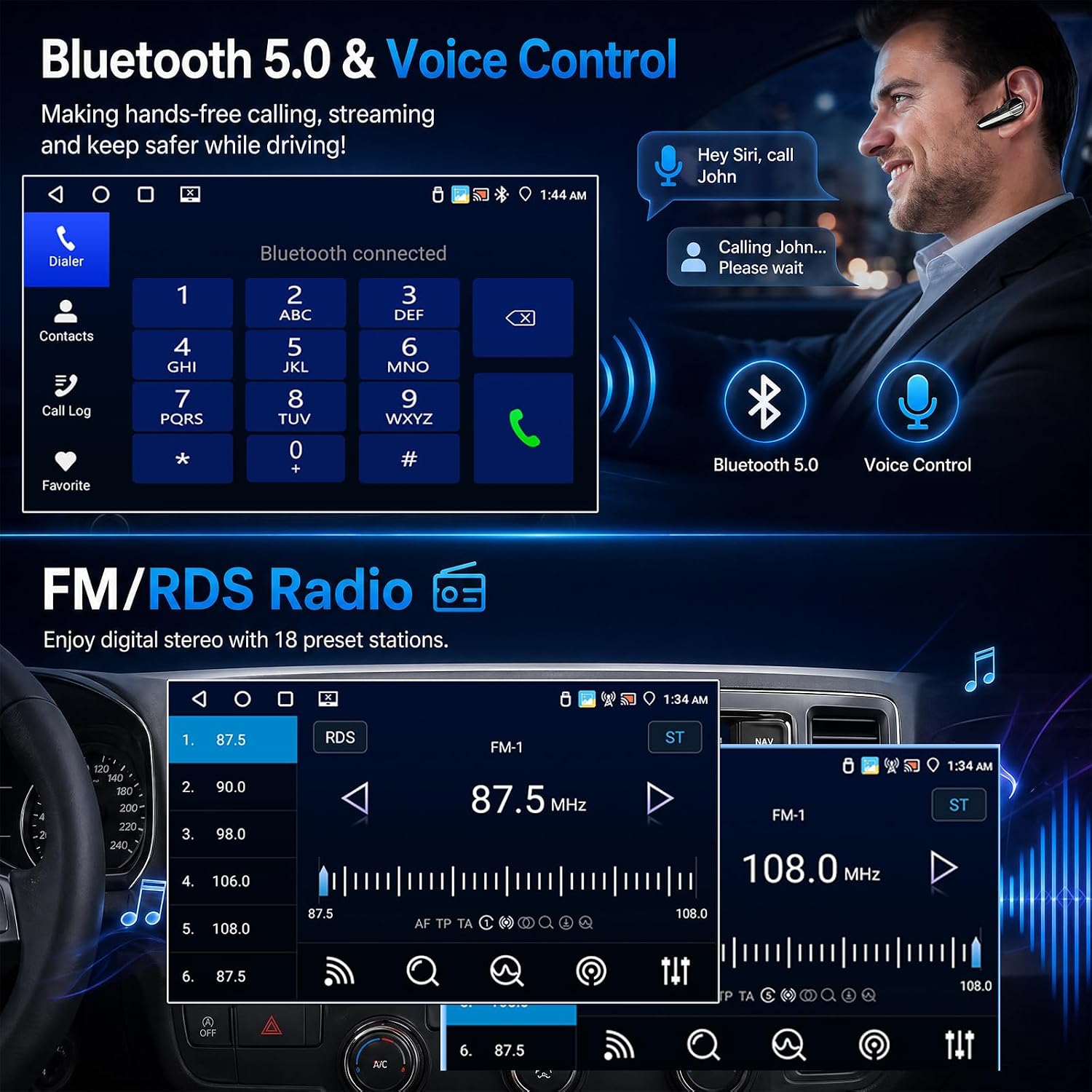
Image: Bluetooth 5.0 features including phone dialer, contact list, music streaming, and voice control prompts.
5.5 FM/RDS Radio
Enjoy digital radio with stable tuning and access to 18 preset stations. The RDS function provides additional information like station name and song titles.
Image: FM/RDS Radio interface showing frequency selection, preset stations, and audio controls.
5.6 Steering Wheel Controls (SWC)
Integrate with your vehicle's original steering wheel controls to manage volume, tracks, and calls without taking your hands off the wheel. Configuration options are available in the system settings.

Image: Illustration of Steering Wheel Controls functionality, showing how to map buttons for various stereo functions.
5.7 Split Screen Function
Run two applications simultaneously on the screen. Drag an application icon to the left or right side of the screen to activate split-screen mode.

Image: Demonstration of the split-screen feature, showing two different applications active side-by-side.
5.8 EQ Adjustment
Customize your audio experience with the built-in 32-band equalizer. Adjust bass, treble, and sound staging to match your personal preferences.

Image: Equalizer (EQ) adjustment screen, illustrating the graphical interface for fine-tuning audio settings.
5.9 Backup Camera Display
When shifting into reverse, the system automatically displays a clear 1080P HD image from the rearview camera. The 170° wide-angle lens and night vision capabilities enhance safety during parking and reversing maneuvers.
Image: The reversing display, showing the clear view provided by the backup camera with parking assistance lines.
5.10 WiFi Connectivity
Connect to available WiFi networks to browse the internet, download applications, and stream content directly on your car stereo.
Image: WiFi connectivity screen, illustrating access to various online applications and services.
6. Maintenance
To ensure the longevity and optimal performance of your SIXTOP Android Car Stereo, follow these maintenance guidelines:
- Cleaning: Use a soft, dry cloth to clean the screen and exterior. Avoid abrasive cleaners or solvents.
- Software Updates: Periodically check for and install software updates to ensure the system runs efficiently and securely.
- Temperature: Avoid exposing the unit to extreme temperatures, both hot and cold, for extended periods.
- Connections: Ensure all cables and connections remain secure to prevent intermittent issues.
7. Troubleshooting
If you encounter issues with your car stereo, refer to the following common problems and solutions:
| Problem | Possible Cause | Solution |
|---|---|---|
| Unit does not power on | Loose power connection, blown fuse, vehicle battery issue. | Check power cables, inspect vehicle fuses, verify car battery voltage. |
| No sound output | Volume too low, incorrect audio source, loose speaker connections. | Increase volume, select correct audio source, check speaker wiring. |
| GPS not acquiring signal | GPS antenna obstructed or improperly connected, unit in an area with poor signal. | Ensure GPS antenna has a clear view of the sky, check antenna connection. |
| Bluetooth connection issues | Phone not in pairing mode, incorrect pairing code, interference. | Ensure phone's Bluetooth is on and discoverable, re-pair device, move away from other wireless devices. |
| Steering Wheel Controls not working | Incorrect wiring of CANbus, SWC settings not configured. | Verify CANbus connections, access SWC settings in the unit to program buttons. |
| Backup camera not displaying | Camera power or video cable loose, camera faulty, reverse trigger not connected. | Check camera wiring, ensure reverse trigger wire is correctly connected. |
If the problem persists after attempting these solutions, please contact customer support.
8. Specifications
| Feature | Detail |
|---|---|
| Brand | SIXTOP |
| Vehicle Service Type | Hyundai Veloster 2011-2017 |
| Screen Size | 9 inches |
| Display Type | IPS LCD |
| Screen Resolution | 1280*720 HD |
| Operating System | Android |
| Processor | 4-Core |
| Memory (RAM) | 4GB |
| Storage (ROM) | 64GB |
| Connectivity Technology | Bluetooth 5.0, Wi-Fi 6, Wireless CarPlay & Android Auto |
| Navigation | Built-in GPS, supports North America & Worldwide maps |
| Audio Output Mode | Stereo, Built-in EQ (32-band equalizer) |
| Backup Camera | 1080P HD, 170° Wide-Angle, Night Vision (Included) |
| Control Method | Touch, Steering Wheel Control (SWC) |
| Mounting Type | Dashboard Mount |
9. Warranty and Support
9.1 Warranty Information
This SIXTOP Android Car Stereo comes with a 1-Year Warranty from the date of purchase, covering manufacturing defects. Please retain your proof of purchase for warranty claims. The warranty includes a 1-year replacement policy for eligible issues.
9.2 Customer Support
For technical assistance, troubleshooting, or any inquiries regarding your product, please contact our customer support team:
- Email: SIXTOP123@163.com
- Service Hours: 24 Hours / 7 Days Quick Response
- Support Type: Lifetime Technical Support
When contacting support, please provide your product model number and a detailed description of the issue.


