
Product Overview
The SIXTOP Android 13 Double DIN Car Radio is an advanced in-car entertainment and navigation system featuring a 9-inch touchscreen display. It integrates modern connectivity options such as wireless CarPlay, Android Auto, Bluetooth 5.0, and Wi-Fi. Designed for a seamless user experience, it offers GPS navigation, FM/RDS radio, and supports a reversing camera for enhanced safety.
This unit operates on Android 13, providing a fast and responsive interface with access to a wide range of applications. It comes with 4GB RAM and 64GB ROM, ensuring smooth performance for all functions.
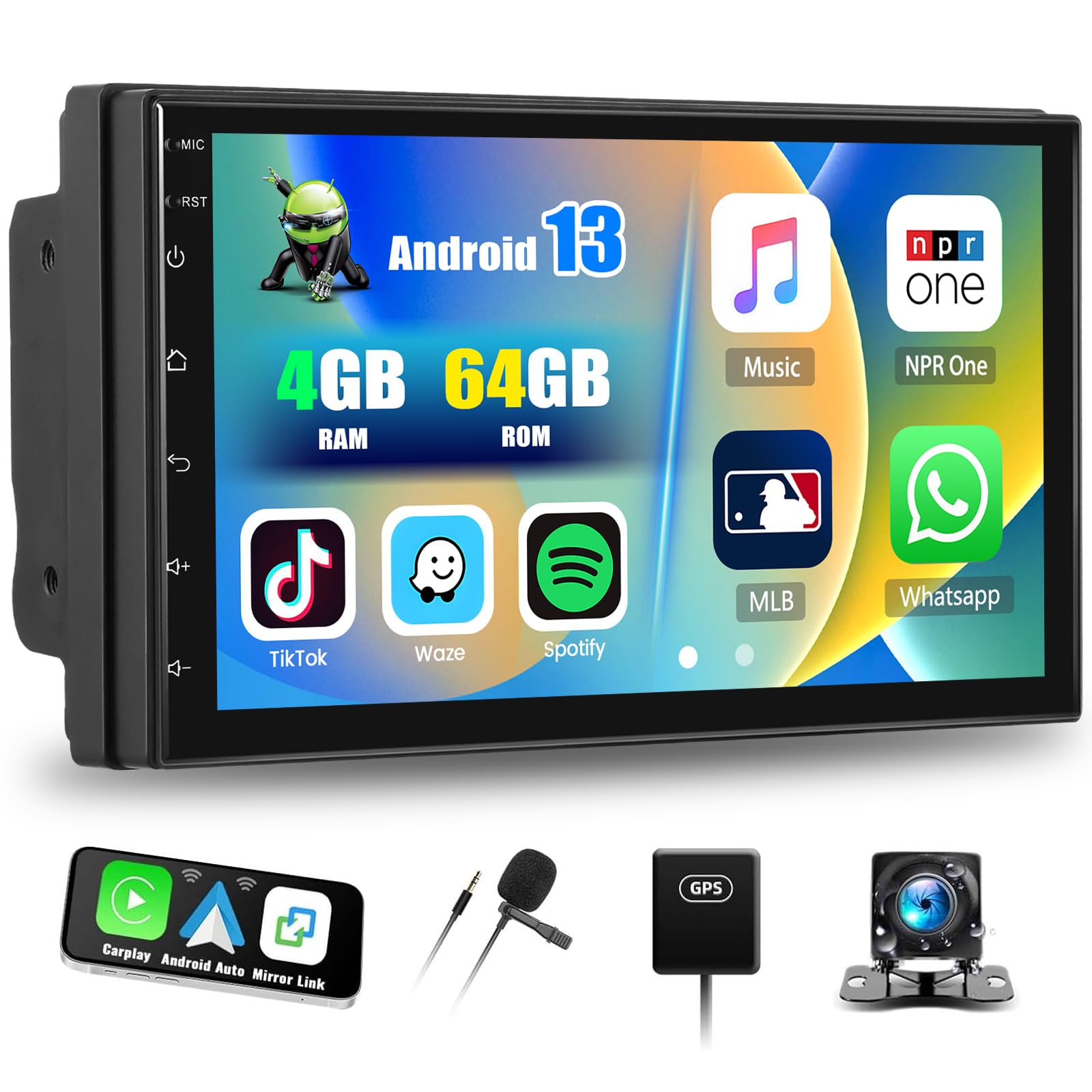
Main unit of the SIXTOP Android 13 Double DIN Car Radio, showcasing its 9-inch touchscreen display.
Setup and Installation
This section provides general guidelines for setting up your SIXTOP Android 13 Double DIN Car Radio. Professional installation is recommended for optimal performance and safety.
Package Contents
Before installation, verify that all components are present in the package. The standard package includes:
- Main Head Unit (9-inch touchscreen)
- Power Cable (ISO interface)
- RCA Cable
- USB Cables (Dual USB ports)
- GPS Antenna
- Rear Camera Input Cable
- Mounting Brackets
- External Microphone
- AHD Rear Camera
- User Manual

Illustration of the various components included in the product package, such as the main unit, cables, antennas, and camera.
Wiring Connections
- Power Connection: Connect the provided power cable to your vehicle's wiring harness. Ensure correct polarity for constant power (B+), accessory power (ACC), and ground (GND).
- Speaker Connections: Connect the speaker wires from the head unit to your vehicle's speakers. Ensure each speaker is connected to the correct channel (Front Left, Front Right, Rear Left, Rear Right).
- GPS Antenna: Mount the GPS antenna in a location with a clear view of the sky, typically on the dashboard or under the windshield. Connect it to the GPS input on the head unit.
- USB Ports: Connect the dual USB cables to the corresponding ports on the head unit. Route them to a convenient location for connecting USB devices.
- Rear Camera: Connect the rear camera input cable to the head unit. Install the AHD rear camera at the back of your vehicle and connect its video output to the input cable. Ensure the camera's power is connected to the reverse light circuit for automatic activation.
- External Microphone: Connect the external microphone to the dedicated input for improved call quality. Position it near the driver for optimal voice capture.
- RCA Cables: Use RCA cables for connecting external amplifiers or subwoofers if desired.
- Steering Wheel Control: Connect the steering wheel control wires (Key1, Key2) to your vehicle's steering wheel control interface, if applicable. Refer to your vehicle's wiring diagram for specific connections.
Initial Power On
After all connections are made, turn on your vehicle's ignition. The unit should power on automatically. Follow any on-screen prompts for initial setup, such as language selection and time zone.
Operating Instructions
1. Wireless CarPlay and Android Auto
Connect your iPhone or Android phone wirelessly to access CarPlay or Android Auto features. This allows you to use phone applications for navigation, music, calls, and messages directly on the car radio's screen.
- Ensure Bluetooth and Wi-Fi are enabled on your smartphone.
- On the car radio, navigate to the CarPlay/Android Auto application.
- Select your phone from the list of available devices to establish a connection.
- Follow any on-screen prompts on both the car radio and your phone to complete the pairing process.

The car radio display showing the CarPlay and Android Auto interfaces, allowing seamless smartphone integration.
2. Mirror Link (Wireless)
Mirror Link allows you to cast your smartphone's screen onto the car radio display via Wi-Fi. This feature is compatible with both iOS (AirPlay) and Android devices.
- Ensure your phone and the car radio are connected to the same Wi-Fi network.
- Open the Mirror Link application on the car radio.
- On your smartphone, activate screen mirroring (e.g., AirPlay for iOS, Smart View/Cast for Android).
- Select the car radio from the list of available devices to begin mirroring.
3. Bluetooth Connectivity (Version 5.0)
The integrated Bluetooth 5.0 module enables hands-free calling and wireless music streaming.
- Pairing: Go to the Bluetooth settings on the car radio and your phone. Search for and select the car radio's Bluetooth name (e.g., "SIXTOP Car Radio") to pair.
- Hands-Free Calling: Once paired, you can make and receive calls directly through the car radio. The external microphone ensures clear audio.
- Music Playback: Stream audio from your phone to the car radio. Controls for play, pause, skip are available on the touchscreen.
- Contact Synchronization: The unit supports automatic loading of your phone's contact book.

Screenshots illustrating Bluetooth hands-free calling and music playback features on the car radio.
4. Wi-Fi and GPS Navigation
Connect to Wi-Fi to download applications, stream online content, and utilize online navigation services. The built-in GPS module supports both online and offline navigation.
- Wi-Fi Connection: Go to Settings > Wi-Fi, select your network, and enter the password.
- GPS Navigation: The unit is compatible with popular navigation apps like Waze, Navfree, and Google Maps. You can download offline maps from the Play Store for navigation without an internet connection.

The car radio screen displaying Wi-Fi connection status and a GPS navigation map with route information.
5. FM/RDS Radio
Access FM radio stations with clear sound quality. The RDS (Radio Data System) feature provides additional information like station name and traffic announcements.
- Tuning: Use the touchscreen to manually tune or scan for available FM stations.
- Presets: Save up to 18 of your favorite stations for quick access.
- RDS: When available, RDS will display station information and can provide traffic updates.
6. Reversing Display and Camera
The unit automatically displays the rear camera feed when the vehicle is in reverse gear, aiding in safe parking and maneuvering.
- Automatic Activation: The display switches to the camera view when reverse gear is engaged.
- AHD Camera: The included AHD camera provides clear, high-definition video, including night vision capabilities.
- Guide Lines: Parking guide lines are displayed on the screen and can be adjusted for accuracy.

The car radio screen showing the reversing camera view with dynamic parking guide lines, enhancing safety during parking maneuvers.
7. Steering Wheel Control
Control essential functions of the car radio directly from your vehicle's steering wheel buttons, allowing you to keep your hands on the wheel and focus on driving.
- Customization: Map your steering wheel buttons to control functions like volume, track change, mode selection, and answering calls.
- Safety: Reduces distractions by providing convenient access to common controls.
8. Split Screen and EQ Sound
The split-screen function allows you to run two applications simultaneously, while the built-in equalizer provides extensive audio customization.
- Split Screen: Drag an app icon to one side of the screen to activate split-screen mode. You can adjust the size and position of each application.
- Equalizer (EQ): The 32-frequency equalizer allows for precise audio tuning, including panoramic surround sound adjustments, to match your preferences and vehicle acoustics.

The car radio display showing the split-screen functionality, allowing two applications to run side-by-side, and the detailed equalizer settings for audio customization.
Maintenance
Proper maintenance ensures the longevity and optimal performance of your car radio.
- Screen Cleaning: Use a soft, lint-free cloth to gently wipe the touchscreen. For stubborn smudges, slightly dampen the cloth with water or a screen-safe cleaner. Avoid harsh chemicals or abrasive materials.
- Software Updates: Periodically check for software updates via the Wi-Fi connection to ensure you have the latest features and security patches.
- Ventilation: Ensure the unit's ventilation openings are not blocked to prevent overheating.
- Cable Connections: Occasionally check all cable connections to ensure they are secure and free from damage.
Troubleshooting
This section addresses common issues you might encounter. For more complex problems, contact customer support.
No Power
- Check the vehicle's fuse box for blown fuses related to the car radio.
- Verify that the power cables (B+, ACC, GND) are correctly and securely connected.
- Ensure the vehicle's ignition is on.
No Sound
- Check the volume level and ensure the unit is not muted.
- Verify all speaker wire connections are secure.
- Ensure the correct audio source is selected.
GPS Signal Loss
- Ensure the GPS antenna is properly connected and mounted in a location with a clear view of the sky.
- Move the vehicle to an open area away from tall buildings or dense foliage.
Bluetooth Connection Issues
- Ensure Bluetooth is enabled on both the car radio and your smartphone.
- Delete previous pairings on both devices and attempt to re-pair.
- Restart both the car radio and your smartphone.
CarPlay/Android Auto Not Connecting
- Verify that Wi-Fi is enabled on both devices.
- Ensure your phone's operating system is up to date.
- Try restarting the car radio and your phone.
Touchscreen Unresponsive
- Perform a soft reset by pressing the reset button (if available) or by turning off the vehicle's ignition and restarting.
- Ensure the screen is clean and free from debris.
Technical Specifications
| System | Android 13 |
| Processor | RK3326S (4 Cores) |
| RAM | 4 GB |
| ROM | 64 GB |
| Screen Size | 9 inches |
| Screen Resolution | 1024 x 600 |
| Radio Chip | UMW2652 |
| Output Power | 4 x 45 W (Max 180 Watts) |
| Bluetooth Version | 5.0 |
| Operating Temperature | -20 °C to 75 °C |
| Amplifier Chip | YD7388 |
| Radio Band | FM/RDS (18 memory functions) |
| Reverse Input | AHD/CVBS |
| External Microphone | Supported |
| Split Screen | Supported |
| Maps | Built-in offline maps (requires internet for data download) |
| Wi-Fi | Supported |
| CarPlay/Android Auto | Wireless connection only |
| Mirror Link | Wireless connection only |
| USB Ports | Dual USB |
| Audio Formats | APE/FLAC/WAV/MP3/WMA, etc. |
| Video Formats | MKV/RMVB/AVI/MP4/MDV, etc. |
| Image Formats | PNG/JPEG/JPG/GIF/WBMP/BNP, etc. |
| Factory Settings Keyword | 8317 |
| Supported Languages | Chinese, English, French, Italian, Korean, Japanese, Arabic, Spanish, Portuguese, Russian, Turkish, Vietnamese, Hebrew, Polish, German. |
| Item Weight | 1100 Grams |
Warranty and Support
SIXTOP provides comprehensive support for your product.
- Warranty: This product includes a one-year warranty from the date of purchase.
- Returns: Returns are supported within one month of purchase.
- Technical Support: For any questions or issues before or after purchase, please contact customer service. Responses are typically provided within 24 hours.
- Contact: For support, please refer to the contact information provided with your purchase or on the official SIXTOP website.

