
1. Introduction
The BORN4SHIP D463B is a versatile Bluetooth thermal label printer designed for efficient and economical label printing. Utilizing advanced thermal technology, it eliminates the need for ink or toner, making it an environmentally friendly and cost-effective solution for various labeling needs. This manual provides detailed instructions for setting up, operating, maintaining, and troubleshooting your printer to ensure optimal performance.
2. Key Features
- Ultra-fast Bluetooth Connection: Connects to iOS and Android devices in approximately one minute via the free 'Easylabel' app.
- Multi-Platform Connectivity: Supports USB connection for Windows, Mac OS, and Linux systems.
- Economical Thermal Printing: Operates without ink or toner, requiring only thermal labels, which reduces operational costs and environmental impact.
- High-Resolution and Speed: Features a 203 DPI print head for clear text and vivid images, with a printing speed of 152 mm/s (72 labels per minute).
- Broad Compatibility: Compatible with major e-commerce and shipping platforms including Amazon, eBay, Shopify, USPS, UPS, Etsy, and PayPal.
- Versatile Label Size Support: Prints labels from 1 inch (25.4 mm) to 115 mm in width, with a maximum print width of 108 mm, suitable for shipping, address, and barcode labels.
3. Setup Guide
3.1 Unboxing and Initial Inspection
Carefully remove the printer and all accessories from the packaging. Verify that all components are present and undamaged. The package should include the printer, power adapter, USB cable, and a quick start guide.
3.2 Connecting the Printer
The BORN4SHIP D463B offers both Bluetooth and USB connectivity.

Image: The BORN4SHIP D463B printer demonstrating its USB and Bluetooth connectivity options with various devices.
3.2.1 USB Connection (for Windows, Mac OS, Linux)
- Connect the power adapter to the printer and a power outlet.
- Connect the printer to your computer using the provided USB cable.
- Turn on the printer.
- Install the appropriate printer drivers for your operating system. Drivers are typically available on the manufacturer's website or included on a CD/USB drive.
3.2.2 Bluetooth Connection (for iOS, Android)
- Connect the power adapter to the printer and a power outlet.
- Turn on the printer.
- Download the 'Easylabel' app from Google Play Store (Android) or Apple App Store (iOS).
- Open the 'Easylabel' app on your mobile device.
- Follow the in-app instructions to pair your device with the printer via Bluetooth. The pairing process typically takes about one minute.
3.3 Loading Labels
The printer uses thermal labels and does not require ink or toner. Ensure you use compatible thermal labels for optimal print quality.

Image: The printer's internal mechanism showing a thermal label roll being fed, demonstrating its inkless operation.
- Open the printer cover.
- Adjust the label guides to match the width of your labels.
- Insert the thermal label roll into the printer, ensuring the printable side is facing up.
- Feed the leading edge of the labels through the print mechanism until it is slightly past the print head.
- Close the printer cover. The printer will automatically detect the label size and calibrate.
4. Operating Instructions
4.1 Printing Labels
Once the printer is connected and labels are loaded, you can begin printing from your computer or mobile device.

Image: The printer in operation, producing labels quickly and clearly.
4.1.1 Printing from a Computer
- Open the document or application from which you wish to print.
- Select 'Print' from the file menu.
- Choose the BORN4SHIP D463B printer from the list of available printers.
- In the printer settings, ensure the correct label size is selected (e.g., 4x6 inches). Adjust any other print preferences as needed.
- Click 'Print'.
4.1.2 Printing from a Mobile Device (via Easylabel App)
- Open the 'Easylabel' app on your paired mobile device.
- Select the document or image you wish to print. The app supports various formats and allows for cropping.
- Confirm the label size and other print settings within the app.
- Tap 'Print'.
4.2 Platform Compatibility
The D463B printer is designed for seamless integration with a wide range of e-commerce and shipping platforms.
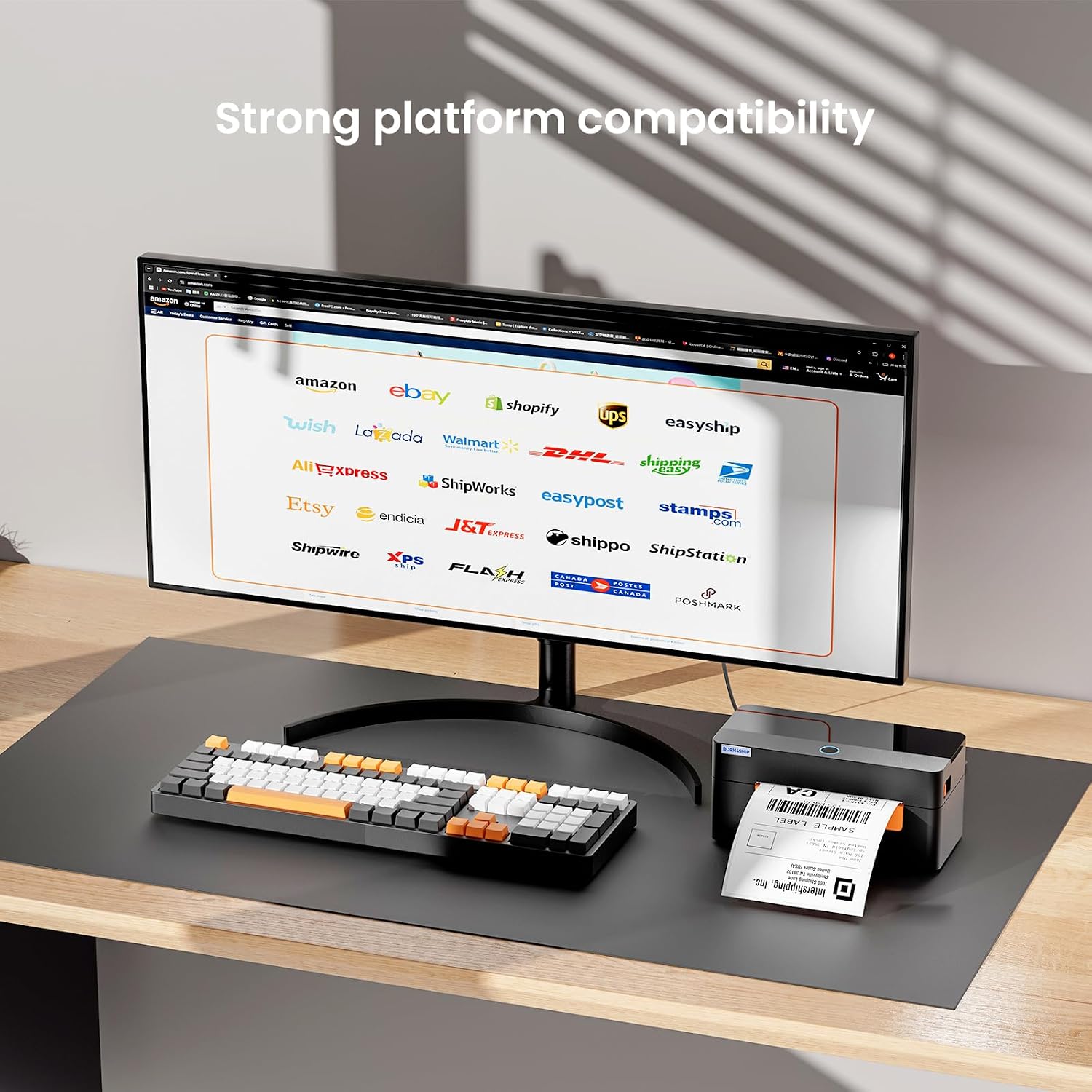
Image: Visual representation of the printer's compatibility with numerous online platforms.
Supported platforms include, but are not limited to: Amazon, eBay, Shopify, USPS, UPS, Etsy, and PayPal. Ensure your platform's print settings are configured for a thermal label printer and the correct label size.
4.3 Versatile Label Sizes
The printer accommodates various label widths from 1 inch (25.4 mm) to 115 mm, with a maximum print width of 108 mm. This flexibility allows for printing different types of labels, such as shipping labels, address labels, barcode labels, and product labels.
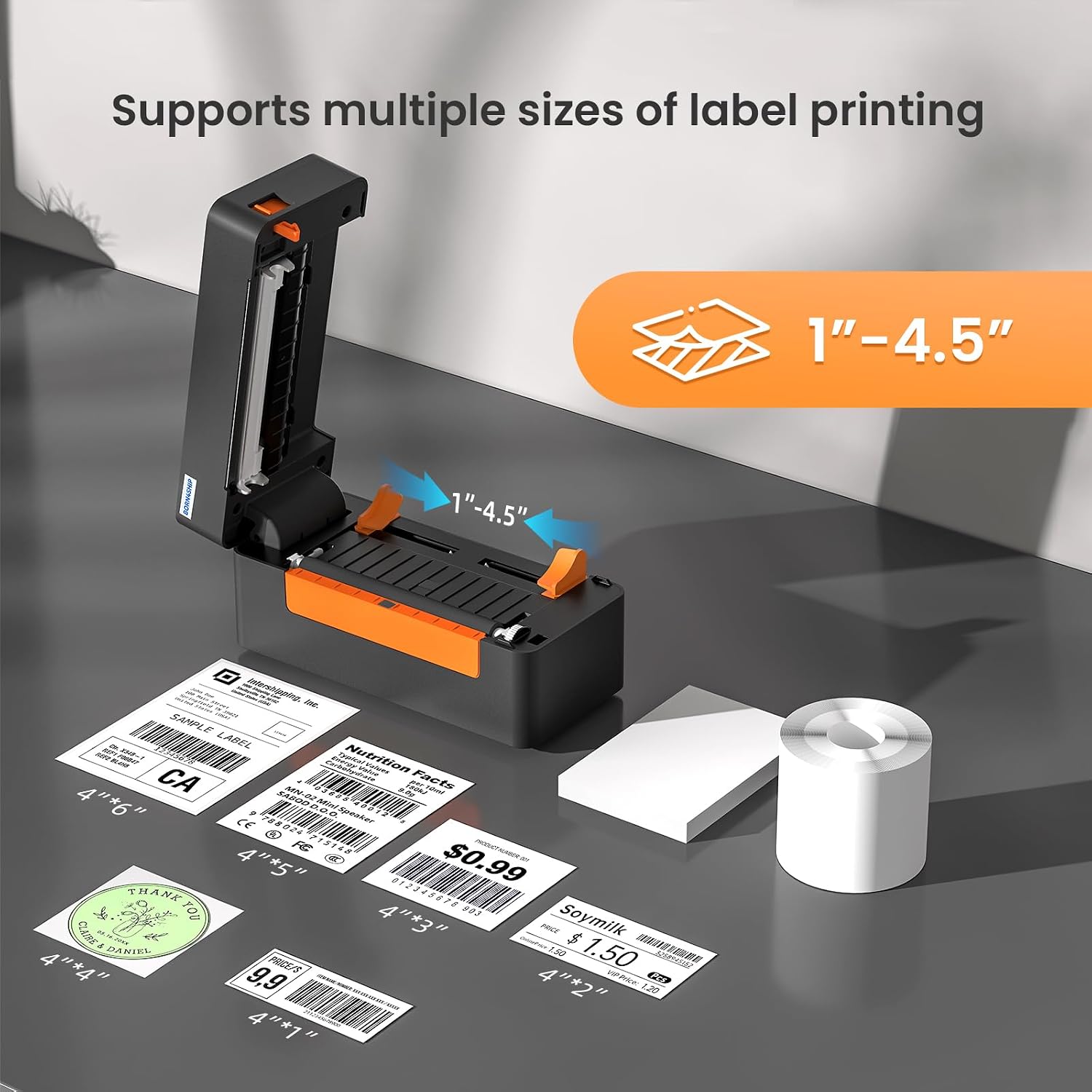
Image: The printer supporting multiple label sizes, illustrating its versatility.
5. Maintenance
Regular maintenance ensures the longevity and optimal performance of your BORN4SHIP D463B printer.
5.1 Cleaning the Print Head
The print head is a critical component and should be cleaned periodically to prevent print quality issues. Use a lint-free cloth lightly dampened with isopropyl alcohol. Gently wipe the print head surface. Allow it to dry completely before closing the cover and resuming operation.
5.2 General Cleaning
Wipe the exterior of the printer with a soft, dry cloth. Avoid using abrasive cleaners or solvents that could damage the printer's surface. Keep the label path clear of dust and debris.
5.3 Storage
When not in use for extended periods, store the printer in a cool, dry place away from direct sunlight and extreme temperatures. Remove any loaded labels to prevent them from sticking or degrading.
6. Troubleshooting
This section addresses common issues you might encounter with your BORN4SHIP D463B printer.
6.1 Printer Not Responding
- Check Power: Ensure the power adapter is securely connected to the printer and a working power outlet.
- Check Connection: For USB, ensure the cable is firmly connected to both the printer and computer. For Bluetooth, verify the printer is paired and connected via the 'Easylabel' app.
- Restart Devices: Try restarting the printer, your computer, or your mobile device.
6.2 Poor Print Quality
- Clean Print Head: Follow the instructions in Section 5.1 to clean the print head.
- Check Labels: Ensure you are using high-quality thermal labels. Old or damaged labels can affect print quality.
- Adjust Darkness: In your printer settings (on computer or app), try increasing the print darkness.
6.3 Labels Not Feeding Correctly
- Reload Labels: Ensure labels are loaded correctly and the label guides are adjusted to the label width.
- Clear Path: Check for any obstructions in the label path.
- Calibrate: Some printers have a calibration function. Refer to the 'Easylabel' app or driver software for calibration options.
6.4 Incorrect Label Size Printing
- Software Settings: Verify that the label size is correctly set in your printing software or the 'Easylabel' app.
- Printer Detection: Ensure the printer has correctly detected the label size after loading. If not, try reloading the labels.
7. Specifications
| Feature | Specification |
|---|---|
| Brand | BORN4SHIP |
| Model Number | D463B |
| Connectivity Technology | Bluetooth, USB |
| Printing Technology | Thermal |
| Color | Black |
| Printer Output | Monochrome |
| Max Print Speed (Monochrome) | 72 Pages per minute (152 mm/s) |
| Print Resolution | 203 x 203 dpi |
| Item Weight | 1.38 Kilograms |
| Product Dimensions (D x W x H) | 20 x 10.3 x 15.5 centimeters |
| Max Media Size | 108 mm (4.25 inches) |
| Supported Label Widths | 1 inch (25.4 mm) to 115 mm |
| Duplex Printing | No (Simplex) |
| Special Features | Bluetooth connection, thermal printing |
| Country of Origin | China |
8. Warranty Information
The BORN4SHIP D463B Bluetooth Thermal Label Printer comes with a 1-year warranty from the date of purchase. This warranty covers manufacturing defects and malfunctions under normal use. Please retain your proof of purchase for warranty claims. For specific terms and conditions, refer to the warranty card included with your product or contact BORN4SHIP customer support.
9. Support
For further assistance, technical support, or warranty inquiries, please contact BORN4SHIP customer service. Refer to the contact information provided in your product packaging or visit the official BORN4SHIP website for support resources.