
WEMAX B0DRG7XFWP
WEMAX Google TV Projector User Manual
Model: B0DRG7XFWP
1. Introduction
Thank you for choosing the WEMAX Google TV Projector. This compact and versatile projector is designed to deliver a high-quality cinematic experience in your home or on the go. Featuring official Netflix licensing, native 1080P resolution with 4K support, and integrated Google TV, it provides seamless access to a vast library of entertainment. This manual will guide you through the setup, operation, and maintenance of your new projector.
2. Safety Information
Please read all safety instructions carefully before using the projector. Keep this manual for future reference.
- Power Supply: Use only the provided power adapter. Ensure the voltage matches the requirements specified on the adapter.
- Ventilation: Do not block ventilation openings. Ensure adequate space around the projector for proper airflow to prevent overheating.
- Heat: The projector may become warm during operation. This is normal. Avoid touching the lens or hot surfaces.
- Eye Safety: Do not look directly into the projector lens when the lamp is on. The bright light can cause eye strain or damage.
- Placement: Place the projector on a stable, level surface. Avoid placing it in direct sunlight, near heat sources, or in environments with high humidity or dust.
- Cleaning: Disconnect the power before cleaning. Use a soft, dry cloth. Do not use liquid or aerosol cleaners.
- Servicing: Do not attempt to repair the projector yourself. Refer all servicing to qualified personnel.
3. Package Contents
Verify that all items are present in your package:
- WEMAX Google TV Projector
- Power Cord
- Remote Control
- Power Adapter
- User Manual (this document)
- Warranty Card
4. Product Overview
Projector Components
Familiarize yourself with the main components of your WEMAX Google TV Projector.
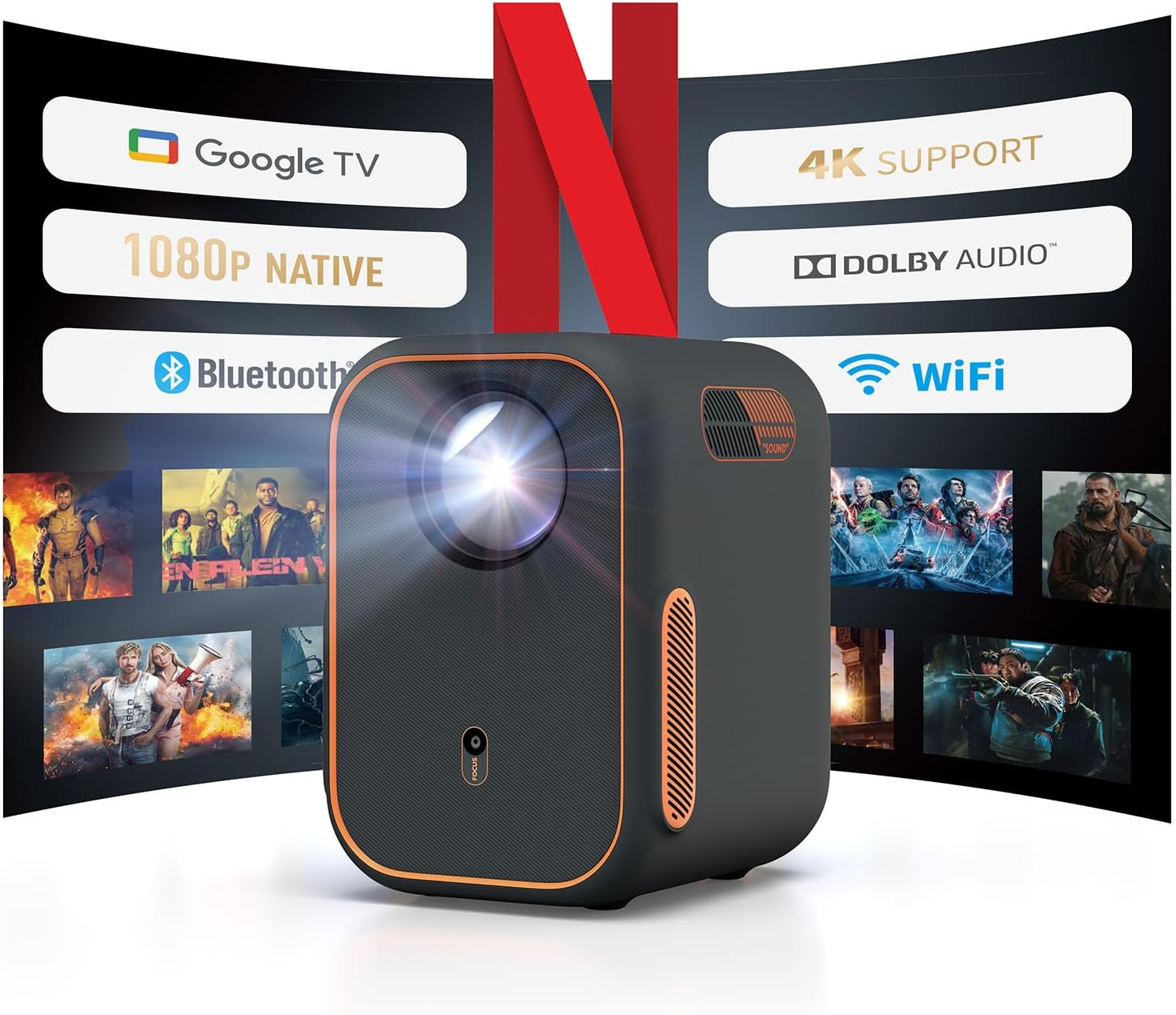
Figure 4.1: Front view of the WEMAX Google TV Projector highlighting its key features like Google TV, 1080P Native resolution, 4K support, Dolby Audio, Bluetooth, and WiFi connectivity.
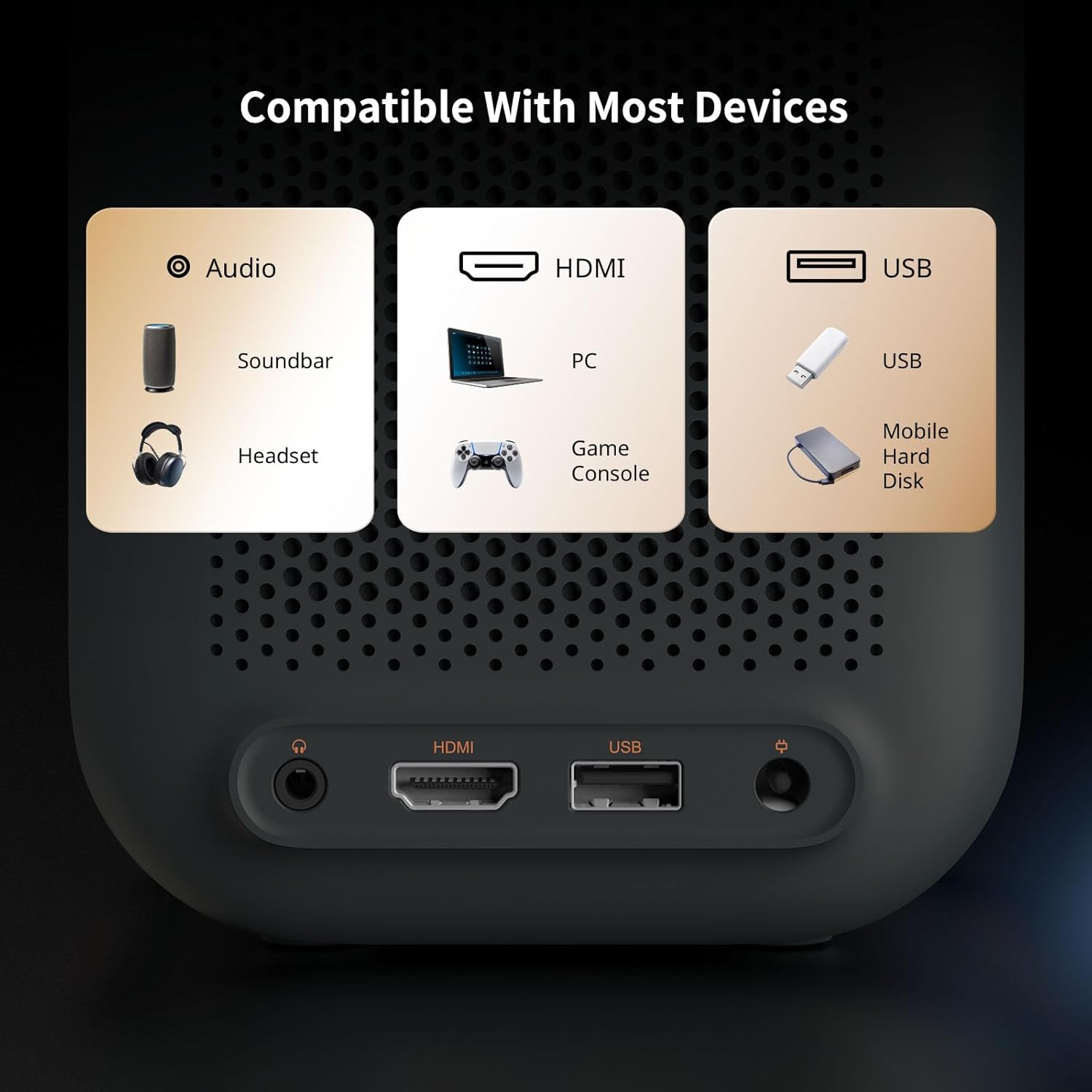
Figure 4.2: Rear panel of the projector displaying the Audio 3.5mm port, HDMI ARC port, and USB port for connecting various devices.
Key Features
- Google TV Integration: Officially licensed Netflix, Prime Video, YouTube, and access to over 10,000 apps.
- High Resolution: Native 1080P with HDR10 and 4K content support for sharp, detailed visuals.
- Smart Calibration: Features Auto Focus, Auto Keystone Correction, Intelligent Obstacle Avoidance, and Intelligent Screen Alignment for effortless setup.
- Audio: Built-in 2x3W speakers with Dolby Audio support and Bluetooth connectivity for external audio devices.
- Connectivity: Dual-band 2.4G/5G WiFi, HDMI ARC, USB, and Audio ports for multi-device compatibility.
- Durable Design: Fully-enclosed light engine reduces black spots and extends lifespan to 40,000 hours.
5. Setup
Initial Power-On and Placement
- Place the projector on a stable surface, ensuring the lens faces the projection surface (wall or screen).
- Connect the power adapter to the projector's power input and plug it into an electrical outlet.
- Press the power button on the projector or remote control to turn it on.

Figure 5.1: The compact design of the projector allows for flexible placement in various environments.
Automatic Image Adjustment
The WEMAX Google TV Projector features intelligent projection technology for quick and easy setup:
- Auto Focus: The projector automatically adjusts the image clarity within approximately 4 seconds.
- Auto Keystone Correction: Distorted images caused by angled projection are automatically corrected for a rectangular display.
- Intelligent Obstacle Avoidance: The projection size and position will adjust to avoid objects in the projection path.
- Intelligent Screen Alignment: The projector can automatically align the image to fit precisely within a projection screen.

Figure 5.2: The 4-in-1 intelligent projection technology simplifies setup and ensures an optimal viewing experience.
Google TV Setup
Upon first use, follow the on-screen prompts to set up Google TV:
- Select your preferred language.
- Connect to your Wi-Fi network by selecting it from the list and entering the password.
- Sign in with your Google account to access personalized recommendations, apps, and services.
- Follow instructions to set up Google Assistant and other preferences.

Figure 5.3: The Google TV interface provides one-click access to popular streaming services.
6. Operating
Navigating Google TV
Use the remote control to navigate the Google TV interface. The home screen provides access to your installed apps, personalized content recommendations, and search functions.
- Voice Control: Press the Google Assistant button on the remote and speak commands to search for content, control playback, or adjust settings.
- App Access: Select icons for Netflix, Prime Video, YouTube, and other streaming services directly from the home screen.
Connecting External Devices
The projector supports various external devices:
- HDMI: Connect gaming consoles (Xbox, PS4/PS5), laptops, PCs, or DVD players via the HDMI ARC port.
- USB: Plug in USB drives for media playback.
- Bluetooth: Pair with external soundbars, speakers, or headphones for enhanced audio.
- Wi-Fi Screen Mirroring: Wirelessly cast content from your phone or laptop using the dual-band 2.4G/5G WiFi.

Figure 6.1: Seamless wireless connectivity for screen mirroring and external audio.
Adjusting Display Size
The projector can create a display from 40 to 120 inches. Adjust the distance from the projection surface to change the screen size. The automatic focus and keystone correction will adapt to the new size.
| Screen Dimensions (SD) | Relative Distance (D) |
|---|---|
| 40" | 3.5 ft |
| 60" | 5.2 ft |
| 80" | 6.9 ft |
| 100" | 8.7 ft |
| 120" | 10.5 ft |
7. Maintenance
Proper maintenance ensures the longevity and optimal performance of your projector.
- Lens Cleaning: Use a soft, lint-free cloth specifically designed for optical lenses. Gently wipe the lens to remove dust or smudges. Avoid harsh chemicals or abrasive materials.
- Ventilation: Regularly check that the ventilation openings are clear of dust and debris. Use a soft brush or compressed air to clean them if necessary.
- General Cleaning: Wipe the exterior of the projector with a soft, dry cloth. Do not use liquid cleaners directly on the device.
- Storage: When not in use for extended periods, store the projector in a cool, dry place, away from direct sunlight and extreme temperatures.
The WEMAX Google TV Projector features a fully-enclosed optical engine, which significantly reduces dust accumulation and helps prevent black spots on the projection, contributing to a longer lifespan of up to 40,000 hours.

Figure 7.1: The fully-sealed optical engine design prevents dust ingress, ensuring clear images and extended product life.
8. Troubleshooting
If you encounter issues with your projector, refer to the following common problems and solutions:
| Problem | Possible Cause | Solution |
|---|---|---|
| No Power | Power cord not connected; Power outlet issue | Ensure power cord is securely connected. Try a different power outlet. |
| No Image / Blank Screen | Input source not selected; Cable connection issue; Projector in standby mode | Check HDMI/USB connections. Ensure correct input source is selected. Press power button to wake from standby. |
| Image is Blurry | Out of focus; Lens dirty | Allow auto-focus to engage. Clean the projector lens. |
| Image is Distorted (Trapezoid) | Projector not perpendicular to screen | Allow auto keystone correction to adjust. Reposition projector if necessary. |
| No Sound | Volume too low; Muted; External audio device not connected/selected | Increase volume. Check mute setting. Ensure Bluetooth speaker is paired or HDMI audio is correctly routed. |
| Wi-Fi Connectivity Issues | Incorrect password; Router too far; Network interference | Verify Wi-Fi password. Move projector closer to router. Restart router and projector. |
| Remote Control Not Working | Batteries low/dead; Obstruction between remote and projector | Replace batteries. Ensure clear line of sight to the projector's IR receiver. |
9. Specifications
Detailed technical specifications for the WEMAX Google TV Projector:
| Feature | Specification |
|---|---|
| Brand | WEMAX |
| Model | B0DRG7XFWP |
| Display Resolution | Native 1920 x 1080 (1080P Full HD) |
| 4K Support | Yes |
| Brightness | 150 ISO Lumens |
| Contrast Ratio | 1500:1 |
| Light Engine Lifespan | 40,000 hours |
| Connectivity Technology | Audio 3.5mm, Bluetooth, HDMI ARC, USB, Dual-band 2.4G/5G WiFi |
| Special Features | Auto Focus, Auto Obstacle Avoidance, Auto Screen Alignment, Auto Keystone Correction, Built-In Speaker, Portable |
| Built-in Speakers | 2 x 3W with Dolby Audio |
| Noise Level | ≤30dB |
| Product Dimensions | 5.55 x 4.8 x 6.89 inches |
| Item Weight | 4.55 pounds |
| Color | Dark Gray |
| Recommended Uses | Business, Education, Gaming, Home Cinema |
10. Warranty and Support
Your WEMAX Google TV Projector comes with a standard warranty. Please refer to the included Warranty Card for specific terms and conditions regarding coverage and duration.
Customer Support
For technical assistance, troubleshooting, or any inquiries regarding your WEMAX product, please contact our customer support team:
- Email: support@wemax.com
- Response Time: Quick response typically within 24 hours.

Figure 10.1: WEMAX Customer Support contact details.
Related documentsB0DRG7XFWP


Ask a question about this manual
Ask about setup, troubleshooting, compatibility, parts, safety, or missing instructions. Manuals+ will review the question and use this page’s manual context to help answer it.