
XINDADA DW100
DW100 Smartwatch User Manual
Model: DW100
Introduction
Thank you for choosing the XINDADA DW100 Smartwatch. This device combines the functionality of a smartphone with the convenience of a smartwatch, featuring 4G/5G LTE connectivity, an Android 10.0 operating system, a unique 180° rotary camera, and a vibrant 2.29-inch AMOLED display. This manual provides detailed instructions to help you set up, operate, and maintain your smartwatch, ensuring optimal performance and longevity.
Safety Information
- Do not attempt to disassemble, repair, or modify the device. This may void the warranty and cause damage.
- Keep the device away from extreme temperatures, direct sunlight, and moisture.
- Use only manufacturer-approved chargers and accessories.
- Avoid exposing the device to strong magnetic fields.
- Dispose of the device and its battery responsibly according to local regulations.
- Do not use the device while driving or performing activities that require full attention.
Package Contents
Please check the box for the following items:
- DW100 Smart Watch x1
- Original Strap x1
- Instruction Manual x1
- Original Box x1
- Charging Cable (not explicitly listed but implied for a smartwatch)
Product Overview
Familiarize yourself with the components of your DW100 Smartwatch.

Figure 1: Front view of the DW100 Smartwatch showing the display, SIM card slot, and rotary camera.
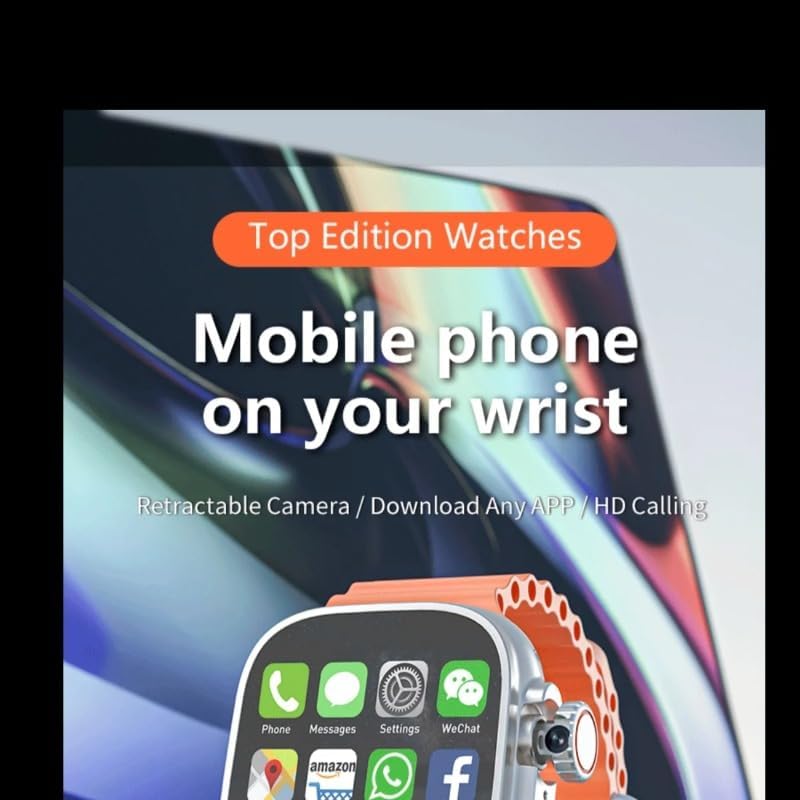
Figure 2: The smartwatch display showcasing various application icons, emphasizing its mobile phone capabilities.

Figure 3: The smartwatch emphasizing its role in a digital lifestyle, with health and communication functions.
Key Components:
- 2.29-inch AMOLED Display: High-definition touchscreen for interaction.
- 180° Rotary Camera: An 8MP detachable camera capable of rotating for various shooting angles.
- SIM Card Slot: Supports Nano SIM for independent 4G calling.
- Power Button: Typically located on the side, used for power on/off and screen wake/sleep.
- Microphone & Speaker: For calls and audio playback.
- Heart Rate Sensor: Located on the back for health monitoring.
Setup
1. Charging the Device
Before first use, fully charge your smartwatch. Connect the charging cable to the watch's charging port and plug the other end into a USB power adapter (not included) or a computer's USB port. The battery indicator on the screen will show charging progress.
2. Inserting the SIM Card
The DW100 supports a Nano SIM card for independent calling and mobile data.
- Locate the SIM card slot on the side of the smartwatch.
- Carefully insert the Nano SIM card into the tray, ensuring the gold contacts face downwards and the notched corner aligns correctly.
- Push the SIM tray back into the slot until it clicks into place.
3. Initial Power On
Press and hold the Power button until the XINDADA logo appears on the screen. Follow the on-screen prompts to complete the initial setup, including language selection, time zone, and network connection.
4. Connecting to Wi-Fi and Bluetooth
To connect to Wi-Fi or Bluetooth devices:
- Go to Settings > Network & Internet for Wi-Fi connections.
- Go to Settings > Bluetooth to pair with headphones or other Bluetooth accessories.
Operating Instructions
Basic Navigation
- Tap: Select an item or open an app.
- Swipe Up/Down/Left/Right: Navigate through menus, notifications, or quick settings.
- Long Press: Access additional options or customize watch faces.

Figure 4: Examples of menu navigation, dial switching, and custom dial options on the DW100 Smartwatch.
Using the 180° Rotary Camera
The DW100 features an 8MP detachable camera that can rotate 180 degrees, allowing for versatile photo and video capture.

Figure 5: Close-up of the DW100 Smartwatch's 180° rotary camera, illustrating its telescopic and rotational capabilities.
- To access the camera, open the Camera app from the app menu.
- Gently rotate the camera module to adjust the viewing angle (e.g., for selfies or forward-facing shots).
- The camera supports photo taking, video recording, video calls, face recognition, and code scanning.
Making and Receiving Calls
With a Nano SIM card inserted, your DW100 can make and receive calls independently.
- To make a call: Open the Phone app, dial the number, and tap the call icon.
- To receive a call: Swipe to answer or decline when an incoming call notification appears.
Using Applications (Play Store)
Running on Android 10.0, the DW100 allows you to download and install apps from the Google Play Store.
- Ensure you are connected to Wi-Fi or have mobile data enabled.
- Open the Play Store app from your app menu.
- Sign in with your Google account.
- Browse or search for apps and install them as you would on an Android smartphone.
Health Monitoring
The smartwatch includes built-in sensors for health tracking.
- Heart Rate Monitoring: Access the Heart Rate app to measure your pulse.
- Step Counting: The device automatically tracks your steps throughout the day. View your daily activity in the Step Counter app.
Customizing Watch Faces
Personalize your smartwatch with various watch faces.
- Long-press on the current watch face to enter the customization mode.
- Swipe left or right to browse through built-in watch faces.
- Some watch faces may offer additional customization options (e.g., complications, colors).
System Settings
Access the Settings app to configure various aspects of your smartwatch:
- Network & Internet: Manage WLAN, Hotspot & Tethering, Data Usage, Airplane Mode, VPN.
- Bluetooth: Pair and manage Bluetooth devices.
- Personalization: Adjust display settings, sound, and modes.
- Apps & Notifications: Manage recently opened apps, notifications, app permissions, default apps.
- Security & Privacy: Configure security settings.
- Software Version & Update: Check current software and perform OTA updates.
- Location Information: Manage GPS settings.
- Battery: Monitor battery usage.
- System: Language & Input, Date & Time, Reset Options.
Maintenance
Cleaning the Device
To keep your smartwatch clean, gently wipe the screen and body with a soft, lint-free cloth. Avoid using harsh chemicals or abrasive materials.
Battery Care
- Avoid fully discharging the battery frequently.
- Do not expose the device to extreme temperatures, as this can degrade battery life.
- If storing the device for an extended period, charge it to about 50% before storage.
Software Updates (OTA)
The DW100 supports Over-the-Air (OTA) updates. Regularly check for and install updates to ensure optimal performance and access to new features.
- Go to Settings > System > Software Update.
- Ensure your watch has sufficient battery and a stable internet connection before starting an update.
Troubleshooting
| Problem | Possible Solution |
|---|---|
| Device does not power on. | Ensure the battery is charged. Connect to the charger and wait a few minutes before attempting to power on again. |
| Cannot connect to Wi-Fi. | Check if Wi-Fi is enabled in Settings. Ensure the password is correct. Restart the Wi-Fi router. |
| SIM card not detected. | Ensure the Nano SIM card is inserted correctly and fully seated in the tray. Restart the watch. |
| Apps are slow or crashing. | Close background apps (Settings > Apps & Notifications > App Background Management). Clear app cache. Restart the device. |
| Battery drains quickly. | Reduce screen brightness. Disable unnecessary features like Wi-Fi, Bluetooth, or GPS when not in use. Limit background app activity. |
Specifications
| Feature | Detail |
|---|---|
| Model | DW100 |
| CPU | Spreadtrum SC8541E 10-core 1.4GHz Processor |
| Memory | 3GB RAM + 32GB ROM (as per current product variant) |
| SIM Card | 4G Independent Calling, Nano SIM |
| Touchscreen | 2.29-inch AMOLED with 490*580 HD Resolution |
| Camera | 8MP Detachable Camera (180° Rotary) |
| Connectivity | Bluetooth, Wi-Fi (802.11g 54 Mbps), GPS (Built-in) |
| Battery | 1280mAh |
| Operating System | Android 10.0 |
| Supported Languages | English, Arabic, German, Spanish, Persian, Finnish, French, Italian, Japanese, Hebrew, Malay, Dutch, Polish, Portuguese, Russian, Thai, Turkish, Vietnamese, Korean, Filipino, Hindi |
| Health Features | Heart Rate Monitoring, Step Counting |
Warranty and Support
For warranty information, please refer to the warranty card included in your product packaging or contact your point of purchase.
For technical support or further assistance, please contact XINDADA customer service through the contact information provided on the product packaging or the official XINDADA website.
Note: Product specifications and features are subject to change without prior notice.
Related documentsDW100

Ask a question about this manual
Ask about setup, troubleshooting, compatibility, parts, safety, or missing instructions. Manuals+ will review the question and use this page’s manual context to help answer it.