
1. Introduction
Thank you for choosing the TIMEMOON 10.1-inch Digital Calendar Alarm Clock. This device is designed to provide clear time, day, and date information, along with customizable alarm and medication reminders, making it ideal for elderly users. It features an auto-dimmable display, multiple display interfaces, and support for various languages.
Please read this manual thoroughly before operating the clock to ensure proper use and to maximize its features.
2. Package Contents
Carefully unpack your TIMEMOON Digital Calendar Alarm Clock and verify that all items listed below are present and in good condition. If any items are missing or damaged, please contact customer support.
- 1 x TIMEMOON 10.1-inch Digital Calendar Alarm Clock
- 1 x USB-DC Power Cord (Note: Power adapter is not included. Any standard 5V USB power adapter can be used.)
- 1 x User Manual
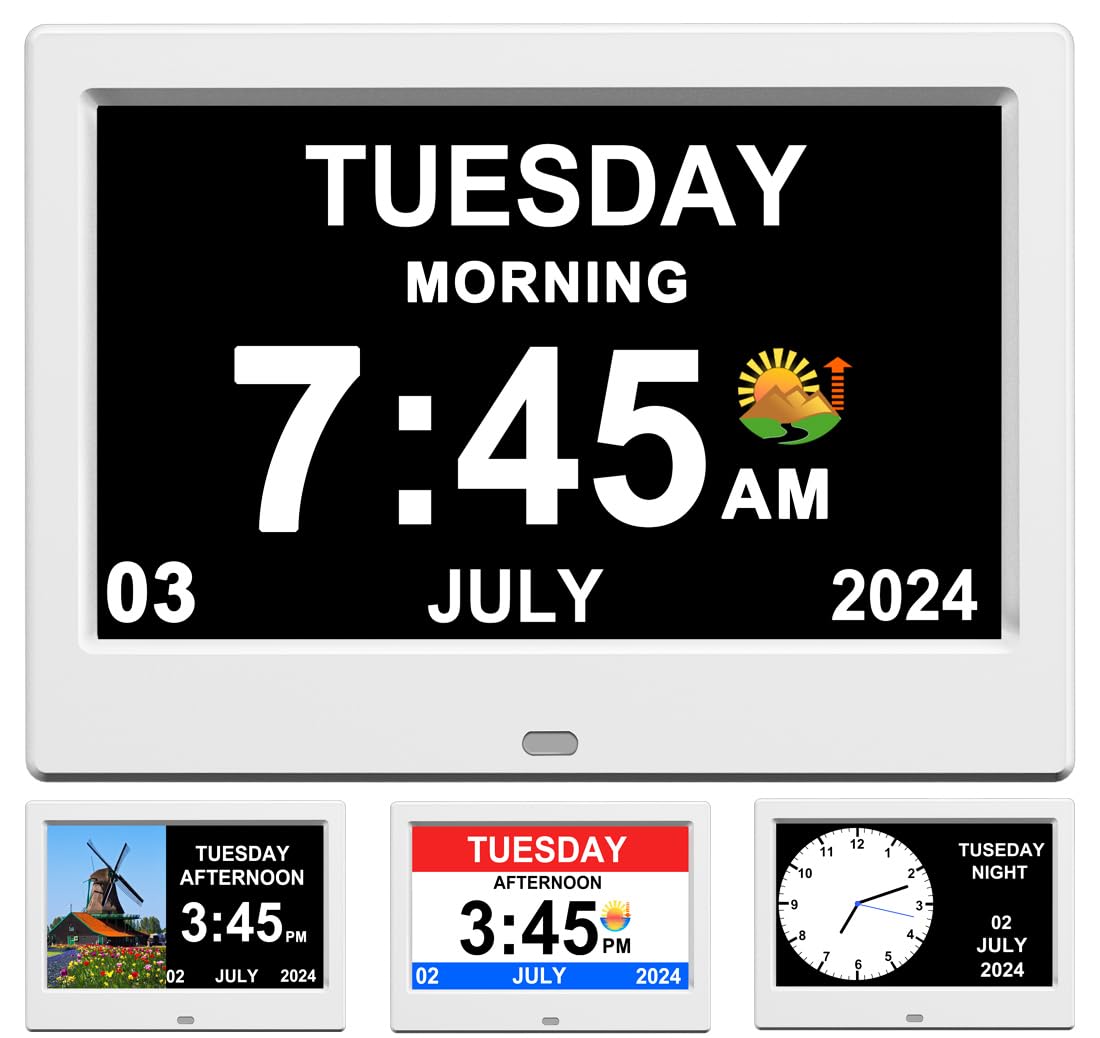
Image: Package contents including the clock, power cord, and manual. Note that a 5V power adapter is required but not included.
3. Setup
3.1 Power Connection
- Connect the USB-DC power cord to the DC input port on the back of the clock.
- Plug the USB end of the power cord into a standard 5V USB power adapter (not included).
- Plug the power adapter into a wall outlet. The clock will power on automatically.
The clock requires continuous power to operate. It is not battery-powered for daily use, but it does have a memory function to retain settings in case of a power interruption.

Image: The clock displaying time and date, highlighting its memory function, automatic Daylight Saving Time adjustment, and the need for a continuous power connection.
3.2 Initial Settings (Language, Time, Date)
Upon first power-on, you may need to set the language, time, and date. Use the buttons on the back of the clock to navigate the menu and adjust settings.
- Language Selection: The clock supports 10 national languages. Navigate to the 'Language Set' option and select your preferred language.
- Time Set: Adjust the hour, minute, and AM/PM settings.
- Date Set: Adjust the year, month, and day.
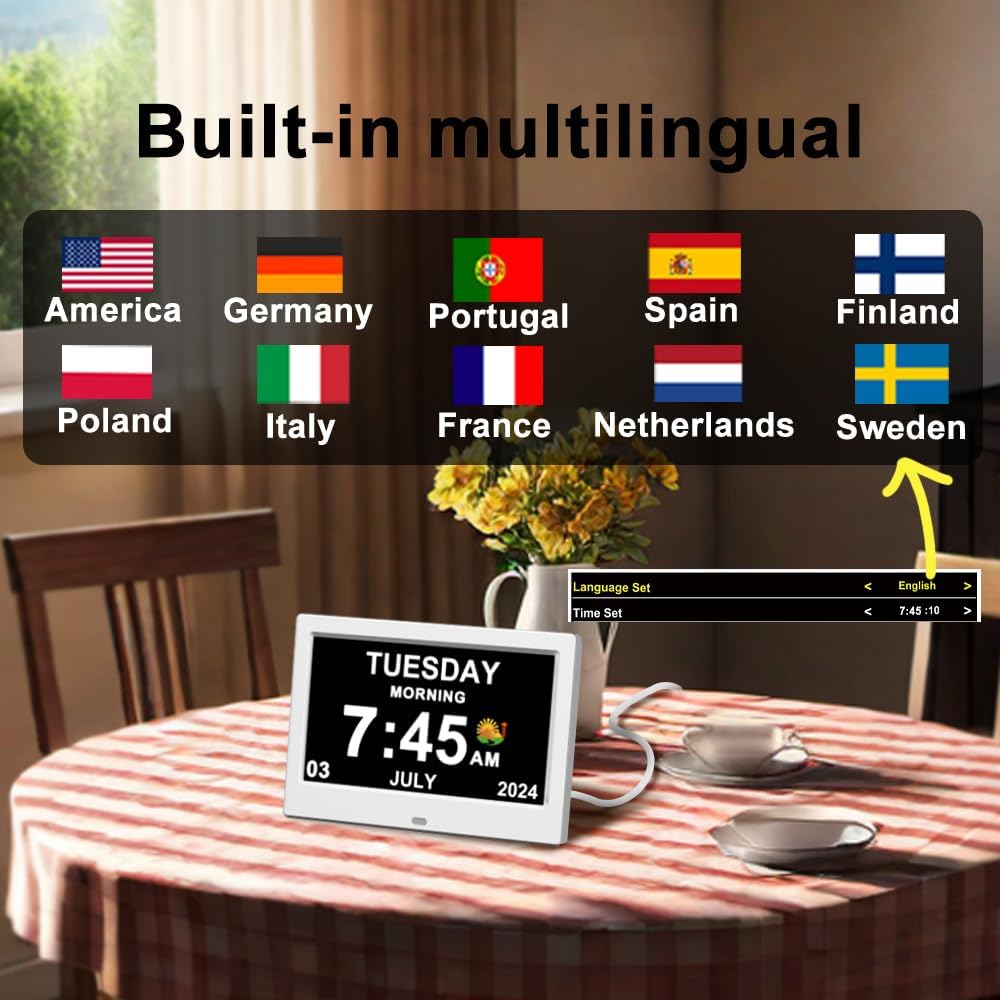
Image: The clock displaying its multi-language selection menu, showing flags for English, German, Spanish, Portuguese, French, Italian, Dutch, Czech, Polish, and Swedish.
3.3 Brightness Adjustment
The clock features an automatic dimming mode. The screen brightness will adjust automatically during the day and night for optimal visibility and to avoid disturbing sleep.
- Automatic Dimming: This is the default mode. The clock brightens during the day (e.g., 7:00 AM - 6:59 PM) and darkens at night (e.g., 7:00 PM - 6:59 AM).
- Fixed Brightness: You can also set a fixed brightness level if preferred. Refer to the on-screen menu for this option.

Image: The clock illustrating its automatic brightness adjustment feature, with examples of screen appearance during morning, night, and predawn hours.
4. Operating Instructions
4.1 Display Interfaces
The clock offers 3 fixed display interfaces and 1 split-screen display option. You can cycle through these interfaces using the appropriate button on the back of the clock.
- Fixed Displays: These interfaces show the time, day, and date in various layouts, some with larger fonts for enhanced readability.
- Split-Screen Display: This creative feature allows for a picture carousel on the left side of the screen, playing images from a USB drive, while clock information is displayed on the right side.
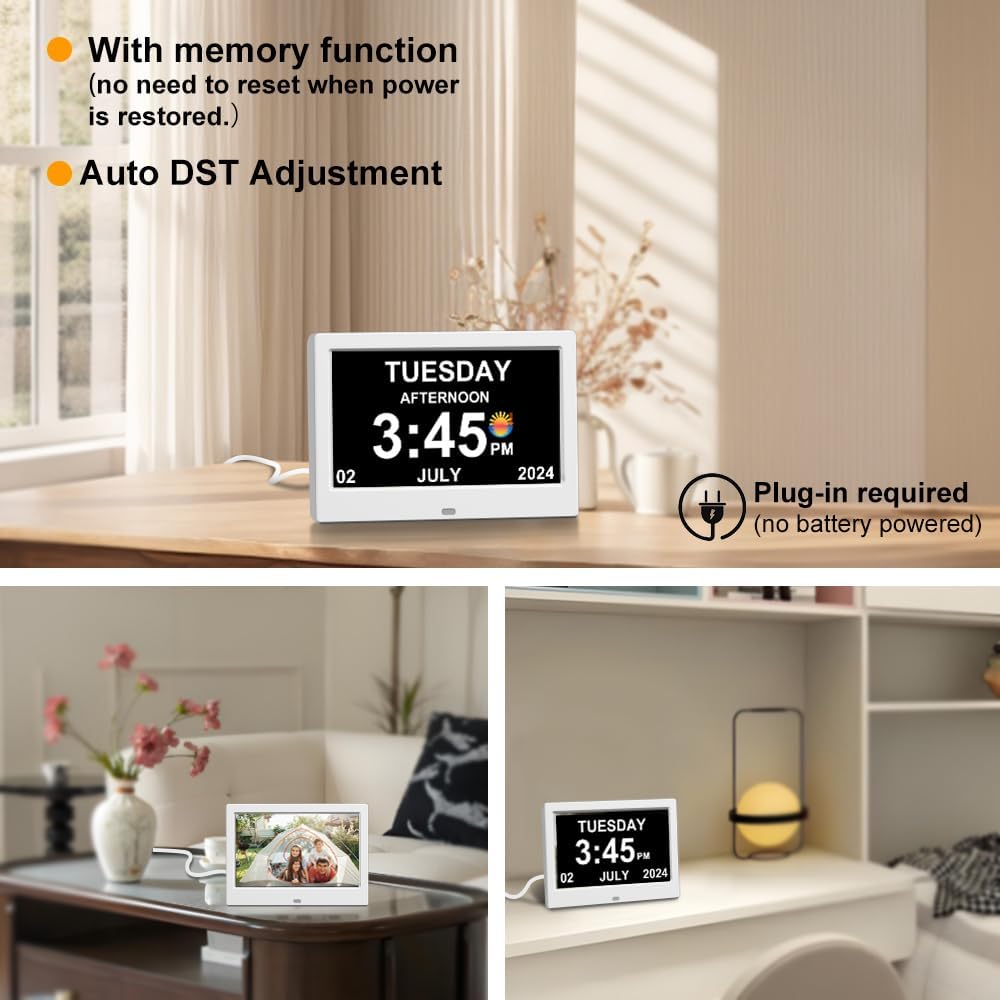
Image: A visual representation of the five available display interfaces, showcasing different layouts for time, date, and the split-screen photo frame option.

Image: A split-screen display interface, demonstrating the photo carousel feature on the left side and the digital clock display on the right.
4.2 Alarm Settings
The clock supports setting up to 12 daily alarms for various activities and 3 dedicated medication reminders.
- Daily Alarms: Set alarms for meals, appointments, exercises, feeding pets, going to the bathroom, drinking water, and other planned activities.
- Medication Reminders: Three specific alarms are available for medication schedules.
- Repeat Options: Each alarm can be set to repeat daily or as a one-time event.
- Stopping Alarms: When an alarm sounds, press any button on the clock to stop it.

Image: The clock showing a variety of gentle alarm icons for daily reminders such as 'Water the flowers', 'Drink water', 'Take the medicine', 'Meals', 'Sleep', 'Get up', 'Walk the dog', 'Feed the pets', and 'Take a walk'.

Image: A user interacting with the clock, which displays a 'Walk the Dog' reminder, demonstrating the functionality of the 12 customizable daily alarms.

Image: The clock displaying a 'Time To Take Afternoon Medicine' reminder, illustrating one of the three dedicated medication alarm settings.
4.3 Font Color Adjustment
For enhanced visual comfort, the font colors on the elderly clock interface can be adjusted. Available colors include white, green, blue, or red. Navigate through the clock's settings menu to select your preferred font color.

Image: The clock showcasing its ability to display time and date in four distinct font colors: white, green, yellow, and red, allowing for personalized visual preferences.
4.4 Indoor Temperature and Humidity Display (Optional)
The clock has the capability to display indoor temperature and humidity. To enable this feature, you must purchase a recommended external sensor and connect it to the clock. Please refer to the sensor's instructions for connection details.
5. Maintenance
5.1 Cleaning
- To clean the clock's display, gently wipe it with a soft, dry, lint-free cloth.
- For the clock's casing, use a slightly damp cloth and then dry thoroughly.
- Do not use abrasive cleaners, solvents, or aerosol sprays, as these can damage the surface.
5.2 General Care
- Avoid exposing the clock to extreme temperatures, direct sunlight, or high humidity.
- Keep the clock away from strong magnetic fields.
- Do not attempt to disassemble or repair the clock yourself. Refer to qualified service personnel if needed.
6. Troubleshooting
If you encounter any issues with your TIMEMOON Digital Calendar Alarm Clock, please refer to the following common problems and solutions:
| Problem | Possible Cause | Solution |
|---|---|---|
| Clock does not power on | No power supply or faulty connection | Ensure the power cord is securely connected to the clock and a working 5V USB power adapter. Check the wall outlet. |
| Display is too dim or too bright | Brightness settings incorrect | Check the brightness settings in the menu. Ensure 'Auto Dimming' is enabled or adjust fixed brightness to your preference. |
| Alarm does not sound | Alarm not set or volume too low | Verify that the alarm is correctly set and activated. Check the alarm volume settings. |
| Incorrect time or date | Time/date not set correctly or DST issue | Manually adjust the time and date in the settings menu. Ensure 'Auto DST Adjustment' is enabled if applicable to your region. |
| Picture carousel not working | USB drive issue or incorrect format | Ensure the USB drive is properly inserted and contains compatible image files (e.g., JPG, PNG). Check the clock's settings for the photo frame feature. |
If the problem persists after trying these solutions, please contact TIMEMOON customer support for further assistance.
7. Specifications
| Feature | Detail |
|---|---|
| Brand | TIMEMOON |
| Model Number | TMN-CL-00 |
| Display Type | Digital |
| Screen Size | 10.1 inches (actual display area may vary slightly) |
| Product Dimensions | 7"W x 4.9"H (approximate) |
| Item Weight | 0.6 Pounds |
| Power Source | Corded Electric (5V USB adapter required, not included) |
| Special Features | Adjustable Brightness, Alarm, Calendar Display, Photo Frame Function, Multi-language Support, Auto DST Adjustment, Memory Function |
| Room Type | Bedroom, Living Room |
| UPC | 094759736419 |
8. Warranty and Support
8.1 Warranty Information
For detailed warranty information, please refer to the product packaging or the official TIMEMOON website. Keep your purchase receipt as proof of purchase for any warranty claims.
8.2 Customer Support
If you have any questions, require technical assistance, or need to report an issue, please contact TIMEMOON customer support. You can find contact information on the official TIMEMOON website or through your retailer.
Visit the official TIMEMOON Store: TIMEMOON Store on Amazon