1. Introduction
This user manual provides detailed instructions for the installation, operation, and maintenance of your VORGUT VRUS-K8512-B3-Q-XG-DQ03-4 Solar Wireless Security Camera System. Please read this manual thoroughly before using the product to ensure proper function and safety. Keep this manual for future reference.
2. Package Contents
Verify that all items are present in your package:
- 1x 10-inch Monitor NVR
- 4x Solar Cameras
- 4x Solar Panels
- 1x USB Mouse
- 1x User Manual
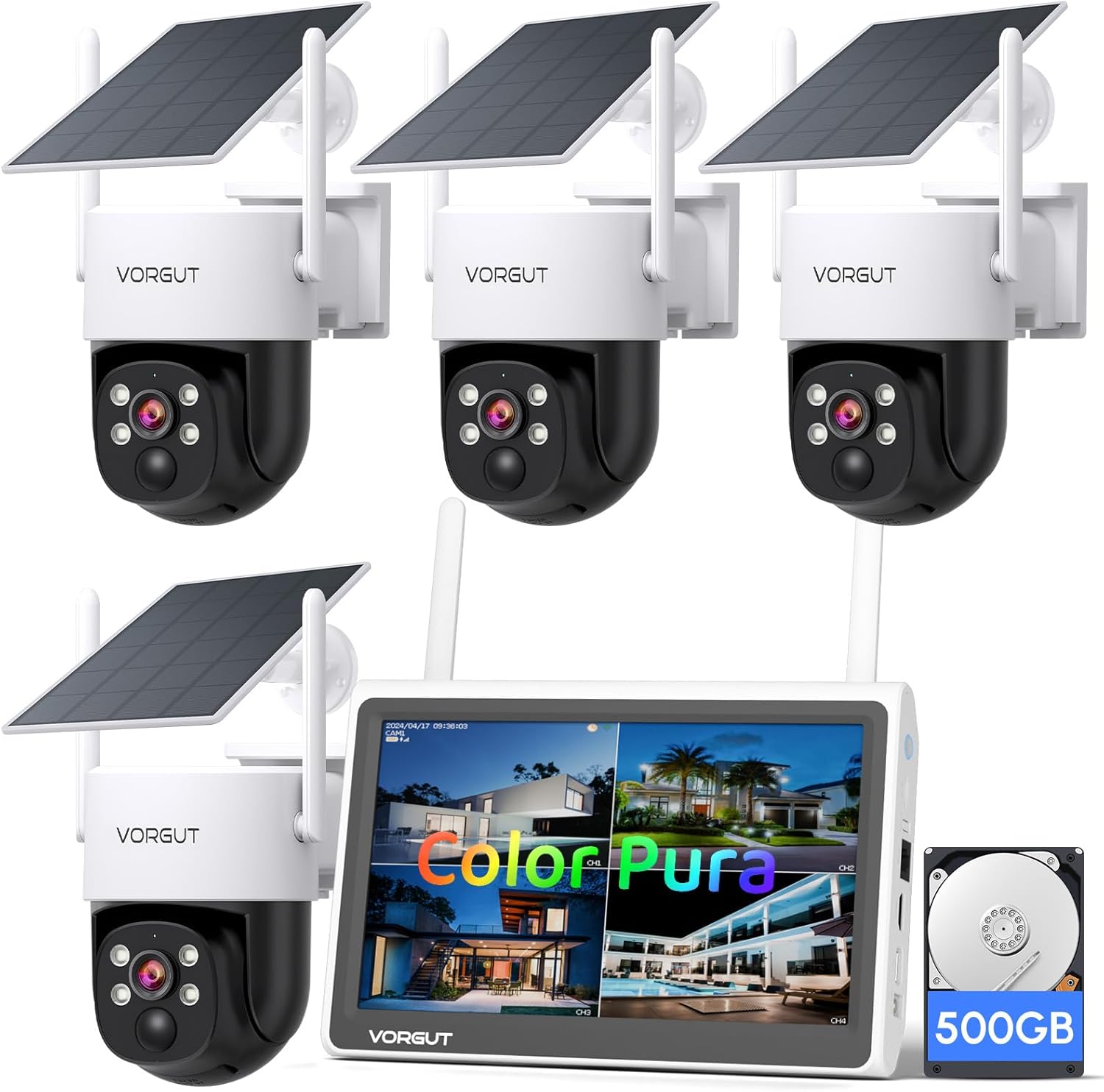
Image: Overview of the VORGUT Solar Wireless Security Camera System, showing the 10-inch monitor NVR, four solar-powered cameras, and a 500GB hard drive.
3. Safety Information
- Ensure all power connections are secure and correct.
- Do not expose the NVR to water or extreme temperatures.
- Handle cameras and solar panels with care during installation.
- Consult a qualified professional for electrical work if unsure.
- Keep out of reach of children.
4. Setup
4.1 Camera and Solar Panel Installation
The cameras and solar panels are designed for outdoor use and can be mounted on walls or ceilings. Ensure the solar panel receives direct sunlight for optimal charging.
- Choose a mounting location that provides the desired camera view and allows the solar panel to receive maximum sunlight exposure throughout the day.
- Use the provided mounting hardware to securely attach the camera bracket to the wall or ceiling.
- Attach the solar panel to the camera or mount it separately using the 3-meter extension cable for flexible positioning. Adjust the solar panel angle to face the sun.
- Connect the solar panel cable to the camera's charging port.

Image: Illustrates wall mount and ceiling mount options for the camera, along with the adjustable solar panel for effortless DIY installation.

Image: Shows a solar panel connected to a camera with a 3-meter extension cable, highlighting the non-stop solar-powered feature and 360° adjustable panel.
The cameras are IP66 weatherproof, ensuring reliable operation in various outdoor conditions, including rain and snow.

Image: A VORGUT camera with a solar panel mounted on a wall, shown during rainfall, demonstrating its IP66 waterproof rating for outdoor use.
4.2 NVR System Setup
- Connect the NVR to a power source using the provided adapter.
- Connect the USB mouse to the NVR for navigation.
- Power on the NVR. The system will automatically search for and pair with the solar cameras.
- Ensure your NVR is connected to a 2.4G Wi-Fi network for remote access and app functionality. The system supports both 2.4GHz and 5GHz Wi-Fi.
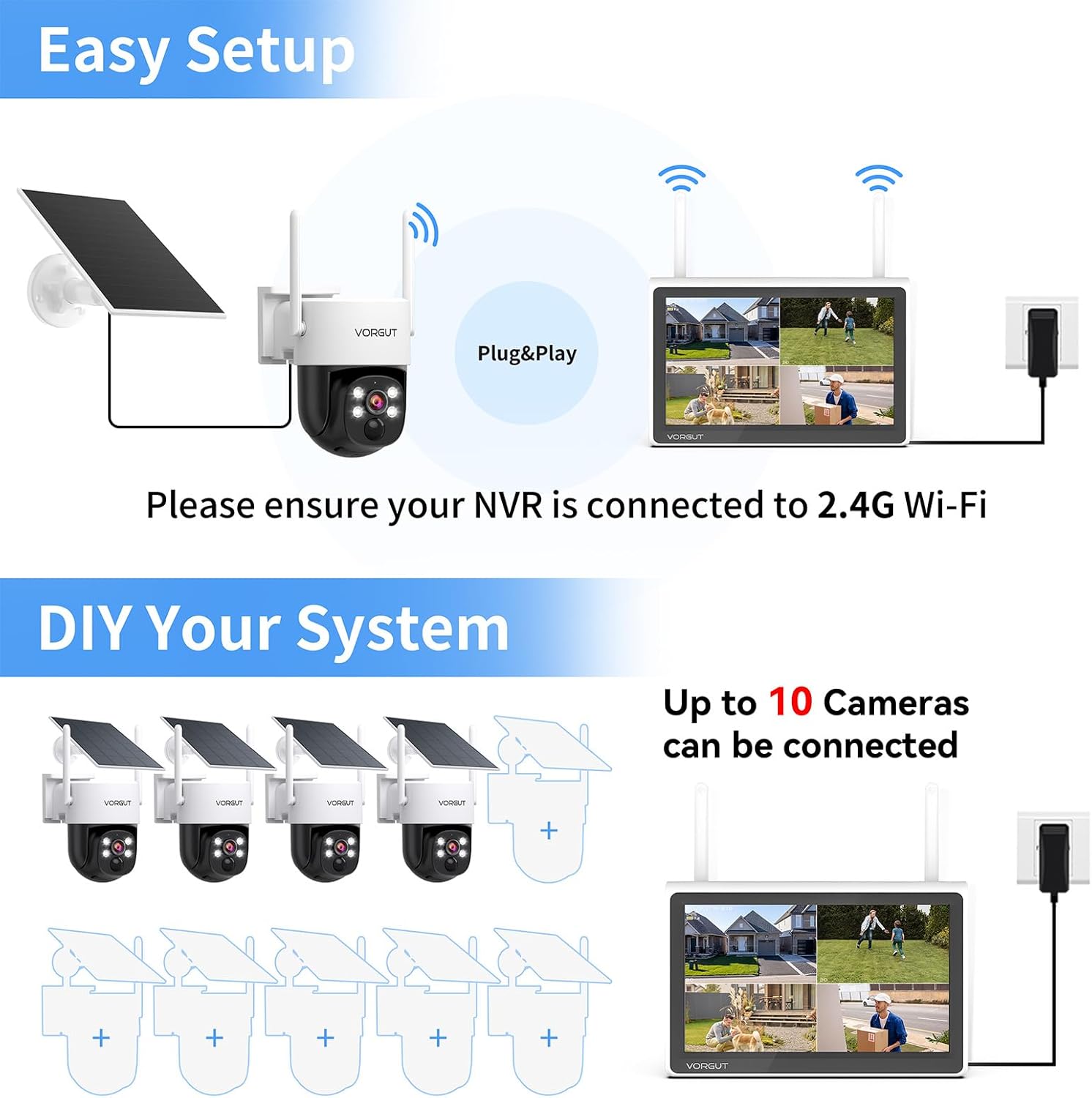
Image: Diagram illustrating the plug-and-play setup process, showing a camera wirelessly connecting to the NVR monitor. It also shows the NVR connected to 2.4G Wi-Fi.

Image: A visual representation of the wireless connection between a VORGUT camera and the NVR system, showing Wi-Fi signals.
4.3 Expanding Your System
The 10CH NVR system allows you to add up to 6 additional VORGUT full-color night-vision cameras, for a total of 10 cameras, to expand your surveillance coverage.
Image: Diagram showing how to expand the system by adding up to 10 cameras to the NVR, labeled "DIY Your System".
5. Operating Instructions
5.1 Viewing Live Feed
You can view the live feed directly on the 10-inch IPS HD display of the NVR or remotely via the Eseecloud app on your smartphone or laptop.
- On NVR Monitor: Use the USB mouse to navigate the NVR interface and select camera views.
- Via Eseecloud App:
- Download the Eseecloud app from the App Store (iOS) or Google Play Store (Android). You can also scan the QR code provided in the manual or on the NVR.
- Register an account and log in.
- Add your NVR device by scanning the QR code on the NVR or manually entering its ID.
- Once added, you can view live feeds, access recordings, and control camera functions remotely.

Image: Displays the EseeCloud app icon, a QR code for app download, and icons for the App Store and Google Play, along with views on a phone, tablet, and desktop monitor.
For app downloads and further resources, visit: http://www.dvr163.com/download/indexm.php
5.2 Pan and Tilt Control
The VORGUT solar security cameras offer flexible monitoring with 355° horizontal pan and 75° vertical tilt capabilities. These movements are controlled manually via the Eseecloud app.
- Open the Eseecloud app and select the camera you wish to control.
- Use the on-screen controls to pan the camera horizontally (355°) or tilt it vertically (75°) to adjust the viewing angle.
- Note: Auto-tracking is not supported; positioning is manual only.

Image: A VORGUT camera mounted on a house, illustrating its 355° horizontal pan and 90° vertical tilt capabilities for comprehensive home coverage.
5.3 Recording and Playback
The NVR includes a built-in 500GB hard drive for local storage, eliminating the need for recurring fees or subscriptions.
- Recordings are automatically saved to the 500GB HDD.
- To view recordings, access the playback function on the NVR monitor or through the Eseecloud app.
- The NVR supports up to 6TB HDD storage (HDD not included for expansion beyond 500GB).
5.4 Motion Detection and Smart Alerts
The system features advanced PIR human detection to minimize false alarms. When motion is detected, you will receive instant alerts.
- Human Detection: The system differentiates between human movement and other movements (e.g., animals, swaying branches) to reduce unnecessary alerts.
- Alerts: Upon detection, the system can trigger a siren, activate an alarm light, send app push notifications, and send email alerts.
- Customizable Detection Area: You can define specific detection zones within the camera's view to focus monitoring on critical areas.
- Sensitivity Adjustment: Adjust the motion detection sensitivity (Low, Medium, High) to suit your environment and reduce false triggers.
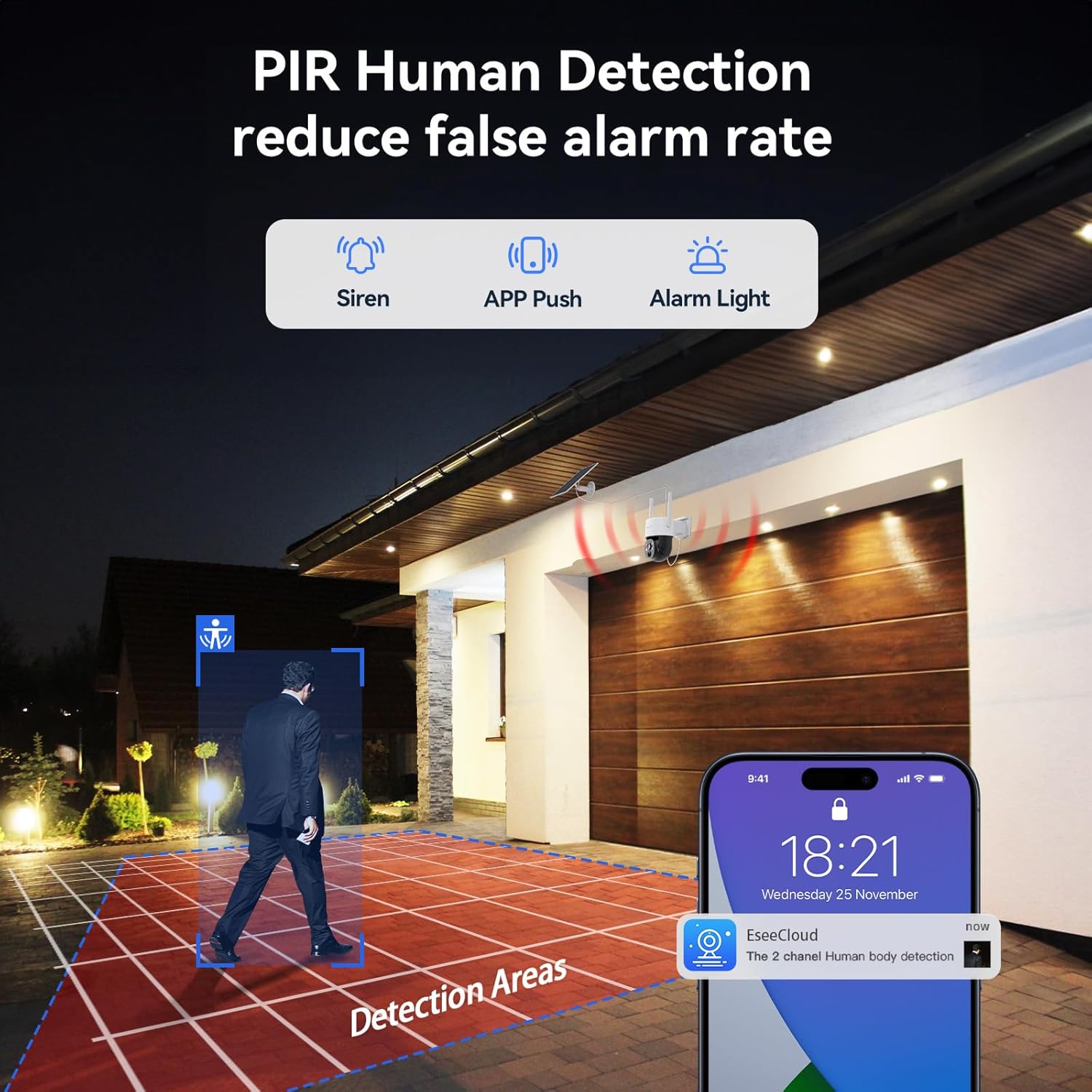
Image: Illustrates PIR Human Detection with icons for Siren, APP Push, and Alarm Light, showing a person walking in a defined detection area and an EseeCloud app notification.

Image: Demonstrates the system's ability to distinguish between human and animal movement, showing a "Human" detected and an "Animal" not detected.

Image: Shows a sensitivity slider (Low, Medium, High) and a freely customized detection area highlighted in red over a residential scene.
5.5 Two-Way Talk
The cameras feature two-way audio, allowing you to communicate with visitors or deter intruders directly through the Eseecloud app.
- In the Eseecloud app, select the camera and activate the microphone icon to speak.
- The camera's built-in speaker will transmit your voice, and its microphone will capture audio from the camera's vicinity.

Image: A person pushing a dolly with packages, with speech bubbles indicating "Hello, Your package" and "OK! Please wait for a minute", demonstrating the two-way talk functionality.
5.6 Full Color Night Vision
The VORGUT cameras provide 2K 3MP resolution with full-color night vision, even in low-light conditions, ensuring clear and detailed footage 24/7.
- Equipped with an F1.0 super aperture, 1/2.8" premium CMOS sensor, and optimized ISP module for enhanced low-light performance.
- Captures significantly more light than standard F2.0 lenses, enabling clear color recording even in areas without streetlights.

Image: Comparison of night vision, showing a clear, full-color image from the Vorgut ColorPura Camera at night versus a darker image from a standard Spotlight Camera.

Image: Close-up of the camera lens and internal components, highlighting "TRUE-COLOR Real Full Color Night Vision" with features like F1.0 Super Aperture, 1/2.8" Premium CMOS, and Optimized ISP Module.

Image: A side-by-side comparison demonstrating enhanced low-light performance, showing a brighter, clearer image from an F1.0 lens compared to a darker image from an F2.0 lens.
6. Maintenance
- Cleaning Cameras and Solar Panels: Periodically wipe the camera lens and solar panel surface with a soft, damp cloth to remove dust, dirt, or debris that may obstruct the view or reduce charging efficiency. Do not use harsh chemicals.
- Firmware Updates: Check the Eseecloud app or VORGUT's official website for any available firmware updates to ensure optimal performance and security. Follow the instructions provided for updating.
- Hard Drive Management: The 500GB HDD will automatically overwrite older footage when full. Regularly back up important recordings if needed.
7. Troubleshooting
- No Image on NVR/App:
- Ensure cameras and NVR are powered on.
- Check Wi-Fi connection for both NVR and cameras.
- Verify cameras are paired with the NVR. If not, re-pair them according to the NVR's on-screen instructions.
- Poor Solar Charging:
- Ensure solar panels are clean and free from obstructions.
- Adjust the solar panel angle for maximum direct sunlight exposure.
- Consider environmental factors like heavy cloud cover or short daylight hours.
- Frequent False Alarms:
- Adjust the PIR motion detection sensitivity in the Eseecloud app.
- Define specific detection zones to exclude areas with irrelevant motion (e.g., public roads, swaying trees).
- Remote Access Issues:
- Confirm the NVR is connected to a stable 2.4G/5G Wi-Fi network.
- Check your smartphone's internet connection.
- Ensure the Eseecloud app is updated to the latest version.
- Two-Way Talk Not Working:
- Check microphone and speaker settings in the Eseecloud app.
- Ensure your phone's volume is up and the app has microphone permissions.
If you encounter issues not covered here, please refer to the support section for contact information.
8. Specifications
| Feature | Detail |
|---|---|
| Model Number | VRUS-K8512-B3-Q-XG-DQ03-4 |
| Indoor/Outdoor Usage | Outdoor |
| Video Capture Resolution | 2K (3MP) |
| Power Source | Solar Powered, Corded Electric (for NVR) |
| Wireless Communication Technology | Wi-Fi (2.4GHz/5GHz Dual-Band) |
| NVR Display | 10-inch IPS HD (non-touch) |
| Storage | 500GB HDD (built-in), expandable up to 6TB |
| Number of Channels | 10 (supports up to 10 cameras) |
| Pan/Tilt Range | Pan 355°, Tilt 75° |
| Night Vision | Full Color Night Vision (Starlight, F1.0 Super Aperture) |
| Weather Resistance | IP66 Waterproof |
| Human Detection | PIR Human Detection |
| Control Method | App (Eseecloud) |
| Item Dimensions (L x W x H) | 10 x 9 x 8 inches |
| Item Weight | 4.75 pounds |
| Batteries | 1 Lithium Ion battery required (included) |
9. Warranty and Support
9.1 Warranty Information
VORGUT products come with a manufacturer's warranty. Please refer to the warranty card included in your package or contact VORGUT customer support for specific details regarding warranty coverage and duration.
9.2 Customer Support
For technical assistance, troubleshooting, or any questions regarding your VORGUT Solar Wireless Security Camera System, please contact our customer support team. Contact details can typically be found on the VORGUT official website or within the Eseecloud app's help section.
Manufacturer: Guangzhou Juan Intelligent Tech Joint Stock Co.,Ltd


