
1. Introduction
The GeekTale G3 Gateway is a smart lock WiFi gateway designed to enhance the functionality of your Tuya-compatible smart door locks. By connecting your smart locks to the G3 Gateway, you can achieve remote control, real-time status monitoring, and voice control through popular smart home assistants like Amazon Alexa and Google Assistant.
This manual provides essential information for setting up, operating, and maintaining your G3 Gateway to ensure optimal performance and security.
2. Package Contents
- GeekTale G3 Gateway (1 unit)
- User Manual (this document)
3. Setup Guide
Follow these steps to set up your GeekTale G3 Gateway and connect it to your smart lock system.
3.1 Powering On the Gateway
- Plug the G3 Gateway into a standard power outlet.
- Ensure the gateway is within 16 feet (approximately 5 meters) of your smart door lock for stable Bluetooth connectivity.
- Ensure the gateway is within range of a 2.4GHz Wi-Fi network. The G3 Gateway requires a 2.4GHz Wi-Fi connection for internet access.
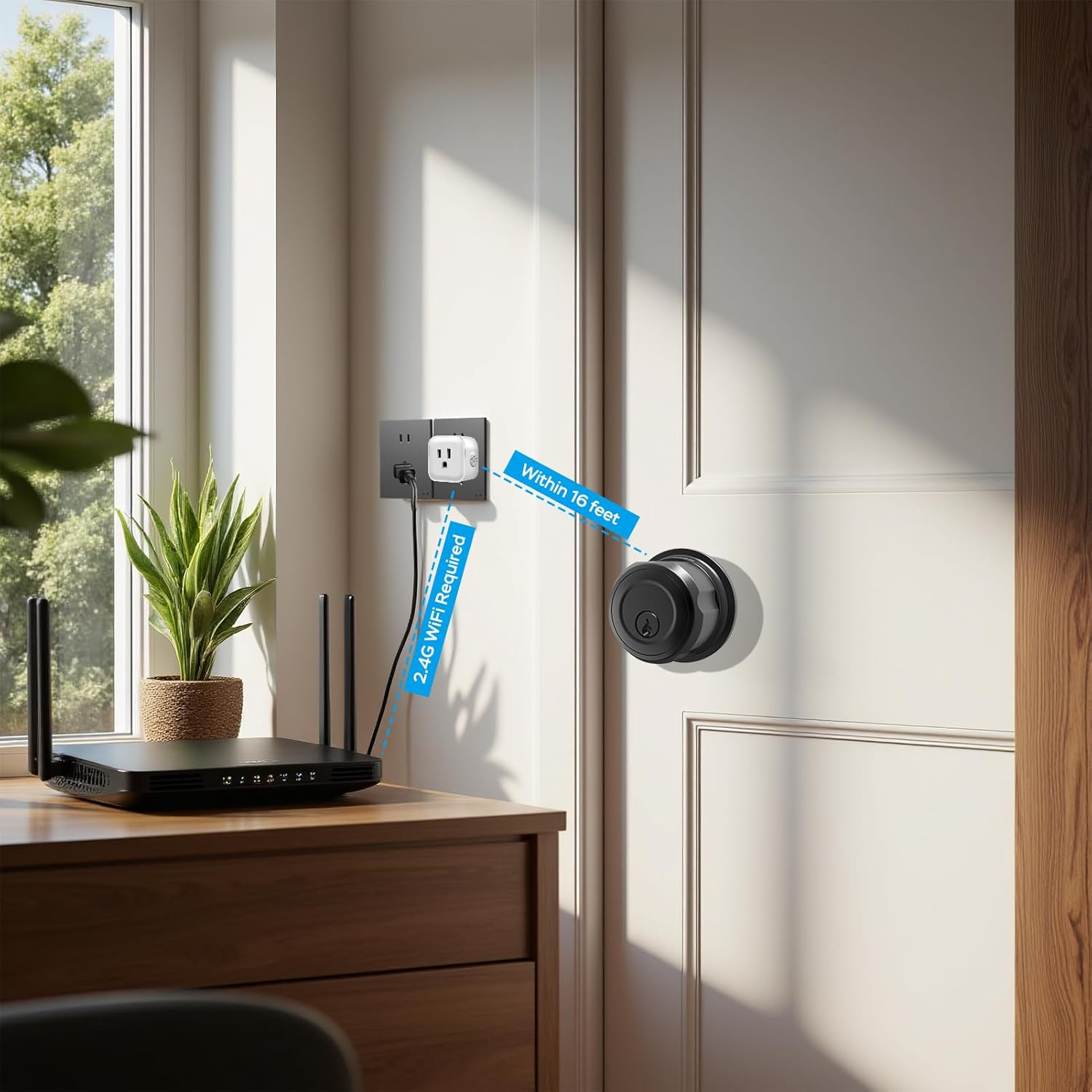
Image: The G3 Gateway requires a 2.4GHz Wi-Fi network and should be placed within 16 feet of the smart lock for optimal connection.
3.2 Pairing with Smart Locks
The G3 Gateway is compatible with Tuya smart door locks. One gateway can pair with multiple smart locks.
- Download the Tuya Smart or Smart Life app on your smartphone.
- Register or log in to your account.
- In the app, add the G3 Gateway as a new device. Follow the in-app instructions to connect the gateway to your 2.4GHz Wi-Fi network.
- Once the gateway is added, you can then pair your Tuya-compatible smart locks with the gateway through the app. Refer to your smart lock's manual for specific pairing instructions.

Image: The G3 Gateway is compatible with various Tuya Smart Lock models.
3.3 Connecting to Voice Assistants (Alexa/Google Home)
To enable voice control, link your Tuya Smart/Smart Life account with your Amazon Alexa or Google Home account.
- Open the Amazon Alexa app or Google Home app.
- Navigate to the 'Skills & Games' section (Alexa) or 'Works with Google' section (Google Home).
- Search for the 'Smart Life' skill/service.
- Enable the skill/service and link it to your Tuya Smart/Smart Life account using your login credentials.
- Once linked, discover devices. Your smart locks connected via the G3 Gateway should appear and be controllable by voice commands.

Image: Steps to connect your Smart Life account to Amazon Alexa or Google Home for voice control.
4. Operating Instructions
Once set up, the G3 Gateway enables various smart control features for your connected locks.
4.1 Remote Control via App
With the G3 Gateway, you can control your smart locks from anywhere with an internet connection.
- Remote Locking/Unlocking: Lock or unlock your door remotely through the Tuya Smart/Smart Life app.
- Real-time Status: Check the current status of your door (locked/unlocked) and battery life of the lock.
- Activity Logs: View a history of lock activities, including who entered and when.
- Scheduling: Set up schedules for automatic locking or unlocking at specific times.
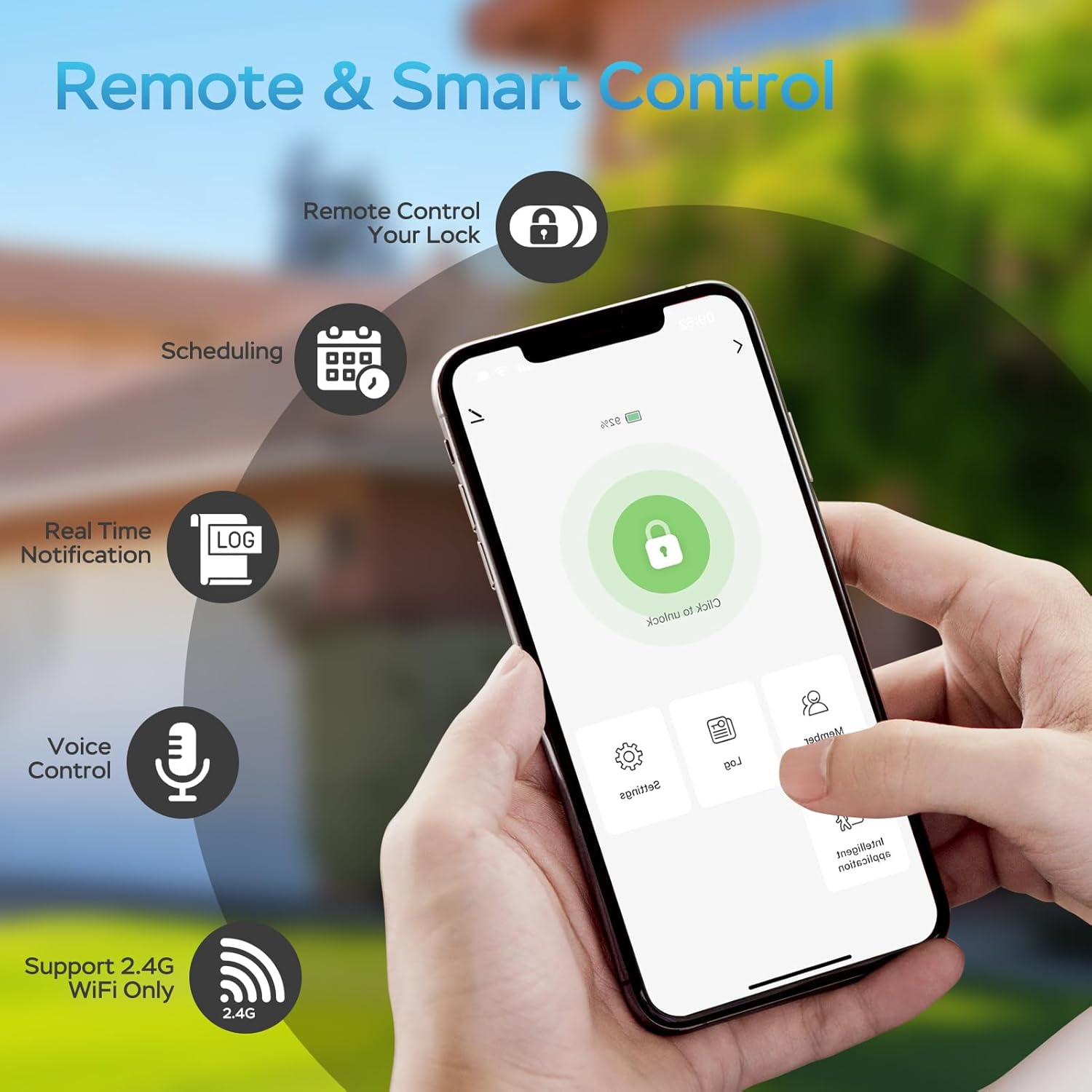
Image: The mobile app interface for remote and smart control of your lock.
4.2 Voice Control
If your smart lock is accessible through Alexa or Google Assistant, you can use voice commands for convenient control.
- Example Commands (Alexa): "Alexa, lock the front door." "Alexa, is the back door locked?"
- Example Commands (Google Assistant): "Hey Google, lock the garage door." "Hey Google, what's the status of the main door?"

Image: Voice control of your smart lock using Amazon Alexa or Google Assistant.
5. Maintenance
To ensure the longevity and optimal performance of your G3 Gateway, consider the following maintenance tips:
- Keep Clean: Gently wipe the gateway with a dry, soft cloth to remove dust. Avoid using liquid cleaners.
- Stable Power Supply: Ensure the gateway is plugged into a stable power source. Avoid outlets controlled by light switches if continuous operation is desired.
- Firmware Updates: Regularly check the Tuya Smart/Smart Life app for any available firmware updates for the gateway. Updates can improve performance and security.
- Optimal Placement: Maintain the recommended distance (within 16 feet) between the gateway and your smart locks, and ensure good Wi-Fi signal strength.
6. Troubleshooting
If you encounter issues with your G3 Gateway, refer to the following common problems and solutions:
- Gateway Not Connecting to Wi-Fi:
- Ensure your Wi-Fi network is 2.4GHz. The gateway does not support 5GHz networks.
- Verify the Wi-Fi password entered in the app is correct.
- Move the gateway closer to your Wi-Fi router.
- Restart your Wi-Fi router and the G3 Gateway. - Smart Lock Not Pairing with Gateway:
- Ensure the smart lock is within 16 feet of the G3 Gateway.
- Check if the smart lock's battery is sufficiently charged.
- Follow the specific pairing instructions for your smart lock model carefully.
- Restart both the smart lock and the G3 Gateway. - Remote Control Not Working:
- Confirm the G3 Gateway is connected to Wi-Fi and online in the app.
- Check your smartphone's internet connection.
- Ensure the smart lock is properly paired with the gateway and online. - Voice Control Not Responding:
- Verify that the 'Smart Life' skill/service is enabled and linked correctly in your Alexa or Google Home app.
- Ensure your smart lock is visible and controllable within the Alexa/Google Home app.
- Use the exact device names configured in the app for voice commands.
- Check the internet connection of your voice assistant device and the G3 Gateway. - Gateway Appears Offline:
- Check the power supply to the gateway.
- Verify your home Wi-Fi network is operational.
- Restart the gateway by unplugging it for 10 seconds and plugging it back in.
7. Specifications
| Brand | GeekTale |
| Model Number | G3 |
| Lock Type | Gateway |
| Connectivity Protocol | Bluetooth, Wi-Fi (2.4GHz) |
| Control Method | Remote, Voice |
| Item Dimensions (L x W x H) | 1.75 x 1.75 x 1.25 inches (4.45 x 4.45 x 3.18 cm) |
| Item Weight | 0.05 Kilograms (1.76 ounces) |
| Material | Metal |
| Color | White |
| Recommended Uses | Home |
| Included Components | Gateway |
8. Warranty Information
For detailed warranty information regarding your GeekTale G3 Gateway, please refer to the official GeekTale website or contact their customer support directly. Warranty terms and conditions may vary by region and purchase date.
9. Customer Support
If you require further assistance or have questions not covered in this manual, please contact GeekTale customer support.
- Online Support: Visit the official GeekTale website for FAQs, support resources, and contact options.
- Seller Information: For purchases made through Amazon, you may contact the seller, Geek Technology Co, via the Amazon platform.
- GeekTale Store: You can also visit the GeekTale Store on Amazon for more product information and support.