
Introduction
This manual provides essential instructions for setting up, operating, and maintaining your viqee I24 Ultra 5G Android 14 Smartphone. Please read this manual carefully to ensure proper use and to maximize the device's capabilities. Keep this manual for future reference.

Image: viqee I24 Ultra 5G Android 14 Smartphone, shown in blue with a stylus.
1. Getting Started
1.1 Package Contents
Verify that all items are present in the package:
- viqee I24 Ultra Smartphone
- Protective Case
- USB-C Data Cable
- Earphones
- User Manual (this document)
- SIM Tray Ejector Pin

Image: Visual representation of the items included in the product package, such as the smartphone, case, cable, earphones, user manual, and SIM ejector tool.
1.2 SIM and SD Card Installation
The device supports dual SIM cards and a TF (microSD) card for expandable storage. The SIM/TF slot is shared.
- Locate the SIM tray on the side of the phone.
- Insert the SIM tray ejector pin into the small hole next to the tray and press gently until the tray pops out.
- Place your Nano-SIM cards and/or TF card into the designated slots on the tray. Ensure the gold contacts face downwards.
- Carefully reinsert the tray into the phone until it clicks into place.
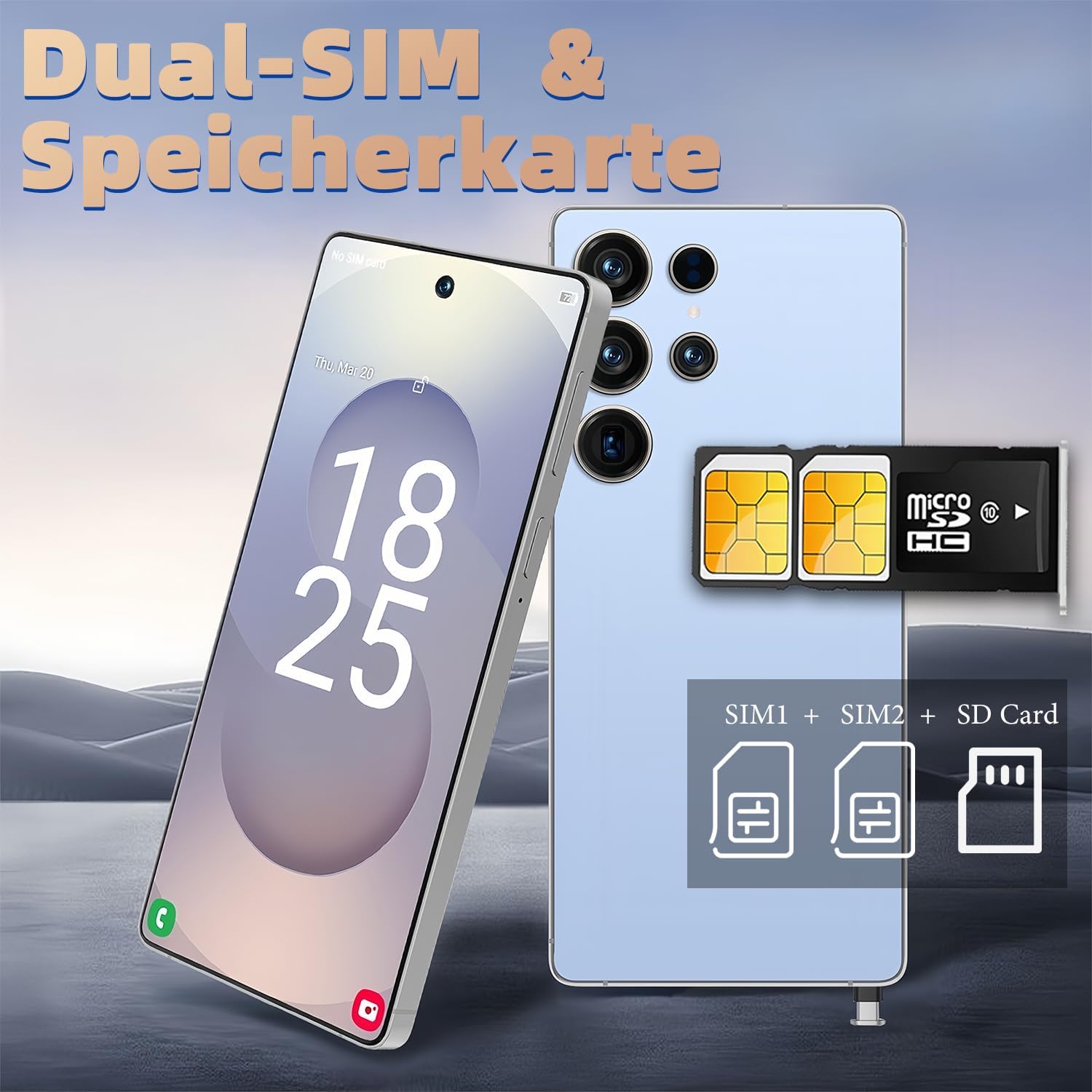
Image: Illustration showing the dual SIM card and microSD card slots on the phone's tray.
1.3 Initial Power On
Press and hold the Power button (usually on the right side) until the viqee logo appears. Follow the on-screen prompts to complete the initial setup, including language selection, Wi-Fi connection, and Google account login.
1.4 Security Setup (Fingerprint & Face ID)
To protect your privacy, set up fingerprint and face recognition unlocking:
- Navigate to Settings > Security > Fingerprint Unlock or Face Unlock.
- Follow the on-screen instructions to register your fingerprint(s) or face.
- It is recommended to also set up a PIN, pattern, or password as a backup unlock method.
2. Basic Operation
2.1 Navigation
Your viqee I24 Ultra runs on Android 14. Navigate the interface using touch gestures:
- Tap: Select an item or open an app.
- Swipe: Scroll through screens or lists.
- Pinch: Zoom in or out on images and web pages.
- Long Press: Access contextual menus or move app icons.

Image: The 6.8-inch HD display of the viqee I24 Ultra smartphone, showcasing its large screen for clear visuals.
2.2 Camera Usage
The viqee I24 Ultra features a powerful camera system with 50MP and 108MP rear cameras. To take photos or videos:
- Open the Camera app.
- Select your desired mode (Photo, Video, Portrait, etc.).
- Tap the shutter button to capture.

Image: Close-up of the smartphone's rear camera module, highlighting the 108MP sensor and AI scene detection capabilities.
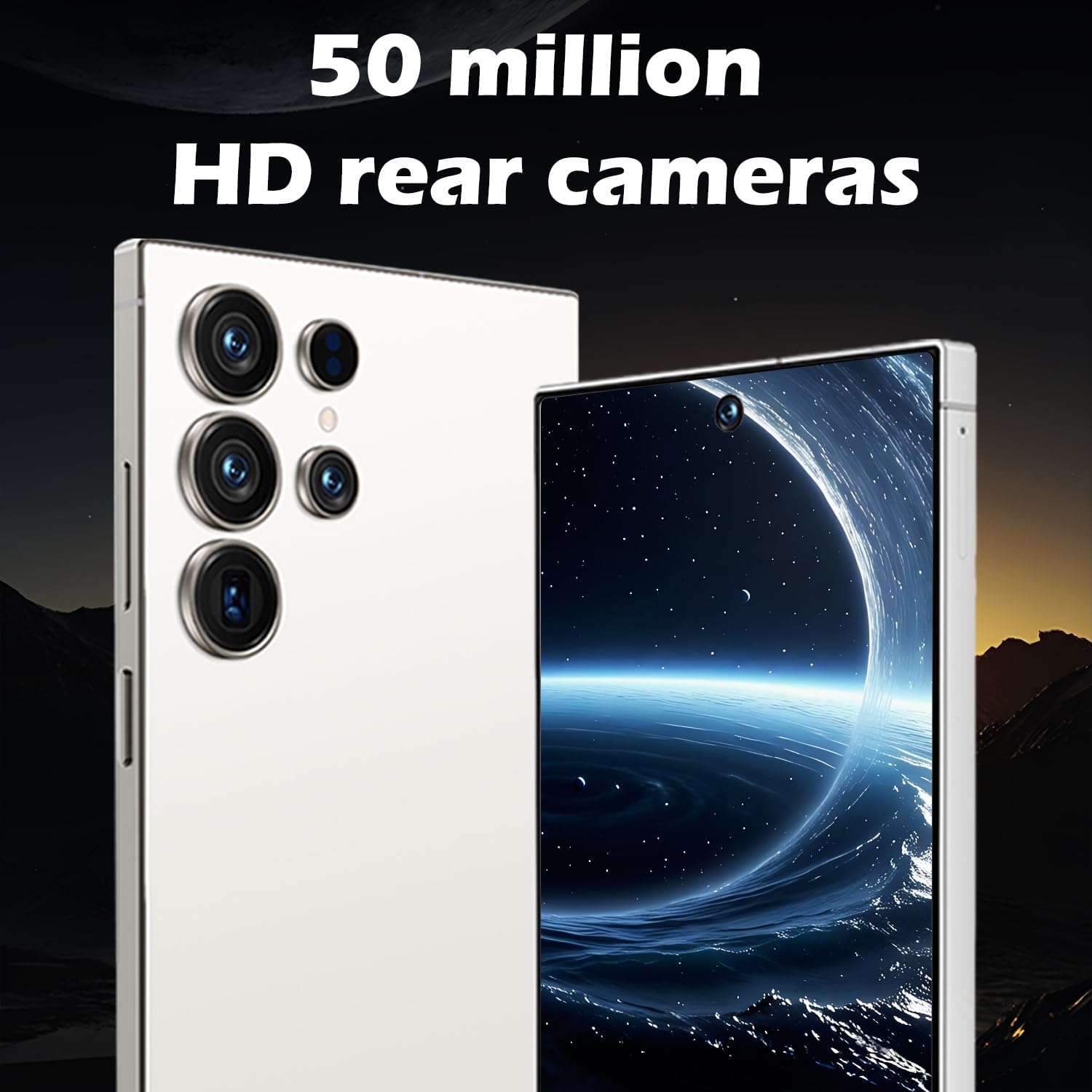
Image: Another view of the smartphone's rear camera, emphasizing the 50MP sensor for high-resolution photography.
2.3 Battery Management
The device is equipped with a large 6800mAh battery. To optimize battery life:
- Adjust screen brightness.
- Close unused apps running in the background.
- Enable Battery Saver mode when needed (Settings > Battery > Battery Saver).
- Avoid extreme temperatures.

Image: The smartphone connected to a charger, illustrating its 6800mAh battery capacity and long-lasting power.
2.4 Connectivity
The viqee I24 Ultra supports various connectivity options:
- 5G Cellular: For fast mobile data. Ensure your SIM card supports 5G and you are in a 5G coverage area.
- Wi-Fi: Connect to wireless networks for internet access. Go to Settings > Network & internet > Wi-Fi.
- Bluetooth: Pair with wireless headphones, speakers, or other devices. Go to Settings > Connected devices > Bluetooth.
- GPS: For location services and navigation.
- FM Radio: Use the included earphones as an antenna for FM radio.

Image: A visual representation of 5G network capabilities, indicating fast download speeds and low latency for the smartphone.
2.5 Educational App
The smartphone includes a pre-installed educational app designed to enhance hand-eye coordination, color and shape recognition, fine motor skills, and memory. Explore activities such as drawing, cartoon animals, and alphabet learning within the app.
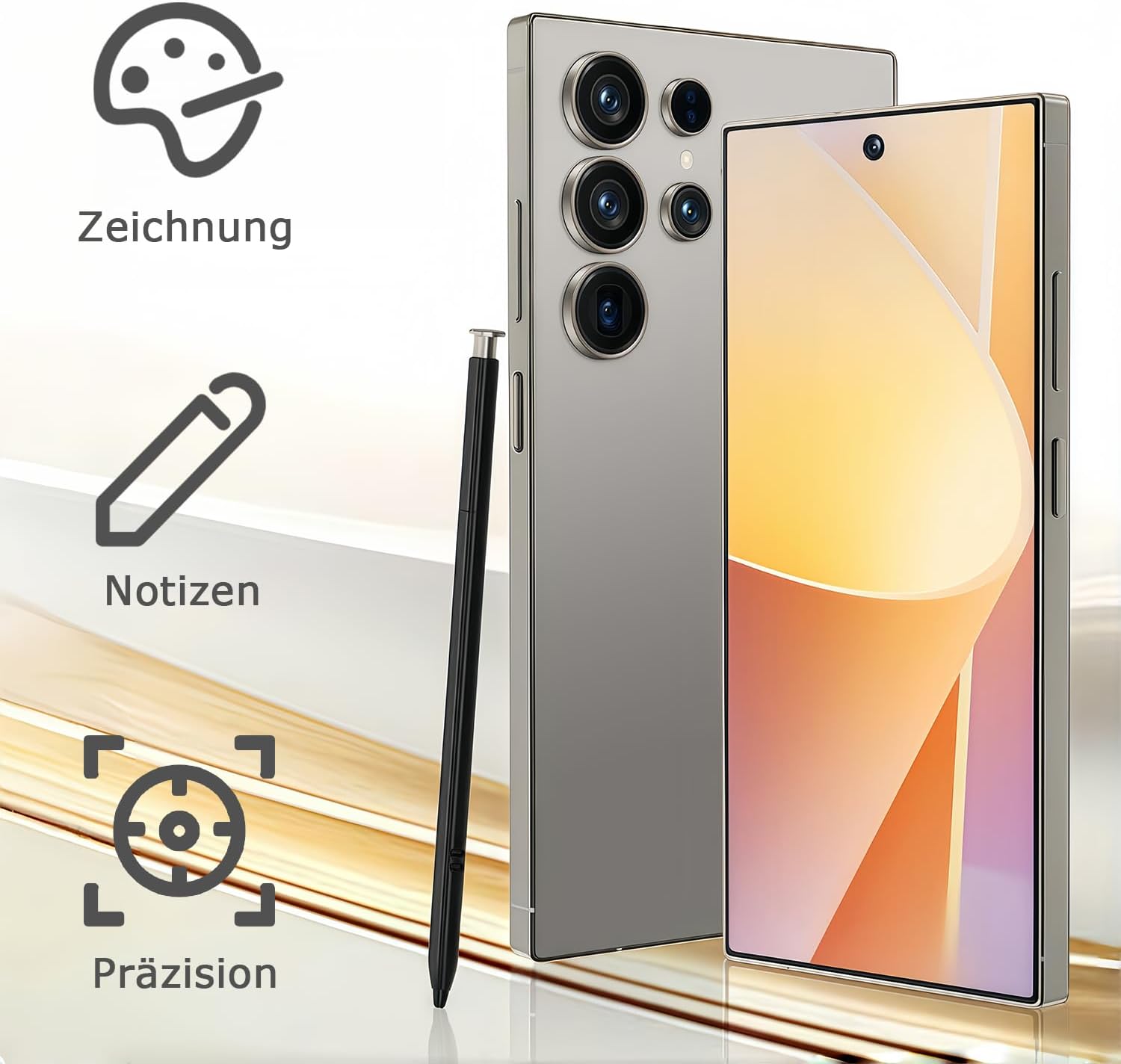
Image: Icons representing drawing, notes, and precision, suggesting features related to the educational app or stylus functionality.
3. Care and Maintenance
3.1 Charging
Use only the provided USB-C data cable and a compatible charger to charge your device. Avoid using damaged cables or chargers. Do not expose the phone to extreme heat or cold during charging.
3.2 Cleaning
To clean your phone, gently wipe it with a soft, lint-free cloth. Avoid using harsh chemicals, abrasive materials, or excessive moisture, as these can damage the screen or internal components.
3.3 Software Updates
Regularly check for and install software updates to ensure your device has the latest features, security patches, and performance improvements. Go to Settings > System > System update.
4. Troubleshooting
If you encounter issues with your device, try the following common troubleshooting steps:
- Device not powering on: Ensure the battery is charged. Connect the phone to a charger for at least 15 minutes, then try powering it on again.
- Apps crashing or freezing: Close the problematic app and reopen it. If the issue persists, restart the phone.
- Poor network signal: Check if your SIM card is properly inserted. Move to an area with better network coverage. Restart the phone.
- Touchscreen unresponsive: Restart the phone by holding down the Power button for about 10-15 seconds.
- Battery draining quickly: Review battery usage in Settings > Battery to identify power-hungry apps. Adjust screen brightness and disable unnecessary features like GPS or Bluetooth when not in use.
For more complex issues, refer to the manufacturer's support website or contact customer service.
5. Technical Specifications
| Feature | Specification |
|---|---|
| Model Name | I24 Ultra |
| Operating System | Android 14 |
| Screen Size | 6.8 Inches HD Display |
| Memory Storage Capacity | 256 GB |
| RAM | 8 GB (implied from 8+256GB) |
| Battery Capacity | 6800 mAh |
| Rear Camera | 50MP + 108MP |
| Cellular Technology | 5G |
| CPU Model | MTK 8121 |
| CPU Speed | 2 GHz |
| Connectivity Technologies | Ethernet, Wireless (Wi-Fi, Bluetooth, GPS, FM) |
| Dual SIM | Yes (Dual SIM Dual Standby) |
| Security Features | Fingerprint Unlock, Face ID |
| Item Weight | 3.52 ounces |
6. Warranty and Support
Warranty information for your viqee I24 Ultra Smartphone is typically provided in a separate warranty card included with your product or can be found on the official viqee website. Please retain your proof of purchase for warranty claims.
For technical support, troubleshooting assistance beyond this manual, or to inquire about warranty services, please visit the official viqee brand store or contact their customer service department. You can find more information at the viqee Store on Amazon.