
1. Introduction
This manual provides detailed instructions for setting up, operating, and maintaining your AWOW AK11 Mini PC. Please read this manual thoroughly before using the device to ensure proper functionality and safety. The AWOW AK11 is a compact and powerful mini desktop computer designed for various applications, including office work, 4K video playback, home theater, and educational use.
2. Safety Information
- Ensure the power adapter is compatible with your local power supply.
- Do not expose the device to water, moisture, or extreme temperatures.
- Avoid placing the device near heat sources or in direct sunlight.
- Do not attempt to open or repair the device yourself. Refer to qualified service personnel.
- Keep ventilation openings clear to prevent overheating.
3. Package Contents
Verify that all items are present in the package:
- AWOW AK11 Mini PC
- Power Adapter
- HDMI Cable
- User Manual (this document)
- Mounting Bracket (Vesa mount, if included)
4. Product Overview
The AWOW AK11 Mini PC features a comprehensive set of ports for connectivity and expansion. Familiarize yourself with the layout below.

Image 4.1: Front and Rear Panel Interfaces of the AWOW AK11 Mini PC. The front panel includes 3.5mm Audio/MIC jack, Type-C port, two USB 3.2 Gen2 ports, a Power Button, and a CLR CMOS button. The rear panel features the Power input, two LAN (1000M) ports, a DisplayPort (4K 60Hz), an HDMI port (4K 60Hz), and two USB 2.0 ports.
Front Panel:
- 3.5mm Audio/MIC: For connecting headphones, speakers, or a microphone.
- USB 3.2 Gen2 (x2): High-speed data transfer ports for peripherals.
- Type-C: Multi-functional port for data, video output, or power delivery (check specific model capabilities).
- Power Button: To turn the device on or off.
- CLR CMOS: Button to clear CMOS settings (use with caution).
Rear Panel:
- Power In: Connect the provided power adapter here.
- LAN (1000M) (x2): Gigabit Ethernet ports for wired network connection.
- 4K 60Hz DP (DisplayPort): Video output for connecting a monitor.
- 4K 60Hz HDMI: Video output for connecting a monitor or TV.
- USB 2.0 (x2): Standard USB ports for peripherals.
5. Setup Guide
5.1 Connecting Peripherals
- Connect Display: Use an HDMI or DisplayPort cable to connect your monitor to the corresponding port on the Mini PC. For triple display, use HDMI, DisplayPort, and the Type-C port (with a compatible adapter if needed).
- Connect Keyboard and Mouse: Plug your USB keyboard and mouse into any available USB ports (USB 3.2 Gen2 or USB 2.0).
- Connect Network (Optional): For a wired connection, plug an Ethernet cable into one of the LAN ports. For wireless, ensure your WiFi network is available.
- Connect Power: Plug the power adapter into the "Power In" port on the Mini PC, then plug the adapter into a power outlet.
5.2 Powering On
Press the Power Button on the front panel. The power indicator light will illuminate, and the system will begin to boot.
5.3 Initial Windows Setup
Upon first boot, you will be guided through the Windows 11 Pro setup process. Follow the on-screen instructions to configure language, region, network, user accounts, and other settings.
6. Operating Instructions
6.1 Basic Operation
- Power On/Off: Press the power button to turn on. To turn off, use the Windows Shut Down option or press and hold the power button for 5 seconds for a forced shutdown (not recommended for regular use).
- Restart: Use the Windows Restart option.
- Sleep Mode: Use the Windows Sleep option or briefly press the power button.
6.2 Display Configuration (Triple Display)
The AWOW AK11 supports up to three 4K@60Hz displays simultaneously using the HDMI, DisplayPort, and Type-C outputs. After connecting your monitors, Windows will automatically detect them. You can configure display settings (extend, duplicate, or show only on one) via Settings > System > Display.
6.3 Network Connectivity
- Wired Ethernet: Connect an Ethernet cable to one of the two Gigabit LAN ports. The system will automatically establish a connection.
- Wi-Fi 6: To connect to a wireless network, go to Settings > Network & Internet > Wi-Fi, turn Wi-Fi on, and select your desired network. Enter the password if prompted.
6.4 Bluetooth 5.2
To connect Bluetooth devices (e.g., headphones, keyboard, mouse), go to Settings > Bluetooth & devices, ensure Bluetooth is enabled, and click "Add device" to pair.
6.5 Storage Expansion
The Mini PC includes a 512GB PCIe3.0 SSD. You can expand storage by adding a 2.5-inch SATA HDD/SSD (up to 2TB, not included). Refer to the product's internal layout for the SATA drive bay and connection points. This typically involves opening the bottom panel of the device.
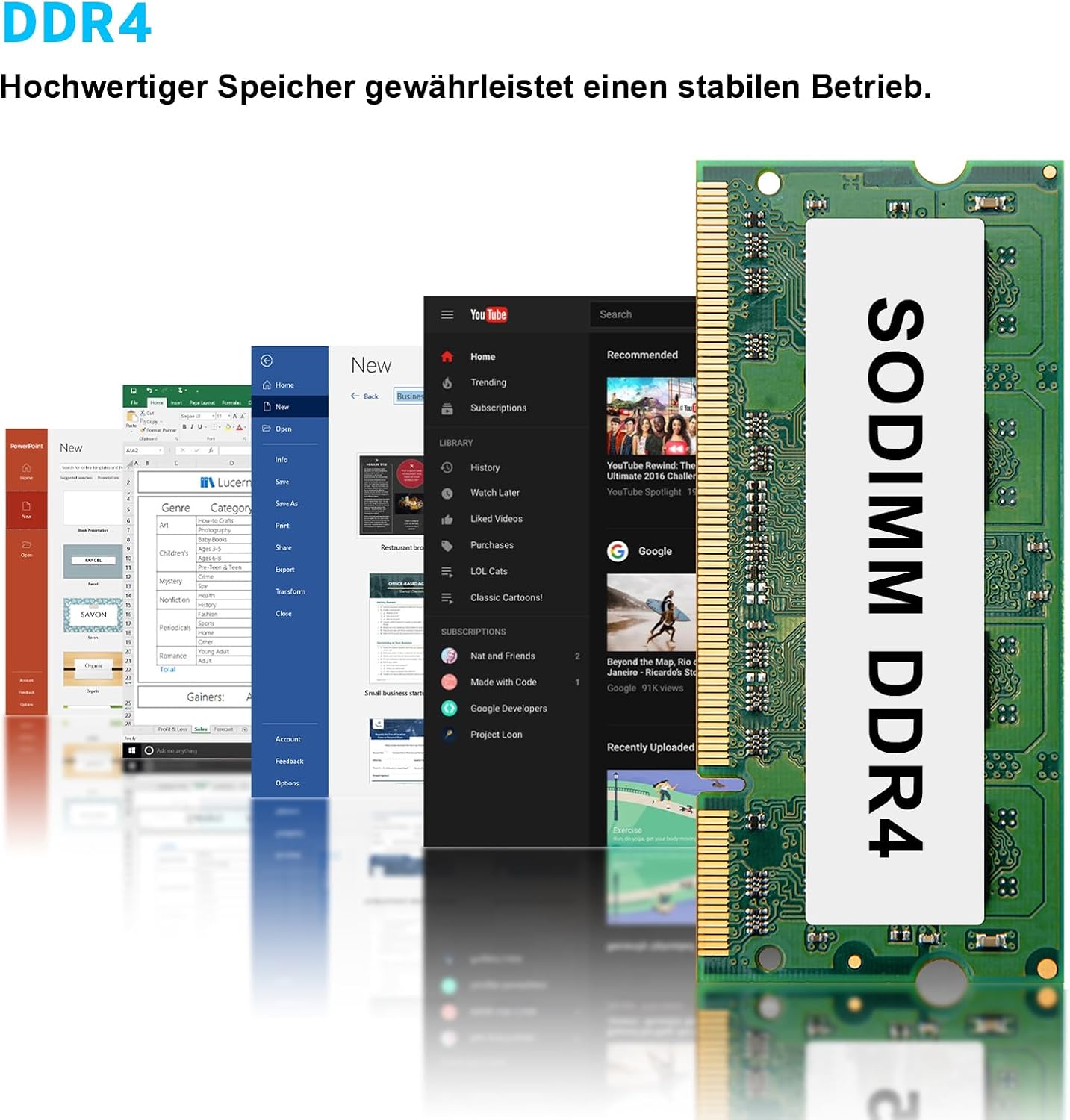
Image 6.1: Example of a SODIMM DDR4 memory module, similar to what is installed in the AWOW AK11. The device supports 16GB DDR4 RAM and allows for storage expansion with a 2.5-inch SATA drive.
7. Maintenance
7.1 Cleaning
- Use a soft, dry cloth to clean the exterior of the Mini PC.
- For stubborn marks, slightly dampen the cloth with water or a mild, non-abrasive cleaner.
- Keep ventilation openings free of dust using compressed air.
- Always disconnect the power adapter before cleaning.
7.2 Software Updates
Regularly check for Windows updates via Settings > Windows Update to ensure your system has the latest security patches and performance improvements. Also, check the AWOW website for any driver updates specific to the AK11 model.
7.3 Storage Management
Periodically manage your storage by deleting unnecessary files, emptying the recycle bin, and using Windows Disk Cleanup to free up space. Consider backing up important data regularly.
8. Troubleshooting
- No Power: Ensure the power adapter is securely connected to both the Mini PC and a working power outlet. Try a different outlet.
- No Display: Check all display cable connections (HDMI, DP, Type-C). Ensure the monitor is powered on and set to the correct input source. Try connecting to a different display or using a different cable.
- No Network Connection: For wired, check the Ethernet cable and router. For Wi-Fi, ensure Wi-Fi is enabled in Windows settings and you are connected to the correct network with the right password. Restart your router and the Mini PC.
- Slow Performance: Close unnecessary applications. Check for background processes consuming high resources (Task Manager). Ensure sufficient free storage space.
- CLR CMOS Button: If experiencing boot issues or incorrect BIOS settings, you can press the CLR CMOS button (usually requires the device to be off and disconnected from power) to reset BIOS settings to default. Consult the AWOW support for specific instructions if needed.
9. Specifications
Below are the technical specifications for the AWOW AK11 Mini PC:

Image 9.1: Visual representation of the Intel N150 processor, highlighting its specifications: 3.6GHz Max Turbo Frequency, 4 Cores/4 Threads, 16GB RAM, and 512GB SSD.
| Feature | Description |
|---|---|
| Model | AK11 |
| Processor | Intel N150 (4C/4T, up to 3.6 GHz) |
| Graphics | Intel UHD Graphics (up to 1 GHz) |
| RAM | 16 GB DDR4 (3200 MHz) |
| Storage | 512 GB PCIe3.0 SSD (expandable with 2.5" SATA HDD/SSD up to 2TB) |
| Operating System | Windows 11 Pro |
| Video Output | HDMI (4K@60Hz), DisplayPort (4K@60Hz), Type-C (4K@60Hz) - Triple Display Support |
| Network | Dual Gigabit Ethernet, WiFi 6 (802.11ax) |
| Bluetooth | Bluetooth 5.2 |
| USB Ports | 2x USB 3.2 Gen2, 2x USB 2.0, 1x Type-C |
| Audio | 3.5mm Audio/MIC Jack |
| Cooling Method | Air Cooling |
| Power Consumption | 6 Watt (typical) |
| Dimensions | 27.6 x 16.1 x 6.1 cm (Package) |
| Weight | 810 grams (Package) |
10. Warranty and Support
AWOW products come with a standard manufacturer's warranty. For specific warranty terms and conditions, please refer to the warranty card included with your product or visit the official AWOW website. For technical support, driver downloads, or further assistance, please visit the AWOW support page or contact their customer service.


