
1. Introduction
This instruction manual provides essential information for the proper installation, operation, and maintenance of your WONLINK AX600 USB WLAN Stick, Model WL-NA1605. This device is designed to provide wireless network (Wi-Fi) and Bluetooth connectivity to your personal computer, desktop, or laptop running Windows 10 or Windows 11. Please read this manual thoroughly before using the product.
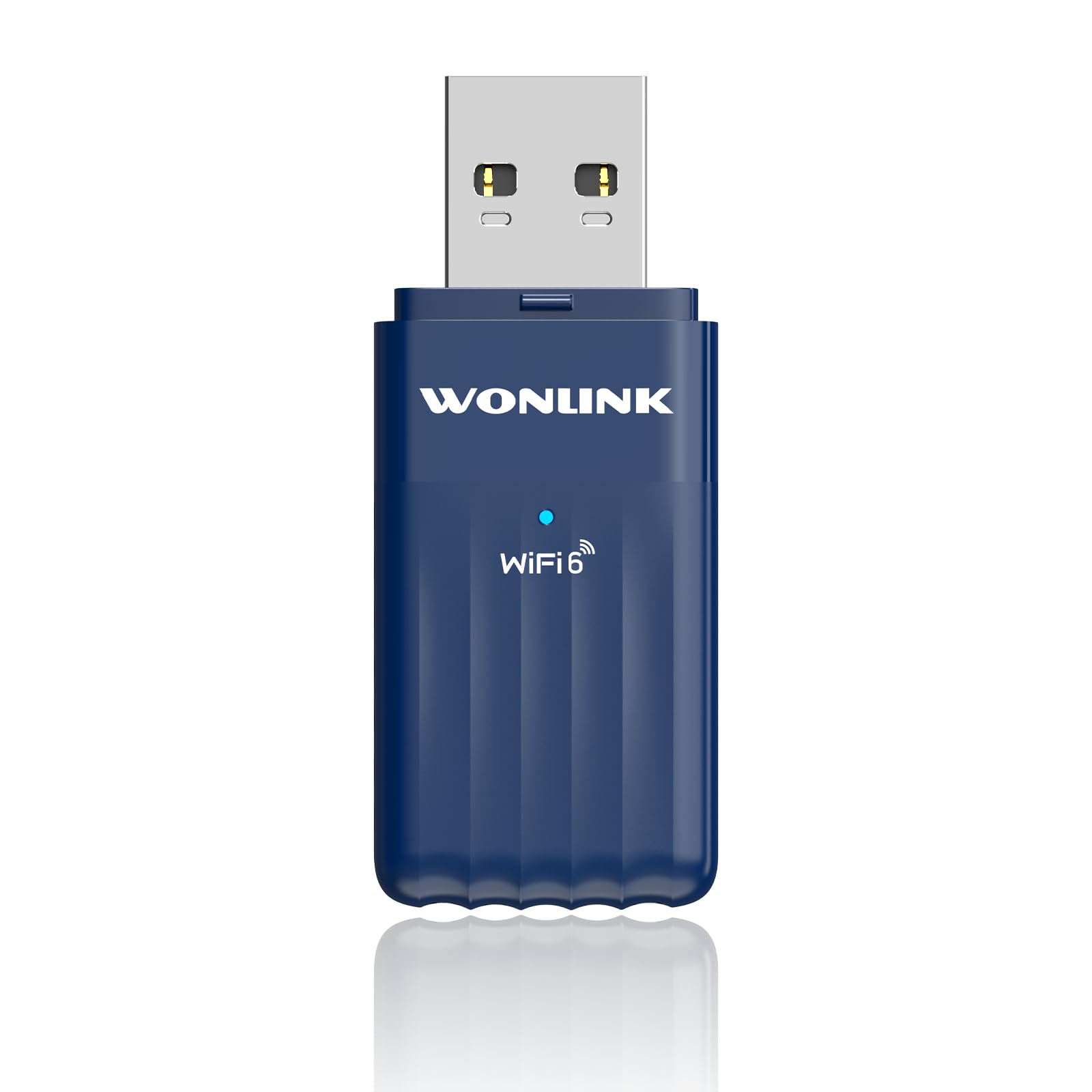
Image 1.1: The WONLINK AX600 USB WLAN Stick, a compact device for wireless connectivity.
2. Package Contents
Verify that all items are present in the package:
- 1 x WONLINK AX600 USB WLAN Stick (Model WL-NA1605)
- 1 x Instruction Manual (this document)
3. Specifications
| Feature | Detail |
|---|---|
| Brand | WONLINK |
| Model Number | WL-NA1605 |
| Data Transfer Rate | Up to 900 Mbps (AX600) |
| Interface | USB (USB 2.0 compatible, USB 3.0 recommended for optimal performance) |
| Connectivity Protocol | Wi-Fi 6 (802.11ax), Bluetooth 5.3 |
| Frequency Bands | 2.4 GHz and 5 GHz (Dual Band) |
| Compatible Devices | PC, Desktop, Laptop |
| Operating System Compatibility | Windows 11, Windows 10 |
| Dimensions | Approximately 2 x 3 x 8 cm |
| Weight | Approximately 40 grams |
| Color | Blue |

Image 3.1: Product label showing model number WL-NA1605 and other regulatory information.
4. Setup Instructions
Follow these steps to install the WONLINK AX600 USB WLAN Stick on your computer:
- Insert the Adapter: Plug the WONLINK USB WLAN Stick into an available USB port on your PC, desktop, or laptop. For optimal performance, use a USB 3.0 port if available.
- Driver Installation (Windows 10/11):
- Upon insertion, Windows 10/11 should automatically detect the device and prompt you to install drivers.
- If prompted, allow Windows to run the installation file directly from the adapter. This method ensures driver installation even without an internet connection.
- Alternatively, Windows Update may automatically download and install the necessary drivers.
- If automatic installation fails, you may need to download the latest drivers from the official WONLINK support website (refer to the manufacturer's website for specific driver downloads).
- Verification: After installation, check Device Manager to ensure the Wi-Fi and Bluetooth adapters are recognized and functioning correctly. Look under "Network adapters" for the Wi-Fi component and "Bluetooth" for the Bluetooth component.
5. Operating Instructions
5.1 Connecting to a Wi-Fi Network
- Ensure the adapter is properly installed and recognized by your operating system.
- Click on the Wi-Fi icon in the system tray (usually in the bottom-right corner of your screen).
- A list of available Wi-Fi networks will appear. Select your desired network.
- Click "Connect" and enter the network security key (password) if prompted.
- Once connected, the Wi-Fi icon will indicate an active connection.
5.2 Connecting Bluetooth Devices
- Ensure the adapter is properly installed and recognized.
- Go to Windows Settings > Devices > Bluetooth & other devices.
- Turn on Bluetooth.
- Put your Bluetooth device (e.g., headphones, mouse, keyboard) into pairing mode. Refer to your device's manual for specific pairing instructions.
- On your PC, click "Add Bluetooth or other device" and select "Bluetooth".
- Select your device from the list and follow any on-screen prompts to complete the pairing process.
6. Troubleshooting
If you encounter issues, refer to the following common solutions:
- No Wi-Fi or Bluetooth detected:
- Ensure the adapter is firmly plugged into a working USB port. Try a different USB port.
- Check Device Manager for any error symbols next to the network or Bluetooth adapters. Reinstall drivers if necessary.
- Restart your computer.
- Slow Wi-Fi speed:
- Ensure you are connected to the 5GHz band if your router supports it and you are within range, as it generally offers higher speeds.
- Reduce interference by moving the adapter or your computer closer to the Wi-Fi router.
- Update your router's firmware.
- Bluetooth device not pairing:
- Ensure your Bluetooth device is in pairing mode.
- Make sure the device is within range (typically 10 meters or 33 feet).
- Remove any previously paired instances of the device from your computer's Bluetooth settings and try pairing again.
- Restart both your computer and the Bluetooth device.
7. Maintenance
To ensure the longevity and optimal performance of your WONLINK AX600 USB WLAN Stick:
- Keep the adapter clean and free from dust. Use a soft, dry cloth for cleaning.
- Avoid exposing the adapter to extreme temperatures, humidity, or direct sunlight.
- Do not attempt to disassemble or repair the device yourself. This may void the warranty.
- Store the adapter in a safe place when not in use to prevent physical damage.
8. Warranty and Support
WONLINK products are designed for reliability and performance. This product comes with a standard manufacturer's warranty. For specific warranty terms and conditions, please refer to the warranty card included with your purchase or visit the official WONLINK website. For technical support, driver downloads, or further assistance, please visit the WONLINK support page or contact customer service through the details provided on the product packaging or website.
9. Safety Information
- Do not use this device near water or in excessively humid environments.
- Keep out of reach of children.
- Avoid dropping or subjecting the device to strong impacts.
- Dispose of electronic waste responsibly according to local regulations. The crossed-out wheeled bin symbol indicates that the product should not be disposed of with household waste.

