
Introduction
The TECKNET TK-KB030 Wireless Ergonomic Keyboard is designed to provide a comfortable and efficient typing experience. Featuring a split layout, curved key arrangement, and an integrated wrist rest, this keyboard aims to reduce strain during extended use. It offers versatile connectivity options including 2.4GHz wireless and Bluetooth 5.0, allowing connection to multiple devices.
Package Contents
Please check the package contents upon unboxing:
- TECKNET Wireless Ergonomic Keyboard (TK-KB030)
- USB-A Receiver (for 2.4GHz connection)
- USB-C Charging Cable
- User Manual
Product Features
Ergonomic Key Layout
The keyboard features a split layout and a curved key arrangement designed to align with the natural arc of your fingers. This design promotes a neutral wrist posture and allows your hands to rest at shoulder-width distance, reducing lateral stretching and typing strain.
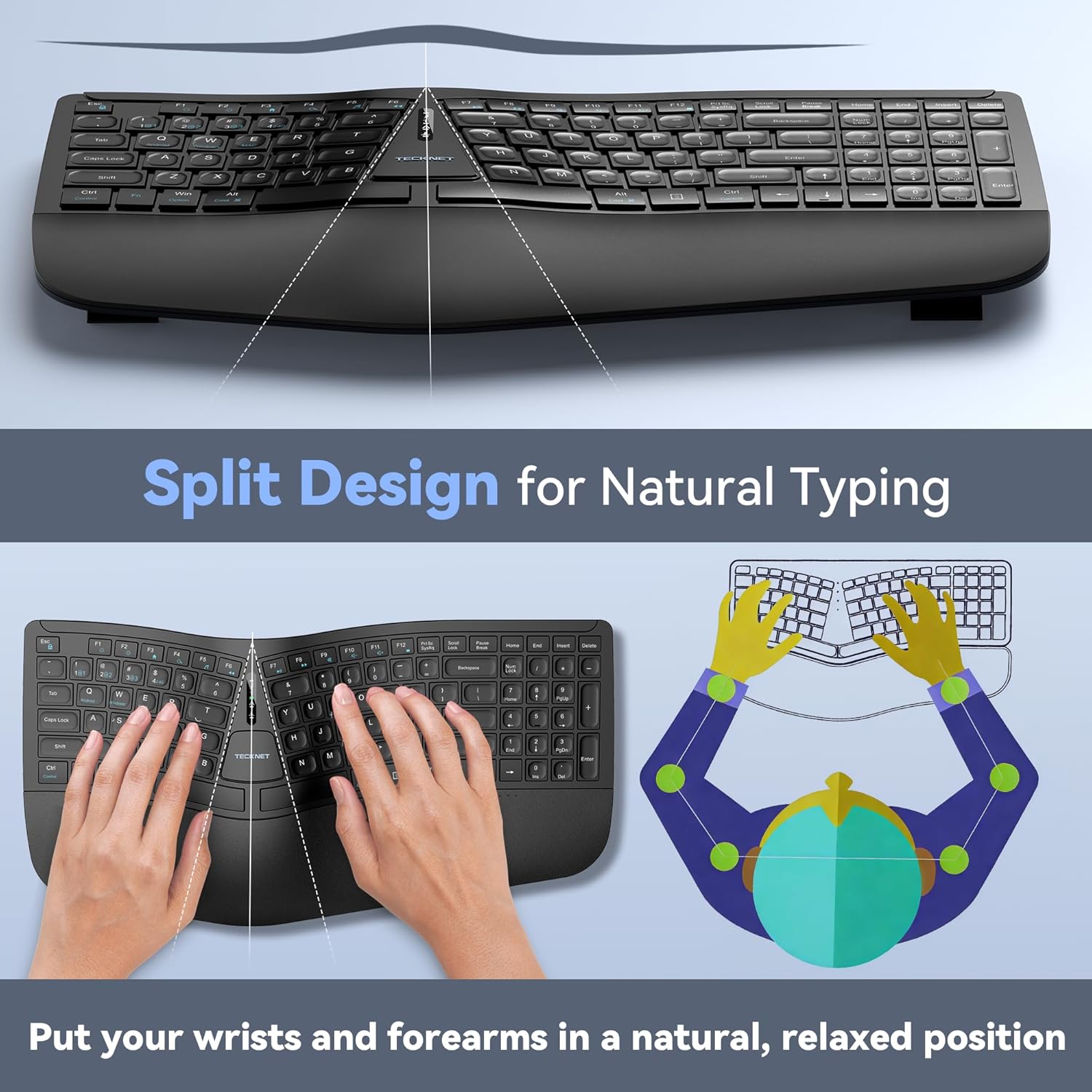
Image: The keyboard's split design, illustrating how it allows for natural hand and wrist positioning to reduce strain.
Integrated High-Density Memory Foam Wrist Rest
A built-in dual-density wrist rest provides support and comfort. The bottom layer offers stable support, while the top layer of slow-rebound memory foam conforms to your hands, distributing pressure evenly.
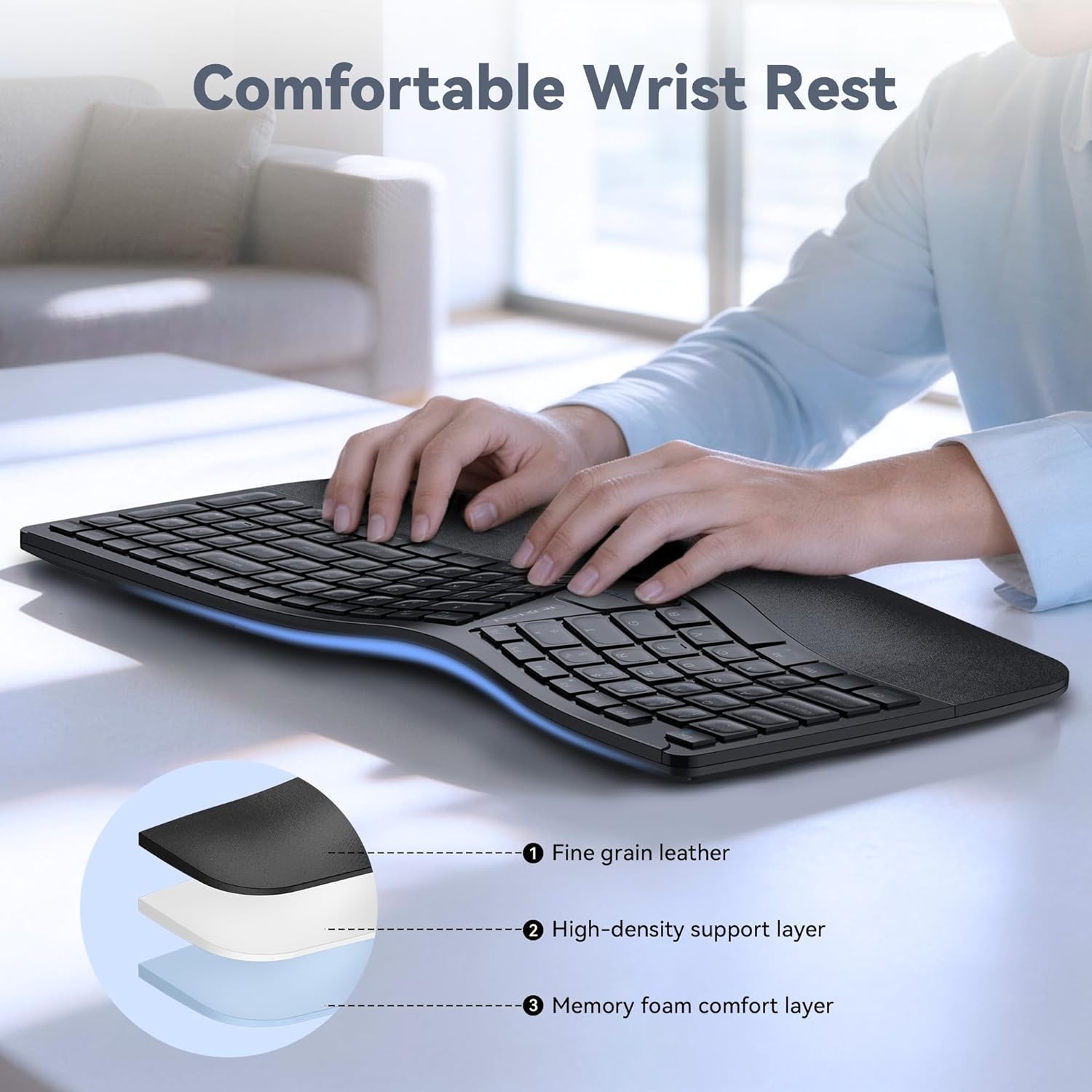
Image: Diagram showing the layers of the integrated wrist rest: fine grain leather, high-density support layer, and memory foam comfort layer.
Bluetooth + 2.4GHz Wireless Connectivity
The keyboard supports Bluetooth 5.0 with pairing memory for up to 3 devices and includes a USB wireless dongle for 2.4GHz connectivity. This allows connection to up to 4 devices (1 via 2.4GHz, 3 via Bluetooth) and seamless switching between them.
Long Battery Life & Fast Charging
Equipped with a 500mAh rechargeable lithium battery, the keyboard fully charges in approximately 4 hours and provides up to 200 hours of continuous use. The USB-C port supports simultaneous charging and use.
Multi-Angle Adjustment
The keyboard base features 4-stage adjustable feet, offering tilt options of 0°, 1.2°, 3°, and 6.2° to accommodate various working scenarios and personal preferences.
Setup
2.4GHz Wireless Connection
- Locate the USB-A receiver, typically stored in a compartment on the keyboard.
- Plug the USB-A receiver into an available USB port on your computer.
- Turn on the keyboard using the power switch (usually located on the back or side).
- The keyboard should automatically connect to your device. The 2.4G indicator light may illuminate briefly.
Bluetooth Connection (BT1, BT2, BT3)
- Turn on the keyboard.
- Press and hold the BT1, BT2, or BT3 key for 3-5 seconds until the corresponding Bluetooth indicator light flashes rapidly. This indicates the keyboard is in pairing mode.
- On your device (computer, tablet, smartphone), go to Bluetooth settings and search for new devices.
- Select "TECKNET Keyboard" or a similar name from the list of available devices.
- Follow any on-screen prompts to complete the pairing process. The indicator light will stop flashing and remain solid for a few seconds upon successful connection.
- Repeat these steps for BT2 and BT3 to pair with additional devices.

Image: The keyboard connected to multiple devices (PC via 2.4G, tablet via BT1, laptop via BT2, smartphone via BT3), demonstrating its versatile connectivity.
Operating Instructions
Switching Between Connected Devices
To switch between connected devices, simply press the corresponding connectivity key: 2.4G, BT1, BT2, or BT3. The keyboard will switch to the selected device within a few seconds.
Charging the Keyboard
When the battery is low, the battery indicator light will flash. Connect the supplied USB-C charging cable to the keyboard's USB-C port and the other end to a USB power source (e.g., computer USB port, wall adapter). The indicator light will show charging status and turn off when fully charged.
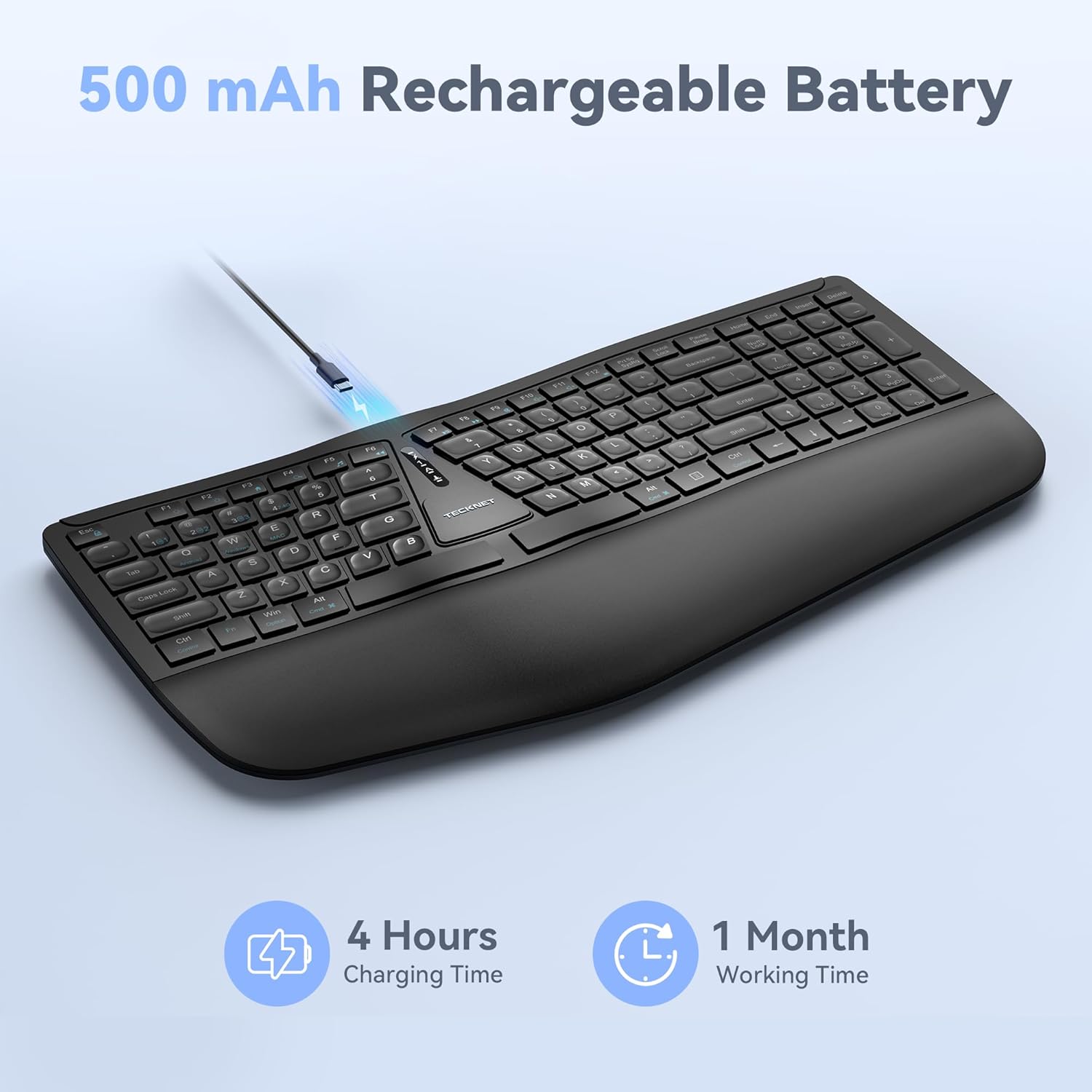
Image: The keyboard connected via a USB-C cable for charging, with an icon indicating 4 hours charging time for 1 month working time.
Adjusting Keyboard Tilt
The keyboard features adjustable feet on the underside. You can adjust the tilt to one of four positions: 0° (flat), 1.2° (backward tilt), 3° (rear stand open), or 6.2° (front tripod open). Experiment with different angles to find the most comfortable typing position for your setup.
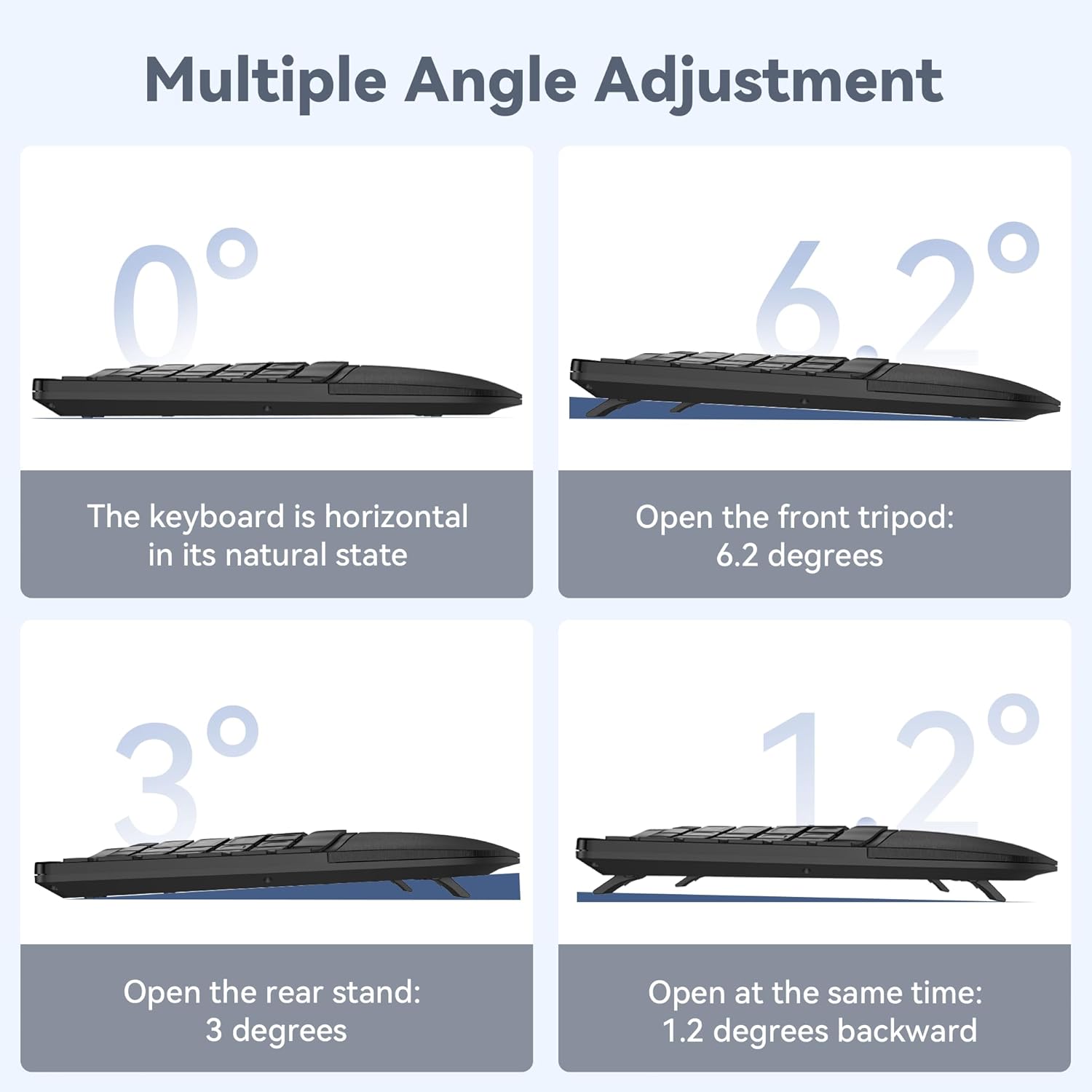
Image: Four diagrams illustrating the different tilt angles (0°, 1.2°, 3°, 6.2°) achievable with the keyboard's adjustable feet.
Maintenance
- Cleaning: Use a soft, damp cloth to clean the keyboard surface. Avoid harsh chemicals or abrasive materials.
- Storage: Store the keyboard in a dry, cool place away from direct sunlight and extreme temperatures.
- Battery Care: To prolong battery life, avoid fully discharging the keyboard frequently. Charge it when the low battery indicator appears.
Troubleshooting
Keyboard Not Connecting
- Ensure the keyboard is turned on and fully charged.
- For 2.4GHz connection, verify the USB receiver is securely plugged into your device. Try a different USB port.
- For Bluetooth connection, ensure Bluetooth is enabled on your device and the keyboard is in pairing mode (flashing BT indicator). Remove previous pairings on your device and try pairing again.
- Try restarting your computer or device.
Keys Not Responding
- Check the battery level and charge the keyboard if necessary.
- Ensure the keyboard is connected to the correct device (check the 2.4G/BT indicator).
- If specific keys are not working, gently clean around the keycaps to remove any debris.
Lag or Intermittent Connection
- Move the keyboard closer to your device to reduce interference.
- Avoid placing the keyboard near other wireless devices (e.g., Wi-Fi routers, cordless phones) that might cause interference.
- Ensure your device's drivers are up to date.
Specifications
| Model Number | TK-KB030 |
| Connectivity Technology | 2.4GHz Wireless, Bluetooth 5.0 |
| Battery Capacity | 500mAh Lithium Battery |
| Charging Time | Approx. 4 hours |
| Continuous Use Time | Up to 200 hours |
| Keyboard Dimensions (L x W x H) | 43.3 cm x 22.6 cm x 3 cm (17 in x 8.9 in x 1.2 in) |
| Item Weight | 790g (1.7 lbs) |
| Compatible Devices | PC, Laptop, Tablet, Smartphone (Windows compatible) |
| Material | Plastic |

Image: Keyboard dimensions (length, width, height) and a hand size guide (S, M, L) with recommended keyboard size for M-L hands.
Warranty and Support
The TECKNET Wireless Ergonomic Keyboard TK-KB030 comes with a 36-Month Worry-Free Warranty. This warranty covers any issues encountered during normal use of the product.
For technical assistance, troubleshooting, or warranty claims, please contact TECKNET customer service. Refer to the contact information provided on the product packaging or the official TECKNET website for support details.