
1. Introduction
The TONGVEO 20X Optical Zoom NDI AI Auto Tracking PTZ Camera (Model: NV620A-NDI-US) is a versatile live streaming camera designed for professional video production in various environments such as churches, conference rooms, events, and weddings. It features advanced AI auto-tracking, 20X optical zoom, and multiple output options including HDMI, SDI, USB 3.0, and IP streaming with NDI technology for ultra-low latency and high-quality video.

Figure 1: TONGVEO 20X Optical Zoom NDI AI Auto Tracking PTZ Camera.
2. What's in the Box
Verify that all items listed below are included in your package:
- 1 x PTZ Camera
- 1 x IR Remote Control
- 1 x 9.8ft USB 3.0 Cable
- 1 x DC 12V/2A Power Adapter
- 1 x Wall Bracket with Screws
- 1 x User Manual

Video 1: Unboxing and overview of the TONGVEO PTZ Camera, showing included accessories.
3. Product Overview
3.1 Key Features
- AI Auto Tracking: Three modes available: Presenter Tracking, Zone Tracking, and Hybrid Tracking for intelligent subject tracking.
- 20X Optical Zoom: High-quality optical zoom lens for capturing details from a distance.
- Versatile Outputs: HDMI, SDI, USB 3.0, and IP streaming (NDI) for broad compatibility.
- NDI Technology: Ultra-low latency 1080P 60fps video for professional broadcasting, NDI license included.
- Power over Ethernet (PoE): Simplifies installation and reduces cable clutter.
- Web Interface: Built-in web interface for easy configuration and control.
- Control Options: Supports Visca over IP, OBS plugins, and dedicated physical controllers.
- Durable Design: Compact build with smooth preset switching and fast auto-focus.

Figure 2: Overview of the TONGVEO PTZ Camera's main features including 20X Optical Zoom, Audio Line in/out, PoE, 1080P 60FPS, AI Humanoid Auto-Tracking, 2D&3D Digital Noise Reduction, 4 Video Outputs, IP/NDI Live streaming, and 65° FOV.
3.2 Camera Components and Interfaces
The camera features a robust set of input and output ports for various professional setups.

Figure 3: Detailed diagram of the PTZ Camera's rear interface, showing Audio Line In/Out, LAN (PoE), HDMI, 3G-SDI, USB 3.0, RS485/232, and power input.
- LINE IN/LINE OUT: 3.5mm audio input/output for external audio devices.
- LAN (RJ45): Ethernet port for IP control, NDI streaming, and Power over Ethernet (PoE).
- HDMI: High-definition video output for display monitors.
- 3G-SDI: Professional video output for long-distance transmission.
- USB 3.0: Connects to a computer for video output and control.
- RS485/RS232: Control ports for external PTZ controllers.
- DC 12V/2A: Power input for the camera.
4. Setup
4.1 Initial Power-Up and Connection
- Unpack the camera and accessories.
- Remove the lens cap.
- Connect the DC 12V/2A power adapter to the camera's power input and plug it into a power outlet.
- Flip the power switch on the rear of the camera to the 'ON' position. The camera will perform an initial self-test, moving its head to various positions before settling.
- Connect the USB 3.0 cable from the camera to your computer for direct video feed, or connect an HDMI/SDI cable to a monitor/switcher.
- For network control and NDI streaming, connect an Ethernet cable from the camera's LAN port to your network switch.
Video 2: Demonstrates the physical setup and connection of the TONGVEO PTZ Camera, including power, USB, and HDMI connections.
4.2 Mounting Options
The camera can be placed on a table, mounted to a wall, or ceiling using the provided wall bracket and screws. Ensure the mounting surface is stable and can support the camera's weight.
5. Operating Instructions
5.1 Remote Control Functions
The included IR remote control allows for comprehensive camera operation:
- Power Button: Turns the camera on/off.
- PTZ Reset: Returns the camera to its initial home position.
- Camera Select: Selects which camera to control (up to 4 cameras).
- Preset Buttons (0-9): Saves and recalls up to 9 preset positions.
- Directional Pad: Controls pan and tilt movements.
- Zoom Buttons: Adjusts optical zoom (slow/fast).
- Focus Buttons: Auto, Manual (Near/Far).
- AI Key: Activates AI auto-tracking modes.
- Menu Button: Accesses the On-Screen Display (OSD) menu for advanced settings.

Figure 4: Layout of the remote control with descriptions of key functions for camera operation.
5.2 AI Auto-Tracking
The camera features advanced AI auto-tracking with three distinct modes:
- Presenter Tracking: Ideal for single subjects, keeping the speaker in frame as they move.
- Zone Tracking: Defines specific areas for tracking, useful for classrooms or stages.
- Hybrid Tracking: Combines elements of presenter and zone tracking for flexible scenarios.
Activate AI tracking using the dedicated AI button on the remote or through the web interface.

Figure 5: The camera demonstrating AI Humanoid Tracking, keeping a person in frame as they move.

Video 3: A demonstration of the TONGVEO PTZ Camera's AI auto-tracking capabilities in a classroom setting.
5.3 NDI Streaming Setup
To utilize NDI streaming, follow these steps:
- Connect the PTZ camera to your local network (LAN) via an Ethernet cable.
- Access the camera's web interface (see Section 5.4) and enable NDI mode in the network settings.
- Use NDI Tools (e.g., NDI Studio Monitor) on your computer to discover and select the camera's NDI name.
- Integrate the NDI feed into your preferred streaming software (e.g., OBS, vMix).
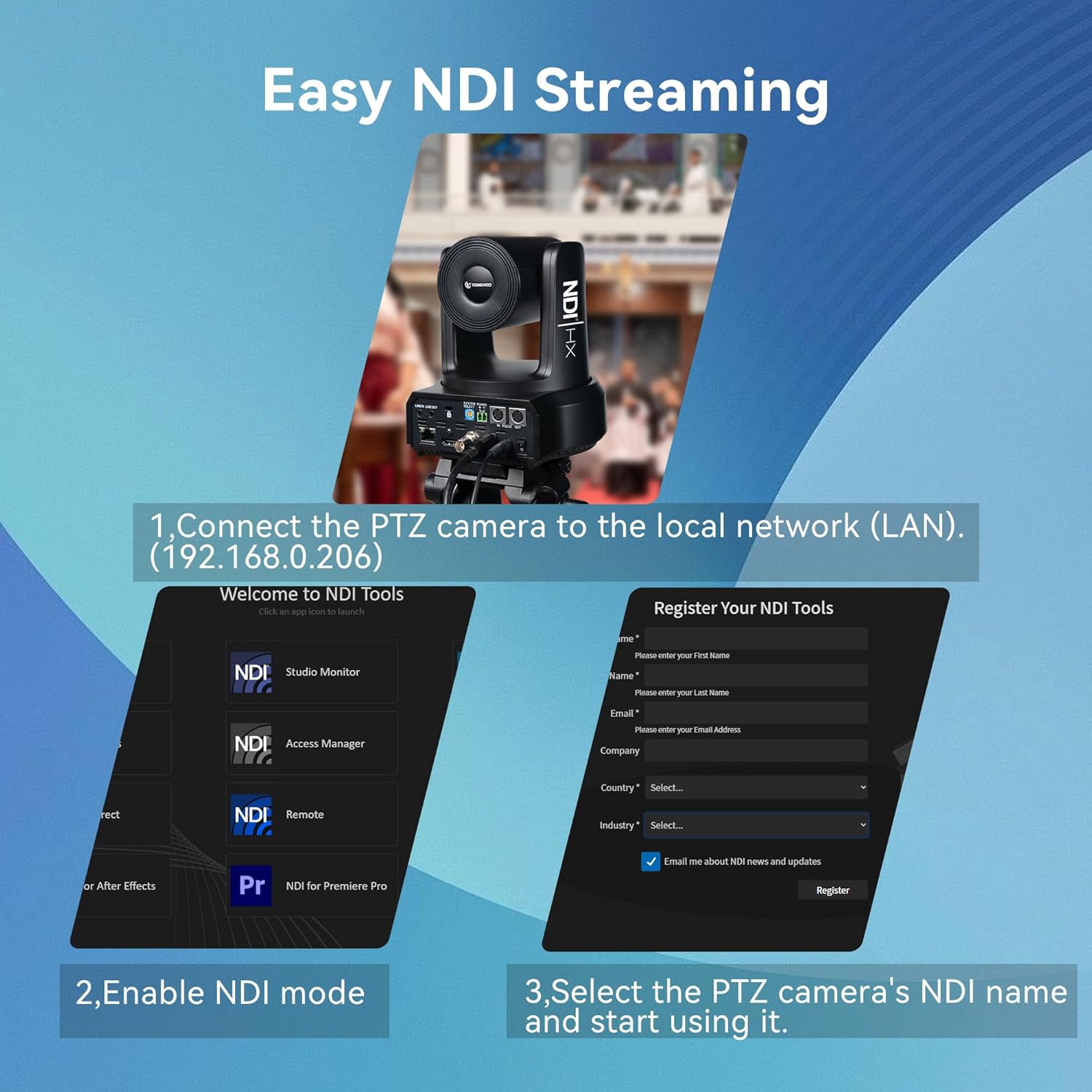
Figure 6: Visual guide for setting up NDI streaming, showing network connection and NDI Tools interface.
5.4 Web Interface Configuration
The camera features a built-in web interface for comprehensive control and configuration:
- Connect the camera to your network and obtain its IP address (usually found on a sticker at the bottom of the camera or via NDI Tools).
- Open a web browser and enter the camera's IP address.
- Log in using the default credentials (typically admin/admin, refer to the manual for specifics).
- From the web interface, you can adjust image settings (exposure, color, display), PTZ controls, communication setup, tracking modes, and network settings.

Video 4: A detailed walkthrough of the TONGVEO PTZ Camera's web interface, demonstrating various settings and controls.
6. Maintenance
6.1 Cleaning
- Use a soft, dry cloth to clean the camera body.
- For the lens, use a lens cleaning cloth and specialized lens cleaning solution.
- Avoid using harsh chemicals or abrasive materials.
6.2 Firmware Updates
Regular firmware updates are released to improve performance and add new features. Check the TONGVEO official website for the latest firmware and instructions on how to update your camera.
7. Troubleshooting
- No Power: Ensure the power adapter is securely connected and the power switch is on. If using PoE, verify the Ethernet cable is properly connected to a PoE-enabled switch or injector.
- No Video Output: Check all cable connections (HDMI, SDI, USB, Ethernet). Verify the correct input source is selected on your display or switcher.
- Auto-Tracking Issues: Ensure the AI tracking mode is correctly selected (Presenter, Zone, Hybrid) via the remote or web interface. Ensure the subject is clearly visible and not obscured.
- Image Quality Issues: Adjust lighting conditions. Use the web interface to fine-tune exposure, color, and image settings. Ensure the lens is clean.
- Remote Control Not Responding: Check battery levels in the remote. Ensure there are no obstructions between the remote and the camera's IR receiver.
8. Specifications
| Feature | Detail |
|---|---|
| Brand | TONGVEO |
| Model Number | NV620A-NDI-US |
| Sensor | 1/2.8" CMOS, 2.07MP |
| Optical Zoom | 20X |
| Video Resolution (Main Stream) | 1920x1080p @ 60fps |
| Video Outputs | USB 3.0, HDMI, SDI, RJ45 (IP/NDI) |
| Horizontal Rotation | 350° (±175°) |
| Vertical Rotation | 180° (±90°) |
| Power Supply | DC 12V/2A or PoE (802.3af) |
| Power Consumption | 18W |
| Product Dimensions | 7 x 7 x 6.6 inches |
| Item Weight | 5.5 pounds |
9. Warranty & Support
TONGVEO is committed to providing high-quality products and customer satisfaction. For warranty information, technical support, or service inquiries, please refer to the contact details provided in the product packaging or visit the official TONGVEO website.
Regular firmware updates and dedicated customer support ensure a hassle-free experience with your TONGVEO PTZ camera.


