1. Important Safety Information
To ensure safe operation and prevent damage to the projector, observe the following precautions:
- Power Supply: Use only the power cord and adapter specified for this projector. Ensure the power outlet matches the projector's voltage requirements.
- Ventilation: Do not block the ventilation openings. Ensure adequate space around the projector for proper airflow to prevent overheating.
- Liquid and Moisture: Keep the projector away from water or other liquids. Do not operate in high humidity environments.
- Foreign Objects: Do not insert any objects into the projector's openings.
- Lens Warning: Do not look directly into the projector lens when the lamp is on, as the bright light can cause eye damage.
- Cleaning: Disconnect the power cord before cleaning. Use a soft, dry cloth. Avoid liquid or aerosol cleaners.
- Service: Do not attempt to service the projector yourself. Refer all servicing to qualified service personnel.
2. Product Overview
Familiarize yourself with the various parts and controls of your Casio XJ-A155V projector.
2.1 Front View

The front of the projector features the projection lens and front ventilation grilles. The lens is where the image is projected from.
2.2 Rear View and Connectivity

The rear panel provides all the necessary ports for connecting external devices.

Ports include:
- AV: For composite video and audio input.
- COMPUTER/YCbCr/YPbPr: VGA port for computer connection, also supports component video.
- HDMI: High-Definition Multimedia Interface for digital video and audio input.
- USB: For connecting USB devices.
- SERIAL: For control and service connections.
2.3 Top Panel Controls

The top panel houses the main control buttons for operating the projector.
- POWER/STANDBY: Turns the projector on or off.
- INPUT: Selects the input source (HDMI, Computer, AV, etc.).
- AUTO: Automatically adjusts the image.
- ZOOM: Adjusts the image size.
- FOCUS: Adjusts the image clarity.
- MENU: Opens the on-screen display (OSD) menu.
- ENTER: Confirms selections in the menu.
- ESC: Exits the current menu or function.
- Arrow Keys (< ^ v >): Navigate through menu options and adjust settings.
2.4 Bottom View and Product Label

The bottom of the projector includes adjustable feet for tilt and stability, along with the product information label.
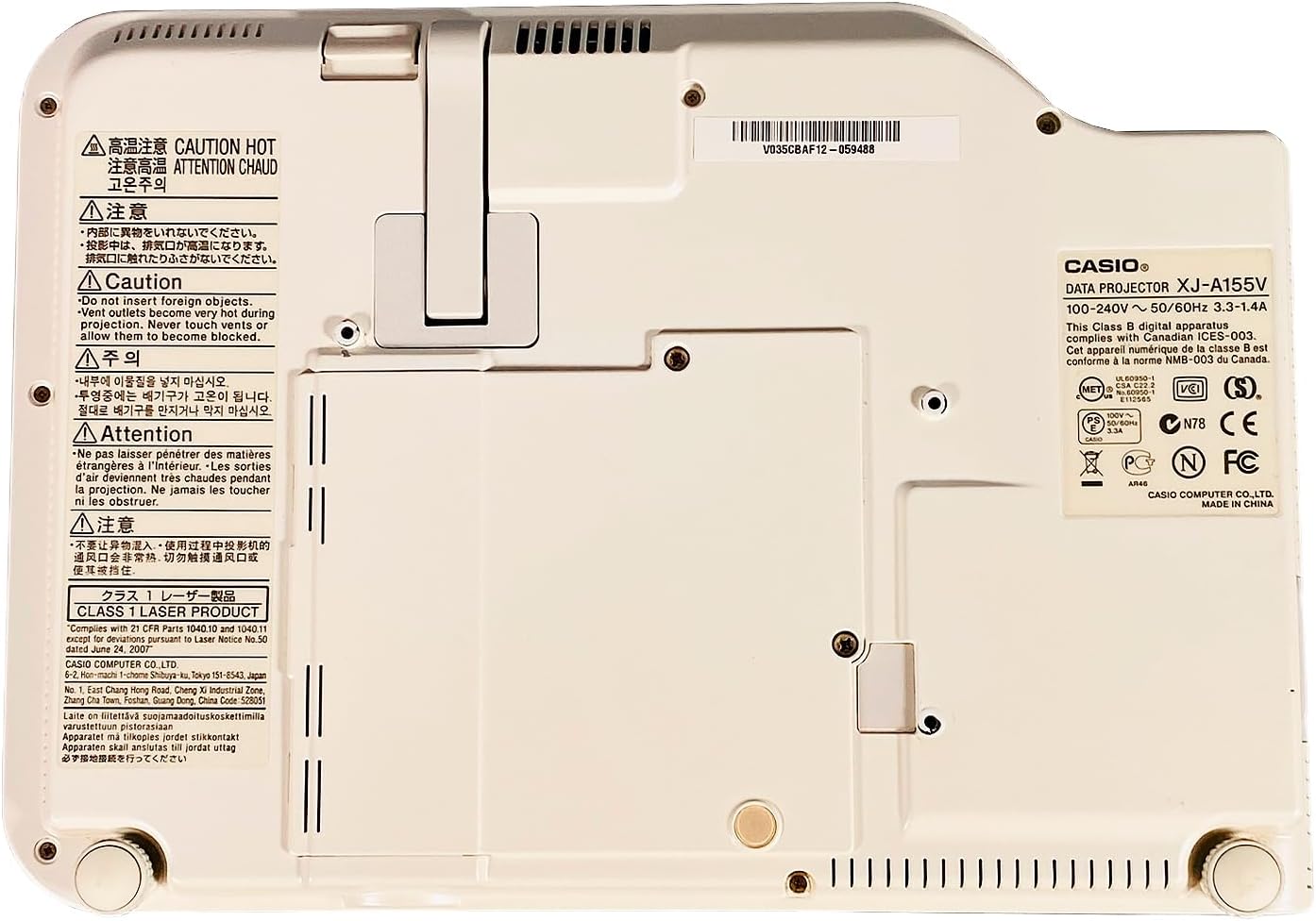
The product label provides important details such as the model number (XJ-A155V), power requirements (100-240V ~ 50/60Hz), and various compliance certifications.
3. Setup
3.1 Unpacking
Carefully remove the projector and all accessories from the packaging. Retain the packaging for future transport or storage.
3.2 Placement
Place the projector on a stable, level surface. Ensure there is sufficient space around the projector for ventilation. Adjust the projector's feet to achieve the desired projection angle and image alignment.
3.3 Connecting Power
- Connect the power cable to the projector's power input port.
- Plug the other end of the power cable into a suitable electrical outlet.
3.4 Connecting Input Sources
Connect your desired video and audio sources to the appropriate ports on the rear of the projector.
- HDMI: For high-quality digital video and audio from devices like Blu-ray players, laptops, or gaming consoles.
- COMPUTER (VGA): For connecting to a computer's VGA output.
- AV: For standard definition video and stereo audio from devices like DVD players or older video sources.
- USB: For connecting USB storage devices or for certain control functions.
4. Operating the Projector
4.1 Power On/Off
- To Power On: Press the POWER/STANDBY button on the top panel or remote control. The power indicator light will illuminate.
- To Power Off: Press the POWER/STANDBY button again. Confirm power off if prompted. The projector will enter a cool-down cycle before fully shutting down.
4.2 Input Selection
Press the INPUT button on the top panel or remote control to cycle through available input sources (HDMI, Computer, AV, etc.) until your desired source is displayed.
4.3 Adjusting Focus and Zoom
- Focus: Use the FOCUS buttons (or corresponding controls on the remote) to sharpen the image until it is clear.
- Zoom: Use the ZOOM buttons (or corresponding controls on the remote) to adjust the size of the projected image.
4.4 Menu Navigation
Press the MENU button to open the On-Screen Display (OSD) menu. Use the arrow keys to navigate through options and ENTER to select. Press ESC to exit the menu.
4.5 Image Adjustments
Within the OSD menu, you can adjust various image settings such as Brightness, Contrast, Color, Aspect Ratio, and Keystone Correction to optimize your viewing experience.
5. Maintenance
5.1 Cleaning the Projector
- Lens: Gently wipe the lens with a soft, lint-free cloth specifically designed for optical surfaces. Do not use abrasive cleaners.
- Casing: Wipe the projector casing with a soft, dry cloth. For stubborn dirt, dampen the cloth slightly with water, then wipe dry.
- Ventilation Grilles: Use a soft brush or a vacuum cleaner with a brush attachment to remove dust from the ventilation grilles.
5.2 Air Filter Maintenance
Regularly check and clean the air filter (if accessible) to maintain optimal cooling and projector performance. Refer to the on-screen prompts or specific model documentation for filter location and cleaning instructions.
6. Troubleshooting
If you encounter issues with your projector, refer to the following common problems and solutions:
- No Image:
- Ensure the projector is powered on and the power indicator is lit.
- Verify the input source is correctly selected and the source device is on.
- Check all cable connections (HDMI, VGA, etc.) are secure.
- Blurry Image:
- Adjust the focus using the FOCUS buttons.
- Ensure the projection surface is flat and the projector is at an appropriate distance.
- No Sound:
- Check the volume settings on both the projector and the source device.
- Ensure audio cables are correctly connected (if not using HDMI for audio).
- Remote Control Not Working:
- Replace the batteries in the remote control.
- Ensure there are no obstructions between the remote and the projector's IR receiver.
7. Specifications
Key technical specifications for the Casio XJ-A155V DLP Projector:
| Feature | Specification |
|---|---|
| Brand | Casio |
| Model | XJ-A155V |
| Brightness | 3,000 ANSI Lumens |
| Resolution | 1024x768 (XGA) |
| Contrast Ratio | 1800:1 |
| Display Type | DLP |
| Light Source | Laser/LED Hybrid |
| Connectivity Technology | HDMI, USB, VGA, AV, Serial |
| Special Feature | Portable |
| Product Dimensions | 8 x 11.7 x 1.7 inches |
8. Warranty and Support
For warranty information and technical support, please refer to the documentation provided with your purchase or contact the retailer. Keep your proof of purchase for warranty claims.


