
1. Introduction
This manual provides comprehensive instructions for the setup, operation, and maintenance of your Redragon K721 Rapid Trigger Mechanical Keyboard. Designed for both typing and gaming, this keyboard features advanced magnetic switches, a gasket-mounted design, and extensive customization options. Please read this manual thoroughly to ensure optimal performance and longevity of your device.
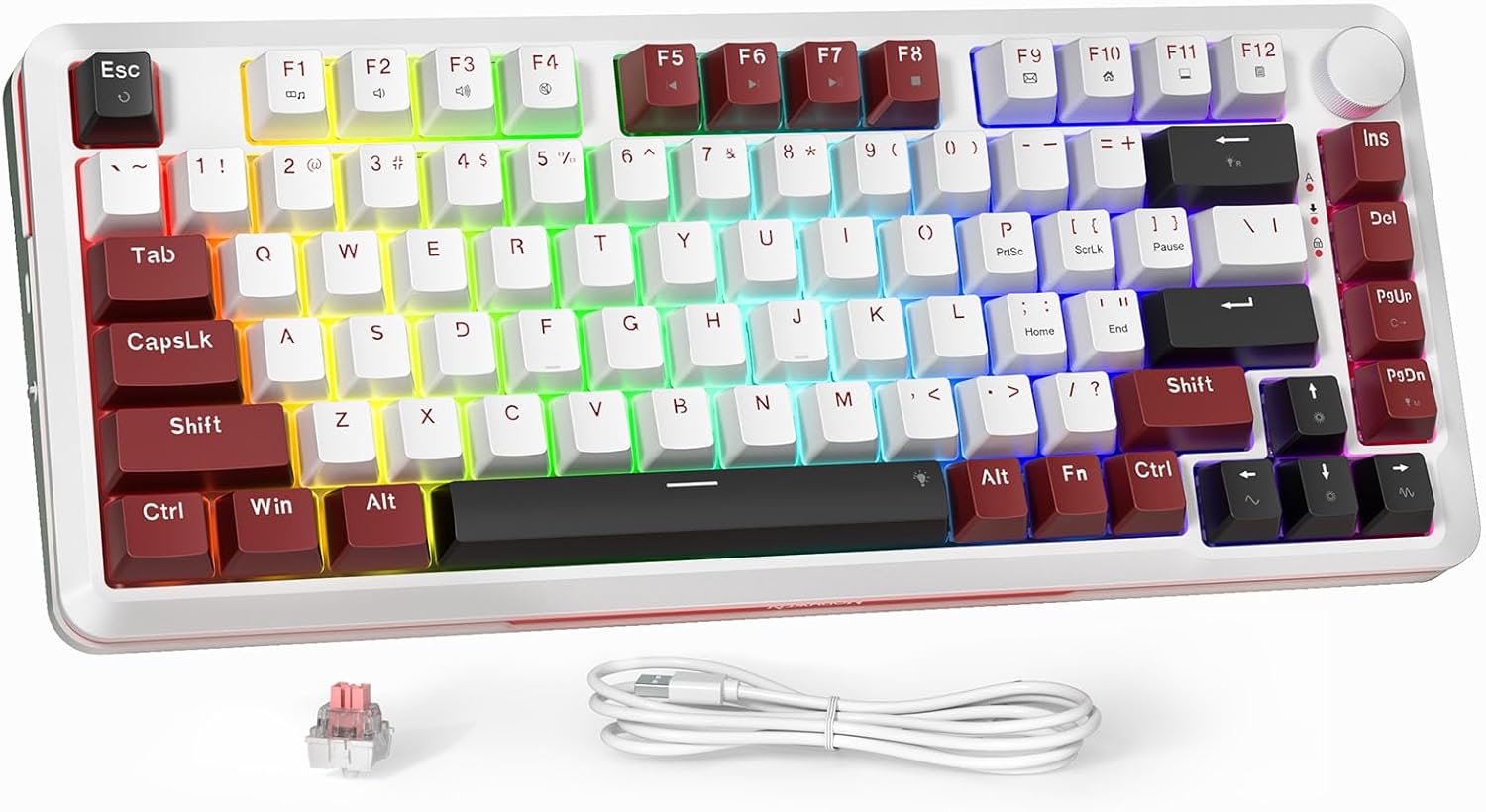
Figure 1.1: Redragon K721 Rapid Trigger Mechanical Keyboard (Burgundy Red variant)
2. Product Features
-
Adjustable Magnetic Linear Switches: Features Hall effect sensors allowing precise actuation point adjustment from 0.1mm to 4mm with 0.1mm accuracy. This enhances typing and gaming, especially in FPS games, by enabling faster keystroke registration and reduced latency.

Figure 2.1: Magnetic Switch Actuation Point Adjustment (0.1mm-4mm)
-
Rapid Trigger & 8KHz Polling Rate: Rapid Trigger mode provides increased response speed for higher hitting accuracy and reduced effort during high-frequency inputs. The 8K Hz polling rate ensures faster communication with your computer, delivering a response time of 0.125ms for quicker input.

Figure 2.2: Rapid Trigger Adjustment Range (0.1mm - 4.0mm)

Figure 2.3: 8K Hz Polling Rate for Ultra-High Speed
-
Gasket Structure & PCBA Single Key Slotting: The gasket structure combines flexibility and stability. PCBA single-key slotting optimizes rebound and stability, providing a comfortable and soft elastic feel. Poron and silicone padding between the PCB and positioning board reduce noise and purify sound.

Figure 2.4: Gasket Structure Components
-
Support for Web Driver & Client Driver: The K721 supports both client and web drivers for key calibration, touch point adjustment (0.1mm-4mm), and lighting customization.
- Client Driver Address: redragon.com
- Web Driver Address: illumipc.com

Figure 2.5: Web and Client Driver Interfaces
-
Ultra-Compact 75% Layout & Volume Knob: The 75% layout offers 75 conflict-free keys in a compact, portable design. A personalized volume knob allows for convenient audio adjustment.

Figure 2.6: 75% Layout with Integrated Volume Knob
- 16.8 Million RGB Backlit & OEM Profile: Features fully customizable 16.8 million color RGB backlighting, allowing configuration of color schemes, breathing speed, and brightness. OEM profile keycaps provide a fuller feel, stronger feedback, and smoother use.
3. Package Contents
Please check the package contents upon unboxing to ensure all items are present:
- Redragon K721 Rapid Trigger Mechanical Keyboard
- USB-C to USB-A Cable (Wired Connectivity)
- Keycap Puller (may be included)
- Switch Puller (may be included)
- User Manual (this document)
4. Setup Guide
4.1 Connecting the Keyboard
- Locate the USB-C port on the keyboard and the USB-A port on your computer.
- Connect the provided USB-C to USB-A cable to both the keyboard and your computer.
- The keyboard will be automatically recognized by your operating system.
4.2 Driver Installation and Initial Calibration
For full functionality and customization, it is recommended to install the Redragon driver. The K721 magnetic switch keyboard requires calibration before first use to ensure accurate actuation point detection.
- Download the latest client driver from redragon.com or access the web driver at illumipc.com.
- Install the client driver following the on-screen instructions, or open the web driver in your browser.
- Within the driver software, navigate to the "Calibration" section.
- Initiate the "All-key Calibration" process. The software will guide you to press each key on the keyboard.
- Press each key firmly to its bottom-out point as prompted. The software will indicate successful calibration for each key.
- Once all keys are calibrated, save the settings and exit the calibration mode.
Video 4.1: How to perform key calibration on the K721 keyboard using the driver software.
5. Operating Your Keyboard
5.1 Adjusting Actuation Points
The magnetic switches allow you to customize the actuation point for each key. This is done through the Redragon driver software. A lower actuation point (e.g., 0.1mm) results in a faster response, ideal for gaming, while a higher point (e.g., 4mm) can prevent accidental presses, suitable for typing.
- Open the Redragon driver software.
- Navigate to the "Actuation" or "Magnetic Switch Settings" section.
- Select the desired key(s) or apply a global setting.
- Adjust the actuation depth using the provided slider or input field (from 0.1mm to 4mm).
- Save your changes.
5.2 Utilizing Rapid Trigger
Rapid Trigger mode dynamically actuates and resets keys based on your intent to press and release. This feature is particularly beneficial for competitive gaming, allowing for extremely fast repeated inputs.
- Access the Redragon driver software.
- Locate the "Rapid Trigger" setting.
- Enable or disable Rapid Trigger as needed.
- Some drivers may allow fine-tuning of Rapid Trigger sensitivity. Adjust according to your preference.
- Apply settings.
5.3 Understanding 8KHz Polling Rate
The 8KHz polling rate means the keyboard reports its status to your computer 8000 times per second, significantly reducing input latency to 0.125ms. This is an automatic feature of the K721 and does not require manual configuration.
5.4 Volume Knob Functionality
The dedicated volume knob located on the top right of the keyboard provides quick and intuitive audio control:
- Rotate clockwise to increase volume.
- Rotate counter-clockwise to decrease volume.
- Press the knob to mute/unmute audio.
5.5 Customizing RGB Backlighting
The keyboard features 16.8 million color RGB backlighting with various effects. Customization is primarily done through the driver software:
- Open the Redragon driver software.
- Navigate to the "Lighting" or "RGB Settings" section.
- Choose from preset lighting modes, or create your own custom effects.
- Adjust brightness, speed, and color palette.
- Apply your desired lighting profile.
5.6 Advanced Software Features (Macros, Key Remapping)
The Redragon driver software allows for advanced customization:
- Key Remapping: Assign new functions to individual keys.
- Macro Recording: Create complex sequences of keystrokes and assign them to a single key for quick execution.
- Refer to the driver software's built-in help or the Redragon website for detailed instructions on these advanced features.
6. Maintenance
6.1 Cleaning
- Disconnect the keyboard from your computer before cleaning.
- Use a soft, lint-free cloth slightly dampened with water or a mild cleaning solution to wipe the keycaps and chassis.
- For dust and debris between keys, use compressed air.
- Avoid spraying liquids directly onto the keyboard.
6.2 Switch Care
The magnetic switches are designed for durability. If you need to remove keycaps for deeper cleaning or replacement, use the provided keycap puller to avoid damaging the keycaps or switches. Do not attempt to disassemble the switches unless you are familiar with the process, as this may void your warranty.
7. Troubleshooting
| Problem | Possible Cause | Solution |
|---|---|---|
| Keyboard not responding | Loose cable connection, driver issue, or system conflict. | Ensure the USB cable is securely connected. Try a different USB port. Restart your computer. Reinstall the keyboard driver. |
| Keys not registering correctly (e.g., double input, no input) | Calibration required or incorrect actuation point setting. | Perform an "All-key Calibration" using the driver software. Check individual key actuation point settings in the driver. |
| RGB lighting not working or incorrect | Software settings, power issue. | Check RGB settings in the driver software. Ensure the keyboard is receiving sufficient power (try a different USB port). Reset keyboard to factory defaults (refer to Redragon support for specific key combination). |
| Driver software not detecting keyboard | Driver installation issue, USB connection problem. | Ensure the keyboard is connected directly to the computer (avoid USB hubs). Reinstall the driver software. Try running the software as administrator. |
8. Specifications
| Feature | Detail |
|---|---|
| Model | K721 |
| Keyboard Type | Mechanical (Magnetic Switches) |
| Layout | 75% (75 Keys) |
| Connectivity | Wired (USB-C) |
| Polling Rate | 8K Hz |
| Actuation Point | Adjustable 0.1mm - 4mm |
| Backlighting | 16.8 Million RGB Colors |
| Structure | Gasket Mounted |
| Keycap Profile | OEM |
| Dimensions | 17.51 x 6.3 x 1.38 inches (approx.) |
| Weight | 1.59 pounds (approx.) |
| Compatible Devices | Laptop, PC, PS4/5, Xbox |
9. Warranty and Support
Redragon products are designed and manufactured to the highest quality standards. For information regarding warranty coverage, technical support, or service inquiries, please visit the official Redragon website or contact their customer support directly.
Official Website: redragonusa.com
Please retain your proof of purchase for warranty claims.