
1. Introduction
This manual provides detailed instructions for the FIDECO H708C43 Powered 7-Port USB 3.2 Gen2 Hub. This device is designed to expand your computer's connectivity with high-speed data transfer and charging capabilities. Please read this manual thoroughly before use to ensure proper operation and to maximize the product's lifespan.

Image 1.1: The FIDECO H708C43 7-Port USB Hub, showcasing its sleek design, power adapter, and connecting cables.
2. Product Overview
2.1 Key Features
- 7 High-Speed Ports: Equipped with 4 USB-A ports and 3 USB-C ports to accommodate various devices.
- USB 3.2 Gen 2 Standard: Supports data transfer speeds up to 10Gbps, significantly enhancing productivity and connectivity.
- BC1.2 Charging Support: One USB-A port and one USB-C port support BC1.2 charging, allowing simultaneous data transfer and device charging.
- Aluminum Alloy Construction: Durable and ergonomic design for efficient heat dissipation, ensuring stable performance.
- Plug and Play: Driver-free installation for immediate use across compatible operating systems.
- Broad Compatibility: Works seamlessly with Windows, Mac OS, and Linux operating systems.
- Built-in Protection: Features short-circuit, overcurrent, overvoltage, and overheat protection to safeguard connected devices and data.
2.2 Package Contents
- FIDECO H708C43 USB Hub
- USB-C to USB-C Cable with USB-A Adapter
- 5V/3A Power Adapter
- User Manual
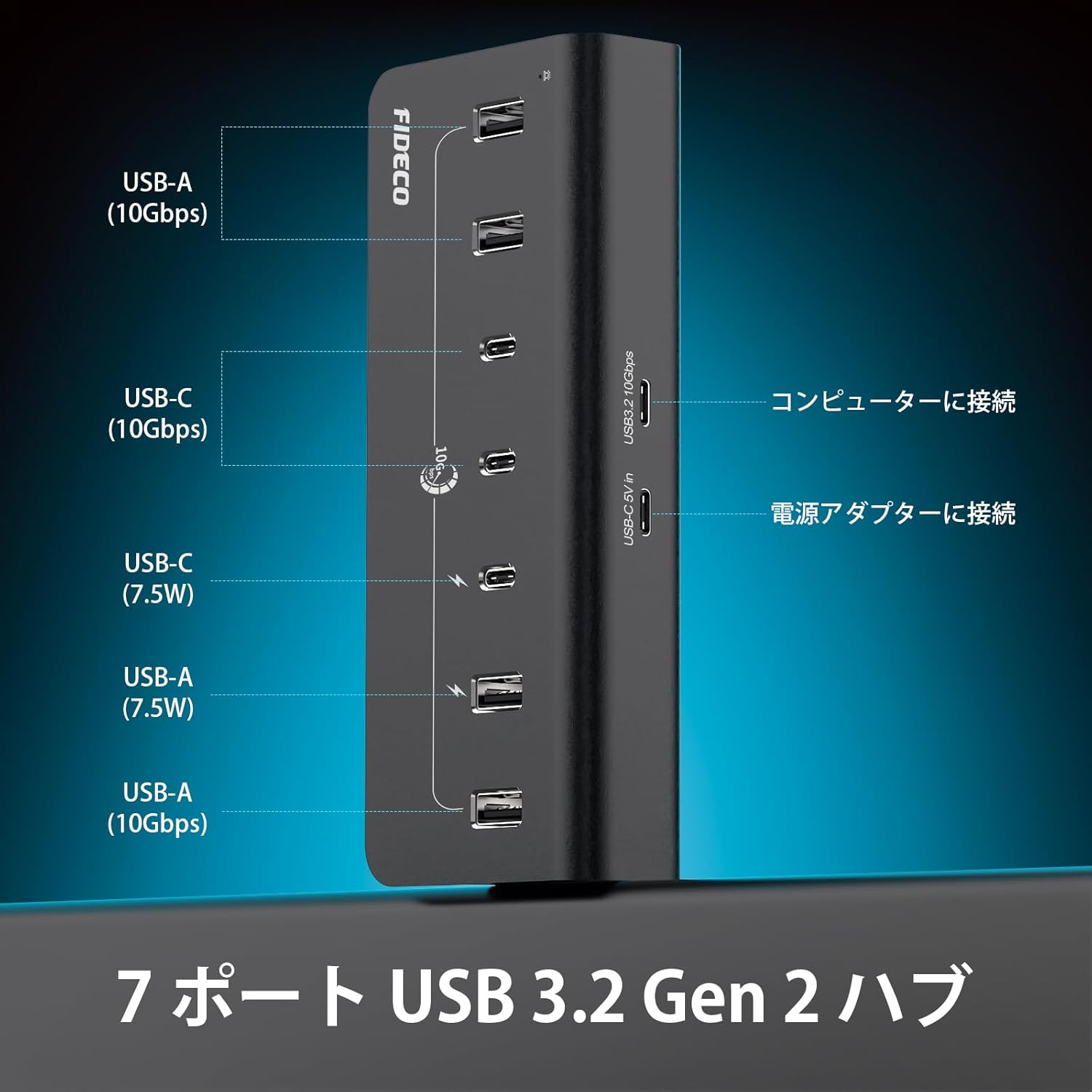
Image 2.1: A diagram illustrating the port layout of the FIDECO USB hub, detailing 4 USB-A (10Gbps), 3 USB-C (10Gbps), and the power input. It also shows connections to a computer and power adapter.
3. Setup Instructions
- Connect the Power Adapter: Plug the provided 5V/3A power adapter into the DC 5V IN port on the FIDECO USB Hub. Then, plug the power adapter into a wall outlet. This ensures stable power delivery to all connected devices.
- Connect to Your Computer: Use the included USB-C to USB-C cable to connect the hub to a USB-C port on your computer. If your computer only has USB-A ports, use the provided USB-A adapter with the USB-C cable.
- Verify Connection: The hub is plug-and-play, so no drivers are required. Your computer should automatically recognize the hub.
- Connect Peripherals: You can now connect your USB-A and USB-C devices (e.g., external hard drives, USB drives, keyboards, mice, webcams, smartphones, tablets) to the available ports on the hub.

Image 3.1: A user operating a computer setup with the FIDECO USB hub integrated, demonstrating its use in a professional or creative workflow.
4. Operating Instructions
4.1 Data Transfer
- Connect your USB 3.2 Gen 2 compatible devices to any of the 7 ports for optimal 10Gbps data transfer speeds.
- The hub is backward compatible with USB 3.0, USB 2.0, and USB 1.1 devices, though speeds will be limited by the connected device's standard.

Image 4.1: The FIDECO USB hub connected to a laptop, demonstrating high-speed 10Gbps data transfer with external SSDs.
4.2 Device Charging
- The hub supports BC1.2 charging on one USB-A port and one USB-C port. These ports can deliver up to 7.5W (5V/1.5A) for faster charging of compatible devices.
- Other ports provide standard USB charging capabilities.
- You can simultaneously transfer data and charge devices through the hub, reducing desktop clutter.

Image 4.2: The FIDECO USB hub connected to a laptop, showing two devices (a smartphone and another device) being charged via BC1.2 compatible USB-A and USB-C ports.

Image 4.3: The FIDECO USB hub connected to a laptop, illustrating simultaneous data transfer and device charging for a smartphone and a smartwatch.
5. Maintenance
- Keep the hub clean by wiping it with a soft, dry cloth. Avoid using liquid cleaners or solvents.
- Ensure the hub is placed on a stable surface. The non-slip rubber pads on the bottom help maintain stability.
- Avoid exposing the hub to extreme temperatures, humidity, or direct sunlight.
- Do not attempt to disassemble or repair the hub yourself. This may void the warranty and cause damage.
6. Troubleshooting
6.1 Device Not Recognized
- Ensure the hub is properly connected to your computer and the power adapter is plugged in.
- Try connecting the device directly to your computer to confirm it is functioning correctly.
- Test with a different USB cable.
- Restart your computer.
6.2 Slow Data Transfer Speeds
- Verify that both your computer's USB port and the connected device support USB 3.2 Gen 2 (10Gbps).
- Ensure you are using a high-quality USB 3.2 Gen 2 compatible cable.
- Avoid connecting too many high-bandwidth devices simultaneously, as this can share the available bandwidth.
6.3 Charging Issues
- Confirm that the power adapter is securely connected and receiving power.
- Ensure the device you are charging is compatible with BC1.2 charging for optimal speed.
- Some devices may require more power than the hub can provide. Check your device's power requirements.
7. Specifications
| Model Number | H708C43 |
| Total USB Ports | 7 |
| USB-A Ports | 4 (USB 3.2 Gen 2, 10Gbps) |
| USB-C Ports | 3 (USB 3.2 Gen 2, 10Gbps) |
| Charging Support | 1x USB-A, 1x USB-C with BC1.2 (7.5W) |
| Data Transfer Speed | Up to 10Gbps |
| Power Input | 5V/3A Power Adapter (included) |
| Compatible OS | Windows, Mac OS, Linux |
| Material | Aluminum Alloy |
| Dimensions | 17.3 x 9.6 x 6.6 cm |
| Weight | 0.42 kg |
| Additional Features | Surge protection, Plug and Play, Non-slip design, Powered |

Image 7.1: The FIDECO USB hub placed on a tablet, showcasing its broad compatibility with various operating systems (Windows, Mac OS, Linux) and devices like mice, USB drives, webcams, hard drives, PCs, tablets, and phones.
8. Warranty Information
Specific warranty details are not provided in the available product information. Please refer to the product packaging or contact FIDECO customer support for warranty terms and conditions.
9. Support
For technical support or any other inquiries, please contact FIDECO customer service at:
Email: support@fideco.cn

Image 9.1: An internal view of the FIDECO USB hub, highlighting its built-in protection features such as short-circuit, overcurrent, overvoltage, and overheat protection.


