
SEUNKWANG B0FMXQFFWV
SEUNKWANG Typewriter Style Mechanical Gaming Keyboard
User Manual
Model: B0FMXQFFWV
Introduction
Thank you for choosing the SEUNKWANG Typewriter Style Mechanical Gaming Keyboard. This wired mechanical keyboard features a retro typewriter design with 104 keys, backlit LED lighting, and a convenient media control knob. Designed for both gaming and general use, it offers a comfortable typing experience with white mechanical switches and broad compatibility with Windows and Mac operating systems. This manual provides detailed instructions for setup, operation, and maintenance to ensure optimal performance.

Image: The SEUNKWANG Typewriter Style Mechanical Gaming Keyboard in Dark Pink, showcasing its full layout and round keycaps.
Key Features
- Retro Typewriter Design: Features mechanical custom pink switches with a smooth linear feeling and low resistance. Round, punk-style keycaps mimic a classical typewriter, offering a comfortable and stable click.
- Multimedia & Backlight LED Control: Integrated multimedia knob for volume and light control. Offers 19 lighting effects with adjustable brightness (5 levels) and speed. Dedicated buttons for previous song, next song, and pause.
- Wide Compatibility: Compatible with Windows 7/8/10/XP/Vista, Linux, and Mac OS systems. Easily switch between systems using "FN + TAB".
- Durable Construction: The keyboard panel is crafted from top-grade aluminum alloy with a metallic matte texture for robustness and scratch resistance. Floating keycaps are electroplated for enhanced aesthetics.
- 104 Keys Anti-Ghosting: Advanced anti-ghosting technology ensures accurate recognition of every key press, even when multiple keys are pressed simultaneously, preventing conflicts and errors during high-speed typing or gaming.
- Independent Type-C Keyline: Equipped with a pink Type-C cable for stable, high-speed transmission and reduced latency. The detachable design allows for easy storage.
- Ergonomic Design: Features a dual-section foot for adjustable typing angles, promoting comfort during extended use.
- Upgraded Mechanical White Switches: Designed for quick response and comfortable typing, with a trigger route of 4.0mm ± 0.4mm, key force of 40gf ± 10gf, and a lifespan of 100 million keystrokes.
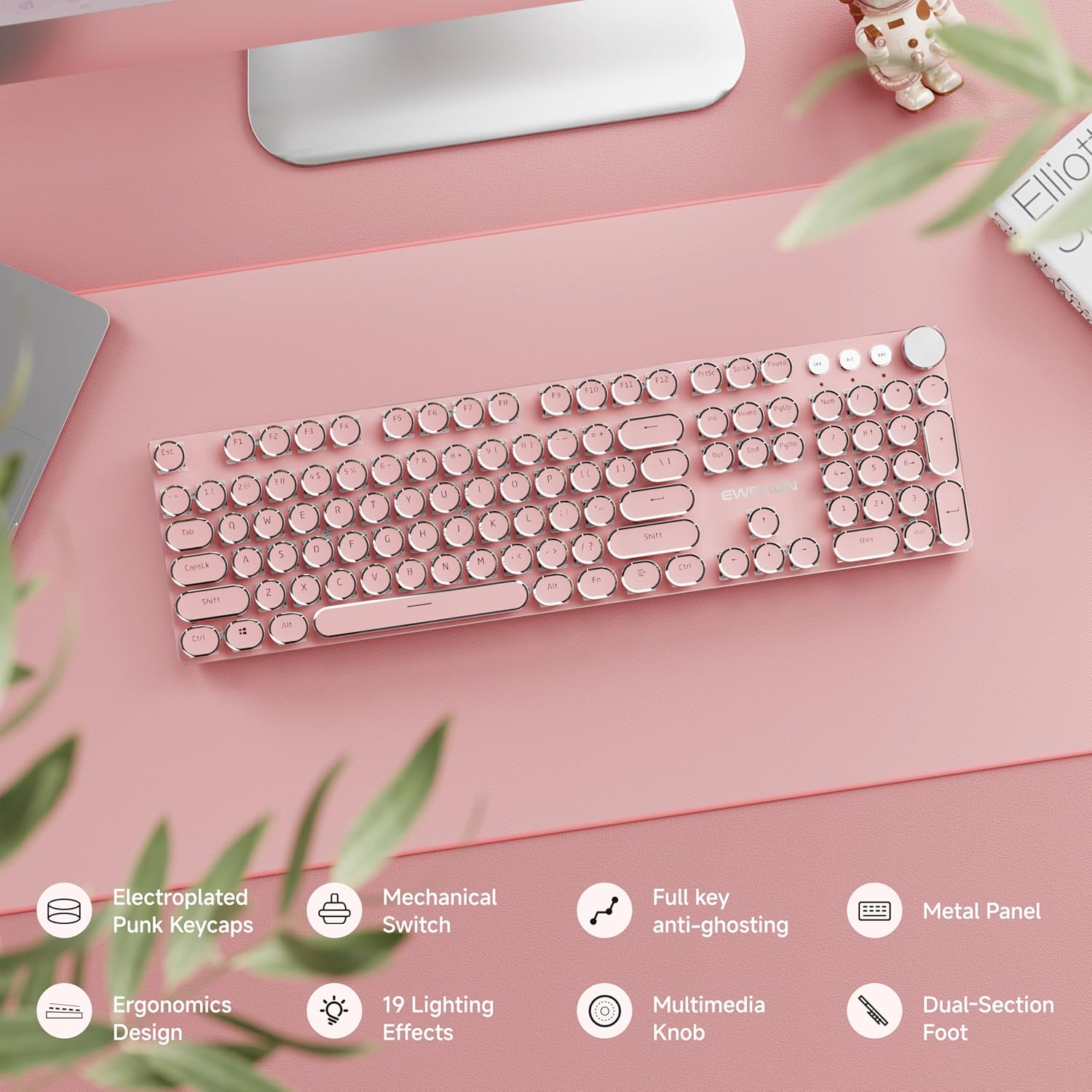
Image: Visual representation of the keyboard's main features, highlighting its design and functional aspects.

Image: An exploded view illustrating the internal gasket structure of the keyboard, showing its various components.
Setup Instructions
- Connect the Keyboard: Locate the pink Type-C USB cable included in the package. Connect the Type-C end to the port on the keyboard and the USB-A end to an available USB port on your computer.
- Plug and Play: The keyboard is designed for plug-and-play functionality. Your operating system (Windows, Mac, or Linux) should automatically detect and install the necessary drivers. No additional software installation is required.
- System Compatibility: The keyboard supports both Windows and Mac OS. By default, it may operate in Windows mode. To switch between operating systems, press and hold the FN key and the TAB key simultaneously.

Image: The keyboard connected via its detachable Type-C cable, illustrating the wired connection.

Image: Instructions for switching between Mac and Windows keyboard layouts using function key combinations.
Operating Instructions
Backlight Control
The keyboard features 19 different lighting effects and adjustable brightness and speed.
- Change Lighting Effects: Press Fn + 1~8 to select from various game backlight modes.
- Adjust Brightness: Press Fn + Up Arrow to increase brightness, and Fn + Down Arrow to decrease brightness (5 levels).
- Adjust Speed: Press Fn + Left Arrow to decrease lighting effect speed, and Fn + Right Arrow to increase speed.
- Switch Basic Lighting Effects: Press Fn + INS.
- Record/Store Button: Press Fn + DEL.

Image: Visual guide to the 19 lighting effects and how to control them with function keys.
Multimedia Knob and Buttons
The keyboard features a rotary multimedia knob and three dedicated buttons for quick media control.
- Rotary Knob Function:
- Turn the knob to adjust volume or brightness.
- Press the knob to mute/unmute audio or change light effects.
- Press Fn + Knob to switch between Light and Volume modes for the knob.
- Dedicated Media Buttons: Located next to the knob, these buttons allow you to quickly adjust the previous song, the next song, and pause/play media.

Image: Detailed view of the multimedia knob and its functions for volume, brightness, and lighting effects.

Image: Further illustration of the rotary multimedia knob's functionality, including switching modes.
Ergonomic Adjustment
The keyboard features a dual-section foot at the bottom, allowing you to adjust the typing angle for improved comfort. Flip out the feet to raise the keyboard to your preferred height.

Image: The keyboard's ergonomic design, demonstrating the adjustable feet for different typing angles.
Maintenance and Care
- Cleaning: Use a soft, dry cloth to wipe the surface of the keyboard. For dust between keys, use compressed air. Avoid using harsh chemicals or abrasive materials.
- Keycap Removal: If necessary, keycaps can be carefully removed for deeper cleaning using a keycap puller (not included). Reinstall them by gently pressing them back onto the switch stems.
- Avoid Liquids: Keep the keyboard away from liquids to prevent damage to the internal components.
- Storage: When not in use, store the keyboard in a clean, dry environment. The detachable Type-C cable allows for easier storage and transport.
Troubleshooting
- Keyboard Not Responding:
- Ensure the Type-C cable is securely connected to both the keyboard and your computer.
- Try connecting the keyboard to a different USB port on your computer.
- Restart your computer.
- If using a USB hub, try connecting directly to the computer.
- Keys Not Registering / Ghosting:
- The keyboard features anti-ghosting technology for all keys. If you experience issues, ensure no debris is lodged under the keycap.
- Test the keyboard on another computer to rule out software or system-specific issues.
- Backlight Not Working / Incorrectly Displaying:
- Ensure the brightness is not set to the lowest level (Fn + Up Arrow to increase).
- Cycle through lighting effects using Fn + 1~8 or Fn + INS.
- System Layout Issues (Windows/Mac):
- Ensure you have switched to the correct operating system layout by pressing Fn + TAB.
Specifications
| Brand | SEUNKWANG |
| Manufacturer | EWEADN |
| Model (ASIN) | B0FMXQFFWV |
| Connectivity Technology | USB-C, Wired |
| Compatible Devices | Laptop, PC, Gaming Console, Smartphone, Tablet |
| Keyboard Description | Mechanical Wired keyboard, Typewriter keyboard, Full-size gaming keyboard |
| Recommended Uses | Business, Education, Gaming, Multimedia, Student |
| Special Features | Backlight, Metal Panel, Multimedia Knob, Dual System (WIN/MAC), Independent Cable, Full Keys Anti-Ghosting |
| Color | Dark Pink |
| Keyboard Backlighting | Single Color LED |
| Style | Retro typewriter keyboard gaming keyboard |
| Material | Metal |
| Item Weight | 1.25 pounds |
| Package Dimensions | 13.7 x 9.7 x 4.2 inches |
| What's in the Box | USB Cable |

Image: Close-up of the mechanical white switch, detailing its specifications and internal components.
Image: Technical diagram of the upgraded mechanical white switches, including a force curve and component labels.
Warranty and Support
SEUNKWANG is committed to providing excellent after-sales support. For any inquiries, troubleshooting assistance, accessory reissues, or information regarding returns and exchanges, please contact our support team.
Email Support: eweandkeyboard@outlook.com
Image: Overview of available after-sales support services and contact information.
Ask a question about this manual
Ask about setup, troubleshooting, compatibility, parts, safety, or missing instructions. Manuals+ will review the question and use this page’s manual context to help answer it.