
1. Introduction
The ORICO C5MAX 8TB External SSD is a portable solid-state drive designed for high-speed data storage and transfer. It features a compact design with a hanging hook, universal compatibility, and robust construction for reliable performance. This manual provides essential information for setting up, operating, maintaining, and troubleshooting your device.

Image 1: ORICO C5MAX 8TB External SSD. This image shows the compact size of the SSD, designed for portability.
2. Product Features
- Massive Capacity: 8TB storage for large files and backups.
- Compact and Portable: Slim design (5.12*1.18*0.78 inches, 0.19lb) with a convenient hanging hook for secure transport.
- Lightning Fast Performance: Up to 460MB/s transfer speeds, compatible with USB 3.2 Gen 1.
- Durable Construction: Crafted from aluminum alloy to withstand drops and dust.
- Universal Compatibility: Includes a 2-in-1 USB-C & A cable for connection to smartphones, tablets, laptops, and PCs across Android, iOS, macOS, and Windows systems.

Image 2: Small Size, Massive Capacity. The SSD is shown connected to a smartphone, illustrating its large 8TB storage capability.
3. Setup Instructions
The ORICO C5MAX SSD is designed for plug-and-play operation, requiring no special drivers for most operating systems.
- Connect the Cable: Use the provided 2-in-1 USB-C & A cable. Connect the USB-C end to the SSD.
- Connect to Device: Connect the other end of the cable (either USB-C or USB-A, depending on your device's port) to your smartphone, tablet, laptop, or PC.
- Device Recognition: Your operating system (Windows, macOS, Android, iOS) should automatically detect the SSD. It may appear as a new drive or external storage device.
- Formatting (Optional): If the SSD is not recognized or you wish to change its file system, you may need to format it using your device's disk management utility. Warning: Formatting will erase all data on the drive.
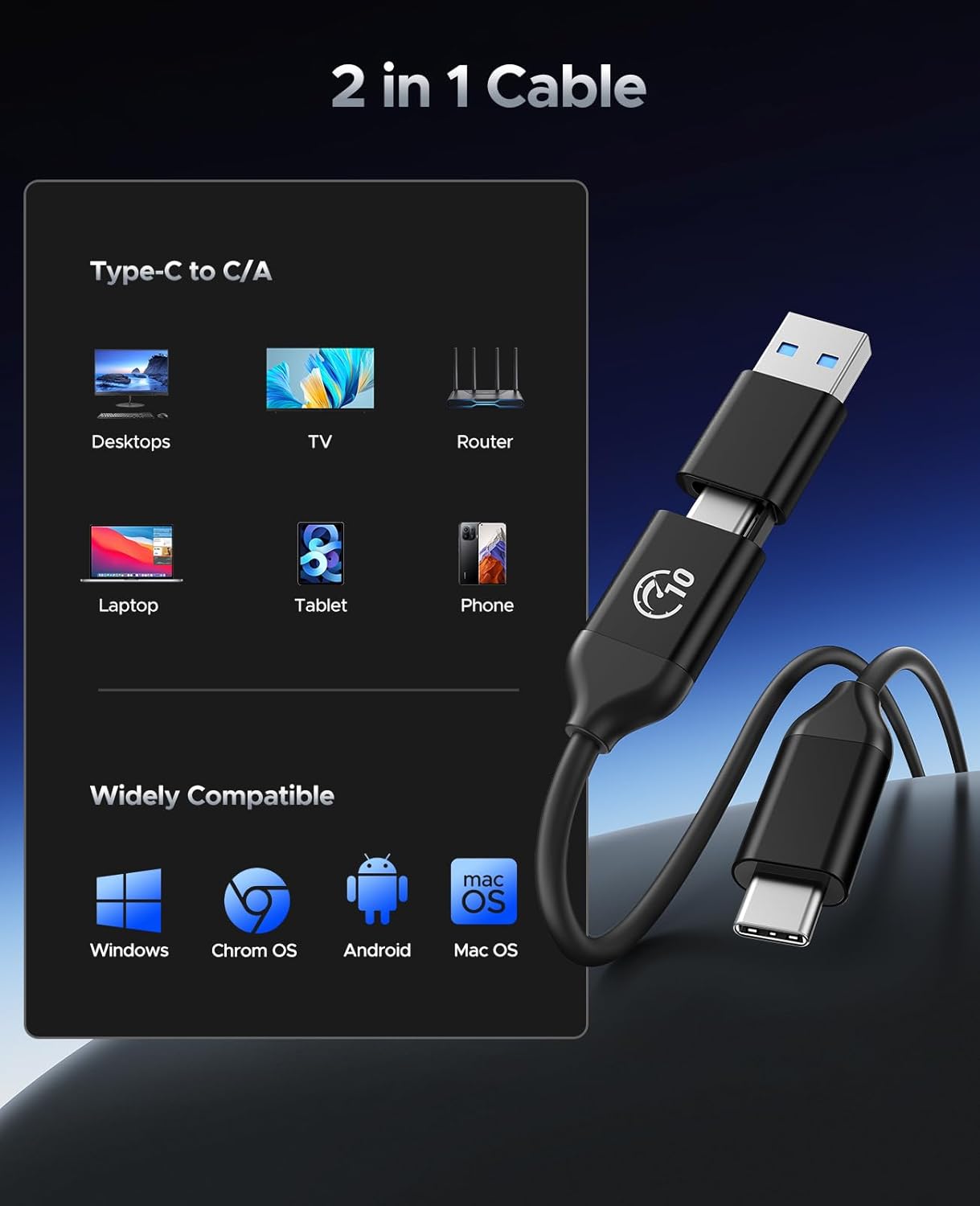
Image 3: 2-in-1 Cable. This image displays the versatile USB-C and USB-A cable included for broad compatibility.
4. Operating Instructions
Once connected and recognized by your device, the ORICO C5MAX SSD functions like any other external storage device.
- Accessing the Drive: Navigate to 'My Computer' or 'This PC' on Windows, or 'Finder' on macOS. The SSD will be listed under 'Devices and drives' or 'Locations'. On mobile devices, it will appear in your file manager application.
- Transferring Files:
- Copy/Paste: Select the files or folders you wish to transfer, right-click (or long-press on mobile), select 'Copy', then navigate to the SSD, right-click (or long-press), and select 'Paste'.
- Drag and Drop: Open two windows (one for your source files, one for the SSD). Click and drag files or folders from the source to the SSD.
- Speed: The SSD supports speeds up to 460MB/s, allowing for rapid data transfers. Actual speeds may vary based on your device's USB port, operating system, and file types.

Image 4: Instant Capacity Boost. The SSD is shown connected to a laptop and a smartphone, highlighting its ability to expand storage and its 460MB/s transfer speed.
5. Maintenance and Care
To ensure the longevity and optimal performance of your ORICO C5MAX SSD, follow these maintenance guidelines:
- Safe Ejection: Always safely eject or unmount the SSD from your operating system before physically disconnecting it. This prevents data corruption.
- Physical Protection: While the aluminum alloy body offers durability against drops and dust, avoid excessive force, impacts, or exposure to liquids.
- Temperature: Operate and store the SSD within recommended temperature ranges. Avoid extreme heat or cold, as this can affect performance and lifespan. The metal body aids in heat dissipation during operation.
- Cleaning: Use a soft, dry cloth to clean the exterior. Do not use harsh chemicals or abrasive materials.
- Data Backup: Regularly back up important data stored on the SSD to another location. No storage device is immune to failure.

Image 5: Metal Body Facilitates Heat Dissipation. The image shows the SSD with a frosty effect, emphasizing its metal construction for efficient cooling.
6. Troubleshooting
If you encounter issues with your ORICO C5MAX SSD, refer to the following common problems and solutions:
- SSD Not Recognized:
- Ensure the cable is securely connected to both the SSD and your device.
- Try a different USB port on your device.
- Test the SSD with a different cable or on another computer/device to rule out cable or port issues.
- Check your device's Disk Management (Windows) or Disk Utility (macOS) to see if the drive is visible but unformatted.
- Slow Transfer Speeds:
- Ensure you are using a USB 3.0/3.1/3.2 port on your device for optimal speeds. Older USB 2.0 ports will significantly reduce transfer rates.
- Large file transfers (especially over 200GB) may experience a temporary slowdown due to internal cache management. This is normal behavior for some SSDs.
- Close other applications that might be using system resources or performing background tasks.
- Data Corruption or Errors:
- Always use the 'Safely Remove Hardware' or 'Eject' function before disconnecting the drive.
- Run a disk check utility (e.g., 'chkdsk' on Windows, 'First Aid' on macOS) to scan and repair potential errors.
- Overheating:
- During prolonged heavy use, the SSD may become warm. The aluminum casing is designed to dissipate heat.
- If the device feels excessively hot and performance drops, allow it to cool down before resuming intensive operations.
7. Specifications
| Feature | Detail |
|---|---|
| Brand | ORICO |
| Model Number | C5Max-8T |
| Digital Storage Capacity | 8 TB |
| Hard Disk Interface | USB 3.0 (Compatible with USB 3.2 Gen 1) |
| Connectivity Technology | USB |
| Read Speed | Up to 460 Megabytes Per Second |
| Item Weight | 3.17 ounces |
| Package Dimensions | 5.12 x 3.54 x 0.79 inches |
| Compatible Devices | Smartphones, Tablets, Laptops, PCs |
| Operating Systems | Android, iOS, macOS, Windows, Chrome OS |
8. Warranty and Support
For warranty information and technical support, please refer to the official ORICO website or contact their customer service directly. Details regarding specific warranty periods and support procedures are typically provided with your product packaging or on the manufacturer's website.
You can visit the ORICO Store for more information: ORICO Official Store


