1. Introduction
Thank you for choosing the CAMECHO WiFi 3 Channel Dash Cam. This device is designed to provide comprehensive video surveillance for your vehicle, recording footage from the front, interior, and rear. This manual provides detailed instructions for installation, operation, and maintenance to ensure optimal performance and longevity of your dash cam.

Image 1.1: CAMECHO 3-channel dash cam with smartphone app view.
2. Product Overview
2.1 Key Features
- 3-Channel Recording: Simultaneously monitors the front (150°), interior (120°), and rear (120°) of your vehicle.
- High Resolution: Front camera records at 1080P, interior and rear cameras at 480P, displayed on a 2-inch screen.
- Infrared Night Vision: Ensures clear recording in low-light conditions, with 4 infrared LED fill lights for the interior camera.
- Built-in Wi-Fi: Connects to Android or iOS smartphones via a dedicated app for real-time preview, video playback, and download.
- Loop Recording: Continuously records and overwrites the oldest footage when the memory card is full.
- G-Sensor: Automatically detects collisions or bumps and locks the current video footage to prevent overwriting.
- Exposure Compensation: Automatically adjusts light sensitivity for optimal image quality in varying light conditions.
- Easy Installation: Compact design that does not obstruct driving view, with simplified rear camera setup.

Image 2.1: Overview of dash cam features.
2.2 What's in the Box
- 1 x CAMECHO Dash Camera
- 1 x Rear View Camera
- 1 x Power Cord
- 1 x Extended Line (for rear camera)
- 1 x Anti-slip Mat
- 1 x User Manual

Image 2.2: Product components and included accessories.
3. Setup Guide
3.1 Installation
- Mount the Dash Camera: Attach the main dash camera unit to your vehicle's windshield using the provided suction cup mount. Position it where it does not obstruct your view.
- Install Rear Camera: Connect the rear camera to the main unit using the extended line. The rear camera can be installed inside the vehicle's rear window or externally. No need to remove the reversing light for installation.
- Power Connection: Connect the power cord to the dash cam and plug it into your vehicle's cigarette lighter socket. Route the cable neatly to avoid interference with driving.
- Insert Memory Card: Insert a compatible Micro SD card (not included) into the TF card slot on the dash cam. Ensure the card is inserted correctly.

Image 3.1: Dash cam installation diagram.
3.2 Initial Power On
Once connected to power, the dash cam will automatically power on and begin recording when your vehicle starts. The 2-inch screen will display the live view from the cameras.
4. Operating Instructions
4.1 Basic Operation
- Power On/Off: The device powers on/off with the vehicle ignition. You can manually power off by long-pressing the power button.
- Recording: Recording starts automatically when the device is powered on. A red indicator usually signifies active recording.
- Menu Navigation: Use the menu buttons (refer to Image 2.2 for button layout) to navigate through settings and playback options on the 2-inch screen.
- Screen On/Off: Short press the power button to turn the screen on or off while recording continues in the background.
4.2 WiFi and App Connection
The dash cam features built-in Wi-Fi for seamless connection to your smartphone via a dedicated application.
- Download the App: Scan the QR code in the user manual or search for the designated app (e.g., 'Viidure' as shown in images) on your Android or iOS app store.
- Enable WiFi: On the dash cam, navigate to the WiFi settings and enable it.
- Connect to Dash Cam WiFi: On your smartphone, go to WiFi settings and connect to the dash cam's WiFi network (e.g., 'CarDV-TL444af').
- Open App: Launch the app on your smartphone. It should automatically detect and connect to the dash cam.
- Functions: Within the app, you can preview real-time footage, play back recorded videos, take photo snapshots, and download files directly to your phone.

Image 4.1: WiFi connection and app control steps.
5. Advanced Features
5.1 3-Channel Recording
The dash cam simultaneously records from three perspectives: a 150° wide-angle front camera, a 120° interior camera, and a 120° rear camera. This provides comprehensive coverage for all driving scenarios.

Image 5.1: 3-Channel recording coverage.
5.2 Infrared Night Vision
Equipped with infrared technology, the dash cam ensures clear video capture even in low-light or complete darkness. The interior camera utilizes 4 infrared LED fill lights to illuminate the cabin effectively.
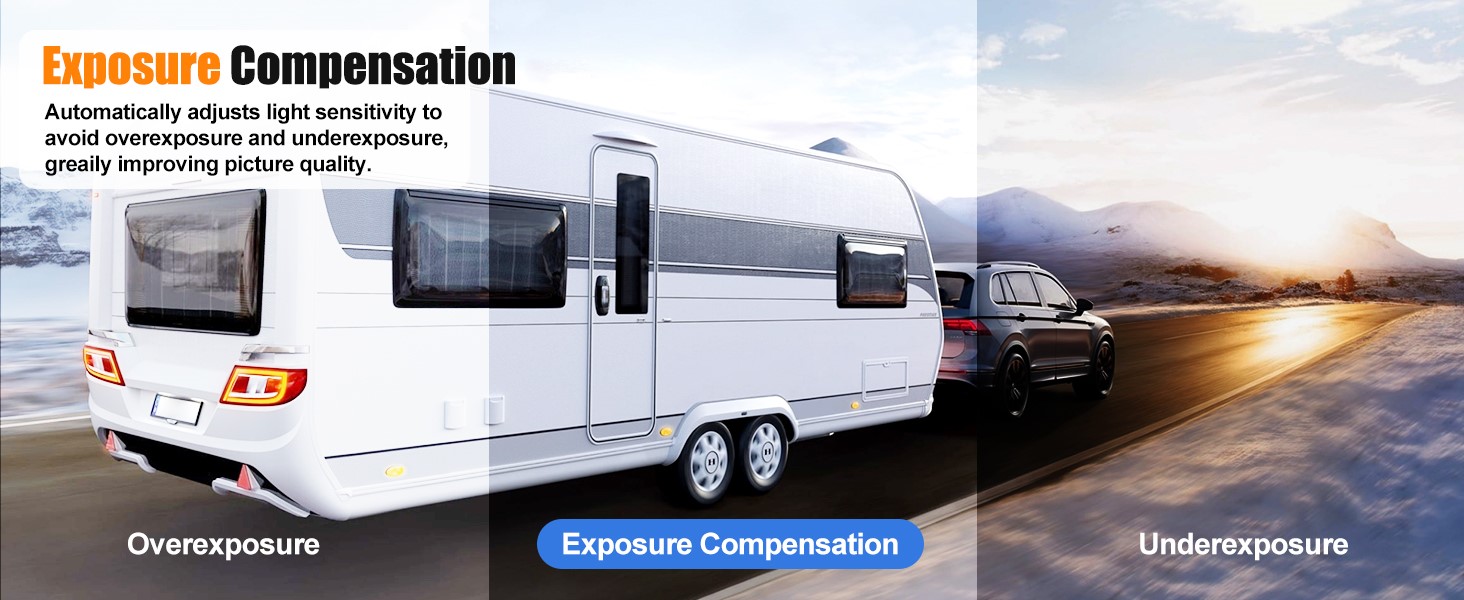
Image 5.2: Super Night Vision in action.
5.3 Loop Recording
The loop recording function ensures continuous recording by automatically overwriting the oldest unlocked video files when the memory card reaches its capacity. This eliminates the need for manual memory management.

Image 5.3: Loop Recording functionality.
5.4 G-Sensor
The built-in G-Sensor detects sudden impacts or collisions. When triggered, it automatically locks the current video segment, preventing it from being overwritten by loop recording. This ensures critical event footage is preserved.

Image 5.4: G-Sensor collision detection.
5.5 Exposure Compensation
The dash cam automatically adjusts its light sensitivity to prevent overexposure or underexposure, significantly improving picture quality in various lighting conditions, from bright daylight to dim environments.
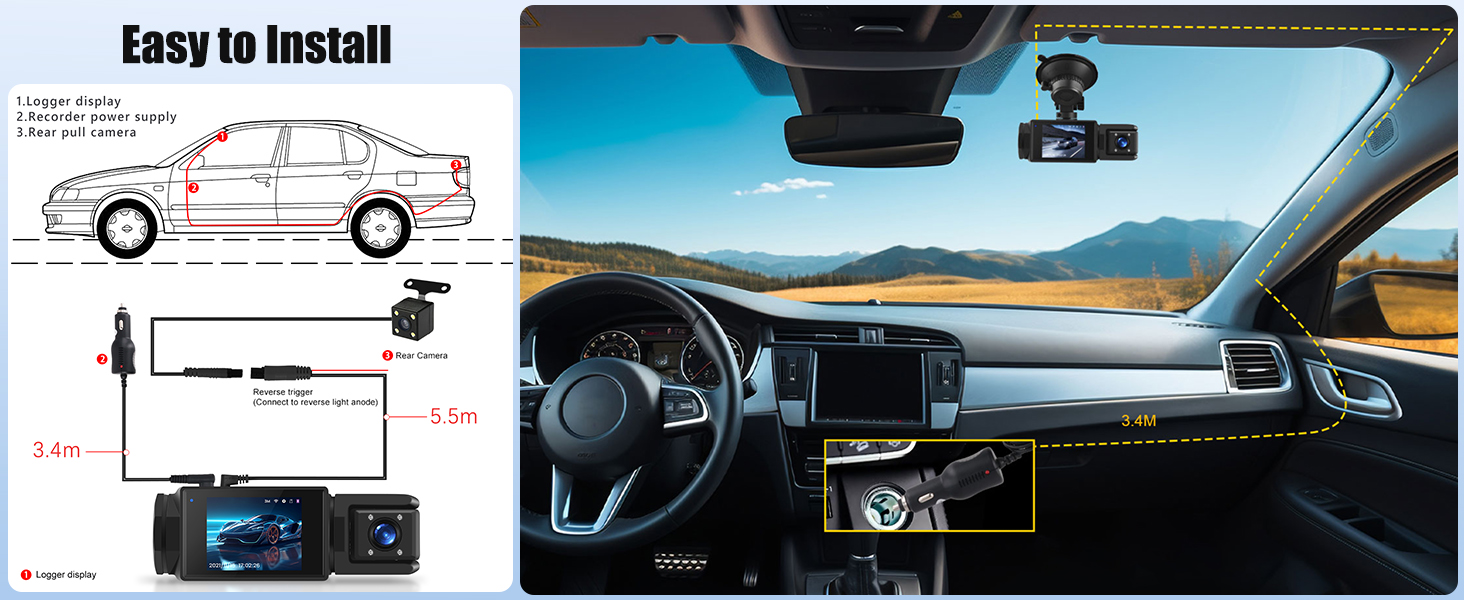
Image 5.5: Exposure Compensation feature.
5.6 Parking Assistance
When the rear camera is properly connected and configured, the dash cam can display parking auxiliary lines on the screen, assisting you in parking maneuvers.

Image 5.6: Parking Assistance display.
5.7 Rear Camera Durability
The rear camera is designed to withstand various environmental conditions, featuring waterproof, dustproof, sunproof, and fog-resistant properties for reliable performance.
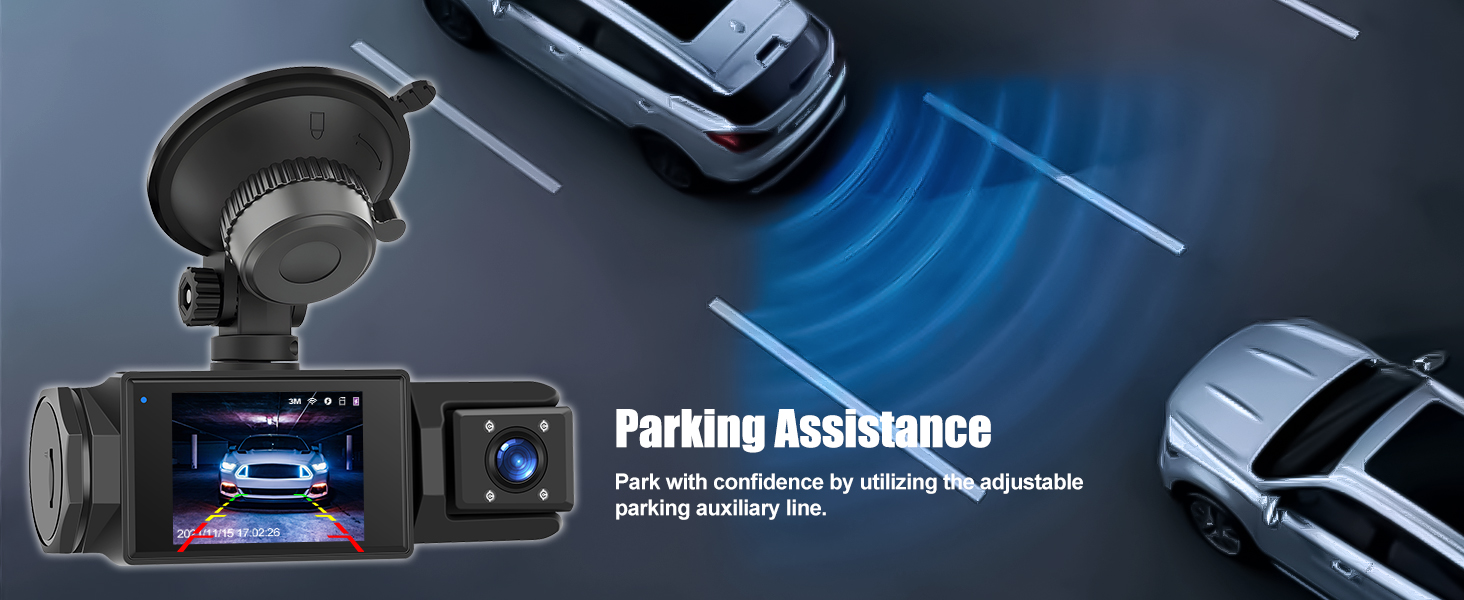
Image 5.7: Rear camera durability features.
6. Maintenance
- Clean Lenses: Regularly clean the camera lenses with a soft, lint-free cloth to ensure clear video quality.
- Memory Card: Format the Micro SD card periodically (e.g., once a month) to maintain optimal performance and prevent data corruption. Back up important footage before formatting.
- Firmware Updates: Check the manufacturer's website or app for any available firmware updates to improve performance and add new features.
- Storage Conditions: Avoid exposing the dash cam to extreme temperatures for prolonged periods.
7. Troubleshooting
- Dash Cam Not Powering On: Ensure the power cord is securely connected to both the dash cam and the vehicle's power outlet. Check the vehicle's power outlet for functionality.
- Recording Issues: Verify that a Micro SD card is inserted and properly formatted. If the card is full, loop recording should overwrite old files, but a faulty card can cause issues. Try a different, high-speed Micro SD card.
- Poor Video Quality: Clean the camera lenses. Ensure the protective film has been removed from the lenses. Check settings for resolution and exposure compensation.
- WiFi Connection Problems: Ensure WiFi is enabled on the dash cam and your smartphone. Try restarting both devices. Confirm you are connecting to the correct dash cam network.
- G-Sensor Too Sensitive/Not Sensitive Enough: Adjust the G-Sensor sensitivity setting in the dash cam's menu.
8. Specifications
| Feature | Specification |
|---|---|
| Product Dimensions | 1.7 x 4.4 x 1.6 inches |
| Item Weight | 7 ounces |
| Connectivity Technology | Wi-Fi |
| Special Features | G-Sensor, Loop Recording |
| Video Capture Resolution | 1080p (Front) |
| Display Screen | 2 inches |
| Mounting Type | Windshield Mount |
| Control Method | Touch |
| Color | Black |
| Model Name | RM |
9. Warranty and Support
For any questions, technical assistance, or warranty inquiries, please contact CAMECHO customer support.
Customer Support Email: CAMECHOVIP@126.com

Image 9.1: CAMECHO Customer Support.


