
Introduction
This manual provides detailed instructions for the proper use and maintenance of your UPERFECT 15.6-inch Portable Touch Monitor. Please read this manual thoroughly before using the product to ensure optimal performance and longevity.
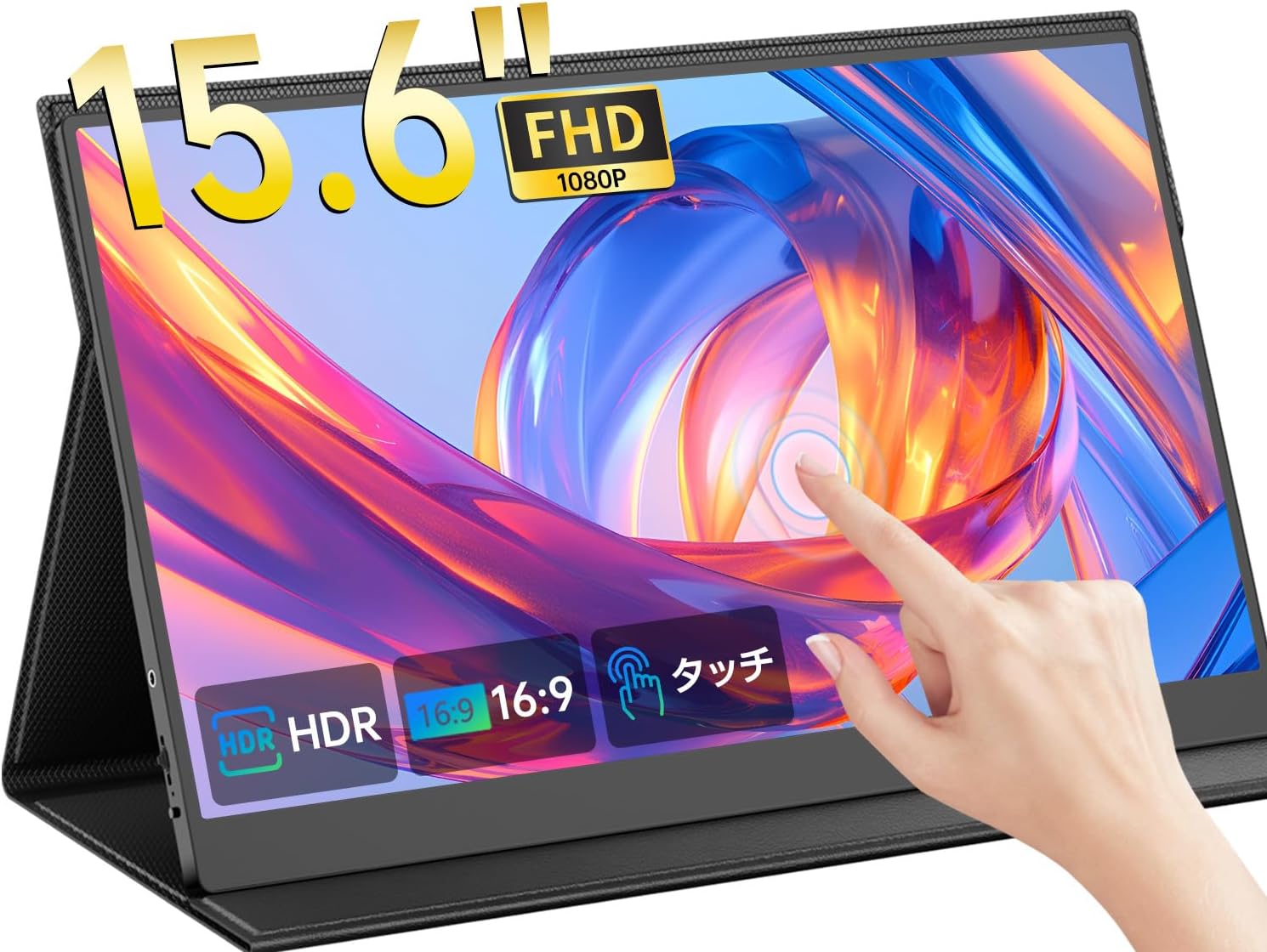
Image: The UPERFECT 15.6-inch Portable Touch Monitor, showcasing its touch functionality and vibrant display.
Key Features
- 10-Point Multi-Touch: Features ONCELL technology for high-precision touch response, supporting 10-point simultaneous touch on Windows and Android devices. (Note: macOS does not support touch functionality; HDMI connection is for video output only).
- Professional HDR Visuals: 15.6-inch wide-gamut IPS panel with 1000:1 contrast and HDR10 support for vivid color reproduction.
- True Color Mode: 100% sRGB coverage for accurate color display, ideal for creative professionals.
- Anti-Glare Coating & Blue Light Filter: AG anti-glare coating reduces reflections for comfortable viewing in various environments, and a built-in blue light filter helps reduce eye strain during prolonged use.
- Single USB Type-C Connection: Two full-function USB Type-C ports allow for easy connection to smartphones and PCs with a single cable for both display and power.
- 3-in-1 Display Modes: Supports Duplicate, Extend, and Portrait modes for versatile use as a sub-monitor.
- Built-in Speakers: Integrated 1W stereo speakers provide 360° high-quality audio. A 3.5mm audio jack is also available for external speakers or headphones.
- Ultra-Thin & Lightweight Design: Features an ultra-thin 4mm profile and weighs approximately 643g, made with aviation-grade aluminum alloy for durability and portability.
Setup Instructions
Package Contents
- UPERFECT 15.6-inch Portable Touch Monitor
- USB Type-C to Type-C Cable (x1)
- USB Type-A to Type-C Cable (x2)
- Mini HDMI to HDMI Cable (x1)
- 5V3A Power Adapter (x1)
- Protective Cover (x1)
- User Manual (Japanese, x1)

Image: All accessories included with the UPERFECT portable monitor, such as various cables, power adapter, and protective cover.
Connecting Your Monitor
The monitor offers flexible connectivity options. Ensure your device supports the necessary output.
1. USB Type-C Connection (Single Cable Solution)
If your smartphone or PC has a full-function USB Type-C port (supporting DisplayPort Alt Mode), you can connect the monitor using a single USB Type-C to Type-C cable. This cable will transmit both video signal and power.
- Connect one end of the USB Type-C to Type-C cable to your device's full-function USB Type-C port.
- Connect the other end to either of the full-function USB Type-C ports on the monitor.

Image: A laptop connected to the portable monitor using a single USB-C cable, demonstrating a streamlined setup.
2. HDMI Connection (with USB Power)
If your device does not have a full-function USB Type-C port, you can use the Mini HDMI port for video and a USB Type-A to Type-C cable for power.
- Connect one end of the Mini HDMI to HDMI cable to your device's HDMI port.
- Connect the Mini HDMI end to the monitor's Mini HDMI port.
- Connect the USB Type-A end of the USB Type-A to Type-C cable to a power source (e.g., your device's USB port or the included power adapter).
- Connect the USB Type-C end to one of the monitor's full-function USB Type-C ports for power.

Image: A visual guide illustrating how to connect the monitor using either a single USB-C cable or an HDMI cable combined with a USB-A to USB-C power cable.
Power Considerations
If the display brightness or volume is low, it may indicate insufficient power. Please use a power adapter of 15W or higher to supply power to the monitor.
Operating Instructions
Monitor Controls
The monitor features buttons on its side for power, menu navigation, and volume control.

Image: A detailed side view of the portable monitor, highlighting the power button, menu button, headphone jack, and USB Type-C and Mini HDMI ports.
- Power Button: Press and hold to turn the monitor on/off. Short press to return from menu or confirm selection.
- Menu Button: Press to access the On-Screen Display (OSD) menu for settings adjustments.
- Headphone Jack: 3.5mm audio output for connecting headphones or external speakers.
Touch Panel Functionality
The 10-point multi-touch panel allows for intuitive interaction with compatible devices (Windows/Android).

Image: Visual examples of 10-point multi-touch gestures, including tap, long press, two-finger tap, pinch, and drag with one or two fingers.
- Tap/Long Press: Basic selection and context menu activation.
- Two-Finger Tap: Equivalent to right-click.
- Pinch: Zoom in/out on documents or images.
- Drag: Move items or scroll through content.
Note: Touch functionality is not supported on macOS. For macOS, the monitor functions as a display only via HDMI or USB-C (DisplayPort Alt Mode).
Display Modes
The monitor supports various display modes to enhance productivity and entertainment.

Image: Demonstrations of the three display modes: Extend Mode for expanded workspace, Duplicate Mode for mirroring content, and Portrait Mode for vertical viewing.
- Extend Mode: Expands your desktop across both screens, increasing your workspace.
- Duplicate Mode: Mirrors the content of your primary screen onto the portable monitor.
- Portrait Mode: Allows the monitor to be used in a vertical orientation, ideal for coding, document viewing, or social media feeds. (Note: Some smartphones may not support vertical display in portrait mode).
Advanced Features
- HDR10: Enhances contrast and color for a more immersive viewing experience, especially for gaming and media.
- FreeSync Technology: Reduces screen tearing and stuttering for smoother gameplay and video playback.
- Meeting Assistant Function: Utilize the dual monitor mirroring and touch functions for interactive presentations, eliminating the need for a mouse or keyboard.
- Smartphone Screen Extension: Connect your smartphone to display and control its screen on the larger monitor, facilitating video viewing, document editing, and photo processing.

Image: A woman using the portable monitor as a meeting assistant, demonstrating how its mirroring and touch functions can streamline presentations and video conferences.

Image: A smartphone connected to the portable monitor, illustrating the screen extension feature for enhanced mobile productivity and entertainment.
Maintenance
Cleaning the Monitor
- Always power off and unplug the monitor before cleaning.
- Use a soft, lint-free cloth lightly dampened with water or a screen-cleaning solution.
- Do not spray cleaning solution directly onto the screen.
- Avoid using abrasive cleaners, alcohol, or ammonia-based solutions, as these can damage the screen surface.
Protective Cover
The included protective cover safeguards the monitor from dust and scratches during transport and storage. It can also be folded to serve as a stand.

Image: The portable monitor shown with its VESA mounting capability and the included protective cover, which also functions as a stand.
Storage
When not in use, store the monitor in a cool, dry place, preferably in its protective cover, to prevent damage.
Troubleshooting
Common Issues and Solutions
- No Display/"No Signal" Message:
- Ensure all cables are securely connected.
- Verify that your source device is powered on and outputting a signal.
- If using USB Type-C, confirm your device's USB Type-C port supports DisplayPort Alt Mode.
- Try connecting the monitor to a different device or using different cables to rule out cable or source issues.
- Low Brightness or Volume:
- This often indicates insufficient power. Connect the monitor to a 15W or higher power adapter using the USB Type-A to Type-C cable.
- Adjust brightness and volume settings via the monitor's OSD menu.
- Touch Function Not Working:
- Ensure your connected device is running Windows or Android. macOS does not support touch.
- Verify the USB Type-C cable is a full-function cable and properly connected for data transmission.
- Restart both the monitor and the connected device.
- Screen Flickering or Tearing:
- Ensure your graphics card drivers are up to date.
- If your device supports FreeSync, ensure it is enabled in your graphics settings.
- Try a different cable or reduce the display resolution.
Specifications
| Brand | UPERFECT |
| Model Number | M156U05 |
| Screen Size | 15.6 inches |
| Resolution | 1920x1080 (FHD 1080p) |
| Aspect Ratio | 16:9 |
| Panel Type | IPS LCD |
| Color Gamut | 100% sRGB |
| Contrast Ratio | 1000:1 |
| Touchscreen | 10-point Multi-Touch (Windows/Android compatible) |
| Surface Treatment | Anti-glare |
| Connectivity | 2x Full-function USB Type-C, 1x Mini HDMI, 1x 3.5mm Audio Jack |
| Built-in Speakers | 1W Stereo Speakers |
| Product Dimensions | 40 x 7 x 28 cm |
| Product Weight | 1.82 Kilograms (including packaging, monitor approx. 643g) |
| Color | Black |
| VESA Mount | 75mm VESA Mount Compatible |
Warranty and Support
Warranty Information
Your UPERFECT portable monitor comes with a 1-year warranty from the date of purchase. This warranty covers manufacturing defects and malfunctions under normal use.
The product is PSE certified, ensuring compliance with safety standards.
Customer Support
Should you have any questions regarding the use of your product, or if you encounter any initial defects within the warranty period, please do not hesitate to contact us through your order history. We are committed to providing the best possible service and support.

Image: Customer service representatives ready to assist with product inquiries and support.

