
1. Important Safety Instructions
Please read all instructions carefully before installation and use. Keep this manual for future reference.
- General Safety: Do not operate the device in a way that distracts you from driving. Always prioritize road safety.
- Electrical Safety: Ensure proper wiring connections to prevent short circuits or damage. Consult a professional for installation if unsure.
- Driving Safety: Adjust volume to a safe level. Do not view videos or operate complex functions while driving.
2. Package Contents
Verify that all items listed below are included in your package:
- Car Stereo with Frame
- Camera
- Microphone
- Power Cable
- RCA Cable
- Original USB Cable
- USB Cable (additional)
- Radio Antenna
- GPS Antenna
- Canbus Box
- Tool
- AHD Camera
- User Manual

Figure 2.1: All components included in the product package.
3. Setup & Installation
3.1 Wiring Diagram
Follow the wiring diagram carefully for correct installation. Improper wiring can damage the device or vehicle.

Figure 3.1: Rear Camera Wiring Diagram. Ensure all connections are secure.
3.2 Power Connection
Connect the main power harness to your vehicle's power supply. Ensure the ACC (Accessory) and B+ (Battery Positive) wires are correctly connected. The GND (Ground) wire should be securely attached to the vehicle's chassis.
Video 3.1: This video demonstrates how to properly plug the harness to the car radio, ensuring correct power and signal connections.
3.3 Pre-Installation Test
It is recommended to test the car stereo before full installation to confirm functionality.
Video 3.2: This video provides instructions on how to test the car stereo's basic functions before proceeding with the full installation.
3.4 CAN-BUS Box Setup
If your vehicle requires a CAN-BUS box for integration, ensure it is correctly connected and configured in the system settings. This is crucial for features like steering wheel controls and vehicle information display.
Video 3.3: This video demonstrates various car stereo settings, including how to configure CAN-BUS settings for proper vehicle integration.
4. Basic Operations
4.1 Navigating the System
The Android operating system provides an intuitive interface. Swipe left or right to access different app pages. Tap on icons to launch applications.
4.2 User Interface and Themes
Customize the look and feel of your stereo with various desktop themes. Long-press on an empty area of the home screen to access theme options.
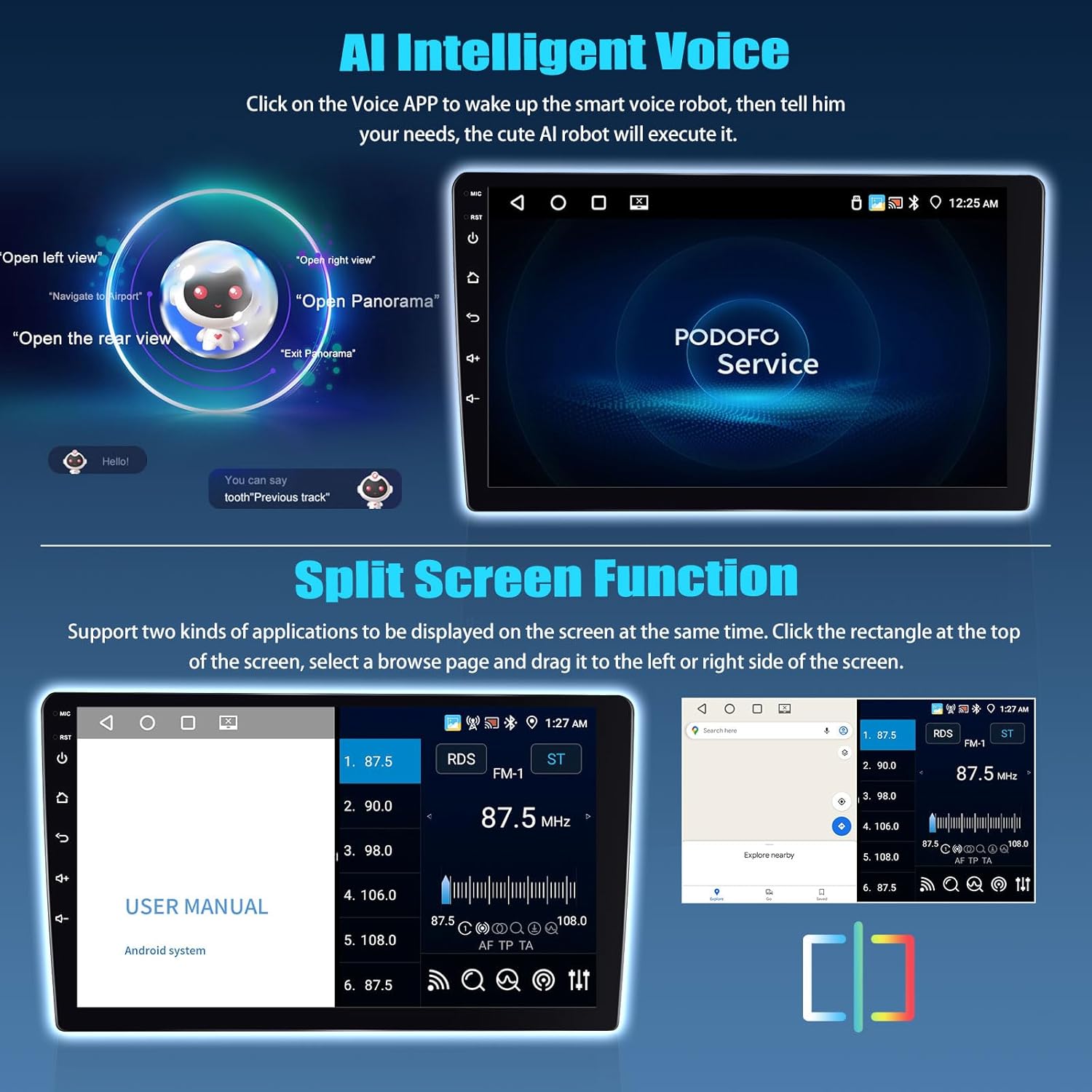
Figure 4.1: Various desktop themes available for personalizing your car stereo interface.
Video 4.1: This video demonstrates how to change UI themes on the car stereo, offering various visual styles.
5. Connectivity
5.1 Bluetooth 5.0
Connect your smartphone via Bluetooth for hands-free calling, contact synchronization, and music playback. Bluetooth 5.0 ensures a faster and more stable connection.

Figure 5.1: Bluetooth 5.0 interface for seamless phone integration.
Video 5.1: A short demonstration of Bluetooth connectivity for calls and music.
5.2 WiFi
Connect to a WiFi hotspot to download apps, stream online music, and watch videos. The stereo functions like a large smartphone, enhancing your journey.

Figure 5.2: Access various online applications through WiFi connectivity.
Video 5.2: This video illustrates the process of connecting to WiFi and accessing online content.
5.3 GPS Navigation
The device supports GPS positioning. Download offline navigation maps from the Play Store or use online maps when connected to WiFi.

Figure 5.3: GPS navigation display for accurate route guidance.
6. Smart Features
6.1 Wireless CarPlay & Android Auto
Synchronize your phone's apps, contacts, and navigation to the car stereo. Use voice commands for hands-free operation. Ensure your phone's WiFi and Bluetooth are enabled for automatic connection.

Figure 6.1: Apple CarPlay and Android Auto interfaces for seamless smartphone integration.
Video 6.1: This video explains how to use Wireless CarPlay and Android Auto with the car stereo.
Video 6.2: A short preview demonstrating the Wireless CarPlay connection process.
Video 6.3: A short preview demonstrating the Wireless Android Auto connection process.
6.2 Mirror Link
Project your smartphone screen onto the car stereo display. This is ideal for viewing downloaded videos or other content from your phone. Select 'Airplay' for iPhone and 'Android Link' for Android phones, connecting via WiFi.

Figure 6.2: Mirror Link functionality for displaying phone content on the stereo.
6.3 AI Intelligent Voice
Activate the smart voice assistant by clicking the Voice APP. Use voice commands for various functions, such as calling contacts, playing music, or opening installed applications.

Figure 6.3: AI Intelligent Voice assistant for hands-free control.
Video 6.4: This video demonstrates the AI Intelligent Voice feature, along with CarPlay and Android Auto connections.
6.4 Split Screen
The Android radio supports split-screen functionality, allowing two applications to be displayed and operated independently on the same screen. To activate, click the rectangle icon at the top of the screen, select a browser page, and drag it to either the left or right side.

Figure 6.4: Split-screen mode for enhanced multitasking.
Video 6.5: A short preview demonstrating the split-screen function.
7. Audio Settings
7.1 32-Band DSP Equalizer
The built-in DSP (Digital Signal Processor) with a 32-band equalizer allows for precise audio customization. Adjust various sound effects like 3D optimized, Panorama, and HiFi scene to achieve optimal sound quality.

Figure 7.1: DSP sound effects interface for audio customization.
Video 7.1: A short preview demonstrating the HiFi/EQ settings.
7.2 FM/RDS Radio
Enjoy news, music, weather forecasts, and traffic information through the built-in FM/RDS radio. The RDS (Radio Data System) feature displays station and song information where available.

Figure 7.2: FM/RDS radio interface.
8. Camera & Driving Aids
8.1 AHD Rear View Camera
The included AHD (Analog High Definition) camera provides a clear reversing image, automatically switching when reverse gear is engaged, making parking safer.

Figure 8.1: AHD Rear View Camera display for improved visibility.
Video 8.1: A short preview demonstrating the rear view camera functionality.
8.2 Steering Wheel Control
Utilize your vehicle's original steering wheel buttons to control the car audio system. This provides convenient and safe operation while driving. Ensure to set up the steering wheel buttons in the car settings first.

Figure 8.2: Steering wheel controls for convenient operation.
Video 8.2: A short preview demonstrating the steering wheel control setup and usage.
9. Troubleshooting
If you encounter any issues, please refer to the following common troubleshooting steps:
- No Power: Check all power connections (B+, ACC, GND) for secure contact. Ensure the vehicle battery has sufficient charge.
- No Sound: Verify speaker connections. Check audio settings (volume, mute, equalizer). Ensure the correct audio source is selected.
- Bluetooth Connection Issues: Ensure Bluetooth is enabled on both the stereo and your phone. Delete previous pairings and try reconnecting.
- GPS Signal Loss: Ensure the GPS antenna is installed in a clear location with an unobstructed view of the sky.
- Steering Wheel Controls Not Working: Verify CAN-BUS box connection and configuration. Re-learn the steering wheel buttons in the stereo settings.
- Screen Brightness Too High/Low: Adjust brightness settings in the system menu.
For persistent issues, please contact customer support.
10. Specifications
| Feature | Specification |
|---|---|
| Operating System | Android 13 |
| RAM | 4GB |
| ROM | 64GB |
| Screen Size | 9 Inches |
| Display Resolution | 1280*720 HD |
| Bluetooth Version | 5.0 |
| Audio Features | DSP, 32EQ |
| Connectivity | Bluetooth, Wi-Fi |
| Special Features | Wireless CarPlay, Android Auto, AI Voice, Split Screen, Mirror Link, AHD Camera Support |
| Item Weight | 3.5 pounds |
| Package Dimensions | 13.19 x 10.67 x 4.09 inches |
11. Warranty & Support
11.1 Warranty Information
This product comes with a 1-Year Warranty from the date of purchase, covering manufacturing defects.
11.2 Customer Support
For any questions, technical assistance, or warranty claims, please contact our customer support team.

Figure 11.1: Online support details for assistance.

Figure 11.2: Our commitment to customer service includes 24/7 quick response, 1-year replacement, and lifetime technical support.


