
1. Introduction
The PWNAGE Trinity Wireless Gaming Mouse is engineered for high-performance gaming, featuring an ultralight carbon fiber composite design, a custom XERO PAW3950 optical sensor, and an 8kHz polling rate. This manual provides essential information for setting up, operating, customizing, and maintaining your Trinity gaming mouse to ensure optimal performance.
2. Package Contents
- PWNAGE Trinity Wireless Gaming Mouse
- USB Wireless Receiver (Dongle)
- USB-C to USB-A Charging/Data Cable
- User Manual (this document)
3. Product Overview
Familiarize yourself with the components of your PWNAGE Trinity Wireless Gaming Mouse.

Figure 3.1: Top view of the Trinity Wireless Gaming Mouse, showcasing its symmetrical design and perforated shell.

Figure 3.2: Angled view of the Trinity Wireless Gaming Mouse, highlighting its ergonomic shape and button placement.
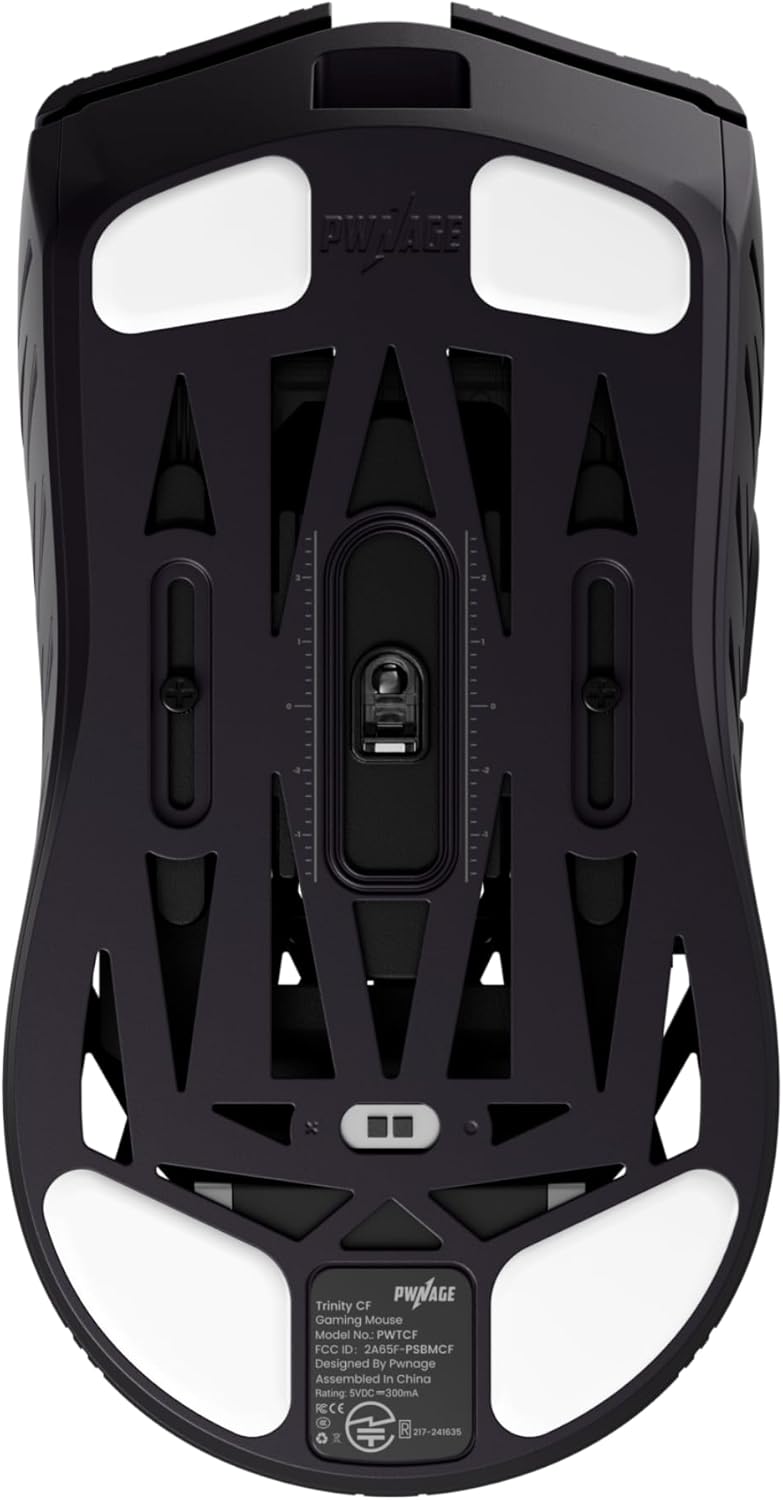
Figure 3.3: Bottom view of the Trinity Wireless Gaming Mouse, showing the sensor, PTFE skates, and sensor adjustment screws.
Key Components:
- Left/Right Click Buttons: Primary input buttons.
- Scroll Wheel: For vertical scrolling and middle-click functionality.
- Side Buttons: Programmable for various functions.
- DPI Button: Cycles through DPI settings (location may vary, typically on top or bottom).
- XERO PAW3950 Optical Sensor: High-precision tracking sensor located on the bottom.
- PTFE Skates: Low-friction feet for smooth glide.
- USB-C Port: For charging and wired connection.
- Power/Mode Switch: To turn the mouse on/off or switch between wired/wireless modes.
4. Setup
4.1 Initial Charging
Before first use, it is recommended to fully charge the mouse. Connect the provided USB-C cable to the mouse and the USB-A end to an available USB port on your computer or a USB wall adapter. The LED indicator on the mouse will show charging status and turn off or change color when fully charged.
4.2 Wireless Connection (2.4GHz)
- Insert the USB Wireless Receiver into an available USB port on your computer.
- Turn on the mouse using the power switch located on the bottom of the device.
- The mouse should automatically connect to the receiver. If not, press the pairing button (if available, refer to specific product diagram) or consult the online software for pairing instructions.
4.3 Wired Connection
Connect the USB-C cable directly from the mouse to your computer's USB port. The mouse will function in wired mode and charge simultaneously. This mode also supports the 8kHz polling rate.
4.4 Software Installation (Web-Based)
The Trinity mouse utilizes web-based customization software. No downloads are required. Access the software by visiting the official PWNAGE website and navigating to the support or software section for the Trinity mouse. This allows for customization of DPI, macros, and profiles, which are stored in the mouse's onboard memory.
5. Operating Instructions
5.1 DPI Adjustment
The mouse features a dedicated DPI button (location may vary) to cycle through preset DPI levels. Default DPI settings can be customized via the web-based software. The XERO 3950 sensor supports up to 36,000 DPI.
5.2 Polling Rate
The Trinity mouse supports an 8,000 Hz polling rate in both wired and wireless modes. This setting can be configured through the web-based customization software for optimal responsiveness.
5.3 Adjustable Sensor Technology
The mouse features adjustable sensor technology, allowing you to fine-tune the sensor's physical position for personalized aim optimization. This can improve tracking accuracy and reduce path deviation. Refer to the web-based software for detailed instructions on adjusting the sensor position.

Figure 5.1: Diagram showing the adjustable sensor position mechanism on the mouse's underside.
5.4 Button Customization
All programmable buttons, including side buttons, can be remapped to perform various functions, macros, or keystrokes using the web-based customization software.
6. Customization Software
The PWNAGE Trinity Wireless Gaming Mouse uses an intuitive web-based customization software. This platform allows you to:
- Adjust DPI settings and create custom profiles.
- Program macros for complex command sequences.
- Remap mouse buttons.
- Configure polling rate (up to 8kHz).
- Fine-tune sensor position for optimal aim.
- Manage onboard memory profiles.
Access the software via the official PWNAGE website. Ensure your mouse is connected (wired or wireless) to apply changes.
7. Maintenance
7.1 Cleaning
To clean your mouse, use a soft, dry, lint-free cloth. For stubborn dirt, slightly dampen the cloth with water. Avoid using harsh chemicals, abrasive cleaners, or solvents, as these can damage the mouse's surface and internal components. Ensure no liquid enters the mouse's openings.
7.2 Battery Care
The Trinity mouse contains a rechargeable Lithium Ion battery. To prolong battery life:
- Avoid fully discharging the battery frequently.
- Store the mouse at room temperature when not in use for extended periods.
- Charge the mouse using the provided cable or a certified USB power source.
7.3 PTFE Skates
The mouse is equipped with 100% PTFE skates for smooth gliding. Over time, these may wear down. Replacement skates can be purchased from authorized retailers. The universal flat groove bottom plate is compatible with various mouse skates, allowing for customization.
8. Troubleshooting
8.1 Mouse Not Responding
- Ensure the mouse is powered on.
- Check battery level and charge if necessary.
- For wireless mode, ensure the USB receiver is securely plugged into a working USB port. Try a different USB port.
- For wired mode, ensure the USB-C cable is securely connected to both the mouse and the computer.
- Try restarting your computer.
8.2 Intermittent Connectivity/Lag
- Ensure the USB receiver is close to the mouse and not obstructed by metal objects.
- Avoid placing the receiver near other wireless devices (e.g., Wi-Fi routers, Bluetooth devices) that may cause interference.
- Ensure the mouse firmware is up to date via the web-based software.
8.3 Tracking Issues
- Clean the optical sensor on the bottom of the mouse with a soft, dry cloth.
- Ensure you are using the mouse on a suitable surface (e.g., a mouse pad). Avoid highly reflective or transparent surfaces.
- Check DPI settings in the customization software.
8.4 Battery Drains Quickly
- High polling rates (e.g., 8kHz) consume more power. Consider reducing the polling rate if extended battery life is prioritized.
- Ensure the mouse is turned off when not in use.
- Check for any background processes or software conflicts that might be keeping the mouse active.
9. Specifications
| Feature | Detail |
|---|---|
| Model | Trinity Wireless Gaming Mouse |
| Construction Material | Carbon Fiber Composite |
| Weight | Approximately 39 grams (1.31 ounces) |
| Sensor | Custom XERO PAW3950 Optical Sensor |
| DPI Range | Up to 36,000 DPI |
| Tracking Accuracy | 99.8% |
| Polling Rate | Up to 8,000 Hz (Wired & Wireless) |
| Connectivity | Lag-Free 2.4GHz Wireless, USB-C Wired |
| Skates | 100% PTFE, Universal Flat Groove Bottom Plate |
| Battery | 1 Lithium Ion (included) |
| Special Features | Ultralight Design, Carbon Fiber Construction, Symmetrical Shape, Adjustable Sensor Technology, Web-Based Customization Software |
| Package Dimensions | 8.66 x 6.61 x 3.43 inches |
10. Warranty and Support
For warranty information and technical support, please visit the official PWNAGE website or contact their customer service. Keep your proof of purchase for warranty claims.
Manufacturer: Pwnage
Website: PWNAGE Official Store
