
MekedeTech 8-Core 8+128G
MekedeTech Android Car Stereo User Manual
Model: 8-Core 8+128G
Introduction
This manual provides comprehensive instructions for the installation, operation, and maintenance of your MekedeTech Android Car Stereo. Designed specifically for Volkswagen VW Polo Sedan models from 2008-2018, this 9-inch touch screen head unit enhances your driving experience with advanced features like wireless CarPlay, Android Auto, 4G LTE connectivity, and GPS navigation.
Product Overview
The MekedeTech Android Car Stereo is a high-performance multimedia system featuring an 8-Core CPU and 8GB RAM with 128GB ROM, ensuring quick response times and smooth operation. It boasts a 9-inch IPS touch screen with a resolution of 1280x720, providing clear visuals. The unit includes built-in DSP for superior audio quality, AM/FM radio, and supports various audio and video formats.
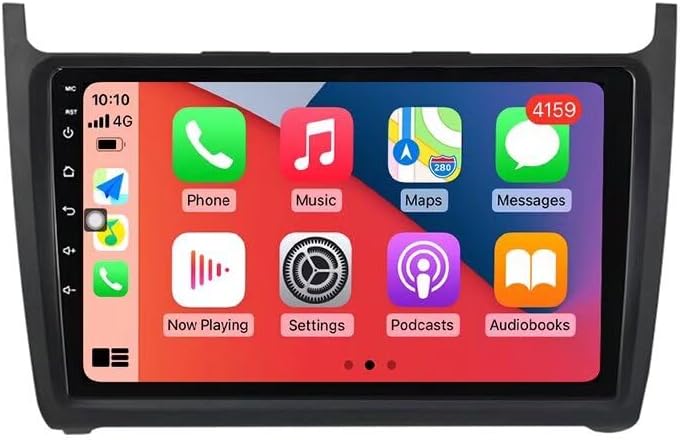
Figure 1: Front view of the MekedeTech Android Car Stereo, showing the 9-inch display with a typical app interface.
Setup and Installation
The installation process for your MekedeTech Android Car Stereo is designed to be straightforward, with a plug-and-play harness that retains factory steering wheel controls. No splicing is typically required.
Package Contents:
- MekedeTech Android Head Unit
- Vehicle-specific Frame Kit
- Plug-and-Play Wiring Harness
- GPS Antenna
- USB Cables
- 4G LTE Antenna (if applicable)
Installation Steps:
- Preparation: Ensure the vehicle's ignition is off and disconnect the negative terminal of the car battery to prevent electrical shorts.
- Remove Old Radio: Carefully remove the existing factory radio and trim panels. Refer to your vehicle's specific service manual for detailed instructions on panel removal.
- Connect Wiring Harness: Connect the provided plug-and-play wiring harness to the vehicle's factory harness. Ensure all connections are secure.
- Connect Antennas: Connect the GPS antenna and 4G LTE antenna (if included) to their respective ports on the head unit. Position the GPS antenna in a location with a clear view of the sky, such as on the dashboard.
- Connect USB Cables: Attach any necessary USB cables for external devices.
- Test Connections: Before fully reassembling, temporarily connect the battery and turn on the ignition to test the head unit's basic functions (power, audio, touch screen).
- Secure Head Unit: Mount the MekedeTech head unit into the dashboard opening using the provided frame kit and mounting brackets.
- Reassemble: Reinstall all trim panels and reconnect the car battery.
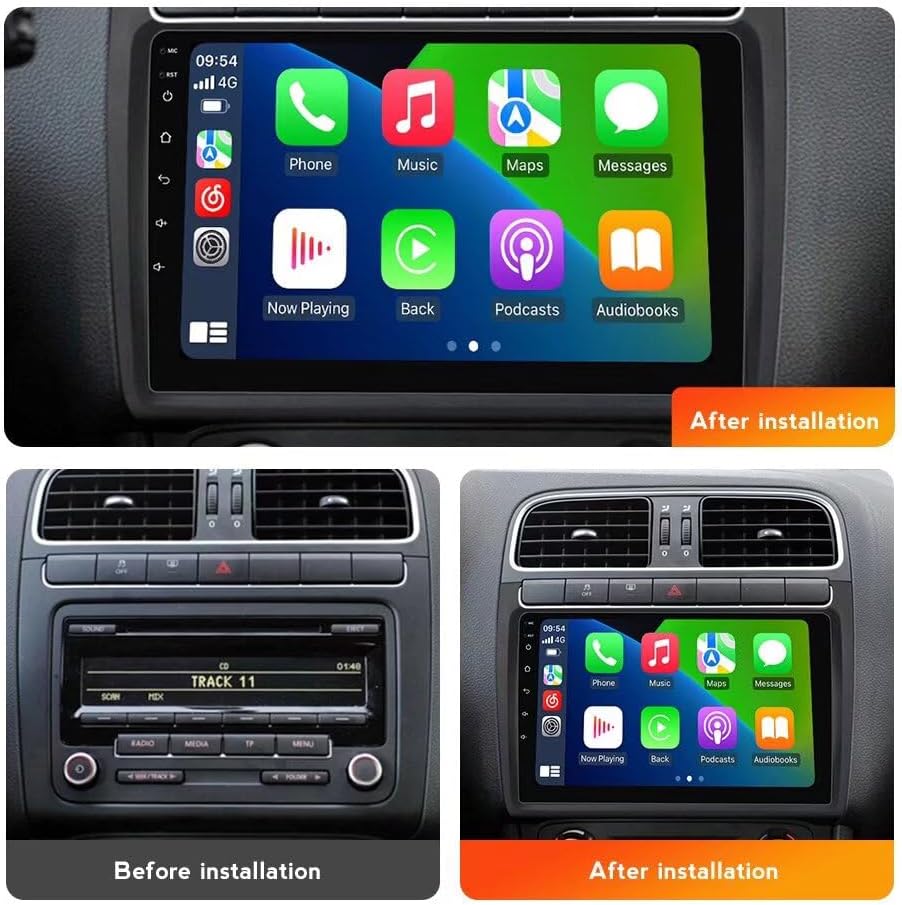
Figure 2: Comparison showing the factory radio setup (bottom left) and the MekedeTech Android Car Stereo installed (bottom right), with the new unit's interface displayed (top).
Operating Instructions
Basic Operation:
- Power On/Off: The unit powers on automatically with the vehicle's ignition. Press and hold the power button (if available) for manual power control.
- Volume Control: Adjust volume using the on-screen controls or the vehicle's steering wheel controls.
- Navigation: Access the main menu by tapping the home icon. Swipe left/right to navigate between app screens.
Wireless CarPlay and Android Auto:
The unit features built-in wireless CarPlay (for iOS) and Android Auto (for Android devices), allowing seamless integration of your smartphone for navigation, music, calls, and messages.
- Connect Bluetooth: On your smartphone, enable Bluetooth and pair with the car stereo (usually named "CarBT" or similar).
- Launch CarPlay/Android Auto: Once paired, open the "Car Link" or "ZLink" app on the head unit. Your phone should automatically connect to CarPlay or Android Auto.
- Wired Connection (Optional): For initial setup or if wireless connection is unstable, you can connect your phone via a USB cable.

Figure 3: Diagram illustrating the steps for connecting to wireless CarPlay (iOS) and wireless Android Auto (Android) via Bluetooth and the "Car Link" application.
4G LTE Connectivity:
The head unit supports 4G LTE connectivity via a SIM card, allowing internet access without relying on a Wi-Fi hotspot from your phone.
- Insert SIM Card: Locate the 4G SIM card slot (typically on the back of the main unit or via an extension cable) and insert a valid 4G SIM card.
- Network Settings: Navigate to "Settings" > "Network & Internet" > "Mobile network" to configure APN settings if necessary.
- Internet Access: Once connected, you can download apps, stream media, and use online navigation services directly from the head unit.

Figure 4: Visual representation of the built-in 4G LTE module and SIM card slot, highlighting the unit's independent internet connectivity.
GPS Navigation:
The unit comes with built-in GPS and pre-installed maps. You can also download other navigation apps from the Google Play Store.
- Launch Navigation App: Tap the "Maps" or "Navigation" icon on the home screen.
- Offline Maps: For areas with poor cellular coverage, consider downloading offline maps within your preferred navigation application.
Audio and Media:
- Radio (AM/FM): Access the "Radio" app to tune into AM/FM stations.
- Media Playback: Play audio and video files from USB drives, internal storage, or streaming apps.
- DSP Sound System: Utilize the built-in Digital Signal Processor (DSP) settings to customize audio equalization and sound effects for optimal listening.
Maintenance
Regular maintenance ensures the longevity and optimal performance of your MekedeTech Android Car Stereo.
- Screen Cleaning: Use a soft, lint-free cloth slightly dampened with water or a screen cleaner specifically designed for electronics. Avoid harsh chemicals or abrasive materials.
- Software Updates: Periodically check for software updates provided by MekedeTech to ensure you have the latest features and bug fixes. Updates can typically be found in the system settings or on the manufacturer's website.
- Ventilation: Ensure the unit's ventilation areas are not obstructed to prevent overheating. The unit is designed with a cooling fan system to manage internal temperatures.

Figure 5: Diagram illustrating the cooling fan system integrated into the head unit, designed to prevent overheating and maintain stable performance, especially in high temperatures.
Troubleshooting
If you encounter issues with your car stereo, refer to the following common problems and solutions:
| Problem | Possible Cause | Solution |
|---|---|---|
| No Power | Loose wiring connection, blown fuse, incorrect wiring. | Check all power connections. Inspect vehicle's fuse box and the unit's inline fuse. Ensure correct wiring according to the diagram. |
| No Sound | Speaker wires disconnected, volume too low, mute enabled, incorrect audio source. | Verify speaker wire connections. Increase volume. Check if mute is active. Select the correct audio input source. |
| Touch Screen Unresponsive | Software glitch, temporary freeze. | Restart the unit by turning off the vehicle's ignition and restarting. If issue persists, perform a factory reset (refer to settings menu). |
| CarPlay/Android Auto Not Connecting | Bluetooth not paired, "Car Link" app not open, phone settings. | Ensure Bluetooth is enabled and paired. Open the "Car Link" app on the head unit. Check phone's CarPlay/Android Auto settings. Try a wired connection. |
| GPS Signal Weak/Lost | GPS antenna obstructed or improperly placed, environmental interference. | Relocate the GPS antenna to a position with a clear view of the sky. Ensure the antenna cable is securely connected. |
Specifications
| Feature | Detail |
|---|---|
| System | Android 12 OS |
| CPU | 8-Core A53 1.8GHz |
| Memory (RAM/ROM) | 8GB RAM / 128GB ROM |
| Display Size | 9 Inches |
| Screen Resolution | 1280x720 IPS Touch Screen |
| Power Output | 4*50W |
| Connectivity | Built-in 4G LTE, WiFi Module, Bluetooth, Wireless CarPlay, Wireless Android Auto |
| Navigation | Built-in GPS navigation and Maps (Worldwide map type) |
| Audio Formats | APE/FLAC/WAV/MP3/WMA etc. |
| Video Formats | MKV/RMVB/AVI/MP4/MDV etc. |
| Picture Formats | PNG/JPEG/JPG/GIF/WBMP/BNP etc. |
| Special Features | Touchscreen, Wireless CarPlay, Bluetooth, 4G LTE, Wireless Android Auto, Built-in DSP |
| Human Interface Input | Touchscreen, Keyboard, Buttons |
Warranty and Support
MekedeTech products are designed for reliability and performance. For warranty information and technical support, please refer to the following:
- Warranty: Please refer to the warranty card included with your product or visit the official MekedeTech website for detailed warranty terms and conditions.
- Technical Support: For installation assistance, troubleshooting, or other technical inquiries, please contact MekedeTech customer support through their official website or the contact information provided in your product packaging.
- Online Resources: Visit the MekedeTech store on Amazon or their official website for FAQs, software updates, and additional support resources.
Ask a question about this manual
Ask about setup, troubleshooting, compatibility, parts, safety, or missing instructions. Manuals+ will review the question and use this page’s manual context to help answer it.