
1. Introduction
Thank you for choosing the DEWIN Smart WiFi Switch. This device allows you to control your connected appliances remotely via the Tuya Smart Life app, through voice commands with Alexa or Google Home, or using the traditional physical switch. Its compact design enables easy installation in standard junction boxes, making your home appliances smarter and more convenient to manage. This manual provides detailed instructions for setup, operation, and maintenance.
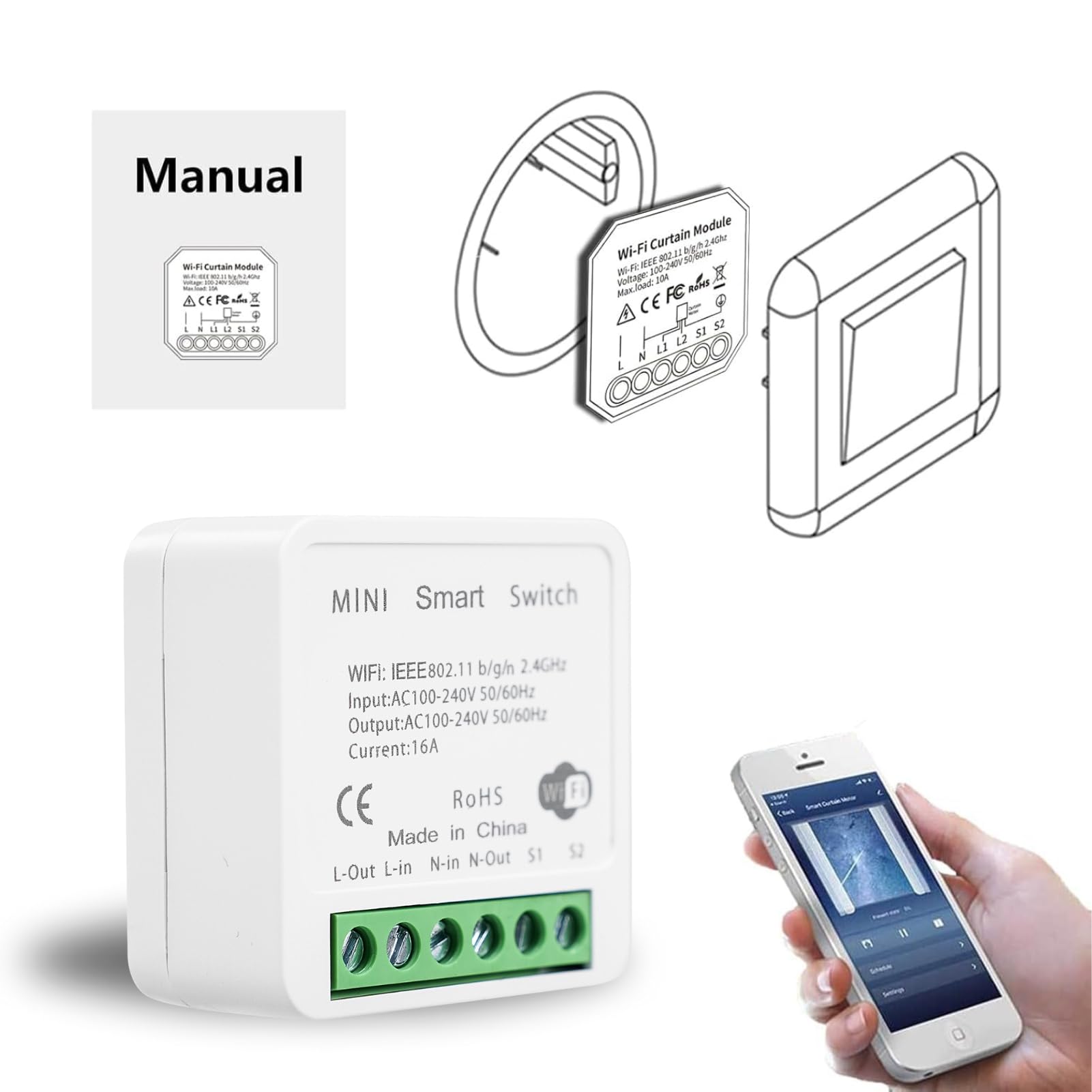
Image: The DEWIN Smart WiFi Switch, highlighting its compatibility with Tuya Smart Life, Alexa, and Google Assistant.
2. Safety Information
- Always disconnect power at the circuit breaker before installation, maintenance, or removal of the device.
- Installation should be performed by a qualified electrician or in accordance with local electrical codes.
- Do not exceed the maximum load rating of 16A.
- Ensure the device is installed in a dry environment, away from moisture and extreme temperatures.
- This device is designed for indoor use only.
3. Package Contents
- 1 x DEWIN Smart WiFi Switch (Model: QYAIAYEED-GS110297-01)
4. Specifications
| Feature | Specification |
|---|---|
| Input Voltage | AC 100-240V |
| Max Current | 16A |
| Frequency | 50/60Hz |
| Wireless Type | Wi-Fi 2.4GHz (IEEE 802.11 b/g/n) |
| Operating Temperature | Not specified (typical range 0°C to 40°C) |
| Dimensions (L x W x H) | 41 x 41 x 20 mm |
| Compatibility | Tuya Smart Life App, Amazon Alexa, Google Home |
5. Setup
5.1 App Installation
The DEWIN Smart WiFi Switch operates with the Tuya Smart Life application. Please follow these steps to install the app and add your device:
- Download the Smart Life app from the App Store (iOS) or Google Play Store (Android). You can also scan the QR code provided in the product images or visit http://e.tuya.com/smartlife.
- Register for a new account or log in if you already have one.

Image: Visual guide for adding the smart switch to the Smart Life app, showing login, device selection, WiFi connection, and successful pairing.
5.2 Device Pairing
After installing the app, you need to pair the switch. Ensure your Wi-Fi network is 2.4GHz. If your router broadcasts both 2.4GHz and 5GHz, ensure your phone is connected to the 2.4GHz network during pairing.
- Open the Smart Life app and tap "Add Device" or the "+" icon.
- Select the appropriate device type (e.g., "Switch (Wi-Fi)" or "Switch Module").
- Put the smart switch into pairing mode using one of the following methods until the LED indicator flashes rapidly and a beep sound is heard:
- Method 1: Press and hold the manual button on the switch for 5 seconds.
- Method 2: If connected to a rocker switch, turn the rocker switch ON/OFF 6 times.
- Method 3: Cycle the power to the switch ON and OFF 6 times.
- In the app, confirm that the indicator light is flashing rapidly.
- Enter your 2.4GHz Wi-Fi network password.
- The app will begin searching for the device. Once found, it will be added to your account.
- You can rename the device for easier identification.

Image: Three methods for signal pairing the smart switch, including pressing the button, toggling a rocker switch, or cycling power.
6. Operating the Device
6.1 App Control
Once paired, you can control your DEWIN Smart WiFi Switch from anywhere using the Smart Life app, as long as your phone has internet access (Wi-Fi or 4G/5G).
- On/Off Control: Tap the device icon in the app to toggle the connected appliance on or off.
- Timing Function: Set schedules, countdowns, or timers for automatic operation.

Image: Setting up a timing function in the Smart Life app to automate appliance operation.
6.2 Voice Control
The DEWIN Smart WiFi Switch is compatible with Amazon Alexa and Google Home for convenient voice control.
- Ensure your Alexa or Google Home device is set up and connected to the internet.
- In the Alexa or Google Home app, enable the "Smart Life" skill/service.
- Link your Smart Life account to Alexa/Google Home.
- Discover devices. Your DEWIN Smart WiFi Switch should appear.
- You can now use voice commands such as:
- "Alexa, turn on [Device Name]"
- "Hey Google, turn off [Device Name]"

Image: Remote control via app and voice control integration with Alexa and Google Home.
6.3 Shared Control
You can share control of your smart switch with family members, allowing multiple users to manage the device from their own smartphones.
- In the Smart Life app, navigate to the device settings.
- Select "Share Device" and invite family members by entering their Smart Life account details.
- Multiple phones can control one switch, and one phone can control multiple switches.
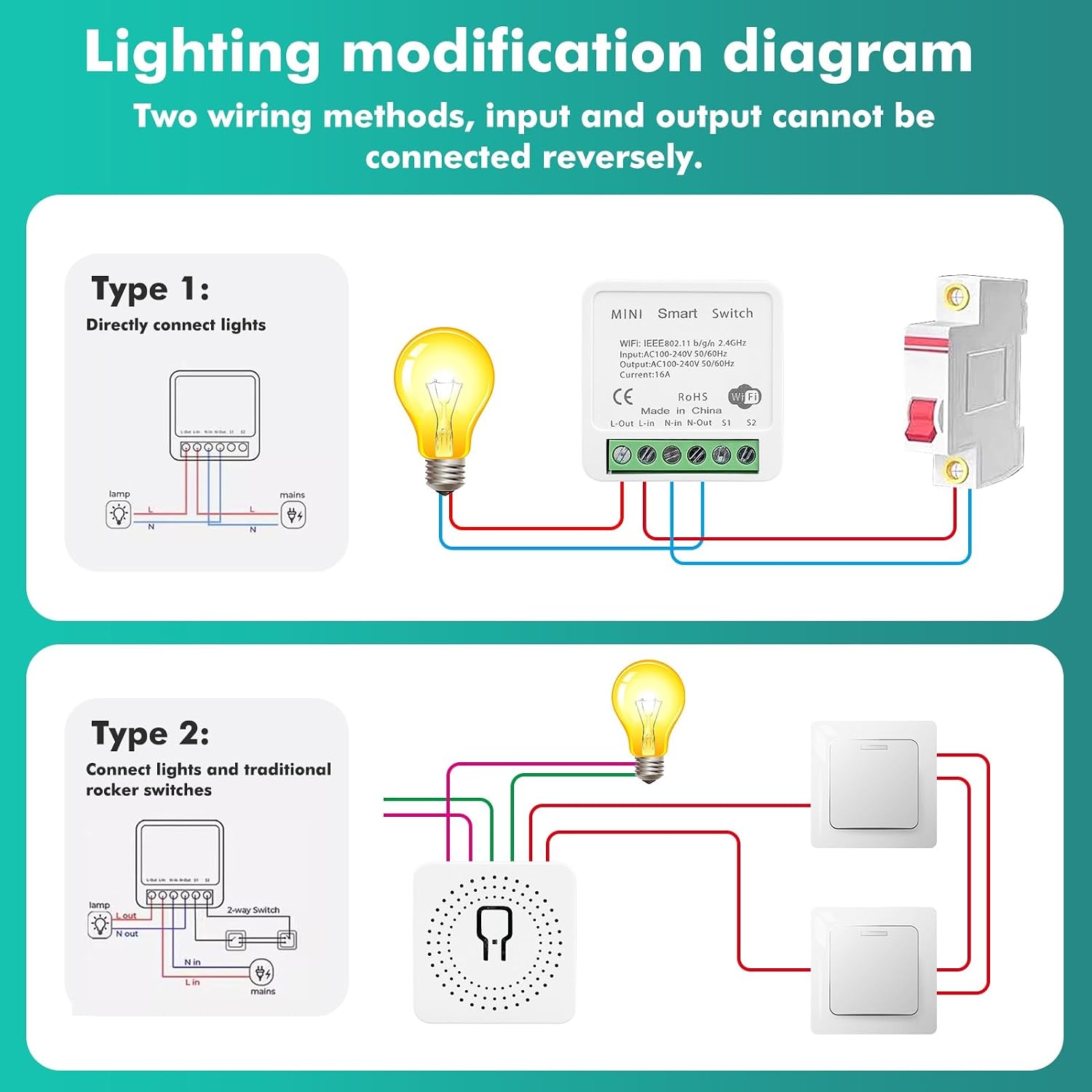
Image: Illustration of shared control functionality, showing one phone controlling multiple switches and multiple phones controlling one switch.
7. Installation
The DEWIN Smart WiFi Switch is designed for compact installation behind existing wall switches or in junction boxes. Always ensure power is disconnected before beginning installation.
7.1 Wiring Diagram
Refer to the following diagrams for correct wiring. Important: Input and output cannot be connected in reverse.

Image: Detailed wiring diagrams for connecting the smart switch directly to lights (Type 1) or integrating it with traditional rocker switches (Type 2).
7.2 Physical Installation
The compact size of the smart switch allows it to be placed conveniently within a standard electrical junction box, behind your existing wall switch.

Image: Visual representation of installing the smart switch inside a junction box behind a wall switch.
8. Maintenance
- Keep the device clean and free from dust. Use a soft, dry cloth for cleaning.
- Avoid exposing the device to water or other liquids.
- Do not attempt to disassemble or repair the device yourself. This will void the warranty and may cause electrical hazards.
- Regularly check for firmware updates in the Smart Life app to ensure optimal performance and security.
9. Troubleshooting
- Device not responding: Check if the power supply is connected. Ensure your Wi-Fi network is active and the switch is within range. Try restarting the switch by cycling its power.
- Cannot connect to Wi-Fi: Ensure you are using a 2.4GHz Wi-Fi network. Verify the Wi-Fi password. Move the switch closer to the router. If issues persist, try resetting the switch to factory settings (refer to Device Pairing section for reset methods) and re-pairing.
- Voice control not working: Ensure your Smart Life account is correctly linked to Alexa or Google Home. Try re-discovering devices in the Alexa/Google Home app. Check your internet connection.
- App control delayed: This could be due to network congestion or a weak Wi-Fi signal. Ensure your router is functioning correctly and the switch has a strong signal.
10. Warranty and Support
DEWIN products are designed for reliability and performance. For specific warranty details, please refer to the documentation provided with your purchase or contact your retailer. If you encounter any issues or require technical assistance, please contact DEWIN customer support through the contact information provided on the product packaging or the official DEWIN website. Please have your model number (QYAIAYEED-GS110297-01) and purchase details ready when contacting support.