1. Product Overview
The WONLILNK AX1800Mbps USB WiFi Adapter is designed to provide high-speed wireless connectivity for your desktop or laptop computer. Featuring Wi-Fi 6 (802.11ax) technology, dual-band support (2.4GHz and 5GHz), USB 3.0 interface, MU-MIMO, and WPA3 encryption, this adapter offers enhanced performance, stability, and security for your network needs. It is ideal for 4K streaming, online gaming, and general internet use.
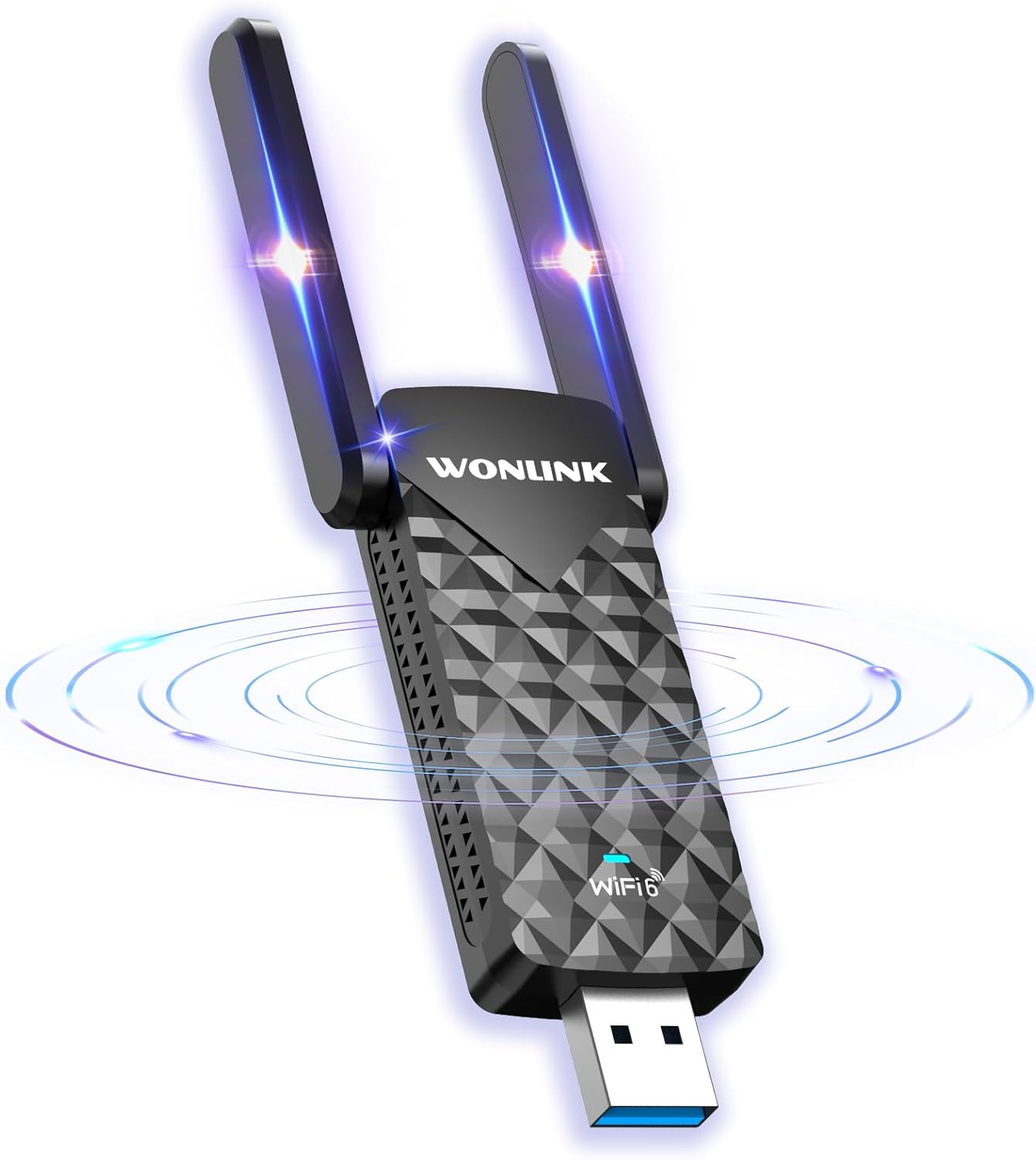
Image: The WONLILNK AX1800Mbps USB WiFi Adapter, showcasing its compact design and dual adjustable antennas.
2. Setup and Installation
The WONLILNK USB WiFi Adapter is designed for easy plug-and-play installation on Windows 10/11 systems. Follow these steps to set up your adapter:
- Insert the Adapter: Plug the USB WiFi adapter into an available USB 3.0 port on your desktop or laptop computer. Ensure it is securely inserted.
- Automatic Driver Installation: For Windows 10/11, the system should automatically detect the adapter and install the necessary drivers. Wait for your computer to recognize the device.
- Manual Driver Installation (if needed): If the driver does not install automatically, or if you are using an older operating system, you may need to manually install the driver. The adapter typically contains a built-in driver. Open "This PC" or "My Computer", locate the "CD Drive" (which represents the adapter's virtual drive), and double-click the "WiFiAutoInstall" executable to begin the installation. Follow the on-screen prompts.
- Restart Your Computer: After the driver installation is complete, it is recommended to restart your computer to ensure all changes take effect.

Image: The USB WiFi adapter connected to a laptop, illustrating its plug-and-play compatibility with Windows 10/11.
Setup Guide Video
Video: A visual guide demonstrating the setup process for the WONLINK WiFi 6 USB adapter, including driver installation and initial connection.
3. Operating Modes
The WONLILNK USB WiFi Adapter supports two primary operating modes:
- Station Mode (Signal Receive): In this mode, the adapter functions as a client, allowing your desktop PC or laptop to connect to an existing WiFi network without the need for an Ethernet cable. This is the most common use case for the adapter.
- AP Mode (Signal Transmit): When connected to a computer with a wired network connection, the adapter can operate as an Access Point (AP). This allows it to share the wired internet connection wirelessly with other devices, effectively turning your computer into a WiFi hotspot.

Image: A visual representation of the two working modes: Station Mode for receiving WiFi signals and AP Mode for transmitting WiFi signals.
4. Key Features and Performance
This adapter incorporates advanced technologies to deliver a superior wireless experience:
- AX1800Mbps Wi-Fi 6: Supports the latest Wi-Fi 6 (802.11ax) standard, offering combined speeds of up to 1800Mbps (1201Mbps on 5GHz and 574Mbps on 2.4GHz). This provides faster transmission and lower latency compared to previous Wi-Fi standards.
- Dual Band Connectivity: Operates on both 2.4GHz and 5GHz bands. The 5GHz band offers higher speeds for demanding tasks like 4K streaming and online gaming, while the 2.4GHz band provides better penetration and longer range for general browsing.
- USB 3.0 Interface: Utilizes the USB 3.0 standard for maximum data throughput, ensuring the adapter can achieve its full speed potential without being bottlenecked by the USB connection.
- MU-MIMO Technology: Multi-User, Multiple-Input, Multiple-Output (MU-MIMO) allows the adapter to communicate with multiple devices simultaneously, improving network efficiency and reducing congestion in multi-device environments.
- WPA3 Encryption: Supports the latest WPA3 security protocol, providing enhanced encryption and protection for your wireless network against external threats.
- High Gain Antennas: Equipped with two 5dBi high-gain antennas that can be rotated 180 degrees, optimizing signal reception and transmission for a stronger and more stable connection.
- Efficient Heat Dissipation: Designed with effective heat dissipation mechanisms to ensure stable performance even during prolonged use.

Image: Detailed view of the adapter's internal components and design features, emphasizing efficient heat dissipation and antenna capabilities.

Image: The adapter's ability to connect to multiple devices concurrently, demonstrating its MU-MIMO capability for a smart home environment.
5. Specifications
| Feature | Detail |
|---|---|
| Model Number | WL-NA1602 |
| Wireless Standard | Wi-Fi 6 (802.11ax) |
| Wireless Speed | Up to 1800Mbps (1201Mbps 5GHz, 574Mbps 2.4GHz) |
| Interface | USB 3.0 |
| Antennas | 2 x 5dBi High Gain, 180° Rotatable |
| Security Encryption | WPA3 |
| Technology | MU-MIMO, OFDMA |
| Operating System Compatibility | Windows 10/11 (Plug and Play) |
| Package Dimensions | 5.87 x 3.54 x 0.91 inches |
| Item Weight | 2.08 ounces |
| Manufacturer | WONLINK |
6. Troubleshooting
- Adapter Not Detected:
- Ensure the adapter is firmly plugged into a USB port.
- Try a different USB port, preferably a USB 3.0 port (often blue inside).
- Restart your computer.
- Check Device Manager to see if the adapter is listed (look under "Network adapters" or "Other devices"). If it has a yellow exclamation mark, the driver may not be installed correctly.
- Cannot Connect to WiFi Network:
- Verify that your WiFi network is active and broadcasting.
- Double-check the WiFi password. Passwords are case-sensitive.
- Ensure your router is within range.
- Restart your router and modem.
- If you have a dual-band router, try connecting to both the 2.4GHz and 5GHz networks to see if one works.
- Slow Connection Speed:
- Ensure the adapter is plugged into a USB 3.0 port. USB 2.0 ports will limit performance.
- Minimize physical obstructions (walls, large furniture) between the adapter and your router.
- Reduce interference from other electronic devices (e.g., microwaves, cordless phones).
- Ensure your router supports Wi-Fi 6 for optimal performance.
- Update your router's firmware.
- Not Detecting WiFi 6 Network:
- Confirm that your router is a Wi-Fi 6 (802.11ax) compatible router and that Wi-Fi 6 is enabled in its settings.
- Ensure the adapter's drivers are up to date. Although the adapter is advertised as Wi-Fi 6, some older drivers might not fully support all Wi-Fi 6 features or detect certain Wi-Fi 6 networks. Reinstalling the driver from the adapter's virtual CD drive or checking the manufacturer's website for the latest version is recommended.
7. Warranty and Support
WONLINK products are designed for reliability and performance. For information regarding warranty coverage, technical support, or frequently asked questions, please refer to the official WONLINK website or contact their customer service directly.
You can also visit the WONLINK Store on Amazon for additional product information and support resources.


