
DOOGEE V Max Pro
DOOGEE V Max Pro Rugged Phone User Manual
Model: V Max Pro
Introduction
This manual provides comprehensive instructions for the safe and efficient use of your DOOGEE V Max Pro Rugged Phone. Please read this manual thoroughly before operating the device to ensure optimal performance and longevity. The DOOGEE V Max Pro is designed for durability and high performance, featuring a robust build and advanced mobile technology.

Figure 1: DOOGEE V Max Pro Rugged Phone and included Tablet Stand.
Setup
1. Unboxing and Initial Inspection
Carefully unpack all components from the box. Verify that the package contains the DOOGEE V Max Pro phone, the tablet stand, a charging cable, and a power adapter. Inspect all items for any signs of damage.
2. Initial Charging
Before first use, fully charge the phone. Connect the charging cable to the phone's charging port and the power adapter, then plug the adapter into a wall outlet. The phone supports 33W fast charging. A full charge ensures optimal battery calibration.
3. SIM Card and MicroSD Card Installation
Locate the SIM card tray on the side of the phone. Use the provided SIM ejector tool to open the tray. Insert your Nano-SIM card(s) and/or a MicroSD card (up to 2TB supported) into the designated slots. Ensure the cards are correctly oriented before reinserting the tray firmly into the phone.
4. Powering On
Press and hold the power button located on the side of the phone until the DOOGEE logo appears on the screen. Follow the on-screen prompts to complete the initial setup, including language selection, Wi-Fi connection, and Google account setup.
5. Tablet Stand Assembly and Usage
The included tablet stand is designed for versatile viewing. Unfold the stand to its desired angle. Place your DOOGEE V Max Pro or a compatible tablet onto the stand's cradle. The stand features a sturdy base and adjustable angles for comfortable viewing.
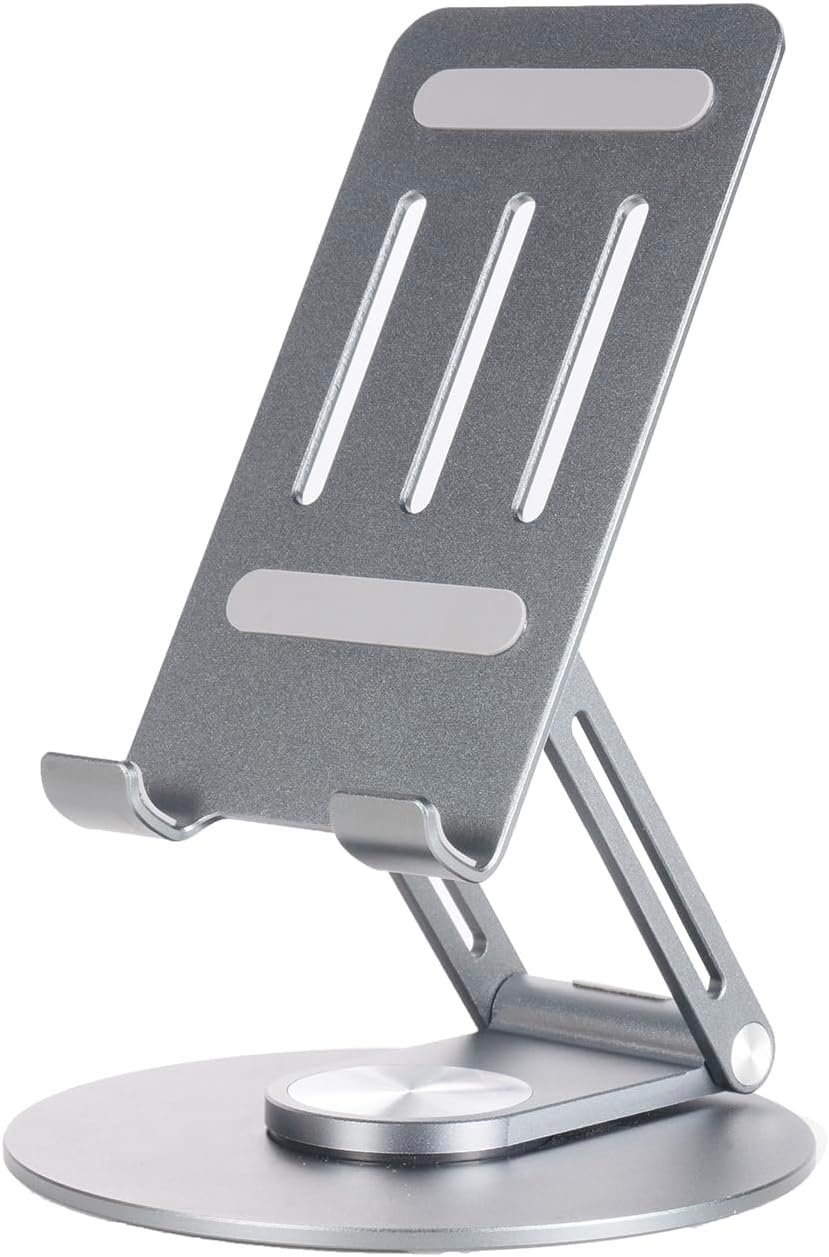
Figure 2: The adjustable tablet stand.

Figure 3: Tablet stand in use with a device.
Operating Instructions
1. Basic Phone Functions
- Making Calls: Open the Phone app, dial the number, and press the call button.
- Sending Messages: Open the Messages app, start a new conversation, enter the recipient and your message.
- Internet Connectivity: Connect to Wi-Fi via Settings > Network & internet > Wi-Fi, or enable mobile data via Settings > Network & internet > Mobile network. The phone supports 5G connectivity for fast data speeds.
2. Display Features
The DOOGEE V Max Pro features a 6.58-inch FHD+ IPS Waterdrop Display with a 120Hz high refresh rate for smooth visuals. It offers 2.4K screen resolution, 401 PPI, 16.7 million colors, and a 1500:1 contrast ratio, ensuring vibrant and clear images. The display has an 85% screen-to-body ratio for an immersive viewing experience.

Figure 4: Visual representation of the 120Hz display and its specifications.
3. Camera Usage
The phone is equipped with a versatile camera system:
- 108MP AI Main Camera: For high-resolution photos with AI enhancements.
- 20MP Night Vision Camera: Captures clear images in low-light or complete darkness.
- 8MP Wide Angle & Macro Camera: For expansive landscape shots or detailed close-ups.
- 16MP Front Camera: For selfies and video calls.
Open the Camera app and select your desired mode (Photo, Video, Night Vision, Macro, etc.). Tap the shutter button to capture images or start/stop video recording.

Figure 5: Overview of the phone's multi-camera system.
4. Battery Management
The DOOGEE V Max Pro features a massive 22000mAh battery, providing extended usage times. It supports 33W fast charging. The phone also supports OTG (On-The-Go) reverse charging, allowing you to use it as a power bank to charge other devices.
- Standby: Up to 1540 hours
- Calling: Up to 156 hours
- Music Playing: Up to 142 hours
- Video Watching: Up to 45 hours
- Web Browsing: Up to 18 hours

Figure 6: Battery capacity and estimated usage times.
5. Smart Interaction Lights
The phone features smart interaction lights that provide visual notifications for various events:
- Incoming Calls
- SMS Notifications
- Music Playback
- Charging Status

Figure 7: Examples of smart interaction light indications.
6. Processor and Performance
The DOOGEE V Max Pro is powered by the Dimensity 7050 5G Octa-core Processor, designed for boosted performance and reduced power consumption. This ensures smooth multitasking, gaming, and overall system responsiveness.

Figure 8: Illustration of the Dimensity 7050 5G Octa-core Processor.
7. Storage
The phone offers massive storage with up to 32GB RAM (12GB physical + 20GB extended RAM) and 512GB ROM. It also supports an external MicroSD card up to 2TB, providing ample space for applications, media, and documents.

Figure 9: Visual representation of RAM and ROM capacities.
Maintenance
1. Cleaning
To clean your phone, use a soft, lint-free cloth. For stubborn smudges, slightly dampen the cloth with water or a screen cleaner. Avoid using harsh chemicals, abrasive materials, or excessive moisture, especially near ports.
2. Ruggedness and Protection
The DOOGEE V Max Pro is designed as a rugged phone, featuring a durable construction of metal or strong plastic composite. While it is built to withstand harsh environments, avoid intentional drops, extreme temperatures, or prolonged submersion in water beyond its rated capabilities (if any specific IP rating is available, it would be mentioned here, but it's not in the provided data). Ensure all port covers are securely closed to maintain water and dust resistance.
3. Software Updates
Regularly check for and install software updates to ensure your phone has the latest features, security patches, and performance improvements. You can usually find this option in Settings > System > System update.
Troubleshooting
Common Issues and Solutions
- Phone not turning on: Ensure the battery is charged. Connect to the charger for at least 15 minutes before attempting to power on again.
- Screen unresponsive: Try restarting the phone by holding the power button for about 10-15 seconds.
- Poor signal/connectivity: Check if SIM card is properly inserted. Try restarting the phone or toggling Airplane Mode on/off. Ensure you are in an area with network coverage.
- Apps crashing: Clear the cache of the problematic app (Settings > Apps > [App Name] > Storage & cache > Clear cache). If the issue persists, try reinstalling the app.
- Battery draining quickly: Reduce screen brightness, close unused apps running in the background, and disable unnecessary features like GPS or Bluetooth when not in use.
For issues not listed here, please refer to the official DOOGEE support website or contact customer service.
Specifications
| Feature | Specification |
|---|---|
| Model | DOOGEE V Max Pro |
| Battery Capacity | 22000mAh |
| Charging | 33W Fast Charging, OTG Reverse Charging |
| Processor | Dimensity 7050 5G Octa-core |
| RAM | Up to 32GB (12GB physical + 20GB extended) |
| ROM | 512GB |
| Expandable Storage | Supports up to 2TB MicroSD Card |
| Display | 6.58" FHD+ 120Hz IPS Waterdrop Display |
| Display Resolution | 2.4K Screen Resolution, 401 PPI |
| Main Camera | 108MP AI Main Camera |
| Night Vision Camera | 20MP |
| Wide Angle & Macro Camera | 8MP |
| Front Camera | 16MP |
| Connectivity | 5G |
| Material | Metal or Strong Plastic Composite |
| ASIN | B0DR8DRWF7 |
| First Available Date | December 23, 2024 |
Related documentsV Max Pro


Ask a question about this manual
Ask about setup, troubleshooting, compatibility, parts, safety, or missing instructions. Manuals+ will review the question and use this page’s manual context to help answer it.