
1. Overview
This manual provides detailed instructions for the TECKNET TK-KB006 4-Device Wireless Keyboard. This keyboard offers versatile connectivity options, including 2.4G wireless and three Bluetooth channels, allowing seamless switching between up to four devices. It features a rechargeable battery, quiet scissor-switch keys, and an ergonomic design for comfortable use across various operating systems.

Figure 1: TECKNET TK-KB006 Wireless Keyboard with its 2.4G USB receiver.
2. Package Contents
Verify that all items are present in your package:
- 1 x TECKNET TK-KB006 Multi-Device Wireless Keyboard
- 1 x 2.4G USB Receiver (stored in the keyboard's back compartment)
- 1 x USB-C Charging Cable
- 1 x User Manual
3. Product Features
- 4-Mode Connectivity: Supports 2.4G wireless and three Bluetooth channels (BT1, BT2, BT3) for connecting up to four devices simultaneously.
- Rechargeable Battery: Built-in 500mAh battery provides extended use, lasting up to 180 days on a single 2-hour charge (based on 2 hours of daily use).
- Quiet Scissor-Switch Keys: 86 upgraded scissor-switch keys offer 90% noise reduction and a comfortable typing experience with 2mm key travel.
- Ergonomic Design: Keys are shaped to fit fingertips, and adjustable support allows for a 3°-7° tilt angle. Five non-slip pads ensure stability.
- Broad Compatibility: Compatible with Windows, iOS, macOS, and Android operating systems.
- 14 Multimedia Hotkeys: Dedicated hotkeys for quick access to common functions.
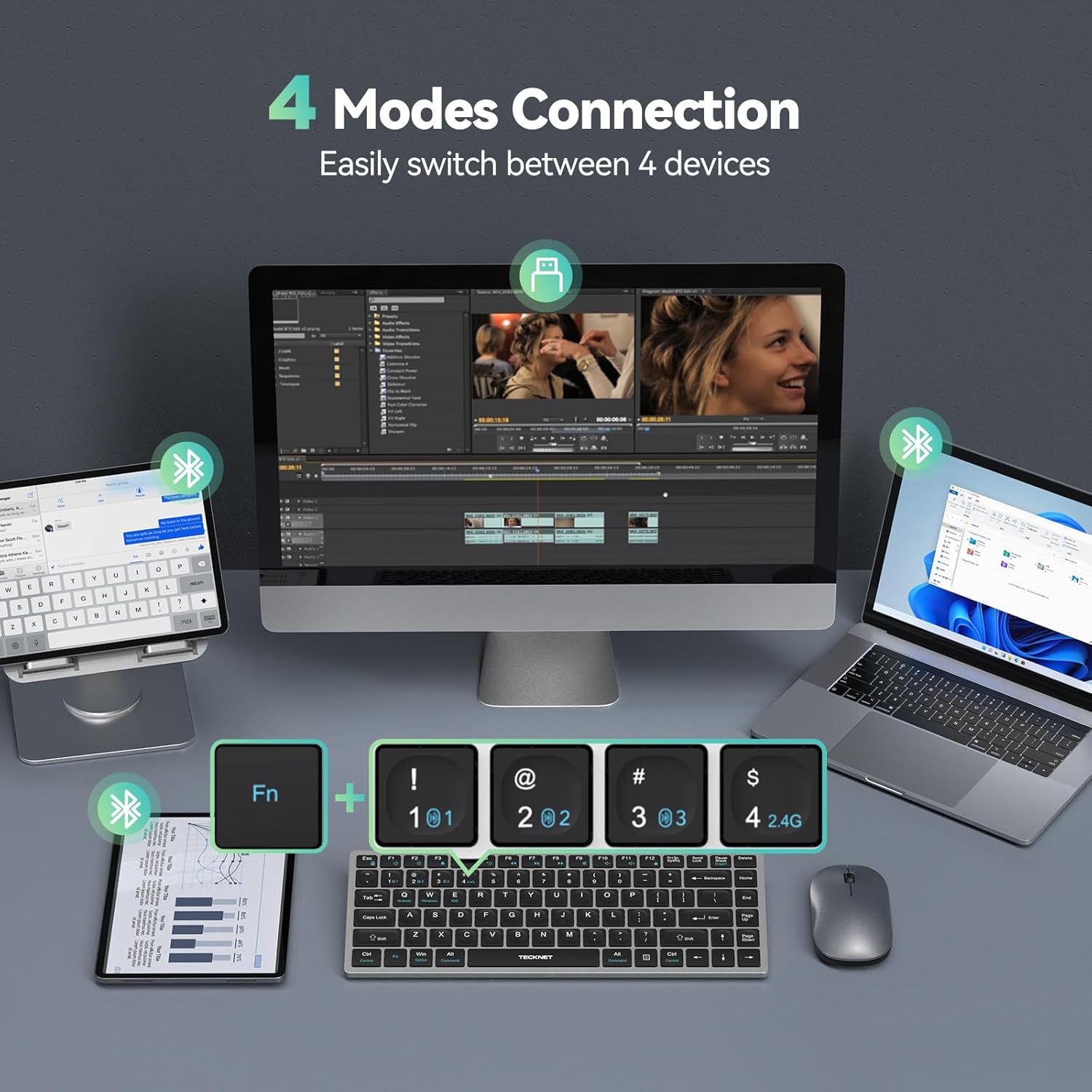
Figure 2: The keyboard supports 4 modes of connection, allowing easy switching between devices.

Figure 3: Illustration of the scissor-switch key structure for comfortable and quiet typing.
4. Setup
4.1 Charging the Keyboard
Before initial use, fully charge the keyboard. Connect the provided USB-C charging cable to the keyboard's USB-C port and the other end to a power source (e.g., computer USB port, USB wall adapter).

Figure 4: The keyboard features a USB-C port for quick charging.
4.2 Power On/Off
Locate the power switch on the back of the keyboard. Slide it to the 'ON' position to power on the keyboard. Slide it to 'OFF' when not in use to conserve battery.

Figure 5: Rear view of the keyboard highlighting the power switch, charging port, and 2.4GHz USB receiver storage.
4.3 2.4G Wireless Connection
- Retrieve the 2.4G USB receiver from its storage slot on the back of the keyboard.
- Plug the USB receiver into an available USB-A port on your computer or smart TV.
- The keyboard will automatically connect to the device. The 2.4G indicator light will illuminate briefly.
4.4 Bluetooth Connection (BT1, BT2, BT3)
- Turn on the keyboard.
- Press and hold the Fn key and one of the Bluetooth channel keys (1, 2, or 3) for 3-5 seconds until the corresponding Bluetooth indicator light (BT1, BT2, or BT3) starts blinking rapidly. This indicates the keyboard is in pairing mode.
- On your device (laptop, tablet, smartphone), go to Bluetooth settings and search for new devices.
- Select "TECKNET Keyboard" or a similar name from the list of available devices.
- Follow any on-screen prompts to complete the pairing process. The indicator light will stop blinking and remain solid for a few seconds, then turn off, indicating successful pairing.

Figure 6: Use Fn + 1, 2, or 3 to initiate Bluetooth pairing for different channels.
4.5 Switching Operating Systems
The keyboard automatically detects and adapts to different operating systems. For optimal functionality, you can manually switch the keyboard layout to match your device's OS:
- For Android: Press Fn + Q
- For Windows: Press Fn + W
- For iOS/macOS: Press Fn + E
5. Operating Instructions
5.1 Switching Between Connected Devices
To switch between your connected devices:
- For 2.4G wireless connection: Press Fn + 4
- For Bluetooth 1 connection: Press Fn + 1
- For Bluetooth 2 connection: Press Fn + 2
- For Bluetooth 3 connection: Press Fn + 3
5.2 Multimedia Hotkeys
The keyboard includes 14 multimedia hotkeys for quick access to various functions. To use these hotkeys, press and hold the Fn key simultaneously with the desired function key.
| Key Combination | Function |
|---|---|
| Fn + Esc | Lock Fn (Toggle Fn lock) |
| Fn + F1 | Screen Brightness - |
| Fn + F2 | Screen Brightness + |
| Fn + F3 | Browser Homepage |
| Fn + F4 | Search |
| Fn + F5 | Undo |
| Fn + F6 | Previous Track |
| Fn + F7 | Play/Pause |
| Fn + F8 | Next Track |
| Fn + F9 | Mute/Unmute |
| Fn + F10 | Volume - |
| Fn + F11 | Volume + |
| Fn + F12 | Lock Screen |
| Fn + Menu Key | Context Menu |

Figure 7: A visual guide to the keyboard's 14 multimedia hotkeys.
5.3 Adjustable Tilt
The keyboard features adjustable support buckles on the back, allowing you to set a comfortable typing angle between 3° and 7°.
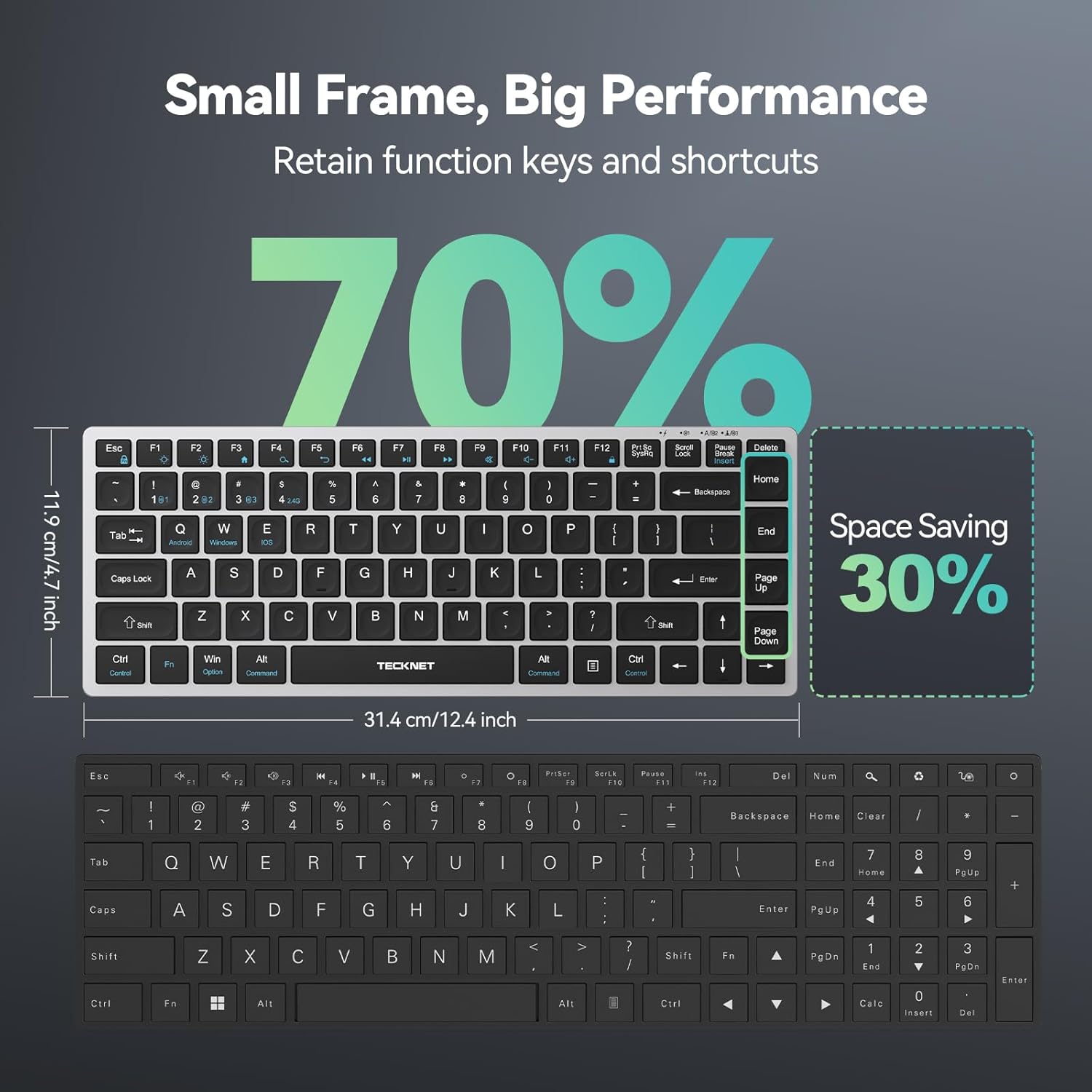
Figure 8: The adjustable stand provides an ergonomic typing angle.
5.4 Automatic Sleep Mode
To conserve battery life, the keyboard automatically enters sleep mode after 30 minutes of inactivity. Press any key to wake it up instantly.
6. Maintenance
- Cleaning: Use a soft, damp cloth to clean the keyboard surface. Avoid harsh chemicals or abrasive materials.
- Storage: When not in use for extended periods, turn off the keyboard and store it in a dry, cool place.
- Battery Care: To prolong battery life, avoid fully discharging the battery frequently. Charge it regularly.
- USB Receiver: Store the 2.4G USB receiver in its designated slot on the back of the keyboard to prevent loss.
7. Troubleshooting
7.1 Keyboard Not Connecting
- Check Power: Ensure the keyboard is turned on and has sufficient battery charge.
- 2.4G Connection: Verify the USB receiver is securely plugged into your device. Try a different USB port.
- Bluetooth Connection: Ensure Bluetooth is enabled on your device. Re-enter pairing mode (Fn + 1/2/3 for 3-5 seconds) and re-pair the keyboard. Remove previous pairings from your device's Bluetooth list if necessary.
- Operating System: Confirm the keyboard's OS mode matches your device (Fn + Q/W/E).
7.2 Keys Not Responding
- Recharge: The battery might be low. Charge the keyboard.
- Reconnect: Try turning the keyboard off and on, or re-establishing the connection (2.4G or Bluetooth).
- Interference: Move the keyboard closer to your device and away from other wireless devices that might cause interference.
7.3 Keyboard Keeps Disconnecting
- Battery Level: Ensure the keyboard is adequately charged.
- Distance: Keep the keyboard within the effective range (up to 15 meters).
- Interference: Minimize interference from other wireless devices.
- Device Settings: Check your device's power management settings to ensure it's not turning off Bluetooth or USB ports to save power.
8. Specifications
| Feature | Detail |
|---|---|
| Model Number | TK-KB006 |
| Connectivity Technology | Bluetooth, 2.4G Wireless (USB-A) |
| Compatible Devices | Laptop, PC, Smart TV (BT 5.0 only), Smartphone, Tablet |
| Product Dimensions | 12.4 x 4.7 x 0.57 inches (31.4 x 11.9 x 1.45 cm) |
| Item Weight | 14.1 ounces (399.7 grams) |
| Battery | 1 Lithium Ion battery (included), 500mAh |
| Special Features | 14 Multimedia Hotkeys, 90% Noise Reduction, Low-Profile Key, Rechargeable, Spill Proof |
| Color | Sliver+Black |
| Material | Plastic |
9. Warranty and Support
TECKNET provides up to 36 months of support for this product (registration may be required). If you encounter any issues or have questions regarding your TK-KB006 keyboard, please contact our professional customer service team for assistance.
For customer service, please refer to the contact information provided on the TECKNET official website or your product packaging.
Video 1: Official TECKNET overview of the 4-Device Bluetooth and 2.4G Wireless Keyboard, demonstrating its multi-device switching capabilities and features.


