
JSAUX PM0209
JSAUX FlipGo Pro 15.6" Dual Portable Monitor User Manual
This manual provides detailed instructions for setting up, operating, and maintaining your JSAUX FlipGo Pro 15.6" Dual Portable Monitor. Please read thoroughly before use.
1. Introduction
The JSAUX FlipGo Pro 15.6" Dual Portable Monitor is an innovative solution designed to expand your laptop's display capabilities, offering a triple-screen workstation for enhanced productivity. This device features two stacked 15.6-inch IPS LCD matte panels with 1080P FHD resolution, a 60Hz refresh rate, 180° wide viewing angle, and a 16:9 aspect ratio. It incorporates flicker-free low blue light technology for comfortable extended use. The FlipGo Pro also includes a built-in hub with multiple ports for versatile connectivity.
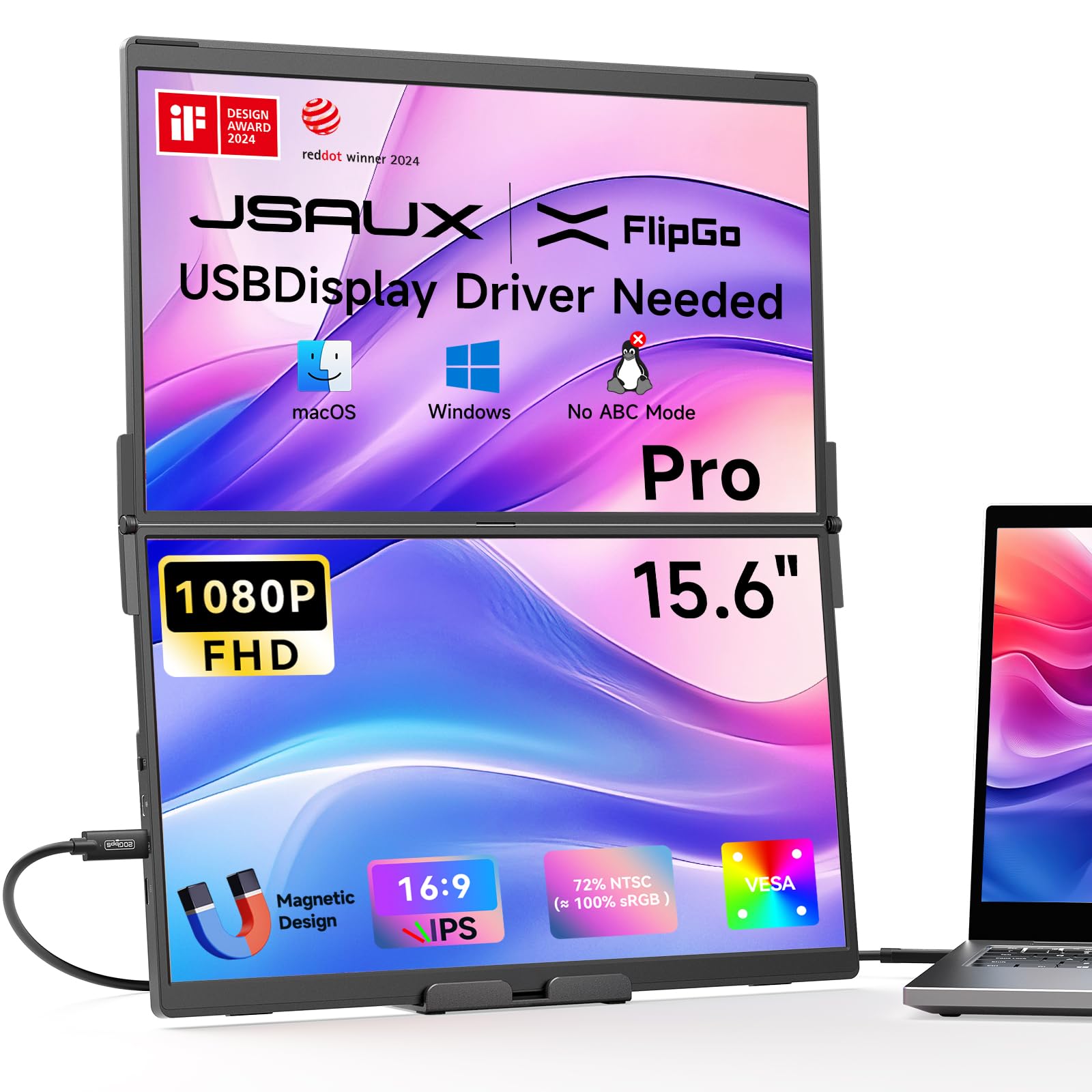
Image: The JSAUX FlipGo Pro 15.6" Dual Portable Monitor in its compact, folded state.

Image: Visual representation of the monitor's display specifications, including 1080P IPS LCD, 72% NTSC, 300 nits brightness, 1200:1 contrast ratio, 60Hz refresh rate, and 16:9 aspect ratio.

Image: A laptop connected to the JSAUX FlipGo Pro in a stacked configuration, illustrating an expanded view and increased productivity. Note: Requires FlipGo magnetic snap stand (sold separately).
Video: An overview of the JSAUX FlipGo Portable Monitor, showcasing its features and portability.
2. What's in the Box
Please ensure all items are present in the package:
- FlipGo 15.6'' Pro Portable Monitor
- Folio (Leather Protective Case)
- USB 4.0 USB C Full-function Data Cable (0.8m/2.6ft)
- HDMI-Mini HDMI Video Cable (1.2m)
- Stand Holder
- Power Adapter
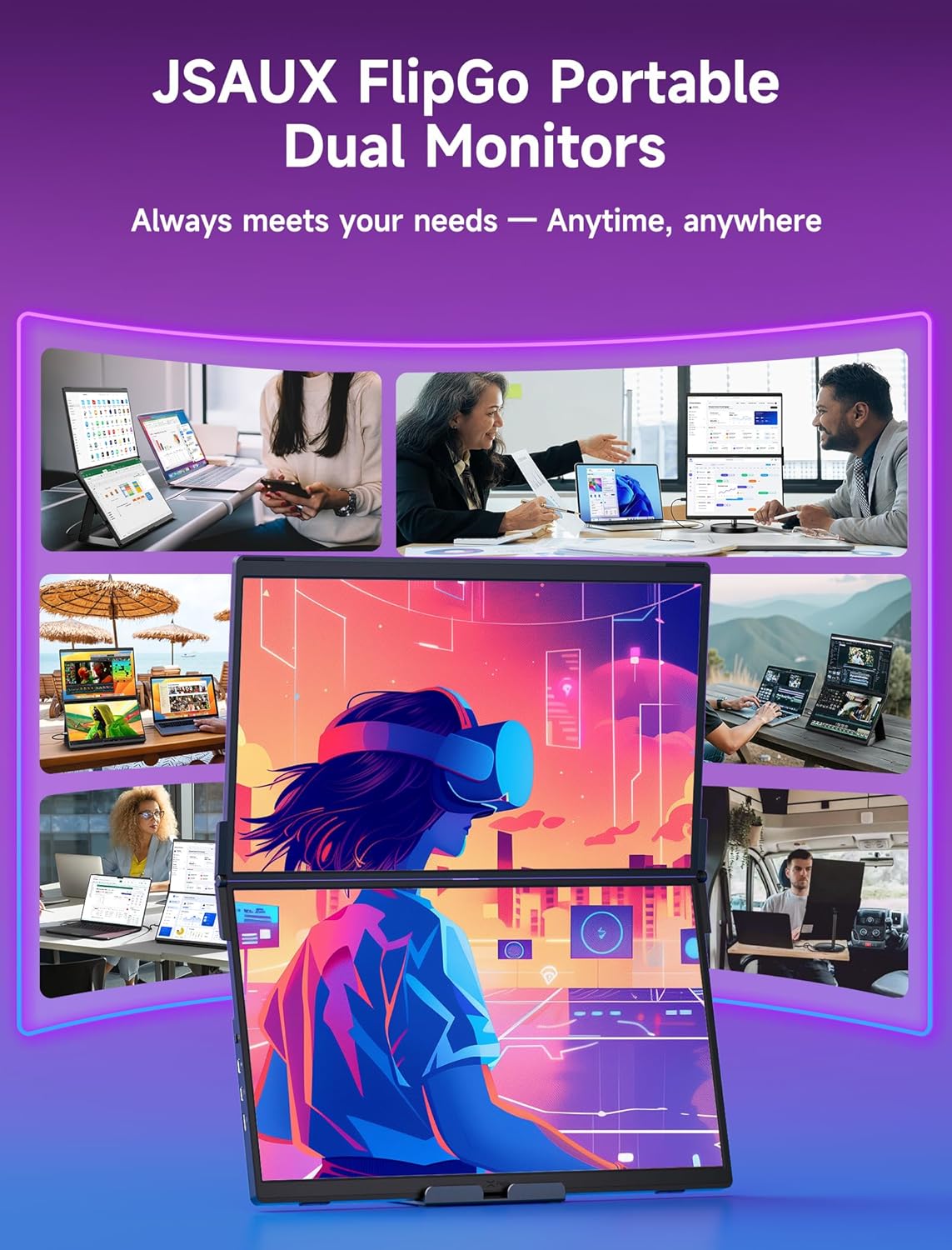
Image: All components included in the JSAUX FlipGo Pro package, including the monitor, cables, stand holder, and power adapter.
3. Setup
3.1 Assembling the Stand Holder
To assemble the included stand holder:
- Insert the telescopic aluminum tube into the base.
- Tighten the screws using the provided tools to secure the tube to the base.
- Align the magnetic part of the display with the stand's magnetic bracket and hold it in place.
- Place the monitor steadily on the stand.
- Adjust the monitor to your preferred height and angle.
Video: Step-by-step instructions on how to assemble and use the stand holder with the FlipGo monitor.
3.2 Connecting to Your Laptop
The FlipGo Pro supports connection via a single USB-C cable or a combination of Mini-HDMI and USB-C for power.
- Single USB-C Connection: Connect the provided USB-C to USB-C cable from your laptop's full-function USB-C port to the FlipGo Pro's USB-C display port. This single cable can provide both power and video signal.
- Mini-HDMI + USB-C Power Connection: Connect the provided HDMI-Mini HDMI cable from your laptop's HDMI port to the FlipGo Pro's Mini-HDMI port. Then, connect a USB-C power cable from your laptop's USB-C port or a power adapter (15W or higher recommended) to the FlipGo Pro's USB-C power port.
Driver Installation: For Windows and macOS, a USBDisplay driver is required to enable all display modes, especially the Extend (ABC) mode. Please download and install the designated USBDisplay driver from the official JSAUX website. Linux only supports connection via the Mini HDMI port and does not support ABC mode.
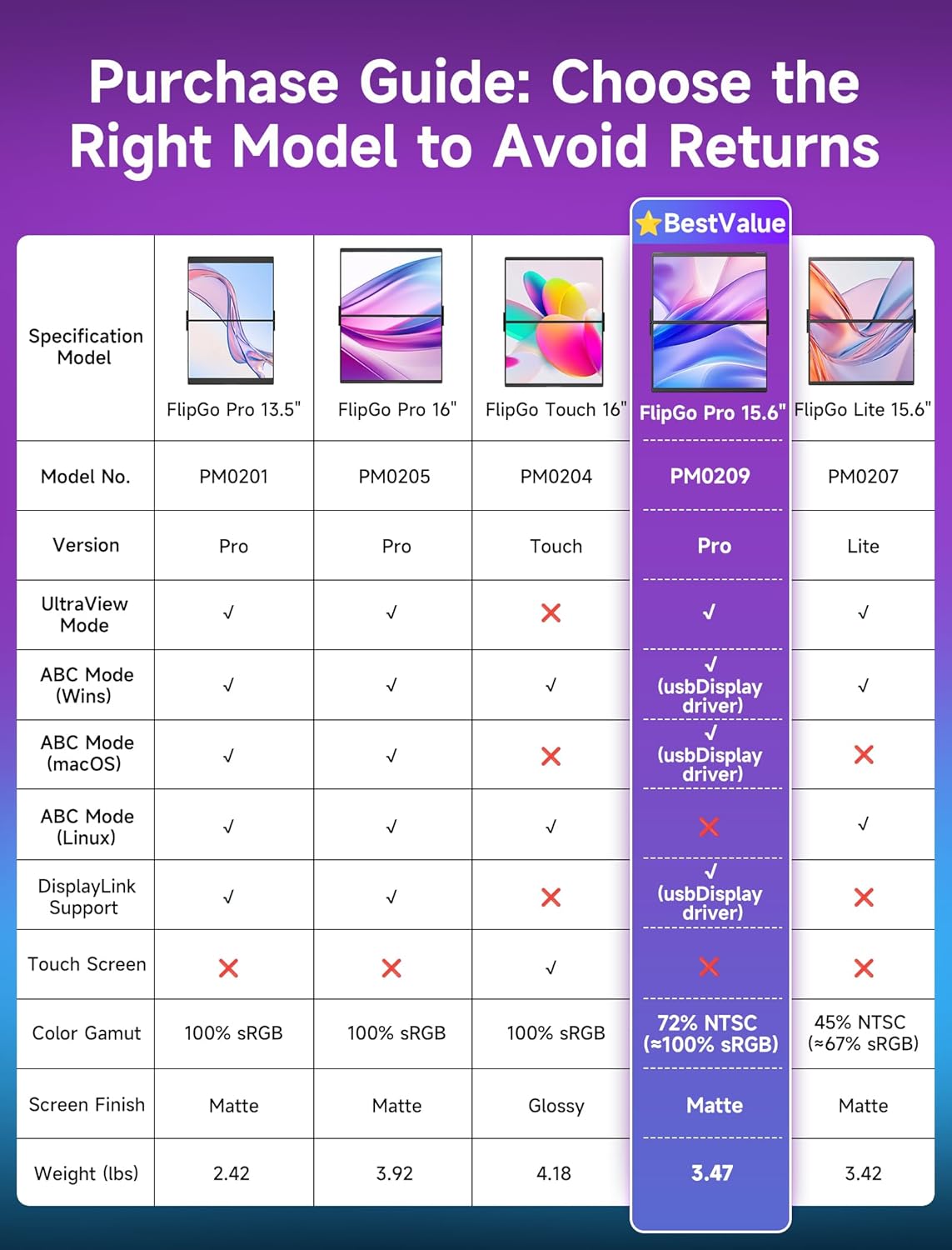
Image: Illustration of connecting the FlipGo Pro to a laptop using a single USB-C cable, highlighting the need for a USBDisplay driver for Windows, macOS, and Linux.
4. Operating Modes
The JSAUX FlipGo Pro offers three primary display modes to suit various workflow needs:
- Ultra Mode: Combines both screens into one seamless, ultra-wide display. Ideal for video editing, large spreadsheets, or extensive coding.
- Mirror Mode: Duplicates your laptop's screen onto the FlipGo Pro displays. Useful for presentations or sharing content with others.
- Extend Mode (ABC Mode): Provides a full triple-display setup, extending your laptop screen across both FlipGo Pro monitors. This mode requires the USBDisplay driver for Windows and macOS.
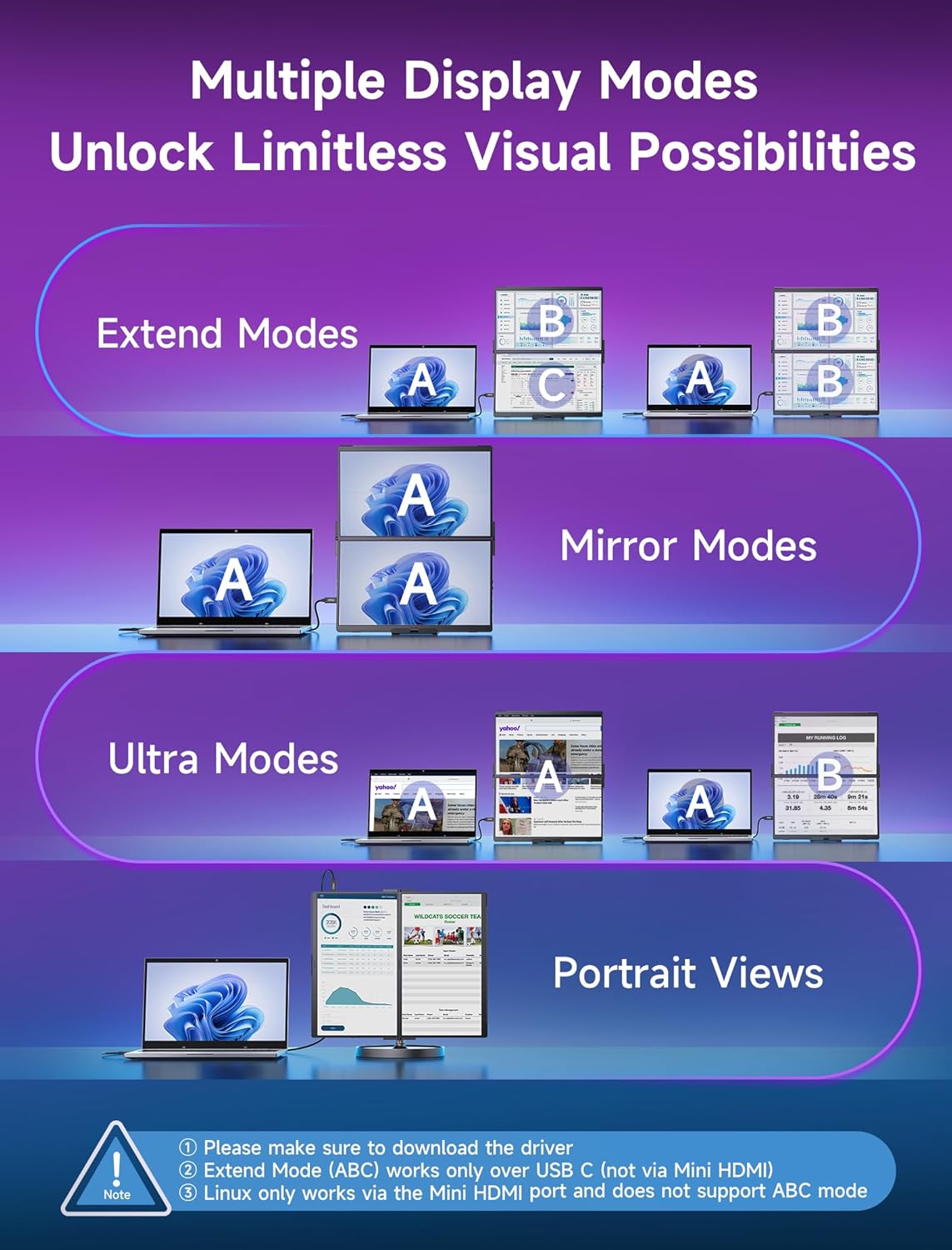
Image: Visual examples of Extend Modes, Mirror Modes, Ultra Modes, and Portrait Views available with the FlipGo Pro. Note: Driver installation is required for certain modes.
4.1 USB-C Port Display Modes
When connected via a full-function USB-C port, the following modes are available (driver required for Extend Modes):
- Extend Modes (ABC)
- Mirror Modes
- Portrait Views (supports extend/mirror/ultra modes)
- Ultra Modes

Image: Diagram illustrating various display modes (Extend, Mirror, Portrait, Ultra) when using a USB-C connection. Driver installation is required for Extend Modes (ABC).
4.2 Mini-HDMI Port Display Modes
When connected via the Mini-HDMI port (requires at least 15W of power input via USB-C), the following modes are available:
- Extend Modes (ABC) - Note: Extend Mode (ABC) works only over USB-C (not via Mini HDMI).
- Mirror Modes
- Portrait Views (supports extend/mirror/ultra modes)
- Ultra Modes
The Mini HDMI port supports Windows, macOS, and Linux.

Image: Diagram illustrating various display modes (Extend, Mirror, Portrait, Ultra) when using a Mini HDMI connection. Note: Extend Mode (ABC) is not supported via Mini HDMI.
5. Connectivity
The FlipGo Pro is equipped with a variety of ports to meet your connectivity needs:
- USB C Display Port
- USB C Power Port
- Mini-HDMI Port
- Two USB 2.0 Ports

Image: Close-up view of the JSAUX FlipGo Pro's side panels, detailing the location and type of ports available, including USB-C, Mini-HDMI, and USB-A ports.
5.1 USB-C Port Compatibility
To ensure full functionality, your laptop's USB-C port must be full-featured, supporting data transfer, video transfer (DisplayPort Alt Mode), and power delivery. The FlipGo Pro is compatible with Thunderbolt 3/4 full-function ports and USB-C ports that support Data + Video Transfer or Data + DisplayPort Alt. It is not compatible with USB-C ports that only support data transfer or only charging.

Image: A compatibility checklist for USB-C ports, indicating which types of ports are compatible (Thunderbolt 3/4, Data + Video Transfer, Data + DisplayPort Alt) and incompatible (Only Data Transfer, Only Charging).
6. Maintenance
To ensure the longevity and optimal performance of your JSAUX FlipGo Pro monitor, follow these maintenance guidelines:
- Cleaning: Use a soft, lint-free cloth slightly dampened with water or a screen-cleaning solution to clean the display surfaces. Avoid harsh chemicals or abrasive materials.
- Storage: When not in use, store the monitor in its protective folio case to prevent scratches and damage.
- Handling: Handle the monitor with care, avoiding excessive force on the screens or hinges.
- Environment: Keep the monitor away from extreme temperatures, direct sunlight, and high humidity.
7. Troubleshooting
This section addresses common issues and important usage notes for your FlipGo Pro 15.6" monitor.
7.1 Important Usage Notes
- Driver Installation: Before use, ensure the USBDisplay driver is installed on your computer. Due to the special chipset, please install the designated USBDisplay driver (not DisplayLink).
- Reverse Charging: Reverse charging is supported but requires a 65W or higher power adapter (it is recommended to use the original laptop charger). Ensure your laptop's USB port supports power input. For Mini HDMI connections, a PD charger of 15W or higher is recommended.
- Function Limitations: The FlipGo Pro does not include a touchscreen, Bluetooth, built-in speakers, Wi-Fi, or a battery.
- Compatibility Restrictions: Devices such as Steam Deck, Switch, handheld consoles, smartphones, and tablets only support mirror mode with the FlipGo series. Their fixed resolutions and unique video output settings may lead to display issues, image distortion, or no signal when connected. While FlipGo is designed for broad compatibility, these device-specific limitations may affect the user experience.

Image: First part of the usage notes for the FlipGo Pro 15.6", covering driver installation and reverse charging requirements.

Image: Second part of the usage notes for the FlipGo Pro 15.6", detailing function limitations and compatibility restrictions for various devices.
8. Specifications
| Feature | Detail |
|---|---|
| Product Dimensions | 13.98 x 0.39 x 8.46 inches |
| Item Weight | 6.54 pounds |
| Item Model Number | PM0209 |
| Standing Screen Display Size | 15.6 Inches |
| Aspect Ratio | 16:9 |
| Resolution | 1920 x 1080 Pixels (FHD 1080p) |
| Image Brightness | 300 nits |
| Total USB Ports | 4 |
| Screen Surface Description | Matte |
| Manufacturer | Shenzhen Wuyishi Technology Co.,Ltd |
9. Warranty and Support
For any questions regarding your JSAUX FlipGo Pro 15.6" Dual Portable Monitor, technical assistance, or warranty inquiries, please contact JSAUX customer support. Refer to the product packaging or the official JSAUX website for the most current contact information and warranty details.
Related documentsPM0209

Ask a question about this manual
Ask about setup, troubleshooting, compatibility, parts, safety, or missing instructions. Manuals+ will review the question and use this page’s manual context to help answer it.