
Introduction
Thank you for choosing the ArcticPro 27-inch 200Hz FHD IPS Gaming Monitor. This manual provides essential information for setting up, operating, maintaining, and troubleshooting your new monitor. Please read this manual thoroughly before use to ensure proper installation and optimal performance.
Setup Instructions
1. Unpacking and Assembly
Carefully remove all components from the packaging. Ensure all parts are present before proceeding with assembly. Place the monitor face down on a soft, clean surface to prevent scratches.
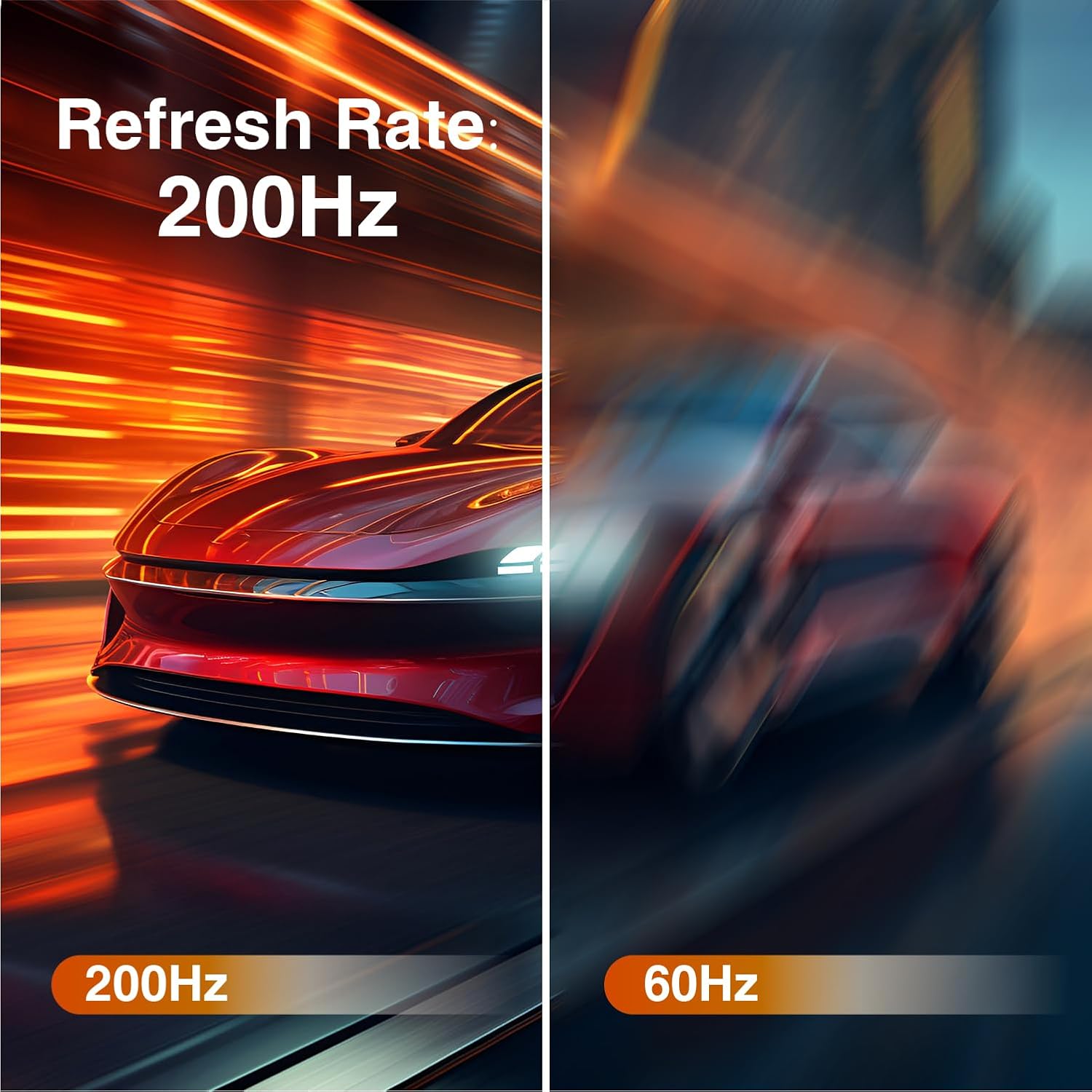
Image: The ArcticPro 27-inch monitor with its stand fully assembled, ready for use.
- Attach the stand base to the stand neck using the provided screws.
- Connect the assembled stand to the back of the monitor until it clicks into place or is secured with screws, depending on the model.
- Alternatively, for VESA mounting, remove the stand and attach a compatible VESA mount (75x75mm) to the monitor's rear panel.
2. Connecting Cables
Connect the necessary cables to the monitor and your computer or other devices. Ensure the monitor is powered off before making any connections.

Image: Rear view of the monitor highlighting the versatile connectivity options, including HDMI and DisplayPort inputs.
- Power Cable: Connect the power cable to the monitor's power input and then to a power outlet.
- DisplayPort (DP): For optimal performance, connect a DisplayPort cable from your computer's graphics card to the monitor's DP input. This supports the full 200Hz refresh rate.
- HDMI: Connect an HDMI cable from your computer or gaming console to the monitor's HDMI input.
3. Powering On
After all connections are secure, press the power button on the monitor. The power indicator light should illuminate, and the ArcticPro logo will appear on the screen.
Operating Instructions
1. On-Screen Display (OSD) Menu
The monitor features an intuitive OSD menu for adjusting various settings. The OSD is typically controlled by a joystick located on the back of the monitor.
- Accessing OSD: Press the joystick button to open the OSD menu.
- Navigation: Move the joystick up, down, left, or right to navigate through menu options.
- Selection: Press the joystick button to select an option.
- Exiting: To exit a sub-menu or the main OSD, push the joystick to the right.
2. Key Settings and Features
Optimize your viewing experience by adjusting the following settings:
- Refresh Rate: This monitor supports up to 200Hz refresh rate for smooth motion. Ensure your computer's display settings are configured to match this rate.
- Adaptive Sync: Enable Adaptive Sync in the OSD menu to eliminate screen tearing and stuttering, providing a fluid gaming experience.
- Response Time: The monitor features a 1ms MPRT response time. This setting minimizes motion blur and ghosting, crucial for fast-paced content.
- IPS Panel & Color Gamut: The IPS panel provides wide viewing angles and accurate color reproduction. Adjust color settings in the OSD for your preference.
- Eye Care Features: Utilize the Low Blue Light filter and Flicker-Free technology to reduce eye strain during extended use. These settings can be found in the OSD menu.
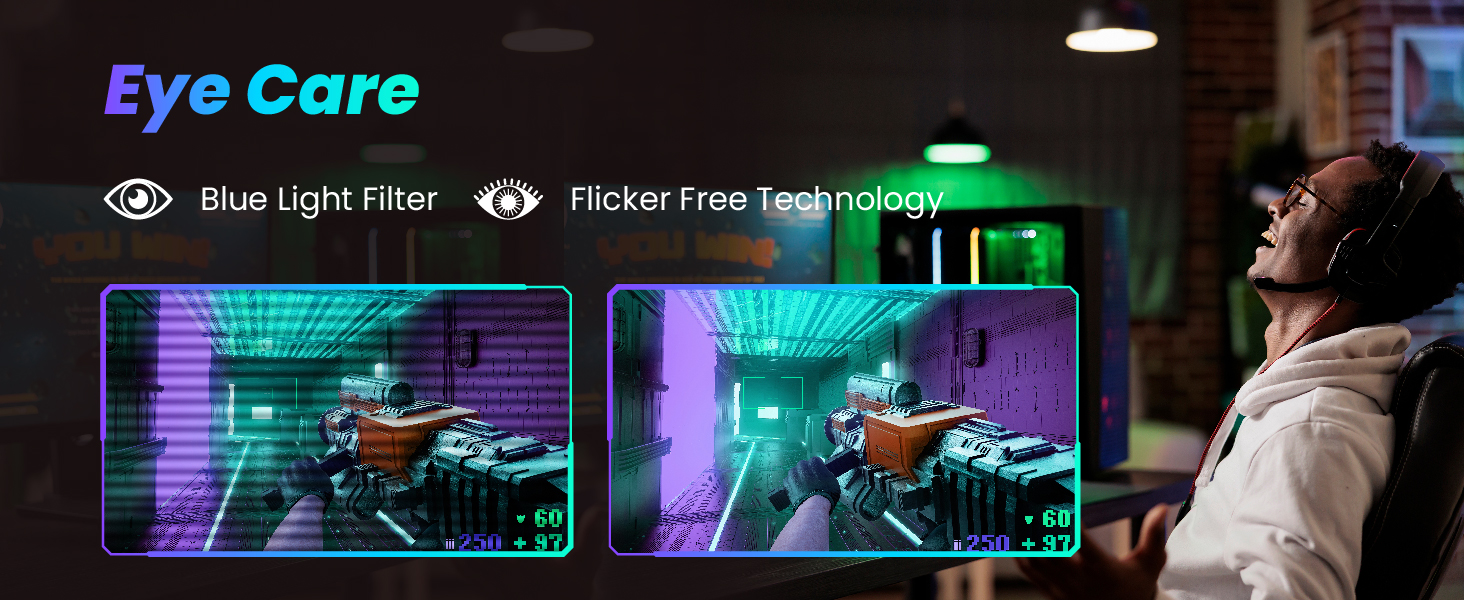
Image: Visual comparison demonstrating the difference in motion clarity between a 200Hz refresh rate and a 60Hz refresh rate.

Image: A side-by-side view illustrating the effect of Adaptive Sync, showing a smooth image when enabled compared to a torn image when disabled.

Image: A visual demonstration of 1ms response time, showing a clear, sharp image compared to a blurred image with a slower response time.

Image: The monitor showcasing its wide color gamut and IPS technology, ensuring consistent image quality from various viewing angles.

Image: A visual representation of the monitor's eye care features, including a blue light filter and flicker-free technology, designed to reduce eye strain.
Maintenance
Proper maintenance ensures the longevity and optimal performance of your monitor.
- Cleaning the Screen: Gently wipe the screen with a soft, lint-free cloth. For stubborn marks, lightly dampen the cloth with water or a specialized screen cleaner. Avoid using harsh chemicals or abrasive materials.
- Cleaning the Casing: Use a soft, dry cloth to clean the monitor casing.
- Ventilation: Ensure the monitor's ventilation openings are not blocked to prevent overheating.
- Power Off: Always power off the monitor when not in use for extended periods.
Troubleshooting
If you encounter issues with your monitor, refer to the following common problems and solutions:
| Problem | Possible Cause | Solution |
|---|---|---|
| No power | Power cable not connected; Power outlet not working; Monitor power button off. | Check power cable connections; Test power outlet; Press monitor power button. |
| No signal | Video cable not connected; Incorrect input source selected; Computer not outputting signal. | Ensure video cable (DP/HDMI) is securely connected; Select correct input source via OSD; Restart computer. |
| Screen flickering or tearing | Adaptive Sync is disabled; Graphics card driver issues. | Enable Adaptive Sync in the OSD menu; Update graphics card drivers. |
| Blurred or distorted image | Incorrect resolution or refresh rate; Faulty cable. | Set display resolution to 1920x1080 and refresh rate to 200Hz in your computer's display settings; Try a different video cable. |
| OSD menu navigation issues | Incorrect joystick movement for exiting menus. | To exit a sub-menu or the main OSD, push the joystick on the back of the panel to the right. |
Specifications
| Feature | Detail |
|---|---|
| Model Number | ADE27F3 |
| Screen Size | 27 Inches |
| Panel Type | IPS |
| Resolution | FHD 1080p (1920 x 1080 Pixels) |
| Refresh Rate | 200Hz |
| Response Time | 1ms (MPRT) |
| Aspect Ratio | 16:9 |
| Viewing Angles | 178° (Horizontal) / 178° (Vertical) |
| Connectivity | 1x HDMI, 1x DisplayPort |
| VESA Mount Compatible | 75x75mm |
| Product Dimensions | 1.84 x 24.18 x 14.29 inches |
| Item Weight | 13.62 pounds |
Warranty Information
ArcticPro monitors come with a standard manufacturer's warranty. Please refer to the warranty card included in your product packaging or visit the official ArcticPro website for detailed terms and conditions, including warranty duration and coverage.
Customer Support
If you require further assistance or have questions not covered in this manual, please contact ArcticPro customer support. Contact information can typically be found on the ArcticPro website or on the product packaging.
For the latest drivers, firmware updates, and additional support resources, please visit the official ArcticPro support page.