
1. Introduction
This manual provides detailed instructions for the assembly, operation, and maintenance of your DOMICON 2 Person Desk. Designed for shared workspaces, gaming, and home office environments, this desk features an extra-long desktop, integrated power outlets, RGB LED lighting, storage shelves, a keyboard tray, and an adjustable monitor stand. Please read this manual thoroughly before beginning assembly or operation to ensure proper use and longevity of your product.

Figure 1.1: Overview of the DOMICON 2 Person Desk.
2. Safety Information
To prevent injury or damage to the product, please adhere to the following safety guidelines:
- Always assemble the desk on a stable, level surface to ensure stability.
- Do not exceed the maximum weight capacity of 75 pounds (approximately 34 kg) on the desktop.
- Ensure the desk is properly anchored if required by local safety standards, especially in areas prone to seismic activity, to prevent tipping.
- Keep the desk clear of any obstructions that could interfere with its stability or functionality.
- Do not expose the integrated electrical components (power outlets, USB ports, LED lights) to liquids.
- Ensure all electrical connections are secure and properly grounded.
- Keep small parts and packaging materials away from children to prevent choking hazards.
3. Package Contents
Before beginning assembly, verify that all components listed below are present and undamaged. If any parts are missing or damaged, please contact customer support.
| Component | Quantity | Description |
|---|---|---|
| Desktop Panels | Multiple | Main desk surfaces (L-shaped configuration) |
| Desk Frame Components | Multiple | Metal legs, support beams, and connectors |
| Power Outlet Unit | 1 | Integrated unit with AC outlets, USB-A, and USB-C ports |
| LED Light Strips | 2 | RGB LED strips for monitor stands |
| Remote Control | 1 | For controlling LED lights |
| Keyboard Tray | 1 | Retractable tray for keyboard and mouse |
| Monitor Stands | 2 | Adjustable height stands for monitors |
| Fabric Drawers | 4 | Soft fabric drawers for storage unit |
| Assembly Hardware | Various | Screws, bolts, nuts, Allen wrench, screwdriver |
| Instruction Manual | 1 | This document |

Figure 3.1: Desk dimensions and general component layout.
4. Assembly Instructions
Assembly typically requires two people and takes approximately 1.5 to 2 hours. Follow the numbered steps provided in the included pictorial guide. Ensure all connections are tightened securely but do not overtighten.
4.1. Frame Assembly
Begin by assembling the main metal frame components. Connect the legs to the support beams using the provided hardware. Ensure the frame is stable before proceeding.
4.2. Desktop Installation
Carefully place the desktop panels onto the assembled frame. Align the pre-drilled holes with the frame and secure using the designated screws. The desk is designed in a T-shape for optimal space utilization.
4.3. Power Outlet Unit Integration
Locate the designated slot on the desktop for the power outlet unit. Insert the unit and secure it according to the instructions. Connect the power cord to a wall outlet after the desk is fully assembled and positioned.

Figure 4.1: Integrated power outlet unit.
4.4. Keyboard Tray Installation
Attach the keyboard tray rails to the underside of the desktop. Ensure the rails are correctly oriented for smooth retraction and extension. Then, attach the keyboard platform to the rails. If the tray feels stiff, slightly loosen the bolts holding the keyboard to the desk and adjust for more wiggle room before re-tightening.

Figure 4.2: Keyboard tray installation.
4.5. Monitor Stand and LED Light Installation
Assemble the monitor stands and attach them to the designated areas on the desktop. The stands are designed for flexible height and angle adjustment. Affix the RGB LED light strips to the underside of the monitor stands. Connect the LED strips to their power source as indicated in the assembly guide.

Figure 4.3: Adjustable monitor stand.
4.6. Storage Shelves and Drawers
Install the open storage shelves and insert the four fabric drawers into their respective compartments. These provide convenient storage for office supplies, documents, and other items.

Figure 4.4: Fabric storage drawers.
5. Operating Instructions
5.1. Power Outlet & USB Ports
The integrated power supply unit includes 4 AC power sockets, 2 USB-A interfaces, and 1 USB-C interface. Plug the desk's main power cord into a standard wall outlet. You can then connect up to 7 electronic devices simultaneously to the desk's power unit for charging or operation.
5.2. LED Lighting System
The RGB LED light strips offer 15 color options and various lighting effects. The lights can be controlled via independent switches located on both sides of the desk or using the provided remote control. The two sides can display different colors, allowing for customized ambiance.
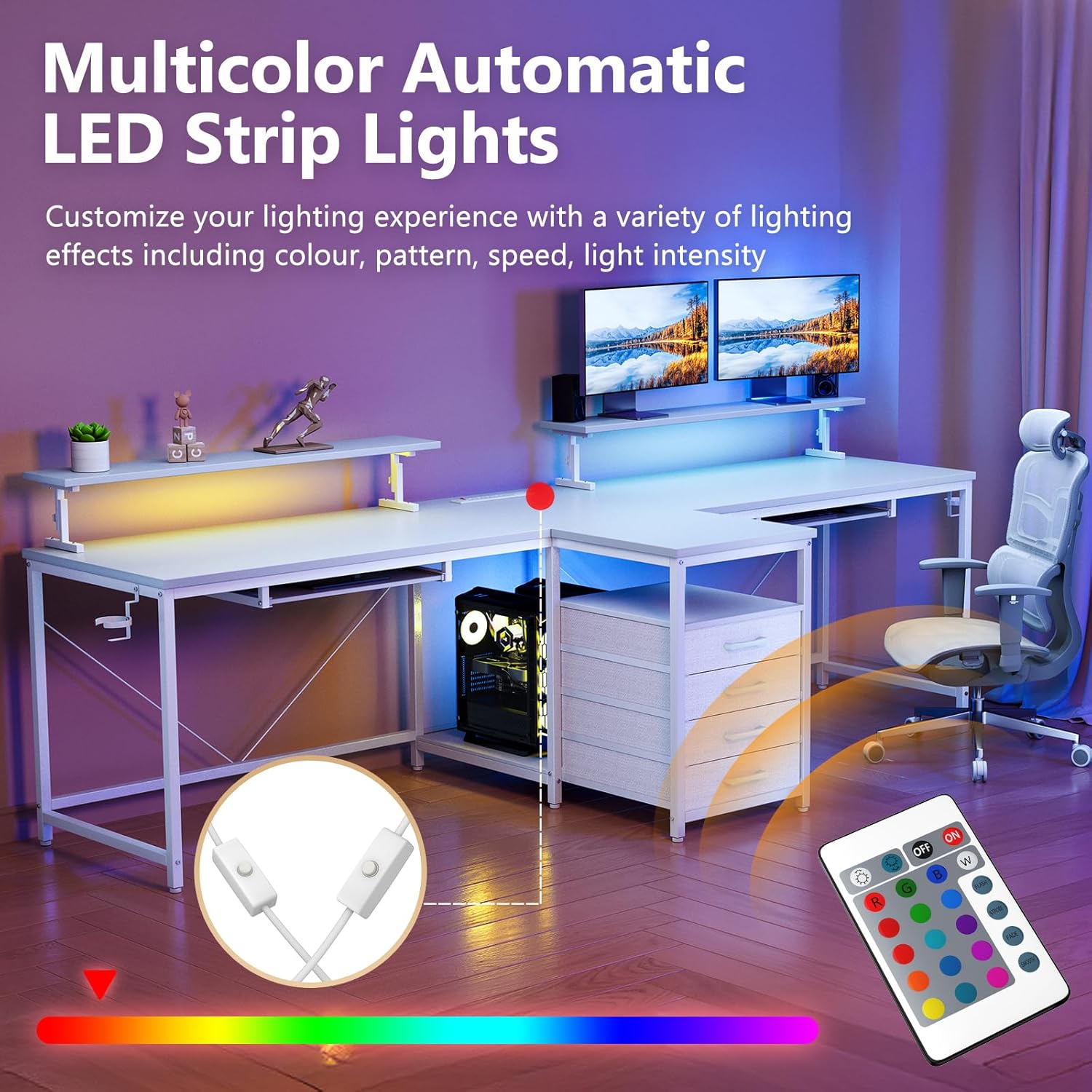
Figure 5.1: LED light control via remote.
5.3. Keyboard Tray Usage
The retractable keyboard tray is designed to accommodate most standard and compact keyboards, along with a mouse. Pull the tray gently to extend it for use, and push it back to retract and free up desktop space.
5.4. Monitor Stand Adjustment
The double-monitor stand can be adjusted in height and angle. Loosen the adjustment knobs, set the stand to your desired height (between 5.51" and 7.48" from the desktop), and then tighten the knobs to secure. This ergonomic feature helps maintain proper posture and reduce neck and back strain.
6. Maintenance
Regular maintenance will help preserve the appearance and functionality of your desk.
- Cleaning: Wipe surfaces with a soft, damp cloth. Avoid abrasive cleaners or harsh chemicals that may damage the finish.
- Dusting: Regularly dust all surfaces, including the LED strips and power outlets, to prevent accumulation.
- Hardware Check: Periodically check all screws and bolts to ensure they remain tight. Re-tighten if necessary, but do not overtighten.
- Cable Management: Organize cables to prevent tripping hazards and maintain a tidy workspace.
7. Troubleshooting
| Problem | Possible Cause | Solution |
|---|---|---|
| LED lights not turning on or flickering. | Loose connection, remote battery low, power switch off. | Check all cable connections to the LED strips and power source. Replace remote control batteries. Ensure independent switches are in the 'on' position. |
| Power outlets/USB ports not working. | Desk not plugged in, circuit breaker tripped, loose internal wiring. | Ensure the desk's main power cord is securely plugged into a functional wall outlet. Check your home's circuit breaker. If issues persist, contact customer support. |
| Keyboard tray is stiff or difficult to pull out/push in. | Rails misaligned, screws overtightened. | Slightly loosen the screws holding the keyboard tray rails to the desk. Adjust the tray for smoother movement, then re-tighten the screws without overtightening. |
| Monitor stand feels unstable or cannot be adjusted. | Adjustment knobs not loosened/tightened correctly, stand not fully secured. | Ensure adjustment knobs are fully loosened before attempting to change height/angle, and fully tightened to secure. Verify the stand is properly attached to the desktop. |
| Desk wobbles. | Uneven floor, loose assembly hardware. | Adjust the leveling feet on the bottom of the desk legs if your floor is uneven. Check and tighten all assembly screws and bolts. |
8. Specifications
| Feature | Detail |
|---|---|
| Brand | DOMICON |
| Model Number | MK-26-B |
| Product Dimensions (D x W x H) | 94.49"D x 29.53"W x 19.69"H |
| Item Weight | 75 Pounds (approx. 34 kg) |
| Color | White |
| Base Material | Alloy Steel |
| Top Material Type | Engineered Wood |
| Special Features | Built-In USB Outlet, Keyboard Tray Included, Monitor Stand, Scratch Resistant, RGB LED Lights |
| Number of Drawers | 4 (Fabric) |
| Number of Shelves | 2 (Open Storage) |
| Monitor Stand Height Adjustment | 4 Levels (5.51" - 7.48") |
| Power Outlets | 4 AC, 2 USB-A, 1 USB-C |
| Required Assembly | Yes |
9. Warranty and Support
Your DOMICON 2 Person Desk comes with a limited warranty. For specific warranty terms and conditions, please refer to the documentation included with your purchase or visit the official DOMICON website.
For customer support, missing parts, or technical assistance, please contact DOMICON customer service through the retailer where you purchased the product or via the contact information provided on the DOMICON website. Please have your model number (MK-26-B) and purchase date ready when contacting support.
You can also find additional support and frequently asked questions by visiting the DOMICON Brand Store on Amazon.


