
Introduction
This manual provides detailed instructions for the setup, operation, maintenance, and troubleshooting of your ZTE K10 4G LTE Cat4 Mobile WiFi Router. Please read this manual thoroughly before using the device to ensure proper functionality and optimal performance.
Product Overview
Device Components

Figure 1: Front view of the ZTE K10 router, showing the ZTE logo and indicator lights at the base.
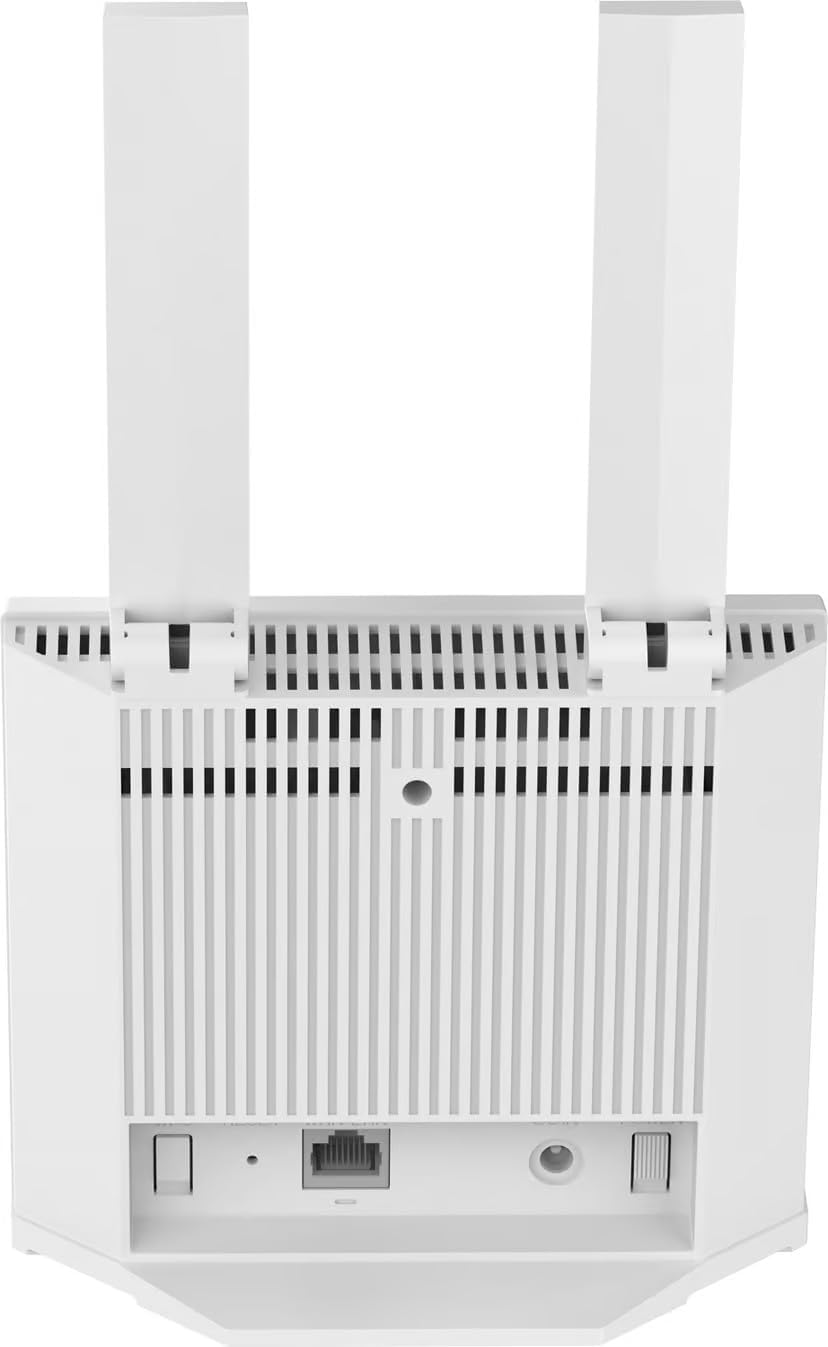
Figure 2: Back view of the ZTE K10 router, highlighting the LAN/WAN port, RJ11 phone port, power adapter port, WPS button, and Reset button.

Figure 3: Bottom label of the ZTE K10 router, displaying the model number, default Wi-Fi SSID, Wi-Fi Key, Web UI URL, password, IMEI, and power rating.
Key Features
- Connectivity: Dual-band 802.11ac Wi-Fi and Ethernet for fast and reliable connections.
- Frequency Band Class: Supports FDD 1/2/3/5/7/8/20/28, TDD B38/40/41 for wide-ranging compatibility.
- Special Feature: Removable 2000mAh battery for portable use.
- Ports: One LAN/WAN port, one RJ11 phone port, and one power adapter port for versatile connectivity.
- Wireless Communication Standard: 802.11b, 802.11g, 802.11n.
- Additional Features: Internet Security, LED Indicators, WPS button, Reset button, FOTA (Firmware Over The Air) updates.
Setup Guide
1. Package Contents
Before proceeding, ensure all items are present in the package:
- ZTE K10 4G LTE Cat4 Mobile WiFi Router
- 2000mAh Lithium-Ion Battery
- Power Adapter
- User Manual (this document)
2. SIM Card Installation
- Locate the SIM card slot on the device.
- Insert a standard 4G LTE SIM card into the slot with the gold contacts facing down and the notched corner oriented correctly.
- Ensure the SIM card is securely seated.
3. Battery Installation
- Open the battery compartment cover, typically located on the back or bottom of the device.
- Insert the 2000mAh Lithium-Ion battery, aligning the contacts with those in the compartment.
- Close the battery compartment cover.
4. Powering On
- Connect the power adapter to the device's power port and then to a power outlet.
- Press and hold the Power button (refer to Figure 2 for location) until the indicator lights illuminate.
- Wait for the device to boot up and establish a network connection. The network indicator light will show its status.
5. Initial Wi-Fi Connection
- On your computer or mobile device, search for available Wi-Fi networks.
- Select the network name (SSID) displayed on the bottom label of your ZTE K10 router (refer to Figure 3).
- Enter the Wi-Fi Key (password) also found on the bottom label.
- Your device should now be connected to the internet.
Operating Instructions
Connecting Devices
- Wi-Fi Connection: Follow the 'Initial Wi-Fi Connection' steps for any device you wish to connect wirelessly. The router supports up to 32 simultaneous Wi-Fi connections.
- LAN Connection: Use an Ethernet cable to connect a device (e.g., computer, gaming console) to the LAN/WAN port on the back of the router.
Web Interface Access
To manage router settings, access the web interface:
- Connect your device to the router via Wi-Fi or Ethernet.
- Open a web browser and enter the URL (e.g.,
192.168.0.1) found on the bottom label (Figure 3). - Enter the default password (also on the bottom label) to log in.
- From here, you can configure Wi-Fi settings, security, network preferences, and more.
Voice Functionality
The ZTE K10 features an RJ11 phone port, allowing you to connect a standard analog phone for voice calls if supported by your SIM card's service plan.
LED Indicators
The LED indicators on the front of the device provide status information:
- Power LED: Indicates power status.
- Wi-Fi Network LED: Indicates Wi-Fi activity and network connection status.
- Refer to the full product manual for detailed descriptions of each LED's color and blinking patterns.
WPS Function
The WPS (Wi-Fi Protected Setup) button allows for easy connection of WPS-compatible devices without manually entering the Wi-Fi password. Press the WPS button on the router, then activate WPS on your client device within two minutes.
Maintenance
Battery Management
The 2000mAh battery provides portable power. To ensure optimal battery life, charge the device fully before first use and avoid extreme temperatures. If the device will not be used for an extended period, it is recommended to store the battery at approximately 50% charge.
Firmware Updates (FOTA)
The ZTE K10 supports Firmware Over The Air (FOTA) updates. Regularly check for and install firmware updates via the web interface to ensure your device has the latest features, security patches, and performance improvements.
Device Reset
If the device experiences persistent issues, a factory reset may resolve them. Locate the Reset button (refer to Figure 2), typically a small pinhole. With the device powered on, use a paperclip or similar pointed object to press and hold the Reset button for approximately 5-10 seconds until the indicator lights change. This will restore the device to its factory default settings, including Wi-Fi SSID and password.
Troubleshooting
If you encounter problems with your ZTE K10 router, refer to the following common issues and solutions:
- No Internet Connection:
- Ensure the SIM card is correctly inserted and active with a data plan.
- Check the network signal strength indicated by the LED.
- Restart the router by powering it off and on again.
- Verify APN settings in the web interface.
- Cannot Connect to Wi-Fi:
- Confirm you are using the correct Wi-Fi SSID and password (check the bottom label).
- Ensure Wi-Fi is enabled on the router and your connecting device.
- Try moving closer to the router to improve signal strength.
- Slow Internet Speed:
- Check the network signal strength. Poor signal can lead to slow speeds.
- Reduce the number of connected devices or active downloads.
- Restart the router.
- Device Unresponsive:
- Perform a soft reset by powering the device off and on.
- If unresponsive, perform a factory reset using the Reset button (see Maintenance section).
Technical Specifications

Figure 4: Detailed technical specifications for the ZTE K10 router.
For quick reference, key specifications are listed below:
- Model: ZTE K10
- Product Dimensions: 6.7 x 14 x 14.5 cm; 220 g
- Battery: 1 Lithium Ion battery (2000mAh, included)
- Cellular WAN: FDD-LTE B1/2/3/5/7/8/20/28, TDD-LTE B38/40/41
- Peak Data Rate: FDD-LTE: DL/UL 150/50Mbps (CAT4), TDD-LTE: DL/UL 110+/11+Mbps (CAT4)
- Wi-Fi: 802.11 b/g/n, 2.4GHz 2x2, 300Mbps
- Max Users: Up to 32 devices
- Interfaces: 1x RJ45 (FE, WAN/LAN), 1x RJ11 (FXS, CSFB/VoLTE/VoIP (Customized)), 1x SIM socket (4FF), 1x DC470 (DC12V)
- Buttons: Power, WPS, Reset
- LED Indicators: Power, Wi-Fi Network
- Special Features: Internet Security, Removable Battery, FOTA
Warranty and Support
The ZTE K10 Mobile WiFi Router is manufactured by ZTE. For warranty information, technical support, or service inquiries, please refer to the official ZTE website or contact their customer support channels. Keep your purchase receipt as proof of purchase for warranty claims.


