
Ourlife A8
Ourlife Home Security 2.4GHz WiFi Camera User Manual
Model: A8 | Brand: Ourlife
Introduction
This manual provides detailed instructions for the Ourlife A8 Mini Camera, a versatile 1080P HD security camera designed for both indoor and outdoor monitoring. It features Wi-Fi connectivity, motion detection, and supports TF card recording. Please read this manual thoroughly before operating the device to ensure proper use and optimal performance.
Package Contents

Image: Contents of the Ourlife A8 Mini Camera package, showing the camera, mounting base, charging cable, and instruction manual.
- A8 Mini Camera Body
- Mounting Base
- Charging Cable
- Instruction Manual
Product Features

Image: Visual representation of the camera's key features including 1080P resolution, magnetic mounting, 2.4GHz WiFi, lightweight design, 3-4 hour run time, Type-C port, motion detection, mounting base, push notifications, and TF card support.
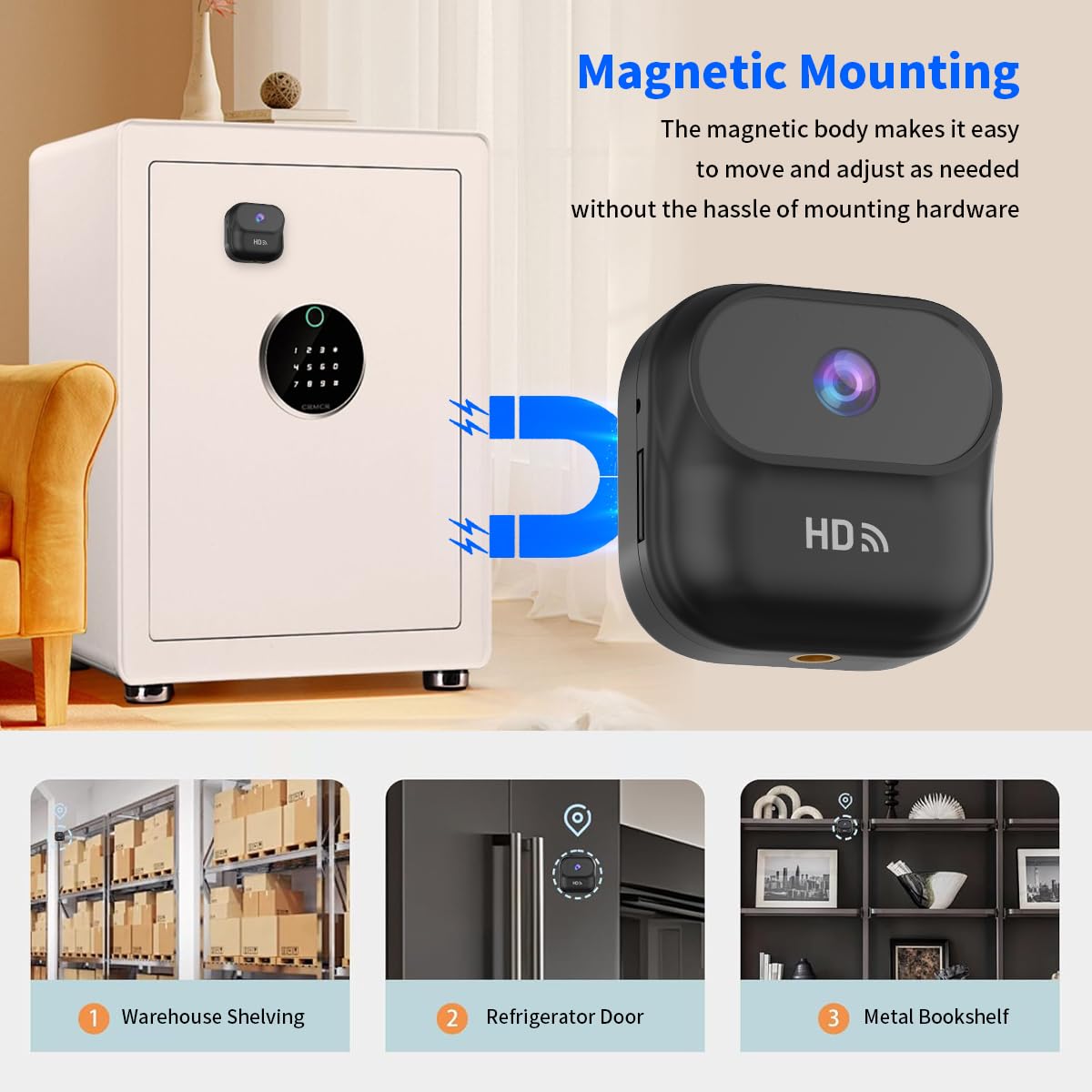
Image: The Ourlife A8 Mini Camera magnetically attached to a safe, demonstrating its easy and versatile magnetic mounting capability for various metal surfaces like warehouse shelving, refrigerator doors, and metal bookshelves.
- Magnetic and Stand Mount Installation: Features a strong magnetic base and a stand mount for versatile placement.
- Versatile Placement: Can be attached to various surfaces like walls, cars, or even animal harnesses.
- Built-in Battery with Continuous Recording: Equipped with a 400mAh battery, supporting recording while charging.
- Compact and Powerful: Small size (46 x 25 x 46.6 mm) and lightweight (1.16 oz) with 1080P HD resolution.
- Wi-Fi Connectivity and Multi-Use Capabilities: Real-time viewing and playback via Wi-Fi, motion detection, and local memory playback.
Setup Guide
1. Charging the Camera
Before first use, fully charge the camera using the provided charging cable. Connect the Type-C end to the camera and the USB-A end to a standard USB power adapter (not included) or a computer USB port. The indicator light will show charging status.
2. Inserting a TF Card (Optional)
For local recording, insert a compatible TF (microSD) card into the card slot. Ensure the card is inserted correctly until it clicks into place. The camera supports local memory playback.
3. App Installation and Wi-Fi Connection
- Download the official Ourlife camera application from your smartphone's app store (iOS or Android). Refer to the included instruction manual for the exact app name or QR code.
- Power on the camera. The Wi-Fi indicator light will begin to flash, indicating it's ready for pairing.
- Open the app and follow the on-screen instructions to add a new device. Select your camera model.
- Connect your smartphone to the camera's Wi-Fi hotspot (usually named something like "IPC-XXXXXX").
- Return to the app and select your home 2.4GHz Wi-Fi network. Enter the Wi-Fi password.
- Once connected, the camera's Wi-Fi indicator light will become solid, and you will see the camera online in the app.

Image: The Ourlife A8 Mini Camera held in hand, with a smartphone displaying a live feed from the camera, indicating successful Wi-Fi connection and real-time viewing.
Operating Instructions
1. Real-time Monitoring
Once the camera is connected to your Wi-Fi network, open the Ourlife app on your smartphone. Select the camera from your device list to view the live feed. You can monitor your home or office from anywhere as long as the camera is connected to a 2.4GHz router.
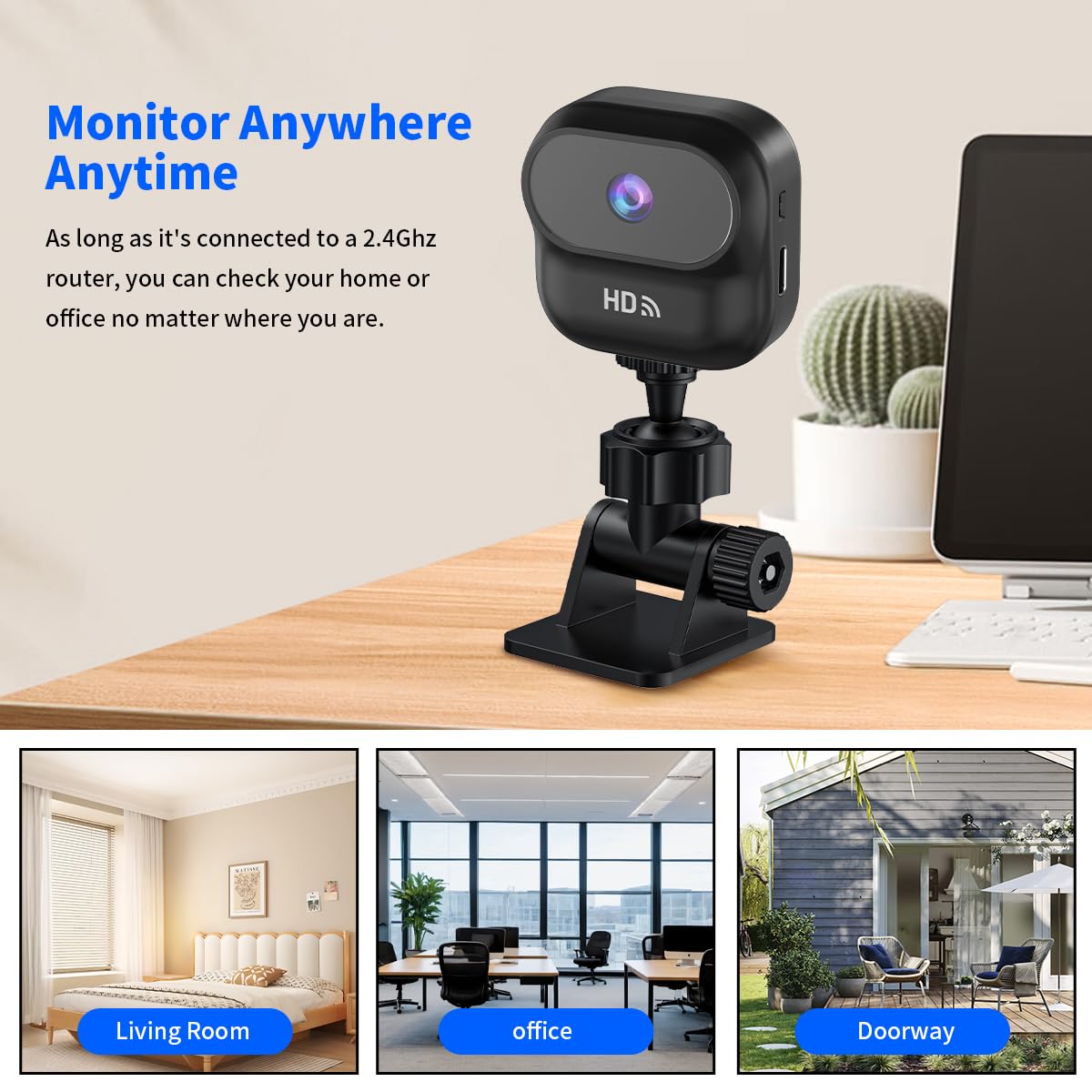
Image: The Ourlife A8 Mini Camera mounted on a desk, with three inset images showing its versatility for monitoring a living room, an office, and a doorway.
2. Motion Detection
The A8 Mini Camera features intelligent motion detection. When motion is detected, the camera will automatically begin recording and send push notifications to your connected smartphone via the app. You can adjust motion detection sensitivity settings within the app.

Image: The Ourlife A8 Mini Camera positioned to monitor a living room scene with a man, child, and dog, illustrating its motion detection capability for various subjects.
3. Recording and Playback
- Continuous Recording: If a TF card is inserted, the camera can record continuously.
- Event Recording: Motion-triggered recordings are saved to the TF card and can be accessed via the app.
- Local Memory Playback: Access recorded footage directly from the TF card through the app's playback function.
Maintenance
- Keep the camera lens clean using a soft, dry cloth. Avoid abrasive cleaners.
- Ensure the camera is placed in a well-ventilated area to prevent overheating.
- Regularly check for firmware updates through the Ourlife app to ensure optimal performance and security.
- If using a TF card, periodically back up important footage and consider formatting the card every few months to maintain performance.
Troubleshooting
| Problem | Possible Cause / Solution |
|---|---|
| Camera not connecting to Wi-Fi |
|
| No recording to TF card |
|
| Poor video quality |
|
| Camera not turning on |
|
Specifications

Image: Diagram showing the compact dimensions of the Ourlife A8 Mini Camera: 1.83 inches (length) x 1.83 inches (width) x 0.98 inches (height).
| Feature | Detail |
|---|---|
| Model | A8 |
| Video Capture Resolution | 1080p HD |
| Connectivity Technology | Wireless (Wi-Fi 2.4GHz) |
| Power Source | Battery Powered (400mAh built-in battery) |
| Item Dimensions (L x W x H) | 46 x 25 x 46.6 mm (approx. 1.83 x 0.98 x 1.83 inches) |
| Item Weight | 100 g (approx. 1.16 oz) |
| Storage Support | TF Card (MicroSD) |
| Mounting Type | Magnetic, Stand Mount |
| Indoor/Outdoor Usage | Indoor (as per recommended uses) |
Warranty and Support
For warranty information and technical support, please refer to the official Ourlife website or contact their customer service directly. Details are typically provided on the product packaging or within the included physical instruction manual.
Ask a question about this manual
Ask about setup, troubleshooting, compatibility, parts, safety, or missing instructions. Manuals+ will review the question and use this page’s manual context to help answer it.