
1. Introduction
Thank you for choosing the JINSHANGZI VP50 5G Smartwatch. This device combines advanced smartphone capabilities with the convenience of a wearable. Featuring a 1.75-inch AMOLED display, Android 10 operating system, 4G/5G connectivity, and a unique 180° rotating camera, the VP50 is designed to enhance your daily communication and health monitoring. This manual provides essential information for setup, operation, maintenance, and troubleshooting to ensure optimal performance of your smartwatch.
2. Package Contents
Please verify that all items are present in your product package:
- JINSHANGZI VP50 Smartwatch
- Charging Cable
- User Manual (this document)
- SIM Card Ejector Tool (if applicable)
3. Device Overview
Familiarize yourself with the key components of your JINSHANGZI VP50 Smartwatch.

The JINSHANGZI VP50 Smartwatch features a round display and a durable strap. The watch face displays time, date, and activity data.
- Display: 1.75-inch AMOLED HD touchscreen.
- Power/Function Button: Located on the side for power on/off and screen control.
- SIM Card Slot: For 4G/5G cellular connectivity.
- Rotating Camera: A 180° rotatable camera for versatile photo and video capture.
- Heart Rate Sensor: Located on the back for health monitoring.
- Charging Ports: Magnetic charging pins on the back.

This image highlights the SIM card insertion point, the rotating lens mechanism, and mentions features like unobstructed signal, application market access, and strong battery life.
4. Setup
4.1 Charging the Smartwatch
Before first use, fully charge your smartwatch. Connect the charging cable to the magnetic pins on the back of the watch and plug the USB end into a power adapter (not included) or a computer's USB port. The watch display will indicate charging status.
4.2 SIM Card Installation
The VP50 supports 4G/5G cellular connectivity via a Nano-SIM card. Ensure the watch is powered off before inserting or removing the SIM card.
- Locate the SIM card slot on the side of the smartwatch.
- Use the provided ejector tool (or a small paperclip) to open the SIM tray.
- Place the Nano-SIM card into the tray with the gold contacts facing down, ensuring correct orientation.
- Gently push the SIM tray back into the slot until it clicks into place.

This image illustrates the independent SIM card insertion process and the on-screen dial pad for making calls.
4.3 Initial Power On and Setup
- Press and hold the Power button until the screen lights up.
- Follow the on-screen prompts to select your preferred language. Supported languages include English, Arabic, German, Spanish, French, Italian, Japanese, Korean, and many others.
- Connect to a Wi-Fi network for initial setup and app downloads. Go to Settings > Network & Internet > Wi-Fi.
- Log in with your Google account to access the Play Store and synchronize data.
5. Operating Instructions
5.1 Basic Navigation
The VP50 features a responsive AMOLED touchscreen. Swipe gestures and taps are used for navigation.
- Swipe Down: Access quick settings and notifications.
- Swipe Up: View recent apps or app drawer (depending on launcher settings).
- Swipe Left/Right: Navigate between different watch faces, widgets, or app screens.
- Tap: Select an item or open an application.
- Press Power Button: Return to the home screen or turn the screen on/off.

The 1.75-inch AMOLED screen provides a bright and high-definition display for clear viewing of information such as battery level and step count.
5.2 Communication (Calls & SMS)
With a SIM card inserted, your smartwatch can make and receive calls and SMS messages independently.
- Making Calls: Tap the 'Phone' icon, use the dial pad or select a contact from your 'Contacts' list.
- Receiving Calls: Swipe to answer or decline an incoming call notification.
- Sending SMS: Tap the 'SMS' icon, select a contact or enter a number, then compose your message using the on-screen keyboard.
5.3 Camera Operation
The VP50 features a unique 180° rotating camera, allowing for flexible photo and video capture.
- Open the 'Camera' application from the app menu.
- Physically rotate the camera lens to your desired angle (front-facing for selfies/video calls, or outward-facing for general photography).
- Tap the shutter button on the screen to take a photo or start/stop video recording.
- Access your photos and videos in the 'Album Photo' or 'Files' application.

The smartwatch features a high-definition lens that can be rotated 180 degrees for versatile shooting and video calls.
5.4 App Management
Running on Android 10, the VP50 supports a wide range of applications.
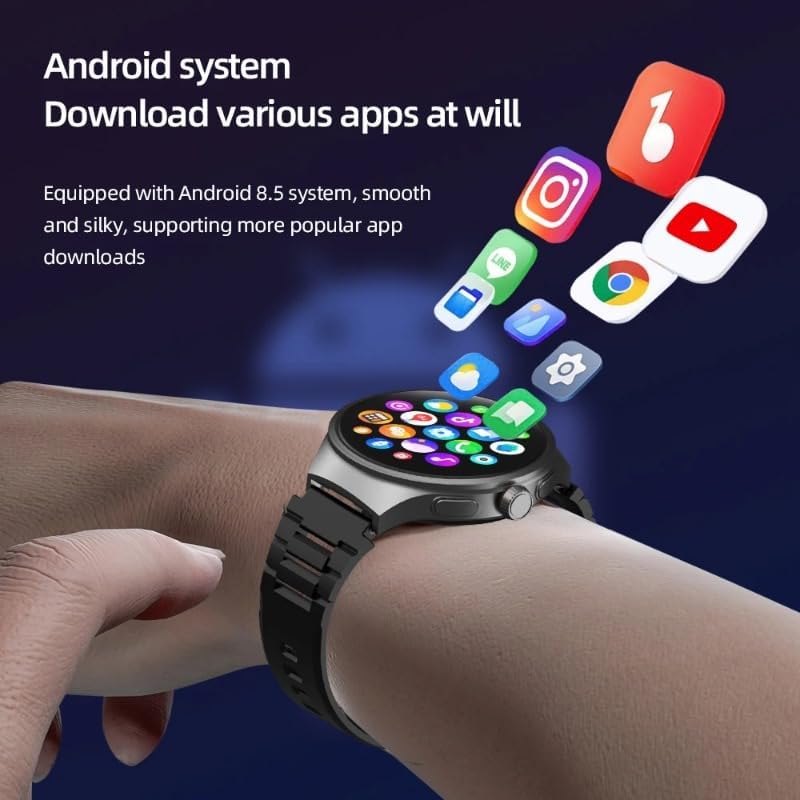
Equipped with an Android system, the smartwatch allows users to download and utilize various popular applications.
- Downloading Apps: Open the 'Play Store' application to browse and install compatible apps.
- Managing Background Apps: Access Settings > Background App Management to optimize performance and battery life.
- Uninstalling Apps: Go to Settings > Apps & Notifications, select the app, and choose 'Uninstall'.
5.5 Health Monitoring
The smartwatch includes features to help you monitor your health.
- Heart Rate: Open the 'Heart Rate' application to measure your current heart rate. Ensure the watch is snug on your wrist for accurate readings.
- Step Counting: The 'Step Counting' feature automatically tracks your daily steps. View your progress in the dedicated app.
5.6 Other Functions
- GPS: Utilize the integrated GPS for navigation with 'Maps' or for tracking outdoor activities.
- Wi-Fi: Connect to Wi-Fi networks via Settings > Network & Internet for faster data speeds and app updates.
- Music & Video Playback: Use the 'Music' and 'Video Playback' apps to enjoy media directly on your watch or via connected Bluetooth headphones.
- Weather: Access local weather forecasts through the 'Weather' application.
6. Maintenance
6.1 Cleaning
Regularly clean your smartwatch to maintain its appearance and functionality.
- Wipe the screen and body with a soft, lint-free cloth.
- For stubborn marks, slightly dampen the cloth with water. Avoid harsh chemicals.
- Ensure the charging pins are clean and dry before charging.
6.2 Battery Care
To prolong battery life:
- Avoid extreme temperatures.
- Do not let the battery completely drain frequently.
- Use the 'Super Power Saving' mode when battery is low.
6.3 Software Updates
Keep your smartwatch software updated for optimal performance and security. Check for updates via Settings > Software Upgrades.
7. Troubleshooting
If you encounter issues, try the following solutions:
- Watch not powering on: Ensure it is fully charged.
- No network signal: Check SIM card insertion, ensure your plan is active, and verify network settings in Settings > Network & Internet.
- Apps crashing or slow performance: Use 'One-Click Cleaning' or 'Background App Management' to free up memory. Consider a factory reset via Settings > Reset Options if issues persist (this will erase all data).
- Inaccurate health readings: Ensure the watch is worn snugly on your wrist and the sensor is clean.
8. Specifications
| Feature | Specification |
|---|---|
| Model Number | VP50 |
| Brand | JINSHANGZI |
| Operating System | Android 10.0 |
| CPU | SC8541E 10-Core |
| Display | 1.75-inch AMOLED HD (490x490 resolution) |
| Memory Options | 3GB RAM + 32GB Storage / 4GB RAM + 64GB Storage / 4GB RAM + 128GB Storage |
| Battery Capacity | 1380 mAh |
| Network Connectivity | 2G GSM (B2, B3, B5, B8), 3G WCDMA (B1, B2, B5, B8), 4G LTE-FDD (B1, B2, B3, B4, B5, B7, B8, B12, B17, B20, B28, B66), 4G LTE-TDD (B38, B39, B40, B41) |
| Wireless Communication | Wi-Fi (802.11ac), Bluetooth |
| GPS | Integrated GPS |
| Camera | 180° Rotatable High-Pixel Camera |
| Compatible Devices | PC, Smartphone, Tablet |
| Strap Material | Polyurethane (PU), removable, 22mm wide |
| Form Factor | Round |
9. Warranty and Support
Your JINSHANGZI VP50 Smartwatch is covered by a standard manufacturer's warranty. Please refer to the warranty card included in your package for specific terms and conditions. For technical support, service, or further inquiries, please contact your retailer or visit the official JINSHANGZI support website.