
MageGee V550
MageGee V550 Wireless Gaming Keyboard and Mouse User Manual
Model: V550
Introduction
Thank you for choosing the MageGee V550 Wireless Gaming Keyboard and Mouse Combo. This manual provides detailed instructions on how to set up, operate, and maintain your new device. Please read this manual thoroughly before use to ensure optimal performance and longevity of your product.
What's in the Box
Upon opening the package, please verify that all the following items are included:
- Wireless Keyboard
- Wireless Mouse
- USB Receiver
- USB Type-C Charging Cable
- User Manual (this document)
Product Overview
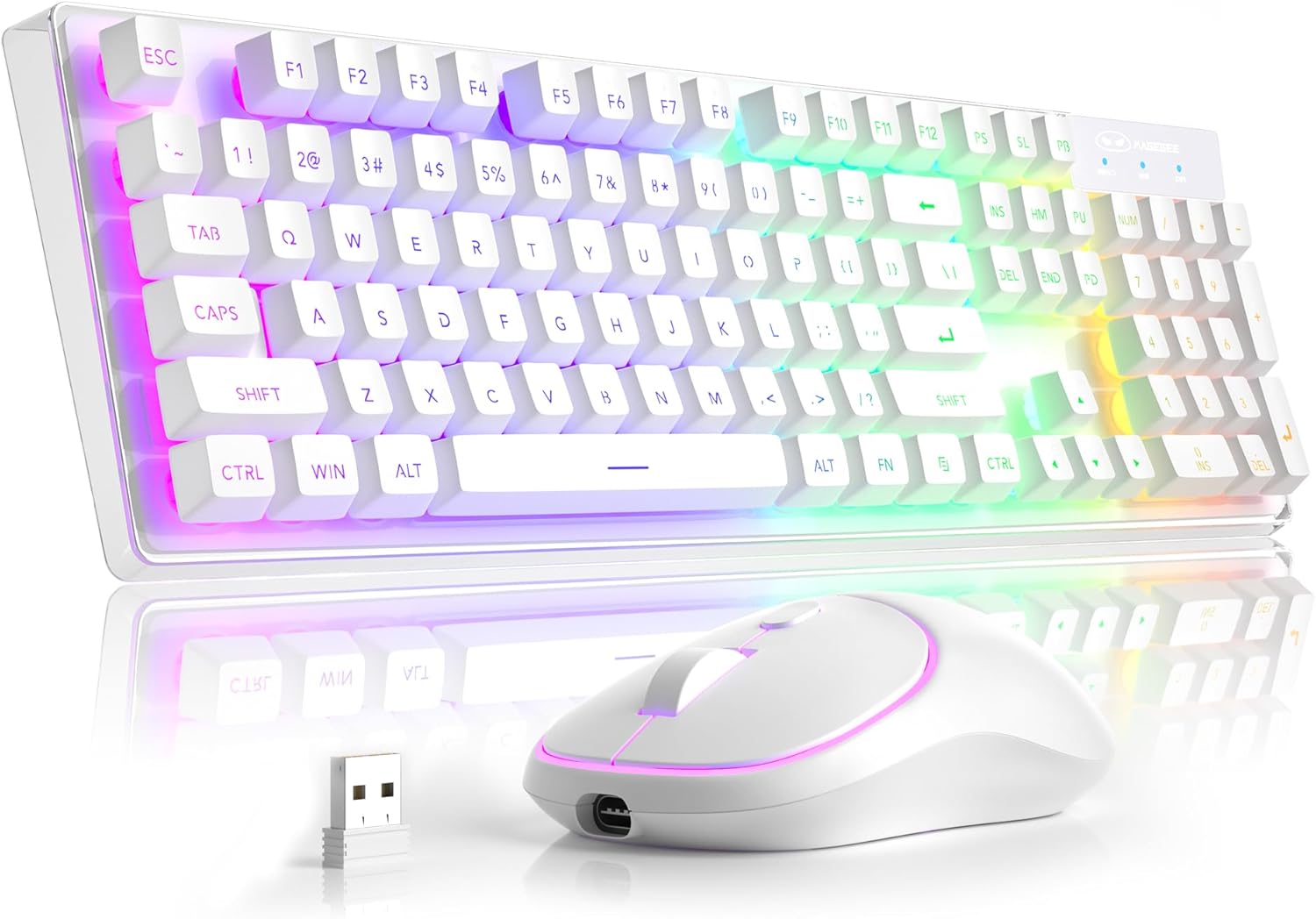
Main Components: The MageGee V550 combo includes a full-sized wireless keyboard and a wireless mouse, both designed for gaming and general computer use. The keyboard features a transparent base and RGB backlighting, while the mouse is compact and includes an RGB light strip.

Single USB Receiver: Both the keyboard and mouse connect wirelessly via a single 2.4G USB receiver. This receiver is conveniently stored in a slot on the bottom of the mouse for safekeeping and portability.

Transparent Housing: The keyboard features a unique transparent base, allowing the RGB backlighting to illuminate not only around the keys but also through the entire keyboard structure, enhancing its visual appeal.

Dynamic RGB Backlight: The keyboard offers multiple lighting settings, including 5 light modes, 7 solid color backlights, and 1 rainbow backlight. Brightness and speed are adjustable, and the backlight can be turned off as needed. The keys are shine-through for visibility in low-light conditions.

Wireless RGB Mouse: The accompanying mouse is lightweight and features a silent click design. It offers three adjustable tracking speed levels (1000-1200-1600 DPI) to suit various user preferences and tasks. An RGB light strip adds to its aesthetic.

USB-C Rechargeable: Both the keyboard and mouse are rechargeable via the included USB Type-C cable, eliminating the need for frequent battery replacements. This design promotes convenience and environmental responsibility.

Product Dimensions: The keyboard measures approximately 17.13 inches in length, 5.4 inches in width, and 1.34 inches in height. The mouse measures approximately 4.45 inches in length, 2.56 inches in width, and 1.42 inches in height.

Bottom Features: The bottom of both the keyboard and mouse feature on/off switches and anti-slip pads. The mouse also houses the USB receiver slot and its charging port. The keyboard has indicators for Win Lock, Num Lock, and Caps Lock.
Setup Instructions
- Locate the USB Receiver: The 2.4G USB receiver is stored in a dedicated slot on the bottom of the wireless mouse. Gently remove it.
- Connect the Receiver: Plug the USB receiver into an available USB port on your computer (PC, Laptop, Desktop, or Notebook).
- Power On Devices: Locate the power switches on the bottom of both the keyboard and the mouse. Turn both switches to the "ON" position.
- Automatic Connection: The keyboard and mouse should automatically connect to your computer. No additional drivers are required.
- Verify Connection: Test the keyboard by typing and the mouse by moving the cursor to ensure they are functioning correctly.
Operating Instructions
Keyboard Functions
- Full-Size Layout: The keyboard features a standard 104-key layout, including a number pad.
- Multimedia Shortcuts: Access 12 multimedia shortcuts for quick control of media playback, volume, and more. Refer to the key legends for specific functions.
- Anti-Ghosting: The keyboard supports 19-key anti-ghosting, ensuring accurate input during fast typing or gaming.
- Win Lock Function: Press FN + F12 to lock the Windows key, preventing accidental presses during gaming.
- WASD and Arrow Key Exchange: Press FN + W to exchange the functions of the WASD keys with the arrow keys.
Mouse Functions
- Tracking Speed Adjustment: The mouse offers 3 tracking speed levels: 1000, 1200, and 1600 DPI. Press the DPI button (usually located near the scroll wheel) to cycle through these settings.
- Silent Click Design: The mouse buttons are designed for quiet operation, minimizing disturbance.
RGB Backlight Control (Keyboard)
The keyboard's dynamic RGB backlight offers various customization options:
- Light Modes: Cycle through 5 different light modes.
- Solid Colors: Choose from 7 solid color backlights.
- Rainbow Backlight: Activate a vibrant rainbow lighting effect.
- Brightness Levels: Adjust between 3 brightness levels to suit your environment.
- Light Speeds: Modify the speed of dynamic lighting effects (4 speeds available).
- Turn Off Backlight: The backlight can be turned off completely at any time.
Specific key combinations for backlight control are typically marked on the keyboard itself, often involving the FN key combined with other function keys (e.g., FN + Scroll Lock, FN + Page Up/Down). Please refer to your keyboard's keycap legends for precise controls.
Charging and Power Saving
- Charging: Use the included USB Type-C cable to charge both the keyboard and the mouse. Connect the cable to the charging port on each device and a USB power source (e.g., computer USB port, wall adapter).
- Battery Indicators: The devices will typically have an indicator light to show charging status and when fully charged.
- Auto-Sleep Mode: To conserve battery life, both the keyboard and mouse feature an auto-sleep mode. If inactive for a period, they will enter a low-power state.
- Waking Up Devices: To wake up the keyboard or mouse from auto-sleep mode, simply click any key or button. This action will not register as an input on your computer screen.
- Separate Power Switches: Each device has its own power switch. Turning off one device will not affect the other. It is recommended to turn off the devices when not in use for extended periods to maximize battery life.
Troubleshooting
| Problem | Possible Cause | Solution |
|---|---|---|
| Keyboard/Mouse not responding |
|
|
| Backlight not working or dim |
|
|
| Mouse cursor erratic or slow |
|
|
| Short battery life |
|
|
Specifications
| Feature | Detail |
|---|---|
| Model Number | V550 |
| Brand | MageGee |
| Connectivity Technology | 2.4G Wireless |
| Keyboard Layout | Full-sized 104-key |
| Keyboard Backlight | Dynamic RGB (5 modes, 7 solid colors, 1 rainbow, 3 brightness, 4 speeds) |
| Mouse DPI Levels | 1000-1200-1600 DPI |
| Charging Port | USB Type-C |
| Compatible Devices | Laptop, Personal Computer (PC, Desktop, Notebook) |
| Keyboard Dimensions (L x W x H) | 17.13 x 5.4 x 1.34 inches |
| Mouse Dimensions (L x W x H) | 4.45 x 2.56 x 1.42 inches |
| Item Weight | 2.18 pounds (combo) |
| Special Features | Backlit, Ergonomic, Rechargeable, Transparent Base, Silent Click Mouse, Auto-Sleep Mode |
Warranty and Support
MageGee products are designed for reliability and performance. For warranty information or technical support, please refer to the contact details provided with your purchase or visit the official MageGee website. Please retain your proof of purchase for warranty claims.
For further assistance, you may contact MageGee Direct, the seller, through the Amazon platform or their official support channels.
Ask a question about this manual
Ask about setup, troubleshooting, compatibility, parts, safety, or missing instructions. Manuals+ will review the question and use this page’s manual context to help answer it.